Can You Update Ram on a Laptop

Yes, you can update RAM on many laptops, but not all of them allow upgrades. Some modern laptops have memory soldered directly to the motherboard, making replacement impossible. However, if your laptop has accessible SODIMM slots, upgrading your memory is one of the easiest and most affordable ways to improve overall speed and multitasking performance.
If your laptop has started to feel sluggish, takes forever to load programs, or struggles when you have multiple browser tabs open, you are probably wondering whether it is time for a new machine. But before you spend hundreds or even thousands of dollars on a replacement, there is a simpler solution worth exploring. Can you update RAM on a laptop? In many cases, the answer is a resounding yes, and doing so can breathe new life into your device without breaking the bank.
Random Access Memory, commonly known as RAM, is the short-term memory your laptop uses to store data that is actively being processed. Think of it like a workspace on a desk. The bigger the desk, the more projects you can spread out and work on at the same time. When you run out of desk space, you have to constantly shuffle papers around, which slows everything down. That is exactly what happens when your laptop runs low on RAM. It starts relying on your hard drive or SSD for temporary storage, which is dramatically slower. Understanding what RAM is good for in a laptop helps you appreciate why upgrading it can make such a noticeable difference in everyday use.
The good news is that updating RAM on a laptop is one of the most cost-effective upgrades you can make. Unlike replacing a processor or a motherboard, swapping out memory modules requires minimal technical skill and very little money. However, the process is not universal. Some laptops welcome upgrades with open arms, while others have their memory permanently attached. In this comprehensive guide, we will walk you through everything you need to know about determining whether your laptop can be upgraded, how to choose the right memory, and how to install it safely.
Key Takeaways
- Not all laptops support RAM upgrades: Many ultrabooks and MacBooks have soldered memory that cannot be replaced or updated.
- Checking compatibility is essential: You need to verify the type, speed, and maximum capacity your laptop’s motherboard supports before purchasing new memory.
- Most gaming and business laptops are upgradeable: Models from brands like Dell, Lenovo, and HP often provide easy access to RAM slots.
- Upgrading RAM is budget-friendly: Compared to buying a new laptop, adding more memory typically costs between $20 and $100.
- The installation process is straightforward: With a small screwdriver and about 10 minutes, most people can complete the upgrade themselves.
- Dual-channel configurations boost performance: Installing two matching RAM sticks delivers better speed than a single stick of the same total capacity.
- Always ground yourself before working: Static electricity can damage sensitive internal components, so take proper precautions.
📑 Table of Contents
How to Determine If Your Laptop RAM Can Be Upgraded
Before you buy any new memory modules, the most important step is figuring out whether your laptop actually allows RAM upgrades. This is where many people make their first mistake. They purchase expensive DDR5 SODIMM sticks only to discover that their laptop’s memory is soldered directly to the motherboard and cannot be removed. Let us look at the best ways to find out what you are working with.
Check Your Laptop’s Official Specifications
The most reliable method is to look up your laptop’s official specifications from the manufacturer. Visit the support page for your exact model number and look for information about memory or RAM. Most manufacturers clearly state whether the memory is upgradeable, how many SO-DIMM slots are available, and what the maximum supported capacity is. For example, many laptops that can be upgraded support anywhere from 16GB to 64GB depending on the model and chipset.
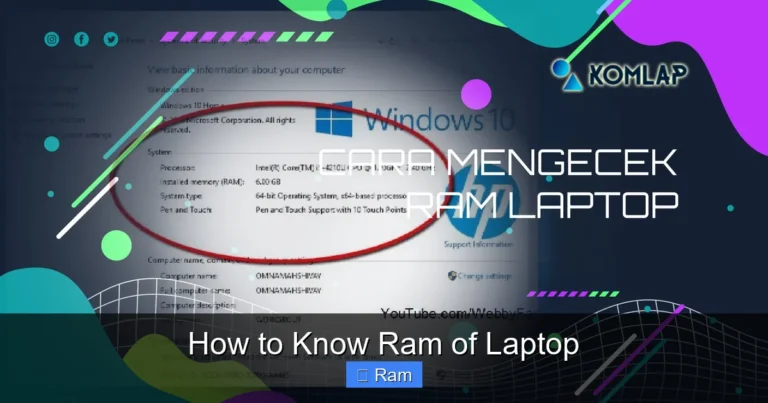
You can also use system information tools built into your operating system. On Windows, open the Task Manager by pressing Ctrl+Shift+Esc, then navigate to the Performance tab and click on Memory. This will show you how many slots are in use, the speed of your current RAM, and the form factor. On a Mac, click the Apple menu, select “About This Mac,” and then click “Memory” to see your current configuration. These built-in tools give you a quick snapshot without opening your laptop.
Soldered vs. SODIMM: Understanding the Difference
Laptop memory comes in two main forms. The first is SODIMM, which stands for Small Outline Dual Inline Memory Module. These are small rectangular sticks that slot into connectors on the motherboard and can be removed or replaced. The second type is soldered RAM, which is permanently attached to the motherboard during manufacturing. Soldered memory cannot be removed or upgraded without specialized equipment, and for most practical purposes, it is considered non-upgradeable.
Ultrabooks, thin-and-light laptops, and Apple’s MacBook lineup almost always use soldered memory to save space and reduce thickness. Gaming laptops, workstation laptops, and budget-friendly models typically use SODIMM slots because users expect to upgrade them over time. If you own a laptop that is less than two years old and falls into the ultrabyte or ultrabook category, there is a reasonable chance the memory is soldered. Always verify before purchasing replacement sticks.
Use System Scanner Tools
Several companies offer free online tools that scan your laptop and tell you exactly what type of memory it supports and whether upgrades are available. Crucial’s System Scanner and Kingston’s Memory Search are two popular options. These tools detect your laptop model, identify compatible memory modules, and show you the maximum capacity your system can handle. They take the guesswork out of the process and are especially helpful if you are not comfortable digging through technical specifications on your own.
How Much RAM Does Your Laptop Actually Need?
Once you have confirmed that your laptop supports RAM upgrades, the next question is how much memory you actually need. More is not always better if you are paying for capacity you will never use. Let us break down common usage scenarios and the recommended RAM amounts for each.
Basic Use: 8GB Is the Minimum
For everyday tasks like web browsing, email, word processing, and streaming video, 8GB of RAM is generally sufficient. If your laptop currently has 4GB and you primarily use it for light tasks, upgrading to 8GB will provide a noticeable improvement. You will be able to keep more browser tabs open, switch between applications more smoothly, and experience fewer slowdowns during routine use. Most budget laptops ship with 8GB today, and this amount remains the baseline for comfortable computing.
Moderate Use: 16GB Hits the Sweet Spot
If you regularly work with large spreadsheets, edit photos, run multiple applications simultaneously, or enjoy casual gaming, 16GB is the sweet spot. This amount of memory gives you plenty of headroom for multitasking without paying a premium for capacity you will not fully utilize. Most power users find that 16GB handles everything they throw at it with ease. For anyone building or buying a laptop intended to last several years, 16GB is a smart investment that future-proofs your machine against increasingly demanding software.
Heavy Use: 32GB and Beyond
Professionals who work with video editing software, 3D rendering applications, virtual machines, or large datasets in scientific computing may benefit from 32GB or even 64GB of RAM. These workloads consume memory rapidly, and running out of RAM can cause crashes or force your system to use painfully slow virtual memory on your storage drive. If you fall into this category, check your laptop’s maximum supported capacity before purchasing, as not all machines can handle 32GB or more. You can learn more about how much RAM a laptop can have in our detailed guide.
Choosing the Right RAM for Your Laptop
Not all laptop memory is created equal. Choosing the wrong type of RAM can result in compatibility issues, system instability, or the memory simply not being recognized. Here is what you need to know before making a purchase.
DDR Generation Compatibility
Each generation of DDR memory has a different physical notch position, which means you cannot accidentally insert the wrong generation into a slot. DDR3, DDR4, and DDR5 are the three most common generations found in laptops today. DDR4 has been the standard for several years and is found in most laptops manufactured between 2015 and 2022. DDR5 is the newest generation and appears in laptops from 2022 onward. DDR3 is older and found in budget or older models. Your laptop will only support one generation, so make sure you buy the correct one.
Speed and Latency
RAM speed is measured in megahertz (MHz) and indicates how quickly the memory can read and write data. Common speeds for DDR4 laptop memory include 2400MHz, 2666MHz, 3200MHz, and 4266MHz. DDR5 speeds start at 4800MHz and go much higher. While faster RAM theoretically delivers better performance, the real-world difference is often minimal unless you are working with memory-intensive applications. Your laptop’s motherboard will dictate the maximum speed it supports, and installing faster RAM than supported will simply cause it to run at the motherboard’s maximum speed.
CAS latency, often labeled as CL, is another specification to consider. It measures the delay between a command being issued and the data being available. Lower latency is better, but the difference in everyday use is negligible. Focus on getting the right generation, capacity, and speed that your laptop supports, and do not stress too much about latency numbers.
Single Channel vs. Dual Channel
For the best performance, install RAM in matched pairs. This enables dual-channel mode, which effectively doubles the communication pathway between the memory and the processor. For example, two 8GB sticks will outperform a single 16GB stick in most scenarios. If your laptop has two SODIMM slots, plan to fill both with identical modules from the same manufacturer. This small detail can yield a meaningful performance boost, especially in gaming and content creation workloads.
How to Physically Upgrade RAM on Your Laptop
Now for the part most people feel nervous about, actually opening up your laptop and installing the new memory. Do not worry. The process is simpler than it sounds, and millions of people do it successfully every year. Here is a step-by-step guide to walk you through it.
What You Will Need
Before starting, gather a few essential tools. You will need a small Phillips-head screwdriver, usually a #0 or #00 size. An anti-static wrist strap is recommended but not strictly necessary if you ground yourself by touching a metal object before handling components. Of course, you will also need your new RAM modules. Work on a clean, flat surface with good lighting, and keep your screws organized so nothing gets lost.
Step-by-Step Installation Process
First, shut down your laptop completely. Do not just put it to sleep or hibernate. Power it off, unplug the charger, and remove the battery if it is removable. Press and hold the power button for about 10 seconds to discharge any residual electricity in the system.
Next, locate the RAM access panel on the bottom of your laptop. Many modern laptops have a dedicated panel held in place by a few screws. Remove the screws and gently pry off the panel. If your laptop does not have a dedicated panel, you may need to remove the entire bottom cover. Be careful with plastic clips that can break if forced.
Once you have access to the memory slots, you will see your existing RAM sticks held in place by small metal clips on each side. Push these clips outward gently, and the RAM stick will pop up at a 45-degree angle. Pull it out carefully by holding the edges. Avoid touching the gold contacts.
To install the new module, align the notch on the bottom of the RAM stick with the key in the slot. Insert it at a 45-degree angle, then press down firmly until the clips snap into place on their own. You should hear a satisfying click. Repeat this process for any additional sticks.
Finally, replace the access panel or bottom cover, reinsert the screws, and reconnect the battery if you removed it. Power on your laptop and check that the system recognizes the new memory. On Windows, open Task Manager and go to the Memory section to verify the total capacity. On Mac, check “About This Mac” under the Apple menu.
If you want a more detailed walkthrough with photos, check out our guide on how to install RAM into a laptop for additional tips and troubleshooting advice.
Common Problems and How to Fix Them
Even when you follow every step correctly, things can occasionally go wrong. Here are the most common issues people encounter after upgrading their laptop RAM and how to resolve them.
Laptop Does Not Boot
If your laptop refuses to turn on or shows a black screen after the upgrade, the most likely cause is improperly seated RAM. Power off the machine, open it back up, and press down firmly on each memory module until the clips fully engage. Also, make sure you purchased the correct DDR generation. A DDR4 stick will not fit in a DDR3 slot, but sometimes people force it and damage the connector.
System Recognizes Only Part of the New RAM
If you installed 16GB but your operating system only shows 8GB, there are a few possible explanations. First, 32-bit versions of Windows are limited to approximately 4GB of addressable memory. You need a 64-bit operating system to use more than 4GB. Second, some laptops have a BIOS limitation that caps the maximum RAM. Check for a BIOS update from the manufacturer that might increase the supported capacity.
Blue Screen Errors After Upgrade
Blue screen errors or random crashes after installing new RAM often indicate a defective module or a compatibility issue. Try running Windows Memory Diagnostic by searching for it in the Start menu. This tool will test your RAM for errors. If it finds problems, try removing one stick at a time to isolate the faulty module. If both sticks test fine individually but cause errors together, they may not be fully compatible with each other or with your laptop.
When You Should Consider Professional Help
While most laptop RAM upgrades are simple enough to handle at home, there are situations where professional assistance makes more sense. If your laptop has a complex internal design that requires removing the keyboard, motherboard, or multiple components just to reach the RAM slots, the risk of accidental damage increases significantly. Some ultrabooks and business-class laptops are notorious for this.
Additionally, if you are uncomfortable working with sensitive electronics or if your laptop is still under warranty and you are concerned about voiding it, taking it to a professional is a wise choice. Many electronics repair shops offer RAM installation services for a modest fee, often between $25 and $75 on top of the cost of the memory itself. The peace of mind is well worth the small additional expense.
Conclusion
So, can you update RAM on a laptop? For many laptop owners, the answer is a clear yes, and doing so is one of the smartest upgrades you can make. It is affordable, relatively simple, and delivers immediate, tangible improvements in speed and multitasking capability. The key is to first verify that your laptop supports upgrades, choose the correct type and amount of memory, and follow proper installation procedures.
Whether you are a student looking to speed up research sessions, a professional who needs more headroom for demanding applications, or simply someone tired of watching your laptop struggle with basic tasks, a RAM upgrade can transform your daily computing experience. Take a few minutes to check your laptop’s specifications, invest in compatible memory, and enjoy the performance boost that comes with having enough RAM to handle everything you need.
Frequently Asked Questions
Can all laptop RAM be upgraded?
No, not all laptops support RAM upgrades. Many ultrabooks, MacBooks, and thin-and-light models have memory soldered to the motherboard. Always check your specific model’s specifications before purchasing new memory.
How do I know what type of RAM my laptop needs?
You can use system information tools like Crucial’s System Scanner or check your laptop’s official specifications on the manufacturer’s website. The Task Manager on Windows also shows your current RAM type and speed under the Performance tab.
Is upgrading laptop RAM worth it?
Absolutely. Upgrading RAM is one of the most cost-effective improvements you can make. It typically costs between $20 and $100 and can significantly improve multitasking speed and overall system responsiveness.
Can I mix different brands of RAM in my laptop?
While mixing brands can sometimes work, it is not recommended. Using identical sticks from the same manufacturer ensures the best compatibility and stability. Mismatched RAM can cause crashes or prevent dual-channel mode from working.
How much RAM does a typical laptop need in 2024?
For most users, 16GB is the ideal amount in 2024. It handles web browsing, office work, photo editing, and casual gaming with ease. Basic users can manage with 8GB, while power users and professionals may benefit from 32GB or more.
Will upgrading my RAM void my laptop warranty?
It depends on the manufacturer. Some brands allow user upgrades without affecting the warranty, while others consider opening the chassis a violation. Check your warranty terms before proceeding, or have a professional perform the upgrade.