8gb Ram Laptop Windows 11
8GB RAM laptops running Windows 11 are the sweet spot for everyday users, offering solid performance for browsing, office work, and light multitasking. While power users may want more memory, 8GB remains a practical and budget-friendly choice for millions of people worldwide.
Key Takeaways
- Windows 11 Requirements: Microsoft officially requires 4GB RAM minimum, but 8GB delivers a noticeably smoother experience.
- Everyday Performance: 8GB RAM handles web browsing, email, streaming, and office applications without issues.
- Multitasking Limits: Heavy multitasking with 20+ browser tabs and multiple apps may cause slowdowns on 8GB.
- Upgrade Potential: Many laptops allow RAM upgrades, so you can start with 8GB and expand later.
- Budget-Friendly: 8GB RAM laptops are significantly cheaper than 16GB models, making them ideal for students and budget buyers.
- SSD Pairing Matters: Pairing 8GB RAM with an SSD dramatically improves overall system responsiveness.
- Not Ideal for Heavy Tasks: Video editing, gaming, and 3D rendering typically require 16GB or more for optimal performance.
📑 Table of Contents
- Understanding 8GB RAM Laptops with Windows 11
- Is 8GB RAM Enough for Windows 11?
- How 8GB RAM Performs in Real-World Scenarios
- Choosing the Right 8GB RAM Laptop with Windows 11
- Upgrading RAM: Can You Add More Later?
- Optimizing Windows 11 for 8GB RAM
- Comparing 8GB RAM with Other Memory Configurations
- Best 8GB RAM Laptops for Windows 11 in 2024
- Common Myths About 8GB RAM Laptops
- Conclusion
Understanding 8GB RAM Laptops with Windows 11
If you are shopping for a new laptop, you have probably noticed that 8GB RAM is one of the most common configurations available today. It sits right in the middle between budget 4GB models and premium 16GB machines. But what does that actually mean for your day-to-day experience with Windows 11? Let us break it all down in plain, simple terms so you can make the best decision for your needs and budget.
Windows 11 is Microsoft’s latest operating system, and it brings a fresh design, better security, and improved performance. However, it also demands more resources than older versions like Windows 10. That is why having enough RAM matters more than ever. RAM, or Random Access Memory, is your laptop’s short-term memory. It stores the data your computer needs right now so everything runs quickly and smoothly. Without enough RAM, your laptop slows down, freezes, and struggles to keep up with even basic tasks.
An 8GB RAM laptop running Windows 11 is a popular choice because it strikes a great balance between cost and capability. For most people, it provides enough memory to handle everyday computing tasks without breaking the bank. Whether you are a student, a remote worker, or someone who mainly uses a laptop for browsing and entertainment, 8GB is often the perfect starting point. Let us explore the details further so you know exactly what to expect.
Is 8GB RAM Enough for Windows 11?
This is the big question everyone asks, and the honest answer is: it depends on what you do with your laptop. For the average user, 8GB of RAM is absolutely enough to run Windows 11 comfortably. You can open multiple browser tabs, stream videos, work on documents, and even do light photo editing without any major issues.
What Windows 11 Actually Uses
Windows 11 itself uses about 3 to 4GB of RAM just to run the operating system. That leaves you with roughly 4 to 5GB for your applications. For most everyday tasks, that is plenty. A web browser like Chrome or Edge might use 1 to 2GB with several tabs open. A word processor or spreadsheet app uses much less. So you still have room to breathe.
However, if you are the type of person who keeps dozens of browser tabs open while running multiple applications simultaneously, you might start to feel the squeeze. When RAM runs out, your laptop starts using your hard drive or SSD as virtual memory, which is much slower. This is when you notice lag, stuttering, and apps taking longer to respond.
Who Should Choose 8GB RAM
8GB RAM is perfect for students who need a laptop for research, writing papers, and attending online classes. It is great for office workers who rely on email, spreadsheets, and video conferencing tools. Casual users who browse social media, watch Netflix, and shop online will also find 8GB more than sufficient. If your workflow falls into these categories, an 8GB RAM laptop with Windows 11 will serve you well for years to come.
On the other hand, if you are a content creator, software developer, or serious gamer, you might want to consider stepping up to 16GB. These activities are much more memory-intensive, and the extra RAM will make a noticeable difference in your productivity and overall experience. You can explore options like the 16GB RAM Windows laptop if you need that extra headroom.
How 8GB RAM Performs in Real-World Scenarios
Let us get practical and look at how an 8GB RAM laptop handles some common real-world scenarios. This will give you a clear picture of what to expect from your daily computing experience.
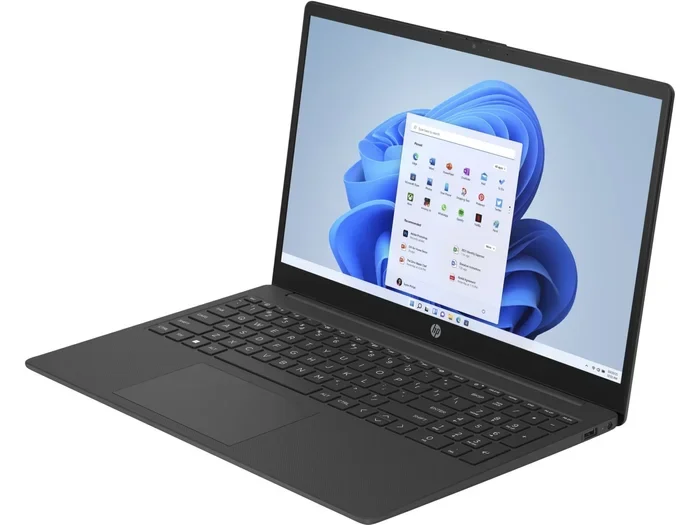
Visual guide about 8gb Ram Laptop Windows 11
Image source: thumb.photo-ac.com
Web Browsing and Online Activities
Web browsing is one of the most common activities on any laptop. With 8GB of RAM, you can comfortably keep 10 to 15 browser tabs open without any slowdown. Streaming YouTube or Netflix in high definition works flawlessly. Online shopping, checking social media, and reading news articles are all smooth experiences. Even if you have a video call running in the background while browsing, your laptop should handle it just fine.
Office Work and Productivity
For office work, 8GB RAM is more than adequate. Microsoft Office applications like Word, Excel, and PowerPoint run smoothly on 8GB. Google Workspace apps in the browser also work well. You can have a spreadsheet open alongside a document and a presentation without any issues. Email clients, calendar apps, and note-taking tools all run effortlessly. If your work involves basic data entry, report writing, or managing schedules, 8GB will not let you down.
Light Photo and Video Editing
Light photo editing with tools like Canva or basic Photoshop is possible on 8GB of RAM. You can edit photos, create social media graphics, and make simple video edits without major problems. However, working with large RAW files or editing long video sequences will push 8GB to its limits. For those tasks, more RAM and a dedicated graphics card are recommended.
Gaming on 8GB RAM
Casual gaming works fine on 8GB RAM. Older games and less demanding titles like Minecraft, Among Us, or indie games run smoothly. However, modern AAA games often recommend 16GB or more for the best experience. You might be able to run them on 8GB, but you could encounter longer loading times, frame drops, and occasional stuttering. If gaming is a priority, consider looking at options like a gaming laptop with 16GB RAM for a better experience.
Choosing the Right 8GB RAM Laptop with Windows 11
Not all 8GB RAM laptops are created equal. The processor, storage type, and build quality all play important roles in your overall experience. Here is what to look for when choosing the best 8GB RAM laptop for Windows 11.
Processor Matters
The processor is the brain of your laptop, and it works hand in hand with RAM to deliver performance. For an 8GB RAM laptop, look for at least an Intel Core i3 or AMD Ryzen 3 processor. These offer good performance for everyday tasks without adding too much to the cost. If your budget allows, an Intel Core i5 or AMD Ryzen 5 will give you even more headroom for multitasking and slightly more demanding applications.
Avoid older or very low-power processors like Intel Celeron or Atom chips. They may be cheap, but they will make even 8GB of RAM feel sluggish because the processor itself becomes the bottleneck. You want a balanced system where neither the processor nor the RAM holds the other back.
SSD vs HDD: Why Storage Type Is Critical
This is one of the most important things to consider. An SSD, or Solid State Drive, is dramatically faster than a traditional HDD. If you are buying an 8GB RAM laptop, make sure it comes with an SSD. The combination of 8GB RAM and an SSD will give you a fast, responsive experience that feels much more premium than the specs suggest.
A laptop with 8GB RAM and a 256GB SSD is an excellent configuration for most users. The SSD ensures that Windows 11 boots quickly, apps launch fast, and files open without delay. You can learn more about this popular setup by checking out our guide on laptops with 8GB RAM and 256GB SSD. Avoid laptops that only offer a traditional hard drive as their primary storage, as this will significantly slow down your experience regardless of how much RAM you have.
Display and Build Quality
Since you will be spending hours looking at your laptop screen, display quality matters. Look for at least a Full HD (1920×1080) resolution display. IPS panels offer better viewing angles and color accuracy compared to TN panels. A 14-inch or 15.6-inch screen is a good size for most users, offering a comfortable balance between portability and usability.
Build quality is also important, especially if you plan to carry your laptop around. A sturdy chassis, comfortable keyboard, and responsive touchpad make a big difference in daily use. Battery life is another key factor. Look for a laptop that offers at least 6 to 8 hours of battery life so you can work or study without constantly searching for a power outlet.
Upgrading RAM: Can You Add More Later?
One of the great things about many laptops is the ability to upgrade RAM after purchase. This means you can start with 8GB now and add more memory later when your needs grow or when you have a bigger budget. But not all laptops support upgrades, so it is important to know what you are buying.
Visual guide about 8gb Ram Laptop Windows 11
Image source: nakano-seiyaku.co.jp
How to Check If Your Laptop Supports RAM Upgrades
Before buying a laptop, check the manufacturer’s specifications to see if the RAM is soldered to the motherboard or if it uses removable slots. Soldered RAM cannot be upgraded, while slotted RAM can be replaced or added to. Many budget and mid-range laptops still offer at least one accessible RAM slot, which is great news for future-proofing.
You can also check the laptop’s manual or look for teardown videos online. These resources will show you exactly how to access the RAM slots and what type of memory is compatible. If upgradability is important to you, prioritize laptops that make this process easy and straightforward.
Steps to Upgrade Your Laptop RAM
Upgrading RAM is one of the easiest and most cost-effective ways to improve your laptop’s performance. First, make sure you buy the correct type of RAM. Most modern laptops use DDR4 or DDR5 SO-DIMM modules. Check your laptop’s specifications to confirm the type and speed you need.
Next, power off your laptop and remove the back panel. Locate the RAM slots, and if there is an empty slot, simply insert the new RAM module at an angle and press it down until it clicks into place. If you are replacing existing RAM, gently push the retention clips to release the old module, then insert the new one. After reassembling your laptop, power it on and check that the new memory is detected in Windows.
If you are not comfortable doing this yourself, most computer repair shops can handle the upgrade for a small fee. It is a quick process that usually takes less than 15 minutes. For a detailed walkthrough, you can refer to our guide on how to upgrade RAM on a laptop.
Optimizing Windows 11 for 8GB RAM
Even with 8GB of RAM, there are several things you can do to optimize Windows 11 and get the best possible performance. These tips will help you keep your laptop running smoothly without spending any extra money.
Visual guide about 8gb Ram Laptop Windows 11
Image source: carpaints.co
Disable Startup Programs
One of the easiest ways to free up RAM is to disable unnecessary startup programs. When you install new software, many programs automatically set themselves to launch when Windows starts. Over time, this can eat up a significant portion of your available memory. To manage startup programs, open Task Manager by pressing Ctrl+Shift+Esc, click on the Startup tab, and disable any programs you do not need running at boot.
Use Windows 11’s Built-In Performance Tools
Windows 11 includes several built-in tools to help manage performance. The Storage Sense feature automatically cleans up temporary files and empties the recycle bin, freeing up disk space. The Memory Diagnostic tool can help identify RAM issues if you are experiencing crashes or instability. You can also adjust visual effects for better performance by going to System Properties and choosing the “Adjust for best performance” option.
Keep Your System Updated
Microsoft regularly releases updates for Windows 11 that include performance improvements and bug fixes. Keeping your system updated ensures you benefit from these optimizations. Enable automatic updates so you never miss important patches. Also, keep your drivers updated, especially graphics and chipset drivers, as outdated drivers can cause performance issues and memory leaks.
Manage Browser Memory Usage
Web browsers are often the biggest consumers of RAM on any laptop. To reduce memory usage, limit the number of open tabs and use browser extensions that suspend inactive tabs. Microsoft Edge is generally more memory-efficient than Chrome, so consider switching if you notice high memory usage. You can also enable the “Sleeping Tabs” feature in Edge, which automatically puts inactive tabs to sleep to free up resources.
Comparing 8GB RAM with Other Memory Configurations
To help you make an informed decision, let us compare 8GB RAM with other common memory configurations. Each has its own strengths and ideal use cases.
4GB vs 8GB RAM
4GB RAM is the bare minimum for Windows 11, and honestly, it is not a great experience. With only 4GB, the operating system itself consumes most of your available memory, leaving very little for applications. You will notice frequent slowdowns, especially when multitasking. If you have the choice, always go for 8GB over 4GB. The price difference is usually small, but the performance improvement is significant.
8GB vs 16GB RAM
This is the most common comparison, and it really comes down to your specific needs. For everyday tasks, 8GB and 16GB feel very similar. The difference becomes apparent when you push your laptop harder. With 16GB, you can run more applications simultaneously, work with larger files, and enjoy smoother performance during demanding tasks. If you are a power user, the extra investment in 16GB is well worth it. For casual users, 8GB remains the smarter financial choice.
16GB vs 32GB RAM
32GB of RAM is overkill for most users. It is primarily aimed at professionals who work with large datasets, run virtual machines, or do heavy video editing and 3D rendering. Unless you have a specific need for this much memory, 16GB is more than enough for even demanding workflows. The money saved can be better spent on other components like a better processor or a larger SSD.
Best 8GB RAM Laptops for Windows 11 in 2024
While specific models change frequently, there are certain categories and brands that consistently deliver great 8GB RAM laptops with Windows 11. Here are some recommendations based on different needs and budgets.
Visual guide about 8gb Ram Laptop Windows 11
Image source: images.examples.com
Best for Students
Students need a laptop that is portable, affordable, and capable of handling research, writing, and online classes. Look for a 14-inch laptop with an Intel Core i3 or i5 processor, 8GB RAM, and a 256GB SSD. Brands like Acer, Lenovo, and HP offer excellent options in this category. The HP laptop with Windows 11 and 8GB RAM is a solid choice that balances performance and affordability for students.
Best for Office Work
For office professionals, reliability and comfort are key. A laptop with a comfortable keyboard, good display, and long battery life will serve you well. Business-class laptops from Lenovo’s ThinkPad line or Dell’s Latitude series often come with 8GB RAM and offer excellent build quality. These machines are designed for productivity and can handle email, spreadsheets, video calls, and document editing with ease.
Best Budget Option
If you are on a tight budget, you can still find excellent 8GB RAM laptops for under $400. Brands like Acer and ASUS offer models with 8GB RAM and SSD storage at very competitive prices. These laptops may not have premium features like metal chassis or high-resolution displays, but they deliver solid performance for everyday tasks. Just make sure to choose a model with an SSD rather than a hard drive for the best experience.
Common Myths About 8GB RAM Laptops
There are several misconceptions about 8GB RAM laptops that deserve to be addressed. Let us clear up some of the most common myths.
Visual guide about 8gb Ram Laptop Windows 11
Image source: c8.alamy.com
Myth: 8GB Is Not Enough for Windows 11
This is simply not true for most users. While Windows 11 can benefit from more RAM in certain scenarios, 8GB is perfectly adequate for everyday computing. Millions of people use 8GB RAM laptops with Windows 11 every day without any problems. The key is to pair it with an SSD and manage your applications wisely.
Myth: More RAM Always Means Better Performance
While more RAM can help in specific situations, it is not a magic solution for all performance issues. If your processor is slow or you are using a traditional hard drive, adding more RAM will not fix the underlying bottleneck. A balanced system with a good processor, SSD, and adequate RAM will always outperform a lopsided configuration.
Myth: You Need 16GB for Windows 11
Microsoft’s official minimum requirement for Windows 11 is 4GB of RAM. While 16GB is recommended for power users and demanding applications, it is not a requirement for the operating system to function properly. 8GB is a practical and sufficient choice for the majority of users.
Conclusion
An 8GB RAM laptop running Windows 11 is an excellent choice for most people. It offers the right balance of performance, affordability, and capability for everyday computing tasks. Whether you are a student, an office worker, or a casual user, 8GB of RAM paired with an SSD will give you a smooth and enjoyable experience.
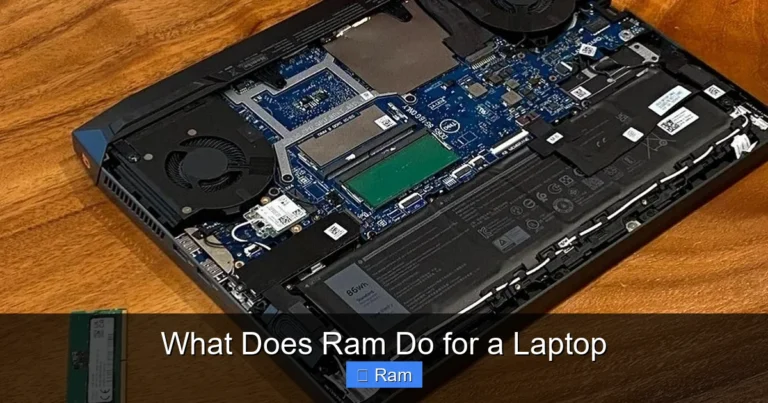
Visual guide about 8gb Ram Laptop Windows 11
Image source: i.ytimg.com
Remember to choose a laptop with a good processor and fast SSD storage to complement your 8GB of RAM. If you find that you need more memory down the road, many laptops allow for easy upgrades. And by following the optimization tips we discussed, you can squeeze every bit of performance out of your machine.
At the end of the day, the best laptop is the one that meets your needs without overspending. For millions of users around the world, an 8GB RAM laptop with Windows 11 is exactly that. It is reliable, capable, and ready to handle whatever your daily life throws at it. Happy laptop shopping!
Frequently Asked Questions
Is 8GB RAM enough for Windows 11?
Yes, 8GB RAM is enough for Windows 11 for most everyday tasks including web browsing, office work, and streaming. While power users may benefit from 16GB, 8GB handles daily computing needs comfortably.
Can I upgrade from 8GB to 16GB RAM later?
Many laptops allow RAM upgrades, but it depends on the specific model. Some laptops have soldered RAM that cannot be upgraded, while others have accessible slots. Check your laptop’s specifications before purchasing to confirm upgrade options.
What is the minimum RAM required for Windows 11?
Microsoft’s official minimum requirement for Windows 11 is 4GB of RAM. However, 8GB is recommended for a smooth experience, as the operating system itself uses about 3 to 4GB of memory.
Does an SSD make a difference with 8GB RAM?
Absolutely. An SSD dramatically improves system responsiveness, boot times, and application loading speeds. Pairing 8GB RAM with an SSD creates a much faster experience than 8GB RAM with a traditional hard drive.
Can I game on an 8GB RAM laptop with Windows 11?
Casual and older games run fine on 8GB RAM, but modern AAA games often recommend 16GB for optimal performance. You may experience longer loading times and frame drops with demanding titles on 8GB.
How do I check how much RAM my laptop has?
You can check your RAM by pressing Ctrl+Shift+Esc to open Task Manager, then clicking on the Performance tab and selecting Memory. Alternatively, go to Settings, then System, and click About to see your installed RAM.