Dell Laptop Battery Says 100 but Dies When Unplugged
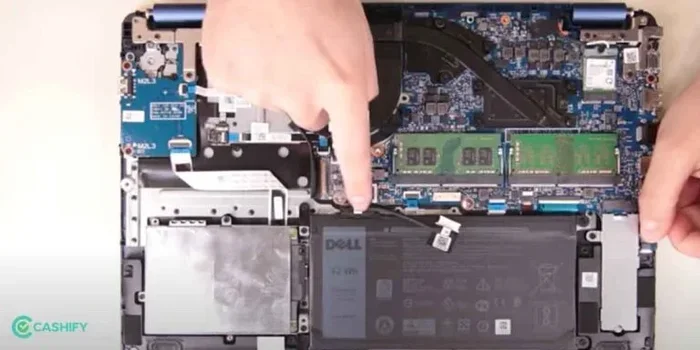
A Dell laptop battery showing 100% but dying when unplugged is a frustrating problem many users face. This issue usually stems from a degraded battery, incorrect power settings, or the need for a simple battery calibration. In this guide, we walk you through easy fixes that can restore your Dell laptop battery life and keep your device running smoothly on the go.
Key Takeaways
- Battery Calibration Fixes: A full charge-discharge cycle can reset your battery percentage and solve false 100% readings.
- Power Settings Matter: Incorrect Windows power plans can cause rapid battery drain even when fully charged.
- Battery Health Declines Over Time: Lithium-ion batteries lose capacity after hundreds of charge cycles, leading to sudden shutdowns.
- Driver and Firmware Updates Help: Outdated BIOS or battery drivers can cause inaccurate battery reporting.
- Replacement May Be Needed: If your battery is old or physically damaged, a new one is the most reliable solution.
- Quick Tips Save Battery: Simple tweaks like lowering screen brightness and closing background apps extend Dell laptop battery life significantly.
📑 Table of Contents
- Why Does Your Dell Laptop Battery Say 100% But Die When Unplugged?
- Common Reasons Your Dell Battery Dies Fast
- How to Fix a Dell Laptop Battery That Dies When Unplugged
- When Should You Replace Your Dell Laptop Battery?
- Tips to Extend Your Dell Laptop Battery Life
- Quick Tips for Immediate Relief
- How Battery Health Affects Overall Dell Laptop Performance
- Comparison: Common Dell Laptop Battery Issues and Fixes
- Expert Insights on Dell Laptop Battery Maintenance
- Conclusion
Why Does Your Dell Laptop Battery Say 100% But Die When Unplugged?
You plug in your Dell laptop and the battery icon shows a full charge. You unplug it confidently. Then, within minutes, your screen goes dark. This is one of the most common and annoying problems Dell laptop users face. You are not alone, and there is almost always a fix.
The issue usually comes down to one of a few culprits. Your battery might be old and worn out. Your power settings could be misconfigured. Or your battery might just need a simple calibration. Let us walk through each cause and the exact steps to fix it.
Many people assume a full battery percentage means the battery is healthy. That is not always true. A Dell laptop battery can report 100% while holding very little actual charge. This happens when the battery’s capacity has degraded over time. Understanding why this happens is the first step toward solving it.
Before we dive into fixes, let us talk about what a healthy Dell laptop battery should do. A good battery should last anywhere from 2 to 8 hours depending on your model, usage, and power settings. If your Dell laptop dies in under 10 minutes on battery, something is definitely wrong. The good news is that most causes are easy to address without spending a dime.
Common Reasons Your Dell Battery Dies Fast
Several factors can cause your Dell laptop battery to show a full charge but die almost instantly. Here are the most common reasons:
1. Battery Degradation Over Time
Every lithium-ion battery has a limited number of charge cycles. A charge cycle happens when you use 100% of your battery capacity. Most Dell laptop batteries are rated for 300 to 1000 cycles. After that, the battery physically cannot hold as much charge. This is a natural part of battery aging.
If your Dell laptop is more than 2 to 3 years old, battery wear is very likely. You can check your battery health in Windows by running a command in the Command Prompt. Type powercfg /batteryreport and press Enter. This generates a detailed report showing your battery’s design capacity versus its current full charge capacity. If the current capacity is way below the design capacity, your battery is worn out.
2. Incorrect Power Settings
Sometimes the problem is not the battery at all. It is your Windows power plan. If your power settings are set to drain the battery quickly, even a full charge will not last long. High screen brightness, aggressive processor performance, and background apps all eat up battery power fast.
When you compare a Dell laptop i5 8gb ram setup to a higher-end model, the battery drain patterns can differ. But even powerful machines like the Dell laptop i7 16gb ram can suffer from poor power settings. The key is to optimize what your laptop does when running on battery power.
3. Battery Calibration Issues
Your laptop’s battery sensor can lose track of how much charge the battery actually holds. This is called a calibration problem. When calibration drifts, your battery icon might show 100% when the real charge is much lower. Or it might shut down suddenly at 15%. Calibration fixes this by teaching the system what a full and empty battery really looks like.
4. Outdated Drivers or BIOS
Dell releases regular updates for its laptops. These updates often include fixes for battery reporting and power management. If your BIOS or battery driver is outdated, your laptop might misread the battery level. An old driver can also cause the battery to drain irregularly or shut down without warning.
5. Background Apps and Processes
Many apps run in the background even when you are not using them. These apps consume power and can drain your battery surprisingly fast. Cloud sync services, antivirus scans, and software updates all run silently and eat up your charge. On a Dell laptop i5 8gb ram or similar configuration, background processes can cut your battery life in half.
How to Fix a Dell Laptop Battery That Dies When Unplugged
Now that you know the common causes, let us get into the fixes. Try these steps in order. Most users find that one or two of these solutions solve the problem completely.
Step 1: Calibrate Your Dell Battery
Battery calibration is the single most effective fix for a battery that shows 100% but dies immediately. Here is how to do it:
- Plug your Dell laptop into power and let it charge to 100%.
- Unplug the laptop and use it normally until it shuts down by itself.
- Leave the laptop turned off for at least 2 hours.
- Plug it back in and charge it to 100% without turning it on.
- Turn the laptop on and check if the battery percentage now reads accurately.
This full cycle resets the battery’s internal sensor. It tells the system exactly what 0% and 100% really mean. Many users report that this simple process fixes the false 100% reading entirely.
Step 2: Adjust Your Power Settings
Tweaking your power plan can dramatically improve battery life. Here is what to do:
- Go to Settings > System > Power & Sleep.
- Click on Additional Power Settings.
- Select the Balanced plan or create a custom power plan.
- Reduce your screen brightness to 50% or lower.
- Set the hard drive and sleep timers to turn off sooner.
- Enable Battery Saver mode when running on battery.
These small changes add up. A Dell laptop with optimized power settings can easily gain an extra hour or more of runtime. If you want to see how much power different components draw, check out this guide on how much power does a laptop use when plugged in. It helps you understand where your energy goes.
Step 3: Update Your BIOS and Battery Drivers
Dell makes it easy to update your laptop’s software. Follow these steps:
- Open Dell SupportAssist on your laptop.
- Run a full system scan for updates.
- Install any BIOS or driver updates related to power management.
- Restart your laptop after the updates are complete.
If you do not have Dell SupportAssist, you can visit Dell’s official website and search for your laptop model. Download the latest battery driver and BIOS update manually. Keeping your software up to date is one of the easiest ways to maintain Dell laptop battery health.
Step 4: Check for Background Apps
Background apps are sneaky battery killers. Here is how to manage them:
- Go to Settings > Apps > Installed Apps.
- Sort apps by battery usage.
- Disable or uninstall apps you do not need.
- Go to Settings > Privacy > Background Apps.
- Turn off background activity for apps you do not need running.
This alone can extend your battery life by 20 to 40%. Apps like Spotify, Microsoft Teams, and Adobe Creative Cloud are common culprits. They keep running even when you close their windows.
Step 5: Run Windows Battery Troubleshooter
Windows has a built-in tool that can detect and fix common battery problems:
- Go to Settings > System > Troubleshoot > Other Troubleshooters.
- Find Battery and click Run.
- Follow the on-screen instructions.
- Apply any recommended fixes.
The troubleshooter checks for common issues like incorrect power plans, driver problems, and battery reporting errors. It is a quick and easy first step before trying more advanced fixes.
When Should You Replace Your Dell Laptop Battery?
Sometimes the battery is simply too old or damaged to recover. Here are signs that replacement is the right move:
- Your battery report shows current capacity is less than 50% of design capacity.
- Your laptop gets physically swollen or the back panel is bulging.
- Your battery drains in under 5 minutes even after calibration.
- Windows shows a “consider replacing your battery” warning.
- Your laptop only works reliably when plugged in.
Dell sells genuine replacement batteries for most of its models. You can also find compatible third-party batteries at lower prices. When shopping for a new battery, make sure it matches your exact Dell model number. A Dell laptop i5 8gb ram uses different batteries than a Dell i7 model. Check your model number on the bottom of your laptop or in your System Information before ordering.
If you are looking for a new Dell laptop altogether, check out our guide on the best Dell laptop computer for home use. It covers top picks with strong battery life and reliable performance.
Tips to Extend Your Dell Laptop Battery Life
Prevention is always better than cure. Here are simple habits that keep your Dell laptop battery healthy for years:
1. Avoid Extreme Temperatures
Heat is the enemy of lithium-ion batteries. Do not leave your Dell laptop in a hot car or in direct sunlight for long periods. Cold temperatures can also temporarily reduce battery performance. Keep your laptop in a cool, dry place.
2. Do Not Always Charge to 100%
Keeping your battery at 100% all the time puts stress on the cells. Ideally, charge your laptop to 80% and let it drain to 20% before recharging. This range puts the least strain on the battery and extends its overall lifespan.
3. Use Dell Power Manager
Dell laptops come with Dell Power Manager, a handy tool that lets you customize battery charging behavior. You can set it to stop charging at 80%, which reduces battery wear. This is one of the best free tools for maintaining Dell laptop battery health long-term.
4. Reduce Screen Brightness
Your display is one of the biggest battery hogs. Lowering your screen brightness by even 20% can add significant minutes to your battery life. Use auto-brightness when possible so the laptop adjusts based on your environment.
5. Unplug Unnecessary Peripherals
USB drives, external monitors, and charging phones all draw power from your Dell laptop. When running on battery, disconnect anything you are not actively using. Every small reduction in power draw adds up.
Quick Tips for Immediate Relief
If your Dell laptop battery dies right now and you need a quick fix, try these:
- Turn on Battery Saver mode immediately. This limits background activity and reduces power consumption.
- Lower your screen brightness to the minimum comfortable level.
- Close all unnecessary apps and browser tabs.
- Turn off Wi-Fi and Bluetooth if you do not need them.
- Switch to a dark wallpaper and dark mode if you have an OLED or AMOLED display.
- Plug in your laptop and let it charge for at least 30 minutes before trying to use it again.
These quick fixes give you more time to work on a permanent solution. They are not long-term fixes, but they can save you in a pinch.
How Battery Health Affects Overall Dell Laptop Performance
Your battery does more than just provide portable power. It also affects how your Dell laptop performs overall. A degraded battery can cause unexpected shutdowns, slow charging, and even system instability. When the battery cannot deliver consistent power, your laptop’s processor may throttle to protect itself.
This means your Dell laptop might run slower on battery than it does when plugged in. You might also notice your laptop getting hotter than usual. These are all signs that your battery is struggling. Addressing battery health early can prevent bigger problems down the road.
For users who rely on their Dell laptops for work or school, a healthy battery is essential. If you are running a Dell core i7 16gb ram laptop, you expect solid performance both plugged in and on battery. A failing battery undermines that experience no matter how powerful the rest of your system is.
Comparison: Common Dell Laptop Battery Issues and Fixes
| Problem | Likely Cause | Best Fix |
|---|---|---|
| Battery shows 100% but dies in minutes | Battery calibration or degradation | Calibrate battery or replace |
| Battery drains fast after full charge | Background apps or power settings | Adjust power plan and close apps |
| Laptop shuts down at 20% or higher | Battery sensor miscalibration | Full charge-discharge cycle |
| Battery will not charge past 80% | Battery saver mode or old battery | Disable battery limiter or replace |
| Battery icon disappears | Driver issue or BIOS problem | Update battery driver and BIOS |
| Laptop only works when plugged in | Severely degraded battery | Replace battery |
Use this table to quickly identify your problem and find the right fix. Most issues have simple solutions you can try at home.
Expert Insights on Dell Laptop Battery Maintenance
Battery experts recommend treating your Dell laptop battery like any other consumable part. Just like you change the oil in your car, you should monitor and maintain your battery over time. Dell engineers suggest checking your battery report every few months. This keeps you aware of any declining capacity before it becomes a problem.
Another expert tip is to avoid leaving your laptop plugged in 24/7. While modern Dell laptops have smart charging features that stop charging at 100%, it is still better for the battery to go through regular charge cycles. A Dell laptop i5 8gb ram or any other model benefits from this habit. If you always keep your laptop plugged in, consider using a charge limit feature if your model supports it.
Dell’s own support pages also recommend using only Dell-certified chargers and batteries. Third-party accessories can sometimes cause compatibility issues that mimic battery problems. If you are experiencing strange battery behavior after switching chargers, try switching back to the original Dell charger to see if the problem resolves.
For those considering a new setup, models like the Dell laptop i5 8gb ram offer reliable battery performance for everyday tasks. Understanding your battery’s behavior helps you get the most out of whatever Dell machine you own.
Conclusion
A Dell laptop battery that says 100% but dies when unplugged is almost always fixable. Start with calibration and power settings. Move on to driver updates and background app management. If none of that works, your battery may simply be old and ready for replacement.
The key is to act quickly. Ignoring the problem will not fix it, and a degraded battery can cause other issues over time. By following the steps in this guide, you give your Dell laptop the best chance of running reliably on battery again.
Take care of your Dell laptop battery today, and it will serve you well for years to come. Your laptop is a significant investment, and keeping the battery healthy is one of the simplest ways to protect that investment.
Frequently Asked Questions
Why does my Dell laptop show 100% battery but turn off immediately?
This usually means your battery is degraded and cannot hold a real charge even though the sensor reads full. Try calibrating your battery first by doing a full charge-discharge cycle. If that does not work, the battery likely needs to be replaced.
How do I check my Dell laptop battery health?
Open Command Prompt and type powercfg /batteryreport then press Enter. Open the generated HTML file to see your battery’s design capacity and current full charge capacity. If the current capacity is significantly lower, your battery is wearing out.
Can I use my Dell laptop without a battery?
Yes, you can use your Dell laptop plugged in without a battery. However, you lose protection from power outages, and your laptop may run hotter. It is best to replace the battery if it is failing rather than running without one.
How long should a Dell laptop battery last on a full charge?
Most Dell laptops last between 2 and 8 hours on a full charge depending on the model and usage. Basic tasks like browsing and word processing use less power than gaming or video editing. Adjusting your power settings can significantly extend runtime.
Is it safe to leave my Dell laptop plugged in all the time?
It is generally safe for short periods, but keeping your laptop plugged in 24/7 can shorten battery lifespan over time. Dell laptops with smart charging features help reduce this risk. Ideally, charge to 80% and let the battery discharge regularly.
How much does it cost to replace a Dell laptop battery?
Genuine Dell batteries typically cost between $40 and $120 depending on the model. Third-party options are often cheaper but may not offer the same reliability. Always check your exact model number before purchasing a replacement battery.