Where to Charge Laptop
Finding the right place to charge your laptop matters more than most people think. This guide covers the best charging spots, safe practices, and tips to extend your battery life. Whether you are at home, work, or on the go, you will learn exactly where to charge laptop devices for optimal performance and longevity.
Where you place your laptop while charging can affect both safety and battery lifespan. Many people plug in their devices without thinking about the location or conditions. This simple habit can lead to overheating, slower charging, or even long-term damage to the battery.
In this guide, we will walk you through the best places to charge your laptop, common mistakes to avoid, and expert tips to keep your device running smoothly. Whether you are a student, a professional, or a casual user, these charging tips will help you get the most from your laptop every single day.
Key Takeaways
- Use the original charger: Always prefer the manufacturer’s power adapter for safe and efficient charging.
- Avoid extreme temperatures: Charge your laptop in a cool, dry place to protect battery health.
- Don’t overcharge: Unplug your laptop once it reaches 100% to preserve long-term battery life.
- Consider a charging station: A dedicated desk setup keeps your laptop powered and organized.
- USB-C offers flexibility: Many modern laptops support USB-C charging for added convenience.
- Check compatibility: While you are at your desk charging, you might also want to check which RAM is compatible with your laptop to get the most out of your setup.
📑 Table of Contents
Best Places to Charge Your Laptop
The location where you charge your laptop plays a bigger role than you might expect. Heat buildup, ventilation, and power source stability all depend on your chosen spot. Let us look at the top places that work best for charging your device safely.
1. A Hard, Flat Desk Surface
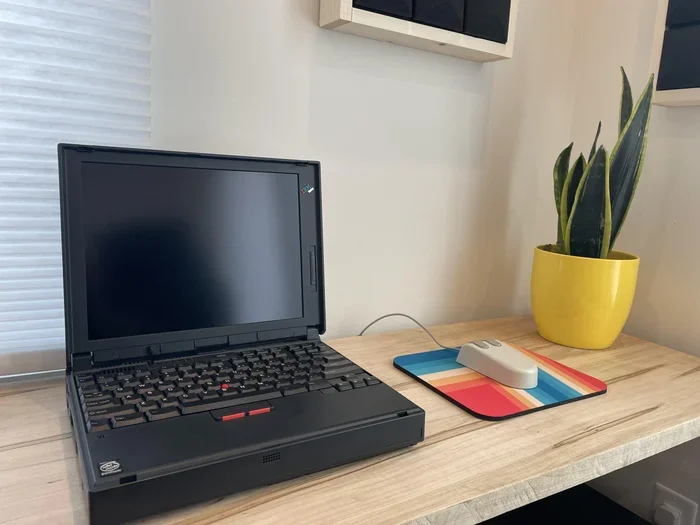
A solid desk is the gold standard for charging your laptop. Hard surfaces allow air to flow underneath the device, which helps prevent overheating. When your laptop sits on a soft surface like a bed or couch, the vents get blocked. This traps heat and can slow down the charging process.
Place your laptop on a clean, flat desk while it charges. Make sure the charging port is not pressed against the edge. A small laptop stand can also improve airflow and keep the device cool during long charging sessions.
2. A Dedicated Charging Station
If you work from home, a charging station is a game-changer. These setups keep your laptop powered while organizing your workspace. You can place the charger in a fixed spot, reducing cable clutter and making it easy to plug in every day.
A charging station also keeps the power adapter in a safe, dry location. Avoid placing the adapter on carpet or fabric, as these surfaces trap heat. A hard floor or a dedicated charging pad works much better for long-term use.
3. A Well-Ventilated Room
Temperature matters a lot when charging your laptop. The best room for charging is cool, dry, and well-ventilated. Avoid charging near windows where direct sunlight can heat up the device. Also, keep your laptop away from heaters, radiators, and other heat sources.
Cold rooms are generally fine, but avoid charging in extremely cold environments. Extreme cold and extreme heat both harm battery health over time. A comfortable room temperature between 60°F and 75°F is ideal for safe charging.
4. A Power Strip or Surge Protector
Using a surge protector is one of the smartest things you can do for your laptop. Power surges can damage your charging port, battery, and internal components. A good surge protector absorbs excess voltage and keeps your device safe.
Look for a surge protector with multiple outlets if you need to charge other devices too. This keeps your workspace tidy and ensures all your gadgets stay protected. Never plug your laptop directly into a wall outlet during a thunderstorm.
Charging Tips to Extend Battery Life
Where you charge your laptop is only half the equation. How you charge it matters just as much. Follow these simple tips to keep your battery healthy for years to come.
Avoid Overcharging
Leaving your laptop plugged in all the time can wear down the battery faster. Modern laptops have built-in protections, but it is still a good habit to unplug once the battery hits 100%. If you use your laptop plugged in most of the time, consider enabling battery saver mode to reduce charge cycles.
Charge in Short Bursts When Possible
You do not need to drain your battery completely before charging. In fact, shallow charges are better for lithium-ion batteries. Plugging in when your battery drops to 20% and unplugging at 80% is an excellent habit. This reduces stress on the battery and extends its overall lifespan.
Keep Your Charging Port Clean
Dust and debris can build up inside your charging port over time. This can cause a loose connection and slow charging. Use a soft brush or compressed air to gently clean the port every few weeks. A clean port ensures a steady power flow and safer charging.
Use the Right Charger
Always use the charger that came with your laptop or one approved by the manufacturer. Cheap third-party chargers may not deliver the correct voltage. This can damage your battery or even pose a fire risk. If your charger is lost or damaged, check which RAM is compatible with your laptop while you wait for a replacement, as this is a great time to optimize your setup.
Common Charging Mistakes to Avoid
Many laptop users make charging mistakes without realizing it. These habits can shorten battery life and even create safety hazards. Here are the most common ones to watch out for.
- Charging on soft surfaces: Beds, pillows, and blankets block vents and trap heat. This can cause overheating and slow charging.
- Using a damaged charger: Frayed cables or bent plugs are dangerous. Replace them immediately to avoid electrical issues.
- Ignoring overheating signs: If your laptop feels hot while charging, unplug it and let it cool down. Continued charging on an overheating device can damage the battery.
- Charging in humid areas: Bathrooms and kitchens are not good places to charge your laptop. Moisture can damage internal components.
- Plugging and unplugging forcefully: Always grip the plug firmly and pull gently. Yanking the cable can damage the charging port over time.
Charging on the Go: Portable Solutions
Not everyone charges their laptop at a desk all the time. Travelers, students, and remote workers often need to charge in different locations. Here are some great portable options.
Power Banks for Laptops
A high-capacity power bank is a lifesaver when you are away from an outlet. Look for power banks that support your laptop’s voltage and wattage requirements. USB-C power banks are the most versatile option for modern laptops.
Keep in mind that power banks add extra weight to your bag. Choose one that matches your needs without being too bulky. A 65W to 100W power bank can charge most laptops at a decent speed.
Car Chargers and Vehicle Plugs
If you charge your laptop in your car, use a car charger designed for laptops. Standard phone chargers usually do not provide enough power. A car charger with the correct wattage will charge your laptop safely while you travel.
Never leave your laptop charging in a hot car. Temperatures inside vehicles can soar quickly, which is very harmful to lithium-ion batteries. Always bring your laptop inside when you reach your destination.
Public Charging Stations
Many cafes, airports, and libraries now offer public USB-C charging stations. These are convenient but use them with caution. Public ports can sometimes deliver inconsistent power. If possible, bring your own charger and adapter for reliable charging on the go.
Also, never leave your laptop unattended while charging in a public area. Theft can happen quickly, and you do not want to lose your device along with your data.
Where Not to Charge Your Laptop
Just as important as knowing where to charge laptop devices is knowing where NOT to charge them. Certain locations pose real risks to your device and safety.
- On beds or sofas: Soft surfaces block airflow and cause overheating.
- Near water: Keep your laptop and charger far from sinks, bathtubs, and drinks.
- In direct sunlight: Sunlight heats up the device and can damage the battery.
- On carpeted floors: Carpets generate static electricity, which can harm internal components.
- Near flammable materials: Keep chargers away curtains, paper, and fabric.
If you ever notice your laptop getting unusually hot, swollen, or making strange noises while charging, stop immediately. Unplug the device and let it cool. If the problem continues, consider upgrading your setup. When you are ready to make improvements, learning how to upgrade my laptop RAM can be a great next step to boost overall performance.
Expert Insights on Laptop Charging
Battery technology has improved a lot over the years, but good charging habits still matter. Experts recommend keeping your battery level between 20% and 80% for the best long-term health. This range reduces the stress on lithium-ion cells and helps the battery hold its charge for longer.
Another expert tip is to calibrate your battery every few months. This means draining it completely and then charging it to 100% in one go. Calibration helps your laptop’s battery indicator stay accurate. If you want to learn more about optimizing your laptop beyond charging, you can also explore whether you can add RAM to a laptop for better multitasking performance.
Finally, always check your laptop manufacturer’s guidelines for charging. Each brand may have specific recommendations for battery care. Following these instructions ensures your warranty stays valid and your device performs at its best.
Key Takeaways
- Charge on hard, flat surfaces: Desks and tables provide the best airflow and safest charging conditions.
- Keep your laptop cool: Avoid charging in hot, humid, or direct sunlight environments.
- Use a surge protector: This shields your laptop from power surges and electrical damage.
- Unplug at 100%: Avoid leaving your laptop plugged in all the time to preserve battery health.
- Clean your charging port: Regular cleaning prevents dust buildup and ensures a stable connection.
- Use the right charger: Always stick with manufacturer-approved chargers for safety and performance.
- Consider portable options: Power banks and car chargers are great for charging on the go.
Conclusion
Knowing where to charge laptop devices is one of the simplest ways to protect your investment. A good charging spot keeps your laptop cool, safe, and ready to go whenever you need it. Follow the tips in this guide and your battery will thank you for years to come.
Make these habits part of your daily routine. Charge on hard surfaces, use a surge protector, and avoid common mistakes like overcharging or using damaged cables. Small changes lead to big results when it comes to battery health. Start today and enjoy a faster, safer, and longer-lasting charging experience with your laptop.
Frequently Asked Questions
Can I charge my laptop on a bed?
It is not recommended. Soft surfaces like beds block the ventilation vents and trap heat inside the laptop. This can cause overheating, slow charging, and long-term battery damage. Always charge your laptop on a hard, flat surface instead.
Is it safe to leave my laptop plugged in overnight?
Most modern laptops have built-in protections that stop charging once the battery reaches 100%. However, it is still better to unplug your laptop once it is fully charged. Leaving it plugged in constantly can reduce the overall lifespan of the battery over time.
Can I use a third-party charger for my laptop?
It is best to use the original charger or one approved by the manufacturer. Third-party chargers may not deliver the correct voltage or wattage, which can damage your battery or charging port. If you must use a third-party charger, make sure it matches your laptop’s specifications exactly.
How can I charge my laptop without a charger?
You can use a USB-C power bank, a car charger, or a public USB-C charging station. Make sure the power source matches your laptop’s voltage and wattage requirements. Always use reliable and compatible charging accessories to avoid damage.
Why does my laptop get hot while charging?
It is normal for a laptop to feel slightly warm while charging. However, if it gets very hot, it could be due to blocked vents, a soft charging surface, or a faulty charger. Move your laptop to a hard, flat surface and check if the temperature improves. If it does not, unplug the device and let it cool down.
How often should I calibrate my laptop battery?
Experts recommend calibrating your laptop battery every two to three months. This means draining the battery completely and then charging it to 100% in one continuous session. Calibration helps keep the battery indicator accurate and improves overall battery performance over time.