Dell Laptop Keep Losing Internet Connection
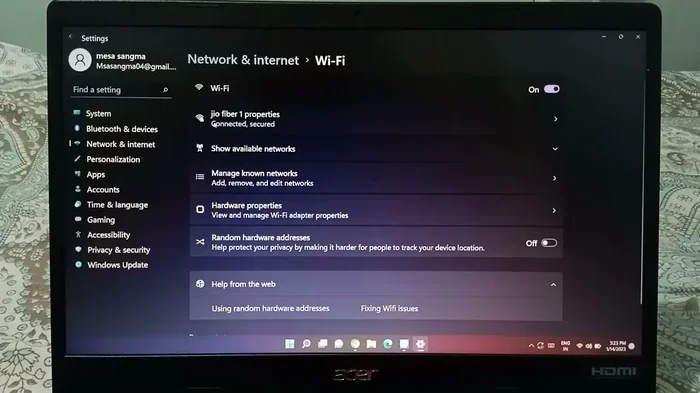
A Dell laptop that keeps losing internet connection is frustrating but usually fixable with the right steps. Whether the issue stems from outdated drivers, power settings, or router conflicts, this guide covers every major cause and solution. You will learn how to diagnose the root problem, apply targeted fixes, and prevent the connection drops from returning.
There is nothing more annoying than working on your Dell laptop and watching the internet connection drop for the hundredth time. You are in the middle of an important task, and suddenly everything goes offline. This problem affects thousands of Dell laptop users every day, and the good news is that it is usually easy to fix.
When a Dell laptop keeps losing internet connection, it can happen for many reasons. The cause might be a simple software glitch, a driver problem, or even a setting buried deep in Windows. Sometimes the issue comes from the router or the network itself. This guide walks you through every possible reason and gives you clear steps to solve each one.
We will start with the most common causes and work our way through advanced fixes. By the end, you will know exactly what to do to get your Dell laptop back online and keep it there. Let us dive right in.
Key Takeaways
- Driver Issues: Outdated or corrupted network drivers are the most common cause of Dell laptop WiFi drops.
- Power Management: Windows power settings can automatically disable your WiFi adapter to save energy.
- Router Conflicts: Sometimes the problem lies with your router, not your Dell laptop.
- DNS Problems: Incorrect DNS settings can make it seem like your internet keeps dropping.
- Hardware Faults: A failing WiFi card or antenna can cause persistent disconnection issues.
- Software Conflicts: VPNs, firewalls, and antivirus programs can interfere with your connection.
- Preventive Steps: Regular maintenance keeps your Dell laptop connected reliably.
📑 Table of Contents
Why Does Your Dell Laptop Keep Losing Internet Connection?
Before you start fixing anything, it helps to understand what is going wrong. A Dell laptop that drops its WiFi connection repeatedly usually has one or more of these underlying causes. Knowing the reason makes the fix much faster.
Outdated or Corrupted Network Drivers
The network driver is the software that lets your Dell laptop talk to your WiFi router. When this driver becomes outdated or corrupted, your connection will drop without warning. This is the single most common reason for WiFi instability on Dell machines.
Windows sometimes updates drivers automatically, but those updates can also introduce new bugs. A driver that worked fine yesterday might cause connection problems today. This is especially true after a major Windows update.
Power Management Settings
Windows has a built-in feature that turns off devices to save power. Your WiFi adapter can be one of those devices. When your Dell laptop switches to battery saver mode or a power plan that limits performance, it may disable the wireless adapter entirely.
This is why many users notice their connection drops more often when running on battery. The laptop tries to conserve energy by shutting down the WiFi card. When you plug it back in, the connection might not restore automatically.
Router or Modem Problems
Sometimes the fault is not with your Dell laptop at all. Your router or modem might be the source of the problem. Overheating routers, outdated firmware, or too many connected devices can all cause intermittent disconnections.
To test this theory, try connecting another device to the same network. If other devices also lose connection, the router is likely the culprit. If only your Dell laptop drops, the problem is specific to that machine.
DNS Configuration Issues
The Domain Name System translates website names into IP addresses. When your DNS settings are wrong or become corrupted, your Dell laptop might fail to load pages even though it shows a connected status. This creates the illusion that the internet keeps dropping.
DNS problems often happen after switching networks or using a VPN. They can also occur when your ISP changes its DNS servers without telling you. Fixing DNS settings is usually quick and solves a surprising number of connection issues.
Interference from Other Devices
Wireless signals travel through the air, and other electronics can interfere with them. Microwaves, cordless phones, Bluetooth devices, and even baby monitors can disrupt your WiFi signal. If your Dell laptop is near these devices, you might experience frequent disconnections.
Physical obstacles also play a role. Thick walls, metal objects, and large appliances can weaken your WiFi signal. Moving your laptop closer to the router often helps identify if interference is the issue.
How to Fix a Dell Laptop That Keeps Losing Internet
Now that you know the common causes, let us get into the solutions. Each fix below addresses a specific reason for connection drops. Work through them in order for the best results.
Step 1: Update Your Network Driver
Updating your network driver is the first thing you should try. An outdated driver is the most frequent cause of Dell laptop WiFi problems. Here is how to do it.
- Right-click the Start button and select Device Manager.
- Expand the Network adapters section.
- Right-click your WiFi adapter and select Update driver.
- Choose Search automatically for drivers.
- Follow the on-screen instructions to complete the update.
If Windows does not find a new driver, visit Dell support website and search for your laptop model. Download the latest WiFi driver directly from Dell. This ensures you get the most compatible and stable version.
After installing the driver, restart your laptop and check if the connection stays stable. Many users report that a simple driver update completely solves the problem.
Step 2: Adjust Power Management Settings
Preventing Windows from turning off your WiFi adapter can fix random disconnections. Here is how to change this setting.
- Open Device Manager again.
- Expand Network adapters and right-click your WiFi adapter.
- Select Properties and go to the Power Management tab.
- Uncheck the box that says Allow the computer to turn off this device to save power.
- Click OK to save the change.
This simple change stops Windows from disabling your WiFi adapter when the laptop is idle or on battery power. Your Dell laptop will maintain a constant connection even when running on battery.
You should also check your power plan settings. Go to Control Panel, then Power Options, and select the Balanced plan. Avoid using the Power Saver plan if you need a stable internet connection.
Step 3: Reset Your Network Settings
Sometimes network settings become corrupted and cause persistent connection issues. Resetting them to default can fix this. Open Command Prompt as Administrator and type the following commands one by one:
netsh winsock resetnetsh int ip resetipconfig /releaseipconfig /renewipconfig /flushdns
After running all these commands, restart your Dell laptop. The network stack will be fully reset, and many connection issues disappear. This method works well when the problem started after installing new software or updates.
If resetting the network does not help, you can also try forgetting the WiFi network and reconnecting. Go to Settings, then Network and Internet, find your WiFi network, and click Forget. Reconnect by entering your password again.
Step 4: Check for Software Conflicts
Some software programs can interfere with your WiFi connection. VPNs, antivirus suites, and firewall applications are the most common offenders. If you recently installed new software and noticed connection drops, that software might be the cause.
Try temporarily disabling your VPN and see if the connection stabilizes. Similarly, turn off your antivirus firewall for a few minutes to test if it is blocking network traffic. If the connection improves, you may need to adjust the software settings or switch to a different program.
Some users have found that their Dell laptop keeps losing internet connection because of background apps. Go to Settings, then Privacy, and review which apps have permission to run in the background. Disabling unnecessary background apps can free up network resources and improve stability.
Step 5: Update Your Router Firmware
Your router plays a big role in keeping your Dell laptop connected. Outdated router firmware can cause compatibility issues and random disconnections. Check your router manufacturer’s website for the latest firmware update.
Most modern routers have a web interface where you can check for updates. Log in to your router admin panel, look for a Firmware Update section, and follow the instructions. A router update can dramatically improve connection stability across all devices.
You should also consider changing your WiFi channel. If you live in a densely populated area, neighboring networks might be using the same channel and causing interference. Switching to a less crowded channel can reduce connection drops significantly.
When to Consider Hardware Fixes
Software fixes solve most Dell laptop WiFi problems. But sometimes the issue is physical. If you have tried every solution above and your Dell laptop still keeps losing internet connection, it might be time to look at the hardware.
Faulty WiFi Card or Antenna
Over time, the WiFi card inside your Dell laptop can wear out. The antenna connections can also become loose, especially if the laptop has been dropped or opened frequently. A failing WiFi card causes random disconnections that no software fix can resolve.
Signs of a hardware problem include very weak signal strength even when you are close to the router, frequent disconnections that happen in patterns, or the WiFi adapter disappearing from Device Manager entirely.
Replacing a WiFi card is not too difficult if you are comfortable opening your laptop. You can also take your Dell laptop to a certified technician. They can test the WiFi card and antenna and replace them if needed.
Upgrade Your RAM for Better Performance
You might wonder what RAM has to do with WiFi connection stability. The truth is that when your system is low on memory, it struggles to handle all tasks efficiently, including network management. If your Dell laptop is running on minimal RAM, upgrading can improve overall performance, including network reliability.
For example, if you are running a Dell laptop with limited RAM, the system might struggle to manage background network processes properly. Consider checking out Dell 8GB RAM I5 laptop configurations that handle network tasks smoothly without straining the system.
Similarly, if you own a Dell XPS model, upgrading the RAM can resolve system bottlenecks that contribute to connection drops. You can learn more about this in our guide on Dell XPS laptop RAM upgrade options.
Use an External USB WiFi Adapter
If your internal WiFi card is failing and you do not want to replace it immediately, a USB WiFi adapter is a great temporary solution. These adapters plug into a USB port and provide a fresh wireless connection. They are inexpensive and easy to set up.
Look for a USB adapter that supports the latest WiFi standards, such as WiFi 5 or WiFi 6. These adapters offer better range and faster speeds than older models. They are especially useful for older Dell laptops that do not support modern WiFi protocols.
Preventive Tips to Keep Your Dell Laptop Connected
Once you have fixed the connection issue, you want to keep it from coming back. These preventive tips will help you maintain a stable internet connection on your Dell laptop.
- Update drivers regularly: Check for driver updates at least once a month. New drivers often include bug fixes for connectivity issues.
- Restart your router monthly: A simple router restart clears cache and refreshes the connection for all devices.
- Keep Windows updated: Windows updates often include network-related fixes that improve connection stability.
- Avoid overheating: Overheating can affect internal components including the WiFi card. Keep your laptop vents clear.
- Use a quality antivirus: Malware can corrupt network settings and cause connection problems. Keep your antivirus up to date.
- Monitor background apps: Too many apps using the network at once can cause instability. Close apps you are not using.
Some users also notice that when their Dell laptop keeps losing internet connection, the mouse on the laptop may start freezing too. This often happens when system resources are overwhelmed or when driver conflicts affect multiple hardware components. Addressing the root cause usually fixes both issues at once.
It is also worth noting that in some cases, driver conflicts can cause both network and touchpad issues simultaneously. If you experience a situation where the touchpad stops working on your Dell laptop alongside connection drops, a driver reinstallation or system restore often resolves both problems together.
Common Mistakes People Make When Fixing WiFi Issues
Many people make mistakes when trying to fix WiFi problems on their Dell laptop. Avoiding these mistakes can save you time and frustration.
Mistake 1: Restarting the router and doing nothing else. While restarting the router is helpful, it only addresses temporary glitches. If the problem is a corrupted driver or wrong settings, restarting the router will not fix it.
Mistake 2: Ignoring Windows updates. Some users skip Windows updates because they seem unnecessary. But these updates often contain critical fixes for network connectivity. Keeping your system updated is one of the easiest ways to prevent connection drops.
Mistake 3: Downloading drivers from random websites. Always download drivers from Dell’s official website or through Windows Update. Third-party driver sites can contain malware or outdated versions that cause more problems than they solve.
Mistake 4: Assuming the problem is always hardware. Most WiFi issues are software-related and can be fixed without opening your laptop. Exhaust all software solutions before considering hardware repairs.
Mistake 5: Not checking the network adapter settings. Many users never look at their network adapter properties. Simple settings like the WiFi power saving mode or the preferred network band can make a huge difference in connection stability.
Expert Insights on Dell WiFi Stability
From years of troubleshooting Dell laptops, several patterns emerge. The most reliable fixes are always the simplest ones. Start with driver updates and power settings before moving to advanced solutions. Most users find that updating the network driver and disabling power management for the WiFi adapter resolves the issue completely.
Another expert tip is to check your WiFi band. If your router supports both 2.4GHz and 5GHz bands, try switching between them. The 5GHz band is faster but has shorter range. The 2.4GHz band travels farther but is more prone to interference. Finding the right band for your setup can make a big difference.
Finally, keep your Dell laptop clean and well-maintained. Dust buildup inside the laptop can affect internal components, including the WiFi antenna connections. Regular cleaning and proper ventilation go a long way in keeping your connection stable.
Conclusion
A Dell laptop that keeps losing internet connection does not have to be a permanent problem. With the right approach, you can identify the cause and apply the correct fix. Start with the most common solutions like driver updates and power management settings. Move to advanced fixes like network resets and router firmware updates if needed.
Remember that most connection issues are software-related and easy to fix. Hardware problems are less common but still worth considering if nothing else works. Keep your system updated, maintain your router, and monitor your network settings regularly.
By following the steps in this guide, you will spend less time dealing with connection drops and more time getting things done. Your Dell laptop deserves a reliable internet connection, and now you have the knowledge to make it happen.
Frequently Asked Questions
Why does my Dell laptop keep disconnecting from WiFi?
The most common reason is an outdated or corrupted network driver. Power management settings that turn off the WiFi adapter can also cause repeated disconnections. Start by updating your network driver and adjusting your power settings to fix this issue.
How do I stop my Dell laptop from losing internet connection?
Update your WiFi driver, disable power management for the network adapter, and reset your network settings using command prompt commands. Also check your router firmware and switch to a less crowded WiFi channel if needed.
Can a virus cause my Dell laptop to lose internet connection?
Yes, malware can corrupt network settings and interfere with your WiFi adapter. Run a full system scan with your antivirus software to rule out this possibility. If malware is detected, removing it often restores normal network connectivity.
Is it safe to update network drivers from the Dell website?
Absolutely. Downloading drivers directly from Dell’s official website is the safest method. These drivers are tested specifically for your laptop model and are free from malware or conflicts that third-party sites might introduce.
What should I do if none of the software fixes work?
If software fixes do not resolve the issue, the problem might be hardware-related. Check your WiFi card and antenna connections. Consider using a USB WiFi adapter as a temporary solution. If the problem persists, consult a certified Dell technician for hardware diagnostics.
Does the WiFi band affect connection stability on Dell laptops?
Yes, the WiFi band can significantly affect stability. The 5GHz band offers faster speeds but shorter range, while the 2.4GHz band has longer range but more interference. Switching between bands based on your environment can improve connection stability on your Dell laptop.