Difference Between Nvme and Ssd

The main difference between NVMe and SSD comes down to how they connect and communicate with your motherboard. NVMe drives use the PCIe interface for blazing fast speeds, while traditional SSDs typically rely on the slower SATA connection. Understanding this distinction helps you choose the right storage for gaming, workstations, or everyday computing.
When you are shopping for a new storage drive, the terms NVMe and SSD get thrown around a lot. It can feel confusing. Are they the same thing? Is one better than the other? The short answer is that NVMe is a type of SSD, but not all SSDs are NVMe. Let us break this down in a way that actually makes sense.
Whether you are building a gaming PC, upgrading a laptop, or just trying to understand what is inside your desktop, knowing the difference between these two storage technologies matters. It affects your boot times, file transfers, and even how smoothly your games run. In this guide, we will walk through everything you need to know about NVMe vs SSD in plain language.
Key Takeaways
- NVMe is faster: NVMe drives use PCIe lanes and deliver much higher read and write speeds than SATA SSDs.
- Different interfaces: NVMe uses the M.2 form factor with PCIe, while SSDs can use SATA or M.2 connectors.
- Latency matters: NVMe storage has lower latency, making it ideal for heavy workloads and gaming.
- Price gap is shrinking: NVMe prices have dropped significantly, making them more affordable than ever.
- Compatibility is key: Always check your motherboard supports NVMe before purchasing one.
- Both are solid state: NVMe and SATA SSDs both use NAND flash memory with no moving parts.
- Choose based on needs: Pick NVMe for speed and SATA SSDs for budget-friendly reliable storage.
📑 Table of Contents
What Is an NVMe Drive?
NVMe stands for Non-Volatile Memory Express. It is a storage protocol designed specifically for flash storage. Think of it as a language that your drive uses to talk to your computer. NVMe was built from the ground up to take full advantage of fast flash memory.
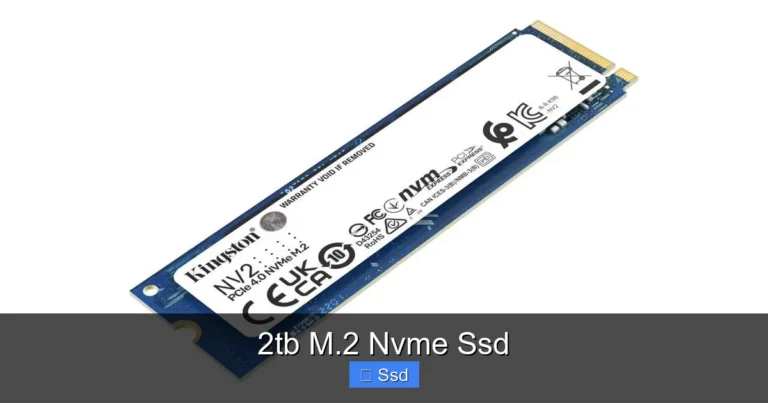
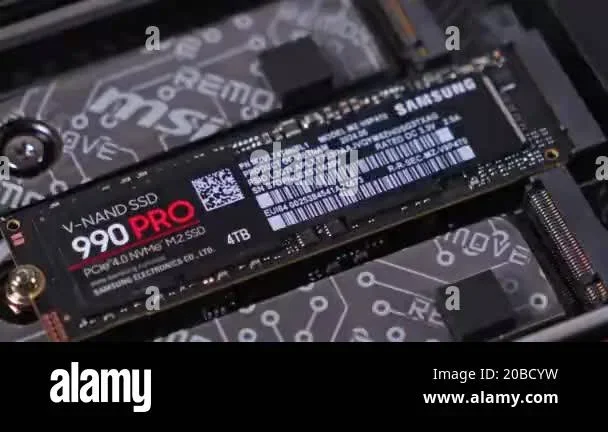
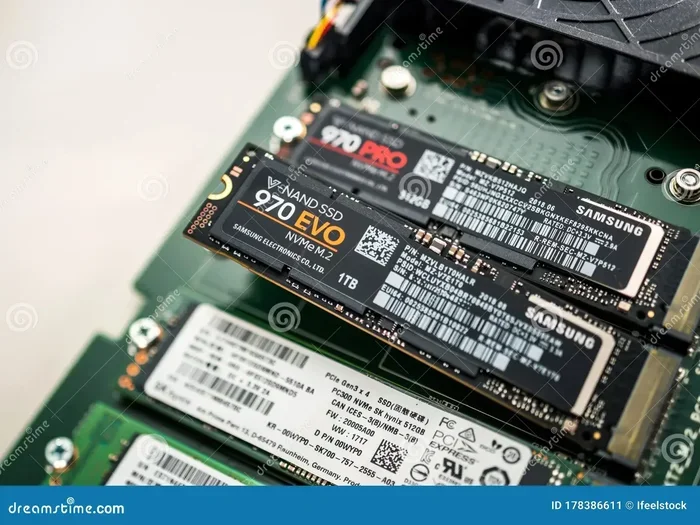
Most NVMe drives come in the M.2 form factor. This is a small, stick-shaped module that plugs directly into your motherboard. There are no cables needed. It looks like a stick of gum, and it is incredibly compact.
One of the biggest advantages of NVMe is the speed. These drives use PCIe lanes to transfer data. This means they can reach speeds well beyond what older connections allow. For example, a top-tier NVMe SSD can hit read speeds of 7,000 MB/s or more. That is insanely fast compared to traditional drives.
If you are curious about whether NVMe is truly faster than a standard SSD, we have a detailed comparison here: Is NVMe Faster Than SSD. It covers real-world benchmarks and practical speed differences.
How NVMe Works
NVMe communicates directly with your CPU through the PCIe bus. This is a major upgrade from older protocols. The old SATA interface was designed for spinning hard drives. It was never built for the speed potential of modern flash memory.
NVMe gets around this bottleneck by using a streamlined command set. This means less overhead and faster data transfers. Your system spends less time waiting and more time getting things done. For tasks like video editing or large file transfers, this makes a noticeable difference.
What Is a Traditional SSD?
A traditional SSD or Solid State Drive uses flash memory too. But it connects through the SATA interface. SATA stands for Serial Advanced Technology Attachment. It has been around since the 2000s and was originally designed for mechanical hard drives.
SATA SSDs are still very popular. They offer a huge upgrade over old spinning hard drives. Boot times drop significantly, games load faster, and your whole system feels more responsive. But they have a speed ceiling. The SATA III interface maxes out at about 550 MB/s in real-world conditions.
SATA SSDs come in two common form factors. The first is the 2.5-inch drive, which looks like a small metal box. You mount it with screws and connect it with a data cable and a power cable. The second is the M.2 SATA drive, which looks similar to an NVMe M.2 stick but uses the SATA protocol instead.
Many people buy an SSD for their boot drive and use it for everyday tasks. It is reliable, affordable, and widely compatible. If you have an older computer without NVMe support, a SATA SSD is still a fantastic upgrade.
Types of SSDs You Will Encounter
- 2.5-inch SATA SSD: The most common type. Easy to install in desktops and laptops.
- M.2 SATA SSD: Same small form factor as NVMe but slower due to the SATA protocol.
- mSATA SSD: An older small form factor found in some ultrabooks.
NVMe vs SSD: Key Differences
Now let us get to the heart of the matter. What actually sets NVMe and SSD apart? Here is a detailed breakdown of the differences that matter most.
Speed Comparison
Speed is the most obvious difference. NVMe drives are significantly faster than SATA SSDs. Here is a quick comparison:
- NVMe PCIe 3.0: Read speeds up to 3,500 MB/s
- NVMe PCIe 4.0: Read speeds up to 7,000 MB/s
- NVMe PCIe 5.0: Read speeds up to 14,000 MB/s
- SATA SSD: Read speeds up to 550 MB/s
That is a massive gap. A Samsung NVMe SSD 8TB or a Crucial P3 Plus NVMe SSD will blow past any SATA drive in sequential read and write tests. But does that speed matter in everyday use?
For most regular tasks like web browsing, office work, and media playback, the difference is subtle. You will notice it most when copying large files, loading heavy games, or working with video projects. Gamers and content creators benefit the most from NVMe speeds.
Interface and Connection
The interface is the communication pathway between your drive and your system. NVMe uses PCIe, which is the same bus your graphics card uses. This gives it a direct, high-bandwidth connection to the CPU.
SATA SSDs use the AHCI protocol over the SATA III cable. This was designed decades ago for spinning disks. It adds latency and limits throughput. NVMe was designed specifically for flash memory, so it is much more efficient.
Form Factor and Size
Both NVMe and SATA SSDs can come in the M.2 shape. But not all M.2 drives are NVMe. Some M.2 drives use the SATA protocol. The key is to check what interface your motherboard slot supports.
Here is a quick look at common form factors:
- M.2 2280: The most common size for both NVMe and SATA M.2 drives.
- 2.5-inch: Standard size for SATA SSDs only.
- mSATA: Older small form factor, less common now.
When picking a drive, make sure your motherboard has the right slot. Most modern motherboards have M.2 slots that support both NVMe and SATA. But some only support one or the other, so always double-check your motherboard manual.
Price and Value
NVMe drives used to cost a lot more than SATA SSDs. That is no longer the case. The price gap has narrowed a lot over the past few years. A 1TB NVMe drive now costs only slightly more than a 1TB SATA SSD.
For example, a Kingston NV2 1TB NVMe SSD or a Crucial P3 500GB NVMe SSD offer great value for the performance they deliver. If you are building a new system, there is really no reason to choose a SATA SSD over NVMe unless your motherboard does not support it.
Power Consumption and Heat
NVMe drives can draw more power and run hotter than SATA SSDs. This is because they push more data through the PCIe interface. Some high-end NVMe models come with heatsinks to manage thermals.
SATA SSDs run cool and use very little power. This makes them a good choice for laptops where battery life matters. If you are building a compact system or using a drive in a tight enclosure, heat output is worth considering.
Which One Should You Choose?
Choosing between NVMe and SSD depends on your specific needs. Let us walk through a few scenarios to help you decide.
Pick NVMe If You…
- Are a gamer who wants the fastest load times possible.
- Do video editing or work with large media files.
- Are building a new PC with a modern motherboard.
- Want the best overall system responsiveness.
- Need to transfer large files quickly for work or creative projects.
Pick a SATA SSD If You…
- Have an older system without NVMe support.
- Need a budget-friendly storage upgrade.
- Want a cool, low-power drive for a laptop.
- Are using the drive for bulk storage, not performance-critical tasks.
For most people building or upgrading a modern PC today, NVMe is the clear winner. The speed advantage is real, and the prices are competitive. A fast NVMe drive as your boot and application drive will make your entire system feel snappier.
Common Myths About NVMe and SSD
There are a lot of misconceptions floating around about NVMe and SSD technology. Let us clear up a few of the most common ones.
Myth 1: NVMe and SSD Are Completely Different Things
This is the biggest misconception. NVMe is actually a type of SSD. All NVMe drives are SSDs, but not all SSDs are NVMe. The word SSD refers to the fact that the drive has no moving parts. It uses flash memory. NVMe refers to the protocol it uses to communicate with your system.
Myth 2: NVMe Only Matters for Gaming
Gaming is one area where NVMe shines, but it is not the only one. Video editors, 3D artists, programmers, and anyone working with large datasets benefits from NVMe speed. Even everyday tasks like opening apps or booting Windows feel noticeably faster.
Myth 3: SATA SSDs Are Obsolete
SATA SSDs are not going away anytime soon. They are still reliable, affordable, and widely compatible. If you have an older computer or just need extra storage on a budget, a SATA SSD is a solid choice. They are not slow by any standard, just slower than NVMe.
Myth 4: Bigger NVMe Drives Always Cost More
While larger capacity NVMe drives do cost more, the price per gigabyte has dropped dramatically. A 2TB NVMe drive is now very affordable. Brands like Crucial, Kingston, and Samsung offer high-capacity options at competitive prices.
Quick Tips for Choosing Your Storage
Here are some practical tips to keep in mind when shopping for a new drive:
- Check your motherboard manual. Make sure your M.2 slot supports NVMe if that is what you want.
- Look for PCIe Gen 4 or Gen 5. These offer the best real-world performance today.
- Consider a heatsink. If your case has limited airflow, a drive with a built-in heatsink can prevent thermal throttling.
- Don’t ignore warranty and endurance. Look for drives with good TBW (terabytes written) ratings for longevity.
- Read real-world reviews. Benchmarks are helpful, but user reviews tell you how a drive performs in everyday use.
One thing to watch out for is compatibility. Some older systems may not recognize NVMe drives properly. If you run into issues, check for BIOS updates or driver support. For example, the NVMe M.2 SSD WD Blue driver download page has useful resources for getting WD Blue NVMe drives working correctly.
Final Thoughts
The difference between NVMe and SSD really comes down to the interface and protocol each uses. NVMe drives are faster, more efficient, and better suited for demanding workloads. SATA SSDs are still great for budget upgrades and older systems.
If you are building a new PC or doing a serious upgrade, go with NVMe. The performance boost is well worth it. And with prices continuing to drop, there is no reason not to. Whether you grab a Crucial T705 PCIe Gen5 NVMe M.2 SSD or a more budget-friendly option, you will notice the difference the moment you boot up.
Storage technology moves fast. What is cutting edge today becomes mainstream tomorrow. The important thing is to pick the right drive for your needs and your budget. Both NVMe and SATA SSDs are massive upgrades over old spinning hard drives. You really cannot go wrong with either one.
Take some time to research your options. Read reviews, compare specs, and make sure your system supports what you are buying. A little homework goes a long way toward getting the best performance out of your flash storage investment.
Frequently Asked Questions
Is NVMe the same as an SSD?
No, NVMe is a type of SSD. All NVMe drives are solid state drives, but not all SSDs use the NVMe protocol. Traditional SSDs typically use the SATA interface, while NVMe drives use PCIe for faster data transfer.
Can I use an NVMe drive in any computer?
Not necessarily. Your motherboard needs to have an M.2 slot that supports NVMe. Some older systems only support SATA M.2 drives. Check your motherboard manual or specs to confirm compatibility before buying.
Is a SATA SSD still worth buying in 2025?
Yes, especially if you have an older system or need extra storage on a budget. SATA SSDs are still reliable and offer a huge speed boost over mechanical hard drives. They are just slower than NVMe drives.
How much faster is NVMe compared to a SATA SSD?
NVMe drives can be up to 12 times faster than SATA SSDs in sequential read speeds. A PCIe Gen 4 NVMe drive can reach 7,000 MB/s, while a SATA SSD tops out around 550 MB/s. Real-world improvements vary by task.
Do I need a heatsink for my NVMe drive?
It depends on your setup. High-performance NVMe drives can run hot under heavy loads. If your computer case has good airflow, you might not need one. But for compact builds or sustained workloads, a heatsink helps prevent thermal throttling.
What is the best NVMe SSD for gaming?
Popular choices include the Crucial P3 Plus, Kingston NV2, and Samsung 980 Pro. For the latest generation, the Crucial T705 PCIe Gen5 NVMe M.2 SSD offers top-tier performance. Pick based on your budget and motherboard support.
=== CONCLUSION ===
The difference between NVMe and SSD is simpler than it seems. NVMe is a faster protocol that modern SSDs use to communicate with your system through PCIe lanes. Traditional SSDs use the older SATA interface. Both are solid state drives with no moving parts, but NVMe delivers dramatically better speeds.
For most users today, an NVMe drive is the best choice. It offers faster boot times, quicker file transfers, and smoother performance in demanding applications. The price difference has become negligible, making NVMe the clear winner for new builds and upgrades.
Take the time to understand your system’s capabilities and choose the right drive accordingly. Whether you go with a high-capacity NVMe option or a reliable SATA SSD, you are making a smart move away from old spinning hard drives. Your system will thank you.