Do I Need to Use Both Hdmi and Displayport
You do not always need both HDMI and DisplayPort, but having both gives you flexibility. Each port has unique strengths for resolution, refresh rate, and audio. Your choice depends on your monitor, GPU, and use case.
You sit down at your desk. You look at the back of your computer or monitor. There is an HDMI port. There is also a DisplayPort. You wonder, do you really need both? The short answer is no. But the full answer is more interesting than that.
Understanding HDMI and DisplayPort can save you money, time, and frustration. Whether you are a gamer, a content creator, or someone who just wants a clean setup, knowing what each port does makes a big difference. Let us break it all down in simple terms.
Key Takeaways
- HDMI and DisplayPort serve different purposes: HDMI is great for TVs and casual setups, while DisplayPort excels in high-refresh gaming and multi-monitor configurations.
- You do not need both ports unless you are running multiple displays or specific hardware that demands it.
- DisplayPort 1.4 and 2.1 offer higher bandwidth than most HDMI versions, making them better for 4K and ultrawide monitors.
- HDMI carries audio natively through a single cable, which DisplayPort does not always do without extra setup.
- Adapters work well in most cases, but native connections give the best performance and reliability.
📑 Table of Contents
What Is HDMI and What Does It Do
HDMI stands for High-Definition Multimedia Interface. It is one of the most common video connections in the world. You find it on TVs, laptops, monitors, game consoles, and streaming devices. The HDMI cable carries both video and audio through a single wire. This makes it incredibly convenient.
HDMI has gone through several versions over the years. HDMI 1.4 supports 4K at 30Hz. HDMI 2.0 handles 4K at 60Hz. HDMI 2.1 pushes further with 4K at 120Hz and even 8K support. For most home entertainment setups, HDMI is more than enough. It is the go-to video output for people who want a simple plug-and-play experience.
One major advantage of HDMI is its widespread compatibility. Nearly every TV and monitor made in the last decade has at least one HDMI port. If you are connecting a laptop to a living room TV or a basic office monitor, HDMI is usually the easiest choice. You do not need any adapters or extra hardware in most cases.
When HDMI Makes the Most Sense
- Connecting a PC to a television for movie nights or casual gaming.
- Setting up a single monitor for office work or browsing.
- Using game consoles like PlayStation or Xbox that rely on HDMI.
- Running a basic home theater system with sound through one cable.
HDMI also shines when audio matters. Because it transmits audio signal and video signal together, you get sound without needing a separate audio cable. For many users, this alone makes HDMI the simpler option.
What Is DisplayPort and Why It Matters
DisplayPort is a digital display interface developed by VESA. It is designed primarily for computer monitors and high-performance displays. Unlike HDMI, DisplayPort was built with PC gaming and professional workloads in mind. It offers higher bandwidth and more features tailored to desktop computing.
DisplayPort 1.2 supports 4K at 60Hz. DisplayPort 1.4 adds support for HDR and higher color depths. The newest version, DisplayPort 2.1, offers massive bandwidth that can handle 8K at high refresh rates or dual 4K displays from a single connection. For serious gaming monitor setups, DisplayPort is often the better choice.
Another big advantage of DisplayPort is its support for daisy-chaining. You can connect multiple monitors in a chain using a single DisplayPort output on your GPU. This is a huge space and cable saver for multi-monitor setup enthusiasts. It is also the preferred port for ultrawide monitors and high refresh rate displays above 144Hz.
When DisplayPort Is the Better Choice
- Setting up a high-refresh-rate gaming monitor at 144Hz or higher.
- Building a dual or triple monitor workstation.
- Using ultrawide displays that need more bandwidth than HDMI can provide.
- Connecting to professional creative displays that require accurate color reproduction.
If you are building a gaming PC or a powerful workstation, you will likely want at least one DisplayPort connection. The bandwidth and flexibility it offers simply cannot be matched by HDMI in most scenarios. This is especially true if you plan to push high resolutions at fast frame rates.
HDMI vs DisplayPort: Key Differences
Now let us compare them head to head. Understanding the differences helps you make the right call for your specific situation.
Bandwidth is the biggest differentiator. DisplayPort offers more bandwidth per cable than HDMI in the same generation. This means DisplayPort can handle higher resolutions and refresh rates more easily. Resolution and refresh rate go hand in hand here. If you want 4K at 144Hz, DisplayPort is your best bet in most cases.
Audio support is where HDMI pulls ahead. HDMI carries audio natively through the same cable. DisplayPort can carry audio too, but it requires a bit more setup on some systems. For a clean, simple connection to a TV or soundbar, HDMI wins this round.
Connector design is another factor. DisplayPort connectors lock into place with a clip, which prevents accidental disconnections. HDMI connectors do not lock, so they can sometimes wiggle loose. For a permanent desk setup, DisplayPort’s locking mechanism is a nice touch.
Compatibility is also worth considering. HDMI is everywhere. TVs, projectors, soundbars, and even some printers use HDMI. DisplayPort is mostly found on computer monitors and graphics cards. So if your display connectivity needs span multiple devices, HDMI gives you more universal reach.
Here is a quick comparison to make things clear.
HDMI 2.1 vs DisplayPort 2.1: Both are top-tier standards. HDMI 2.1 supports 4K at 120Hz and 8K at 60Hz with dynamic HDR. DisplayPort 2.1 supports similar resolutions but with more flexible bandwidth allocation. For most PC users, DisplayPort 2.1 offers a slight edge in raw performance.
Do You Actually Need Both Ports
This is the question the whole article is built around. And the honest answer depends on what you are doing. For most single-monitor setups, you only need one port. Either HDMI or DisplayPort will work perfectly fine.
But there are situations where having both ports becomes genuinely useful. Let us look at a few common scenarios.
First, if you have a gaming monitor that uses DisplayPort for its full high-refresh capabilities and a TV in the living room that only has HDMI, you need both ports on your GPU. You switch cables depending on where you are gaming. It is not ideal, but it works.
Second, if you run a multi-monitor setup, you might need different ports. Some monitors only have HDMI inputs. Others only have DisplayPort. Having both output options on your graphics card saves you from buying expensive adapters or docking stations.
Third, some laptops and GPUs have limited port options. You might get one HDMI and one DisplayPort. In that case, you are already using both by default. Understanding what each one does helps you get the best performance from each monitor.
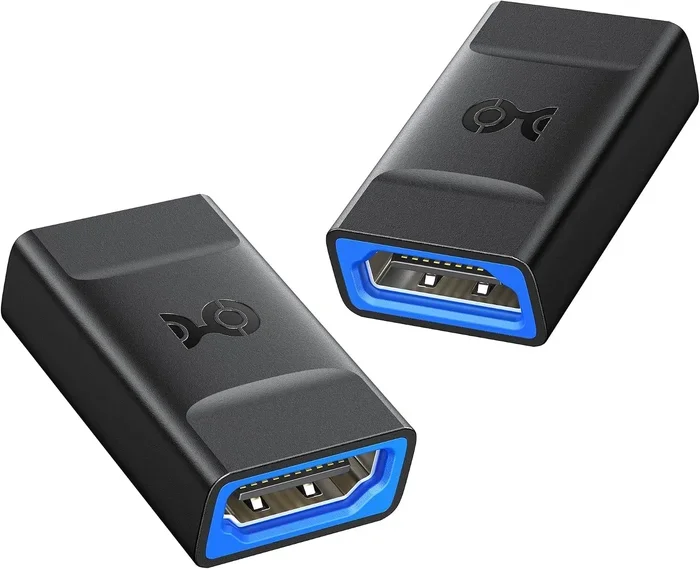
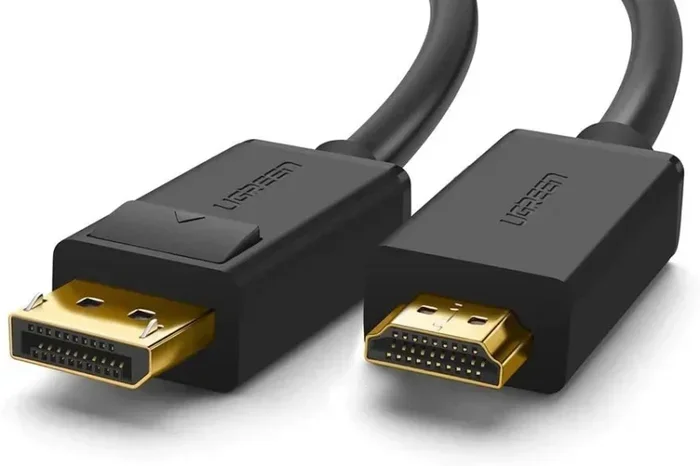
One thing to keep in mind is that using adapters or converters can sometimes cause issues. A DisplayPort to HDMI adapter works in most cases, but you may lose some features like high refresh rates or HDR support. For the best results, use native connections whenever possible.
If you just installed a new graphics card, make sure you check which ports are available and which cables your monitors support. You can find helpful tips on what to do after installing a new GPU to make sure everything is set up correctly.
Best Setup for Gaming and Productivity
Let us talk about real-world setups. What is the best way to use HDMI and DisplayPort together?
For gaming, connect your primary gaming monitor via DisplayPort. This gives you the highest refresh rate and the lowest latency. If you have a second monitor for Discord, chat, or browsing, connect it via HDMI if that is what it supports. This way, your gaming display gets the full performance it deserves.
For productivity and work, the setup is a bit different. If you use a single monitor for office tasks, HDMI is perfectly fine. You get great image quality and easy audio output. If you use multiple monitors for coding, design, or data analysis, DisplayPort is better for the primary screen, and HDMI for secondary screens.
For home entertainment, HDMI is the clear winner. It connects directly to your TV, sound system, and streaming devices. You do not need DisplayPort at all for a living room setup.
One tip that many people overlook is checking your cable quality. A cheap HDMI or DisplayPort cable can limit your performance. If you are running 4K at 120Hz or 1440p at 240Hz, make sure you use a certified high-speed cable that supports the bandwidth you need.
Quick Tips for Getting the Best Performance
- Always check your monitor’s maximum resolution and refresh rate before buying cables.
- Use DisplayPort for your primary gaming monitor to unlock full refresh rate support.
- Use HDMI for TVs and devices that do not have DisplayPort inputs.
- Keep your GPU drivers updated to ensure full compatibility with both port types.
- Avoid chaining too many adapters together, as this can degrade signal quality.
Common Mistakes and How to Avoid Them
People make a few common mistakes when setting up their display connections. Knowing these pitfalls can save you a lot of headaches.
One big mistake is assuming all HDMI cables are the same. An HDMI 1.4 cable cannot support 4K at 60Hz. You need an HDMI 2.0 or 2.1 cable for that. Always check the cable specification before buying.
Another mistake is using the wrong DisplayPort version. DisplayPort 1.2 cables work fine for most 1080p and 1440p monitors. But if you have a 4K 144Hz monitor, you need DisplayPort 1.4 or better. Using the wrong cable version can result in flickering, low refresh rates, or no signal at all.
Some people also forget that DisplayPort does not always carry audio automatically. If you plug in a DisplayPort monitor and get no sound, check your Windows or Mac audio settings. You may need to set the DisplayPort monitor as the default audio output device.
Finally, do not ignore the refresh rate settings in your operating system. Even with the right cable and port, your monitor will not run at its maximum refresh rate unless you enable it in your display settings. On Windows, go to Display Settings, then Advanced Display, and select the highest available refresh rate.
Expert Insights and Final Thoughts
So, do you need to use both HDMI and DisplayPort? For most people, the answer is no. You only need one or the other. But having both available on your system gives you the most flexibility. You can connect whatever display you want without worrying about compatibility.
If you are building a new PC or upgrading your monitor, think about what you actually need. A casual user who watches Netflix and browses the web does not need a DisplayPort connection. A competitive gamer who wants 144Hz at 1080p should definitely use DisplayPort. A creative professional who needs accurate colors on a 4K monitor will benefit from DisplayPort’s higher bandwidth.
The bottom line is simple. Use DisplayPort for your main gaming or high-performance monitor. Use HDMI for TVs, secondary monitors, and devices that only support HDMI. Keep your cables high quality and your drivers up to date. With this approach, you will get the best performance from every display you own.
Understanding your display connectivity options puts you ahead of most users. You will make smarter buying decisions and avoid unnecessary adapter costs. The next time you look at the back of your computer, you will know exactly which port to use and why.
Remember, technology is here to serve you. Do not let confusing ports slow you down. Pick the right connection, set up your displays, and enjoy your experience whether you are gaming, working, or just streaming your favorite shows.
Frequently Asked Questions
Can I use an HDMI cable instead of DisplayPort for gaming?
Yes, you can use HDMI for gaming, but you may not get the same high refresh rates as DisplayPort. HDMI 2.1 supports 4K at 120Hz, which is great for most gamers. However, DisplayPort offers higher bandwidth for ultra-high refresh rates above 144Hz. For competitive gaming, DisplayPort is usually the better choice.
Do I need a special cable for 4K at 144Hz?
Yes, you need a certified high-speed cable. Standard HDMI or DisplayPort cables may not support 4K at 144Hz. Look for cables labeled HDMI 2.1 or DisplayPort 1.4 and above. Using the wrong cable can result in a lower refresh rate or no signal at all.
Can I connect two monitors using only one HDMI and one DisplayPort?
Absolutely. You can connect one monitor via HDMI and another via DisplayPort. This is a common setup for dual-monitor workstations. Just make sure your GPU has both ports available and that your cables support the resolution and refresh rate you need.
Why does my DisplayPort monitor have no audio?
DisplayPort does not always transmit audio by default. You need to go into your system audio settings and select the DisplayPort monitor as the output device. On Windows, right-click the speaker icon, choose your DisplayPort monitor, and set it as the default playback device.
Is it better to use HDMI or DisplayPort for a laptop external monitor?
It depends on your laptop’s ports and your monitor’s capabilities. If your laptop has both, use DisplayPort for the best performance on a gaming or high-refresh monitor. Use HDMI if your monitor only has HDMI inputs or if you are connecting to a TV. Both work well for everyday tasks.
Can I use a DisplayPort to HDMI adapter without losing quality?
In most cases, yes. A good quality active adapter will maintain full resolution and refresh rate. However, cheap or passive adapters may limit performance, especially at higher resolutions. Always buy adapters from reputable brands and check that they support the bandwidth you need for your display settings.
=== CONCLUSION ===
You now know everything you need to decide between HDMI and DisplayPort. You do not always need both, but having both available gives you the most flexibility for any setup. Use DisplayPort for your high-performance gaming monitor and HDMI for your TV or secondary display. Keep your cables quality checked, your drivers updated, and your settings optimized. With the right connection, your visuals will look sharp, your audio will sound clear, and your experience will be smooth every single time. Choose the port that fits your needs and enjoy the best your display has to offer.