Does Thunderbolt Work with Mini Displayport to Hdmi
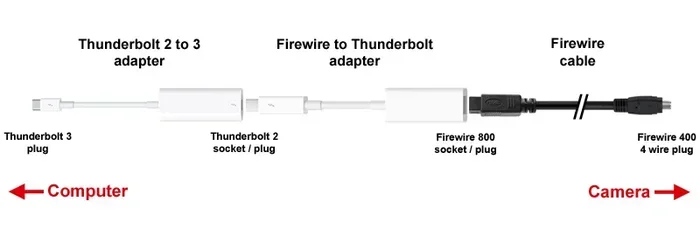
Yes, Thunderbolt does work with Mini DisplayPort to HDMI adapters, but the connection depends on your Thunderbolt version and the type of adapter you use. Thunderbolt ports carry DisplayPort signals, which means you can use Mini DisplayPort to HDMI cables or adapters to connect external displays. However, you need to understand active vs passive adapters, bandwidth limitations, and resolution support to get the best results. This guide breaks down everything you need to know about using Thunderbolt with Mini DisplayPort to HDMI setups.
Thunderbolt technology has changed the way we connect devices. It offers blazing fast data transfer speeds and can also carry video signals to external monitors. But when it comes to using a Mini DisplayPort to HDMI adapter with a Thunderbolt port, many people get confused. Does it work? How? What do you need to look out for? Let us walk through all of that right now.
The short answer is yes. Thunderbolt ports can work with Mini DisplayPort to HDMI adapters. Thunderbolt uses the DisplayPort protocol at its core. This means it can output video signals just like a standard DisplayPort connection. But there are some important details you need to know. Not every adapter works. Not every Thunderbolt version supports the same resolutions. And the type of adapter you choose makes a big difference. In this article, we will cover all of that and more.
Key Takeaways
- Thunderbolt supports video output: Thunderbolt ports use the DisplayPort protocol, so they can carry video signals to external displays.
- Adapter type matters: You need an active adapter for Mini DisplayPort to HDMI conversions, not a passive one.
- Version compatibility is key: Thunderbolt 3 and Thunderbolt 4 both support video output, but bandwidth and resolution limits vary.
- Resolution depends on your setup: The right combination of Thunderbolt version and adapter determines the max display resolution you can achieve.
- Check your port type: Not all USB-C ports are Thunderbolt, so verify your port before buying an adapter.
- Audio travels with video: Thunderbolt connections can transmit both audio and video signals through the HDMI output.
📑 Table of Contents
What Is Thunderbolt and How Does It Work?
Thunderbolt is a hardware interface developed by Intel and Apple. It combines data transfer, video output, and power delivery into a single port. Over the years, Thunderbolt has gone through several versions. Each version brought faster speeds and better features. The most common versions you will encounter today are Thunderbolt 3 and Thunderbolt 4.
Thunderbolt 3 uses the USB-C connector. It supports data transfer speeds of up to 40 Gbps. It also supports video output through the DisplayPort protocol. Thunderbolt 4 builds on this foundation. It maintains the 40 Gbps speed but adds stricter requirements for video and data performance. Both versions can carry video signals to external displays.
The Role of DisplayPort Protocol
At its core, Thunderbolt uses the DisplayPort protocol for video output. This is important because Mini DisplayPort is also based on the DisplayPort standard. When you plug a Mini DisplayPort cable into a Thunderbolt port, you are using the same underlying protocol. This is why Thunderbolt and Mini DisplayPort work so well together. The display connection is built into the protocol itself.
However, there is a catch. Thunderbolt ports use the USB-C connector shape. Mini DisplayPort uses a different connector shape. So you cannot plug a Mini DisplayPort cable directly into a Thunderbolt USB-C port. You need an adapter or a cable with the right connectors on each end. This is where things can get tricky.
Does Thunderbolt Support Mini DisplayPort to HDMI?
Yes, Thunderbolt supports Mini DisplayPort to HDMI connections. But the way this works depends on the adapter you use. There are two main types of adapters: active adapters and passive adapters. Understanding the difference is critical.
Active vs Passive Adapters
A passive adapter simply changes the shape of the connector. It does not convert the signal. Passive adapters work when the source and display use the same signal type. For example, a passive DisplayPort to HDMI adapter works when the source outputs a DisplayPort signal and the display accepts HDMI.
An active adapter does more. It actually converts the signal from one format to another. When you go from Mini DisplayPort to HDMI, you generally need an active adapter. This is because Thunderbolt outputs a DisplayPort signal, and HDMI is a different standard. The active adapter converts the signal so your HDMI display can understand it.
Here is a simple way to think about it. A passive adapter is like a translator who knows both languages fluently. An active adapter is like a translator who also interprets the meaning. For most Thunderbolt to Mini DisplayPort to HDMI setups, you want the active adapter. It ensures the signal converts properly.
Why Cable Compatibility Matters
Not all cables and adapters are created equal. Some cheap adapters may not support the full bandwidth of Thunderbolt. This can lead to issues like no signal, flickering, or limited resolution. When shopping for an adapter, look for ones that explicitly support Thunderbolt or DisplayPort 1.2 or higher. Check the bandwidth speed rating. Higher bandwidth means better support for high resolutions and refresh rates.
Also, make sure the adapter supports the resolution you need. If you want 4K at 60Hz, your adapter must handle that bandwidth. A basic adapter might only support 1080p or 4K at 30Hz. Always check the product specifications before buying. The extra few dollars for a quality adapter can save you a lot of frustration.
Thunderbolt Versions and Display Compatibility
Different Thunderbolt versions offer different levels of display resolution support. Here is a quick breakdown of how each version handles video output through Mini DisplayPort to HDMI connections.
Thunderbolt 3 and Mini DisplayPort
Thunderbolt 3 supports video output through its USB-C port. It uses the DisplayPort 1.2 protocol. This means it can support 4K resolution at 60Hz through a proper adapter. If you are using a Mini DisplayPort to HDMI adapter with Thunderbolt 3, you should be able to drive a 4K display. Just make sure your adapter supports DisplayPort 1.2 or higher.
Thunderbolt 3 also supports daisy chaining. This means you can connect multiple displays through a single Thunderbolt port using a Thunderbolt docking station. This is a huge advantage for users who need multiple monitors. The docking station acts as a hub, connecting your laptop to several displays at once.
Thunderbolt 4 and Display Connections
Thunderbolt 4 is the latest mainstream Thunderbolt version. It also uses the USB-C connector and supports 40 Gbps data transfer. For display connections, Thunderbolt 4 supports DisplayPort 1.4. This means it can handle even higher resolutions and refresh rates. With the right adapter, Thunderbolt 4 can support 8K displays or dual 4K displays.
Thunderbolt 4 also has stricter certification requirements. This means all Thunderbolt 4 cables and adapters must meet certain performance standards. You get more consistency and reliability compared to Thunderbolt 3. If you are buying new equipment, Thunderbolt 4 is the way to go for the best port compatibility and future-proofing.
How to Connect Mini DisplayPort to HDMI via Thunderbolt
Setting up a Mini DisplayPort to HDMI connection through Thunderbolt is straightforward. Follow these steps to get it right.
- Identify your Thunderbolt port. Look for the lightning bolt icon next to the port. Not all USB-C ports are Thunderbolt. If you do not see the icon, your port may not support Thunderbolt.
- Choose the right adapter. Get an active Mini DisplayPort to HDMI adapter that supports Thunderbolt. Check the resolution and bandwidth specs to match your needs.
- Connect the adapter to your Thunderbolt port. Plug the USB-C end of the adapter into your Thunderbolt port.
- Connect the Mini DisplayPort cable. Plug one end into the adapter and the other into your Mini DisplayPort source if needed.
- Connect the HDMI cable. Plug the HDMI end into the adapter and the other end into your display.
- Power on your display and select the right input. Use your monitor’s menu to select the HDMI input source.
Once connected, your display should show the Thunderbolt output. If it does not, try unplugging and replugging the adapter. Sometimes the connection needs a reset. You can also check your display settings on your laptop to detect the external monitor.
One thing to keep in mind. If you are using a laptop, your USB-C ports may serve double duty. Some laptops use USB-C for charging and data transfer. Thunderbolt ports handle all of these simultaneously. But if you are using a USB-C hub or dock, make sure it supports Thunderbolt. A non-Thunderbolt USB-C hub may not pass through video signals properly.
Common Problems and How to Fix Them
Even with the right adapter, you might run into issues. Here are some common problems and their solutions.
No Signal on the Display
If your external display shows no signal, the first thing to check is the adapter connection. Make sure it is firmly plugged in on both ends. Try a different USB-C port if your laptop has more than one. Also, try a different HDMI cable. Sometimes the cable itself is the problem.
Another common cause is that the adapter is not Thunderbolt compatible. Some USB-C to HDMI adapters only work with standard USB-C, not Thunderbolt. Check the adapter specs to confirm Thunderbolt support. If you are still stuck, try restarting your laptop. A simple reboot can reset the display detection.
Flickering or Poor Image Quality
Flickering or poor image quality usually points to a bandwidth issue. Your adapter or cable may not support the resolution or refresh rate you are trying to use. Try lowering the resolution on your laptop to see if the problem goes away. If it does, your adapter may not handle higher resolutions.
Using a low-quality cable can also cause these issues. Invest in a good Thunderbolt cable and a reputable adapter brand. The extra cost is worth the stability and performance.
Audio Issues
Thunderbolt connections can carry both audio and video through HDMI. But sometimes audio does not come through. Check your laptop’s sound output settings. Make sure HDMI is selected as the audio output device. If it is not, go to your sound settings and switch to the HDMI output.
Expert Tips for the Best Experience
Here are some expert tips to get the most out of your Thunderbolt and Mini DisplayPort to HDMI setup.
- Always check your Thunderbolt version. Thunderbolt 3 and Thunderbolt 4 have different capabilities. Knowing your version helps you choose the right adapter.
- Buy from reputable brands. Cheap adapters from unknown brands often fail to deliver consistent performance. Stick with well-known manufacturers.
- Keep your drivers updated. Outdated graphics drivers can cause display detection issues. Update your drivers regularly for the best display connection performance.
- Use a Thunderbolt docking station for multiple displays. If you need more than one monitor, a docking station simplifies everything. It also provides additional ports for peripherals.
- Test your setup with different resolutions. Not every adapter supports every resolution. Test at 1080p first, then try higher resolutions if needed.
When setting up your workspace, think about what you really need. If you just need one external monitor for basic tasks, a simple active adapter will do the job. But if you are doing creative work like video editing or graphic design, you need an adapter that supports higher resolutions and color accuracy. The investment in a quality setup pays off in productivity and reliability.
Final Thoughts
Thunderbolt does work with Mini DisplayPort to HDMI adapters, and the setup is easier than most people think. The key is understanding your Thunderbolt version, choosing the right active adapter, and using quality cables. With the right setup, you can connect external displays seamlessly and enjoy high-resolution video output from your Thunderbolt port.
Whether you are using a laptop for work, gaming, or creative projects, the ability to connect to an external display opens up new possibilities. Thunderbolt makes this process simple and fast. Just remember to check compatibility, choose the right adapter, and enjoy the benefits of a powerful display connection.
If you run into any issues, start with the basics. Check your connections, update your drivers, and try a different port. Most problems have simple solutions. And if you are exploring other Thunderbolt accessories, consider looking at high-speed storage options like the Acasis 80Gbps M.2 NVMe SSD enclosure for ultra-fast external storage that pairs perfectly with your Thunderbolt setup.
Frequently Asked Questions
Can I use a passive adapter with Thunderbolt for Mini DisplayPort to HDMI?
In most cases, you should use an active adapter for Thunderbolt to Mini DisplayPort to HDMI connections. Passive adapters work when the signal type stays the same. But since Thunderbolt uses DisplayPort and HDMI is a different standard, an active adapter ensures proper signal conversion. Using a passive adapter may result in no signal or limited functionality.
What resolution can Thunderbolt support through Mini DisplayPort to HDMI?
Thunderbolt 3 supports up to 4K at 60Hz through a compatible adapter. Thunderbolt 4 can support even higher resolutions, including 8K in some cases. The actual resolution you get depends on your adapter quality, cable, and the Thunderbolt version you are using. Always check the adapter specifications for supported resolutions.
Do I need a special cable for Thunderbolt Mini DisplayPort to HDMI?
You need a Thunderbolt-compatible active adapter and a standard HDMI cable. The adapter handles the signal conversion from Thunderbolt to Mini DisplayPort to HDMI. The HDMI cable just carries the converted signal to your display. Make sure your HDMI cable supports the resolution you want to achieve.
Can I connect multiple monitors using Thunderbolt and Mini DisplayPort to HDMI?
Yes, you can connect multiple monitors. Thunderbolt supports daisy chaining and works well with Thunderbolt docking stations. You can use multiple adapters or a single docking station to connect several displays. Just make sure your Thunderbolt version and adapter can handle the total bandwidth of all connected displays.
Why does my Mini DisplayPort to HDMI adapter not work with Thunderbolt?
This usually happens when the adapter is not Thunderbolt-compatible or when it is a passive adapter instead of an active one. Some adapters only work with standard USB-C ports and do not support Thunderbolt video output. Always verify that your adapter explicitly supports Thunderbolt and active signal conversion.
Does audio work when using Mini DisplayPort to HDMI with Thunderbolt?
Yes, Thunderbolt can transmit both audio and video through HDMI connections. If audio is not working, check your laptop sound settings and make sure HDMI is selected as the output device. Sometimes restarting your laptop or reseating the adapter fixes audio detection issues.
=== CONCLUSION ===
Thunderbolt works with Mini DisplayPort to HDMI adapters, and understanding how to set it up opens up great possibilities for your workflow. The key takeaways are simple. Use an active adapter, check your Thunderbolt version, and invest in quality cables and accessories. With the right setup, you get a reliable, high-quality video output that supports everything from everyday tasks to professional creative work. Take your time choosing the right components, and your Thunderbolt display setup will serve you well for years to come.