How Can I Increase My Laptop Ram
Increasing your laptop RAM is one of the easiest and most affordable ways to boost laptop performance and multitask without lag. Whether you want to add more memory to an older machine or upgrade existing modules, this guide walks you through every step. You will learn how to check current RAM, choose the right type, and install it yourself in minutes.
Is your laptop running slow? Do apps freeze when you open too many tabs? The answer might be simpler than you think. Increasing your laptop RAM can transform a sluggish machine into a fast, responsive powerhouse. This guide shows you exactly how to do it, step by step, without needing a computer science degree.
RAM, or random access memory, is the short-term memory your laptop uses to handle tasks. More RAM means your computer can juggle more things at once. Whether you are a student, a remote worker, or a casual gamer, upgrading your laptop memory can make a huge difference. Let us walk through everything you need to know.
Key Takeaways
- Check Your Current RAM First: Knowing your existing memory helps you decide how much more you need and what type to buy.
- Compatibility Is Everything: Not all RAM works with every laptop. Match the type, speed, and form factor to your system.
- Upgrading RAM Is Affordable: A memory upgrade costs far less than buying a new laptop and delivers noticeable speed gains.
- You Can Do It Yourself: Most laptop RAM upgrades take just 10-15 minutes with basic tools.
- More RAM Means Better Multitasking: Running multiple apps, browsers, or creative software becomes smoother after an upgrade.
- Check Maximum Support: Every laptop has a RAM limit. Exceeding it wastes money and offers no benefit.
📑 Table of Contents
- Understanding Your Current Laptop RAM
- How Much RAM Do You Actually Need?
- Can You Upgrade Your Laptop RAM?
- Types of Laptop RAM: DDR4 vs DDR5
- Step-by-Step: How to Install New RAM
- How Much Does a RAM Upgrade Cost?
- Common Mistakes to Avoid When Upgrading RAM
- Expert Insights: When RAM Is Not the Problem
- Final Thoughts
Understanding Your Current Laptop RAM
Before you buy anything, you need to know what you already have. Think of this like checking what is already in your pantry before grocery shopping. How do I check the RAM on my laptop? It is quick and easy, and you do not need any special tools.
Checking RAM on Windows
On Windows, press Ctrl + Shift + Esc to open Task Manager. Click the Performance tab, then select Memory. You will see your total RAM, how much is in use, and the speed. Write this information down. You will need it when shopping for upgrades.
Checking RAM on macOS
On a Mac, click the Apple menu in the top-left corner. Choose About This Mac. A window will pop up showing your memory details, including the type and speed. This tells you exactly what your system supports.
Using Third-Party Tools
Free tools like CPU-Z or Crucial System Scanner can give you a detailed breakdown of your laptop RAM. These tools tell you the exact type, speed, and maximum capacity your laptop supports. They take the guesswork out of the process entirely.
Why does this matter? Because buying the wrong RAM is a waste of money. Your laptop needs specific types of memory modules, and using the wrong one will not work. Checking your RAM first saves time, money, and frustration.
How Much RAM Do You Actually Need?
Not everyone needs the same amount of memory. A student writing essays has different needs than a video editor working with 4K footage. Understanding your usage helps you choose the right upgrade without overspending.
Everyday Use (4GB – 8GB)
For basic tasks like browsing, emailing, and watching videos, 8GB of RAM is usually enough. If your laptop has 4GB, upgrading to 8GB will feel like a night and day difference. Everything will run smoother and faster.
multitasking and Creative Work (16GB)
If you regularly run multiple apps at once, edit photos, or stream while working, 16GB is the sweet spot. This amount handles heavy browser tabs, office suites, and light creative software with ease. Many professionals consider 16GB the minimum for productive work today.
Gaming and Professional Use (32GB)
Gamers and professionals working with video editing, 3D rendering, or large datasets need 32GB or more. These tasks eat through memory fast. Having extra RAM prevents slowdowns and keeps your system responsive under heavy loads.
If you are unsure what you need, check out our guide on how much RAM you actually need. It breaks down requirements by use case so you can make a confident decision.
Can You Upgrade Your Laptop RAM?
Not all laptops let you add more memory. Some have RAM soldered directly to the motherboard, which means it cannot be upgraded. Before buying anything, confirm your laptop supports a memory upgrade.
How to Check If Your Laptop Supports RAM Upgrades
First, check your laptop manufacturer’s website. Look up your exact model number and find the specifications page. Search for terms like “upgradeable memory” or “user-replaceable RAM.” If your model supports it, the page will list maximum capacity and supported RAM types.
You can also use a tool like Crucial’s free scanner. It checks your system and tells you exactly which upgrades are compatible. Most modern laptops from the last five years allow at least some RAM expansion, but older or ultra-thin models sometimes do not.
Laptops With Soldered RAM
Some ultrabooks and budget laptops have RAM permanently attached to the motherboard. Apple’s newer MacBooks, for example, often use soldered memory. In these cases, you cannot upgrade RAM after purchase. This is an important factor to consider before buying a laptop.
If your laptop does not support upgrades, you can still improve performance by closing unused apps, using an SSD instead of an HDD, or adding virtual memory. But for most laptops, adding more RAM remains one of the best upgrades you can make.
Types of Laptop RAM: DDR4 vs DDR5
RAM comes in different generations, and they are not interchangeable. The two most common types today are DDR4 and DDR5. Understanding the difference helps you choose the right module for your system.
DDR4 RAM
DDR4 has been the standard for several years. It is reliable, widely available, and affordable. Most laptops from 2015 to 2022 use DDR4 memory. Speeds typically range from 2400MHz to 3200MHz. If your laptop uses DDR4, this is what you need to buy.
DDR5 RAM
DDR5 is the newer generation. It offers faster speeds and better energy efficiency. However, it is still relatively new and more expensive. Only newer laptops (2023 and beyond) support DDR5. Check your system carefully before purchasing DDR5 modules.
SO-DIMM vs DIMM
Laptops use smaller memory modules called SO-DIMM (Small Outline Dual In-Line Memory Module). Desktop computers use full-size DIMMs. Never buy a desktop RAM stick for your laptop. They are physically different and will not fit. Always look for SO-DIMM when shopping for laptop memory.
| Feature | DDR4 SO-DIMM | DDR5 SO-DIMM |
|---|---|---|
| Speed Range | 2400MHz – 3200MHz | 4800MHz – 6400MHz |
| Voltage | 1.2V | 1.1V |
| Availability | Widely Available | Growing |
| Price | Affordable | Higher Cost |
| Best For | Most Laptops (2015-2022) | Newest Laptops (2023+) |
Choosing the right type is critical. Mixing DDR4 and DDR5 will not work. Always match the generation to your laptop’s requirements. Adding the correct RAM type ensures your upgrade works perfectly from the start.
Step-by-Step: How to Install New RAM
Installing RAM in a laptop is easier than most people think. You do not need to be a tech expert. With a few basic tools and about 15 minutes, you can complete the upgrade yourself.
What You Will Need
- The correct SO-DIMM RAM modules for your laptop
- A small Phillips-head screwdriver
- A soft, clean workspace
- An anti-static wrist strap (optional but recommended)
Step 1: Power Down and Unplug
Shut down your laptop completely. Unplug the power cable and remove the battery if possible. This prevents electrical damage to your components. If your battery is internal, hold the power button for 15 seconds to drain residual charge.
Step 2: Back Up Your Data
While installing RAM rarely causes data loss, it is always smart to back up important files first. A quick cloud backup or external drive copy takes just a few minutes and gives you peace of mind.
Step 3: Open the Back Panel
Flip your laptop over and locate the screws holding the bottom panel. Use your screwdriver to remove them carefully. Keep the screws in a safe place. Gently pry the panel off using a plastic spudger or your fingernail. Avoid metal tools that could scratch the casing.
Step 4: Locate the RAM Slots
Once the panel is off, look for the RAM slots. They are long, thin slots with metal clips on each end. Most laptops have one or two slots. If one slot is already occupied, you will add the new module alongside it. If both slots are empty, you can install both new modules.
Step 5: Remove Old RAM (If Needed)
To remove existing RAM, gently push the metal clips outward. The module will pop up at an angle. Pull it straight out. Handle the new modules by the edges only. Avoid touching the gold connectors on the bottom.
Step 6: Insert the New RAM
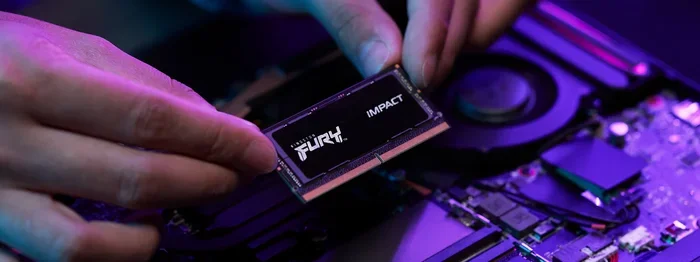
Align the notch on the SO-DIMM module with the ridge in the slot. Insert the module at a 30-degree angle and press down firmly until the metal clips snap into place. You should hear a click. This confirms the module is seated correctly.
Step 7: Close Up and Test
Replace the bottom panel and screw it back in. Reconnect the battery and power cable. Turn on your laptop. The system should automatically recognize the new memory. To confirm, check your RAM settings or use a tool like Task Manager.
Pro tip: If your laptop does not recognize the new RAM, try reseating the module. Sometimes the module needs a second push to make full contact. Upgrading your RAM is a simple process, but attention to detail makes all the difference.
How Much Does a RAM Upgrade Cost?
One of the best things about upgrading laptop RAM is the price. Memory is one of the most affordable computer components you can buy. You do not need to spend hundreds of dollars to see real improvements.
A single 8GB DDR4 SO-DIMM typically costs between $20 and $40. A 16GB module ranges from $40 to $80, depending on speed and brand. DDR5 modules are slightly more expensive but prices are dropping fast as adoption grows.
Compare this to the cost of a new laptop, which can easily exceed $800 or $1000. A $30 to $50 RAM upgrade can breathe new life into an older machine. The performance boost is often dramatic. Apps launch faster, multitasking becomes seamless, and your system feels years younger.
When shopping, stick with reputable brands like Crucial, Kingston, Corsair, or Samsung. These brands offer reliable modules with solid warranties. Avoid unknown brands that may have compatibility issues or poor quality control.
Common Mistakes to Avoid When Upgrading RAM
Even a simple upgrade can go wrong if you are not careful. Here are the most common mistakes people make and how to avoid them.
- Buying the wrong type: Always double-check DDR4 vs DDR5 and SO-DIMM vs DIMM before purchasing.
- Ignoring maximum capacity: Every laptop has a RAM limit. Buying more than your system supports wastes money.
- Mixing RAM brands and speeds: While it sometimes works, matching modules ensures the best performance and stability.
- Not grounding yourself: Static electricity can damage components. Use an anti-static wrist strap or touch a metal surface before handling RAM.
- Forcing the module: RAM should slide in smoothly. If it resists, check the alignment. Forcing it can damage the slot or module.
Avoiding these simple mistakes ensures your upgrade goes smoothly and your new RAM performs as expected. Taking a few extra minutes to research and prepare saves hours of troubleshooting later.
Expert Insights: When RAM Is Not the Problem
Sometimes a slow laptop is not a RAM issue at all. Before upgrading memory, consider other factors that affect performance. An old hard drive, for example, is one of the biggest bottlenecks. Switching from an HDD to an SSD often delivers bigger speed gains than adding RAM.
Malware and bloated startup programs can also slow your system. Run a full virus scan and disable unnecessary startup apps. Keep your operating system and drivers up to date. Sometimes a simple software fix solves problems that feel like hardware issues.
If you have already maxed out your RAM and your laptop still feels slow, the CPU or storage drive might be the limiting factor. Understanding the full picture of your system helps you invest wisely in upgrades that actually make a difference.
Final Thoughts
Upgrading your laptop RAM is one of the simplest and most cost-effective ways to improve performance. Whether you are struggling with slow multitasking, app crashes, or general sluggishness, more memory can solve the problem. The process is straightforward, the cost is low, and the results are immediate.
Start by checking your current RAM and confirming compatibility. Choose the right type and amount for your needs. Follow the installation steps carefully, and enjoy the speed boost. A laptop RAM upgrade is a project anyone can do, and the payoff is well worth the effort.
Do not let a slow laptop hold you back. Take action today and give your machine the memory it deserves. Your future self will thank you every time you open a new tab without a single pause.
Frequently Asked Questions
Can I increase my laptop RAM if it has 8GB?
Yes, in most cases. Check if your laptop has an available RAM slot or if the existing module can be replaced with a higher-capacity one. Many 8GB laptops can be upgraded to 16GB or even 32GB depending on the model.
Is it hard to upgrade laptop RAM yourself?
Not at all. Most laptop RAM upgrades take about 10 to 15 minutes. You only need a small screwdriver and a little patience. Just make sure you buy the correct type of RAM for your laptop.
What happens if I add too much RAM?
Your laptop will simply not recognize the extra memory beyond its maximum supported capacity. You will not damage your system, but you will waste money on RAM that goes unused. Always check your laptop’s maximum RAM support before buying.
Can I mix different brands of RAM?
Yes, but it is not ideal. Mixing brands can sometimes cause compatibility issues or reduce performance. For the best results, buy matching RAM modules from the same brand, type, and speed.
How do I know if my laptop RAM is upgradeable?
Check your laptop manufacturer’s website for your specific model’s specifications. Look for information about user-replaceable memory. You can also use free tools like Crucial’s system scanner to check compatibility and upgrade options.
Does more RAM make a laptop faster?
Yes, up to a point. More RAM helps with multitasking, running heavy apps, and reducing slowdowns. But if your laptop already has enough RAM for your tasks, adding more will not make a noticeable difference. It is important to match your upgrade to your actual needs.