How Can I Make a Mockup Online for Free
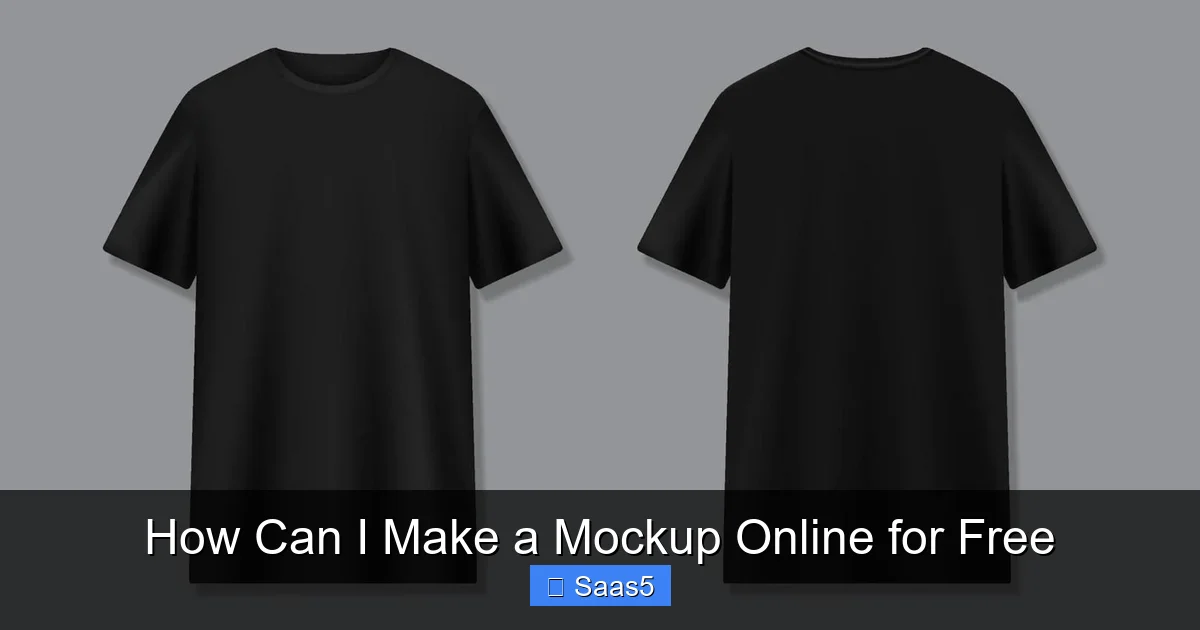
Creating stunning mockups without spending a dime is easier than ever, thanks to a robust ecosystem of free online tools. You don’t need to be a graphic designer or buy expensive software. Platforms like Smartmockups, Placeit, and Mockup World offer extensive libraries of device frames, templates, and customization options directly in your browser. This guide will walk you through the best free services, show you exactly how to build a mockup from scratch for various use cases, and provide actionable tips to ensure your final design looks polished and professional, all while staying within a zero-budget constraint.
So, you have a brilliant app idea, a stunning website design, or a fantastic product concept. You know a visual representation—a mockup—is the absolute best way to present it to stakeholders, clients, or potential users. But you’re not a designer, you don’t own Photoshop, and your budget is firmly at zero. The question bubbling up is: how can I make a mockup online for free?
The fantastic news is that you can. The landscape of free online mockup generators has exploded in quality and capability over the last few years. What was once a gimmicky, low-quality option is now a legitimate, powerful pathway for entrepreneurs, marketers, indie developers, and small businesses to create professional, presentation-ready visuals without writing a single line of code or opening a design suite. This guide isn’t just a list of tools; it’s a complete walkthrough. We’ll break down exactly what a mockup is, compare the top free contenders with their real-world pros and cons, and then dive into detailed, step-by-step tutorials for the most common projects. You’ll learn the secrets to making your free mockups look like they cost hundreds, and we’ll honestly discuss the point where “free” might start to hold you back. Let’s turn your static designs into compelling, realistic previews.
Key Takeaways
- No Design Degree Required: Modern free mockup tools use drag-and-drop interfaces and smart templates, making professional results accessible to complete beginners.
- Tool Choice Depends on Your Project: Different platforms excel for specific mockup types—some for digital apps/websites, others for print or physical products.
- “Free” Often Has Limits: Be aware of common restrictions like watermarks, lower-resolution exports, limited template access, or mandatory attribution.
- Customization is Key to Uniqueness: Even with free tools, you can often change backgrounds, add text, adjust lighting, and upload your own assets to avoid generic-looking results.
- Process is Universal: The core workflow—select template, upload design, customize, export—is consistent across most free online mockup generators.
- Know When to Go Paid: For client work, high-resolution needs, or extensive template libraries, a low-cost subscription is often a worthwhile investment.
- Best Practices Elevate Quality: Using high-resolution source files, matching aspect ratios, and paying attention to realism (shadows, reflections) dramatically improve outcomes.
📑 Table of Contents
- What Exactly is a Digital Mockup? (And Why You Absolutely Need One)
- The Best Free Online Mockup Makers in 2024: A Detailed Comparison
- Step-by-Step: Creating Your First Free App Mockup with Smartmockups
- Beyond Apps: Mocking Up Websites, Print, and Physical Products
- Pro Tips to Make Your Free Mockups Look Premium (Not Cheap)
- When Free Tools Aren’t Enough: Knowing When to Upgrade
- Conclusion: Your Zero-Budget Design Studio is Open
What Exactly is a Digital Mockup? (And Why You Absolutely Need One)
Before we jump into tools, let’s get on the same page. A mockup is a static, high-fidelity visual representation of a design applied to a real-world context. It’s the crucial middle step between a flat wireframe/sketch and a fully interactive prototype. Think of it as your design wearing its “real-world” clothes.
The Magic of Context
A raw screenshot of your app on a blank white background is functional, but it’s forgettable. Placed inside a photorealistic image of the latest smartphone held in a hand, or on a beautiful laptop screen on a coffee shop table, something magical happens. The viewer instantly understands the scale, the environment, and the user experience. It bridges the gap between imagination and reality. A well-made mockup answers silent questions: “Will this look good on a user’s phone?” “How does this website header look on a large desktop monitor?” “Will this print design pop on a t-shirt?”
Mockup vs. Wireframe vs. Prototype
It’s easy to confuse these terms.
- Wireframe: A low-fidelity, structural blueprint. Think black-and-white boxes and lines focusing on layout and function, not visuals.
- Mockup: A high-fidelity, static visual. It incorporates final colors, typography, imagery, and branding, presented in a realistic setting. It’s about how it looks.
- Prototype: An interactive simulation. You can click buttons, navigate screens, and test user flows. It’s about how it works.
For pitching, marketing, portfolio building, and initial stakeholder buy-in, the mockup is your most powerful and efficient tool. It’s visual storytelling.
The Best Free Online Mockup Makers in 2024: A Detailed Comparison
Not all free tools are created equal. Their strengths lie in different niches. I’ve tested dozens and grouped the best by their primary focus. For each, I’ll detail what “free” truly means, the standout features, and the best use case.
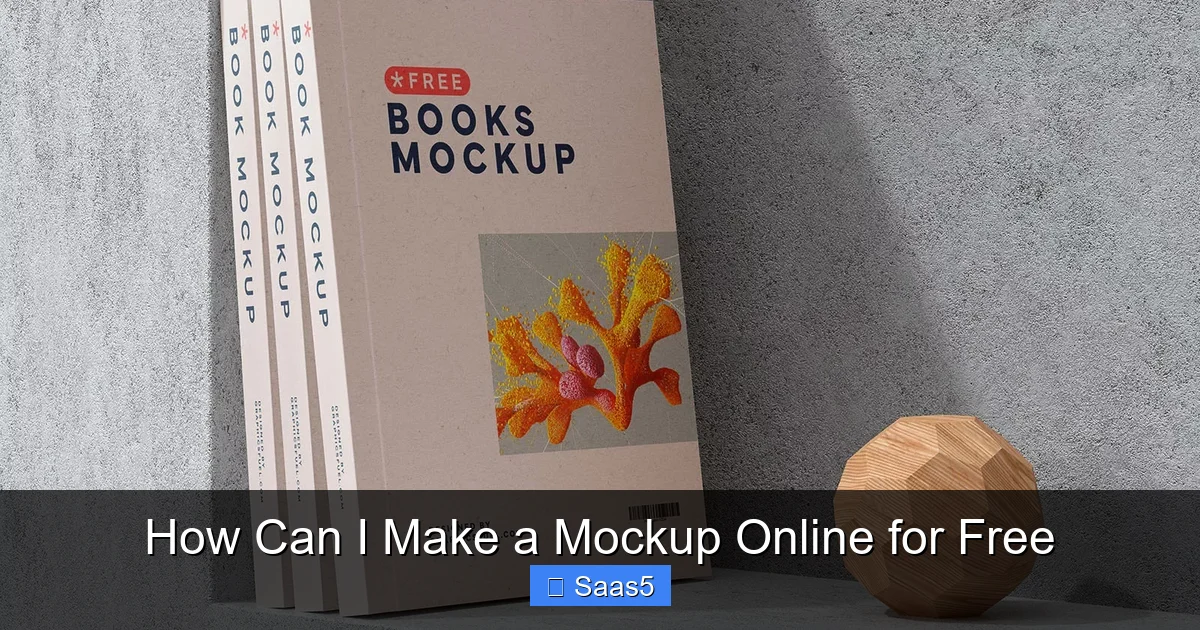
Visual guide about How Can I Make a Mockup Online for Free
Image source: free-mockup.com
1. Smartmockups: The All-Rounder Powerhouse
Smartmockups is arguably the most capable and user-friendly free option for digital product mockups. It’s a browser-based platform that integrates seamlessly with Canva.
- Free Plan Details: Offers a generous selection of high-quality device frames (phones, laptops, tablets, watches). You can upload your own designs (PNG, JPG) and customize backgrounds, colors, and positioning. Exports are in high-resolution PNG. The main limit is a smaller, but still very useful, subset of their full template library.
- Best For: App and website mockups. If you need a clean, professional shot of your mobile app on an iPhone or MacBook, this is your go-to. The integration with Canva is a huge plus if you already design there.
- Pro Tip: Use their “Custom Upload” feature for any device frame they don’t have. Upload a transparent PNG of your specific device (easily found online), and Smartmockups will map your design to its screen perfectly.
2. Placeit: The King of Variety & Lifestyle Context
Placeit, by the same company as Smartmockups, takes a different approach. Its strength is in massive, themed libraries with incredible lifestyle and environmental context.
- Free Plan Details: Access to thousands of mockup templates. However, free downloads come with a Placeit watermark in the corner. You get one free HD download per day without a watermark (a very generous offer). Templates range from tech devices to apparel, books, signage, and more.
- Best For: When you need storytelling. A person using your app in a café, your book cover on a shelf in a cozy living room, your logo on a t-shirt worn by a model. It’s perfect for social media ads, Kickstarter pages, and marketing materials where evoking emotion is key.
- Pro Tip: Use the free daily watermark-free download strategically for your most important hero images. For less critical visuals, use the watermarked version for drafts and internal reviews.
3. Mockup World & GraphicBurger: The Curated Template Goldmines
These aren’t interactive builders in the same way; they are vast directories of free, downloadable Photoshop mockup templates (PSD files).
- How They Work: You browse their categories (e.g., “iPhone 15 Mockups,” “Packaging Mockups”), download a PSD file, open it in a free program like GIMP or the free web version of Photoshop, and replace the smart object layer with your design. It’s a two-step process but offers unparalleled control and realism.
- Best For: Print designers, packaging designers, and anyone who wants the absolute highest quality, photorealistic results with intricate details like fabric textures, foil stamping, or natural shadows that online generators might simplify. It requires minimal Photoshop knowledge (just double-clicking a smart object).
- Pro Tip: Always look for “Smart Object” in the PSD description. That’s your golden ticket—it means you just paste your design and it automatically fits the perspective, lighting, and warping.
4. Canva: The Familiar Giant with Built-In Mockups
If you already use Canva for design, you have a mockup tool at your fingertips.
- Free Plan Details: In the “Elements” tab, search for “mockup” or “device frame.” You’ll find a good selection of phone, laptop, and tablet frames. You drag your design (uploaded as an image) onto the frame, and Canva clips it. The quality is good, and it keeps everything in one design file.
- Best For: Quick and simple integrations when your final deliverable is a presentation slide, social graphic, or PDF that includes both your design and its mockup. It’s not as photorealistic as dedicated tools, but it’s incredibly convenient.
- Pro Tip: Search for “phone screen” or “laptop screen” to find transparent overlays you can place over your own background image for a custom look.
5. Figma & FigJam: For the UI/UX Designer (and Learners)
Figma’s free tier is a professional design tool, and its community is a treasure trove of free, editable mockup plugins and files.
- How It Works: Search the Figma Community for “mockup generator” or “device mockup.” You’ll find plugins (like “Mockup” or “Device Mockup”) and entire UI kits with pre-built, fully editable mockup components. You drag your frame or image onto a smart layer.
- Best For: Designers already in the Figma ecosystem who want mockups as part of their design system or prototype. Also excellent for learners who want to understand how mockups are constructed (layers, masks, effects).
- Pro Tip: The “Auto Layout” feature in these community files is genius. It means if you swap out the device frame (e.g., from an iPhone 14 to a Samsung Galaxy), your design automatically resizes and repositions perfectly.
Quick-Reference Comparison Table
| Tool | Best For | Key Free Limitation | Ease of Use |
|---|---|---|---|
| Smartmockups | App/Web mockups | Limited template library | Very Easy |
| Placeit | Lifestyle/Storytelling | Watermark (1 free HD/day without) | Very Easy |
| Mockup World | Print/Packaging (High-End) | Requires GIMP/Photoshop | Intermediate |
| Canva | Integrated presentations | Less realistic, limited frames | Extremely Easy |
| Figma Community | UI/UX designers, learners | Requires Figma account | Easy-Intermediate |
Step-by-Step: Creating Your First Free App Mockup with Smartmockups
Enough theory. Let’s build something. We’ll use Smartmockups as our example because it perfectly represents the modern, free, browser-based workflow. We’ll create a mockup for a fictional fitness app called “FitPulse.”
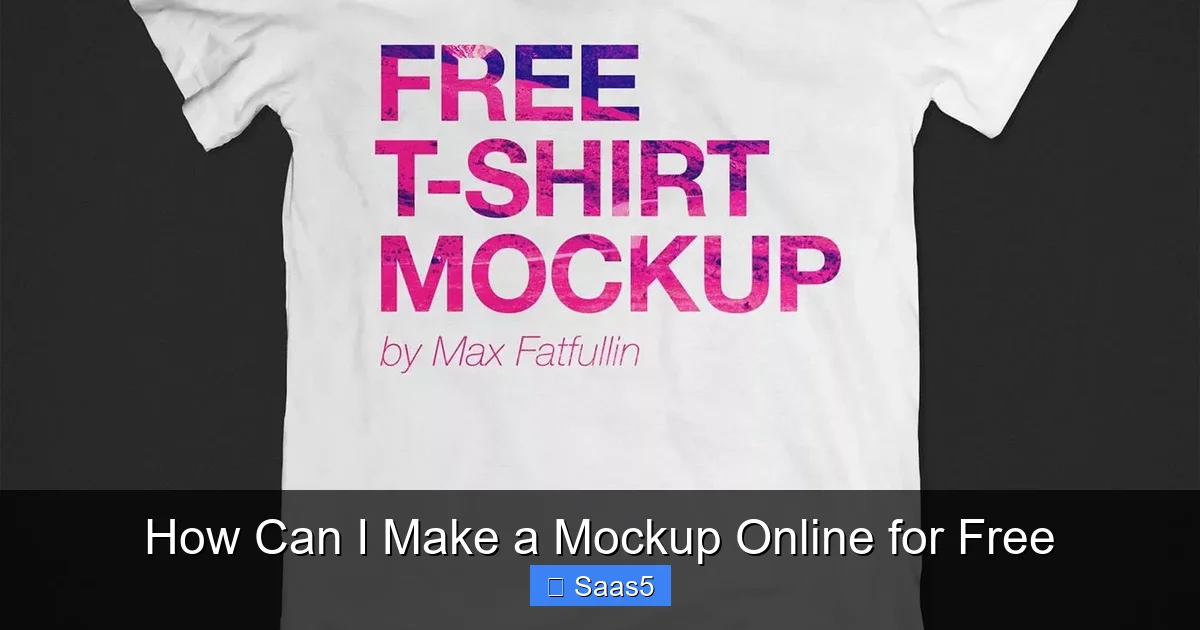
Visual guide about How Can I Make a Mockup Online for Free
Image source: free-mockup.com
Step 1: Prepare Your Source Design
Your mockup is only as good as the design you put in it. Before you even open a mockup tool, have your app screen(s) ready as a high-resolution image file.
- Format: PNG with a transparent background is ideal, but a JPG with a solid background color works too.
- Resolution: Export your UI design at 2x or 3x the standard size. For an iPhone mockup, your source image should be at least 1242×2688 pixels. This prevents pixelation when placed on a high-res device frame.
- Aspect Ratio: Match your design’s aspect ratio to the device you’ll mock it up on. An iPhone 15 has a 19.5:9 ratio. If your design is square, it won’t fit without stretching or letterboxing.
Step 2: Select Your Device Frame
Go to Smartmockups.com. Click “Create Mockup.” You’ll see categories like Phones, Laptops, Tablets, Watches. For FitPulse, we’ll choose Phones. Browse the thumbnails. Click on a clean, modern frame like the “iPhone 15 Pro” in a neutral color (space black or silver). Avoid overly stylized frames for your first try.
Step 3: Upload and Position Your Design
This is the core step. On the right panel, you’ll see a placeholder screen. Click “Upload” or drag your prepared FitPulse screen image directly onto that area.
- Auto-Fit: Smartmockups will attempt to fit your image. Check the corners. Does it stretch? If your aspect ratio is wrong, you’ll see empty space or cropping. Use the “Fit” or “Fill” toggle and the zoom/position sliders to get it perfect.
- Bleed Area: Some frames have a “bleed” option where your design extends slightly beyond the visible screen edge for a seamless look. For beginners, leave this off.
Step 4: Customize the Scene
Now make it real.
- Background: Change the solid color background to something that complements your app’s branding. A soft gray or a subtle gradient often looks professional. You can also upload a custom background image (e.g., a blurry office, a nature scene) for more context.
- Device Color & Finish: Switch between space black, silver, gold, or blue. Consider the vibe—dark modes often pair better with darker phone frames.
- Shadow & Reflection: These sliders are your secret weapon. A subtle drop shadow under the phone and a faint reflection on the “surface” below it adds immense realism. Don’t overdo it; 10-20% is usually enough.
Step 5: Export and Use
Click the “Download” button. Choose PNG. Select “High” or “Original” quality. The free version will give you a high-resolution file, perfect for web use, presentations, and even small print runs. No watermark. Download and use it everywhere!
You just made a professional mockup for free. The entire process takes 3-5 minutes once you have your design file ready.
Beyond Apps: Mocking Up Websites, Print, and Physical Products
The principles are the same, but the tools and considerations shift based on what you’re showcasing.
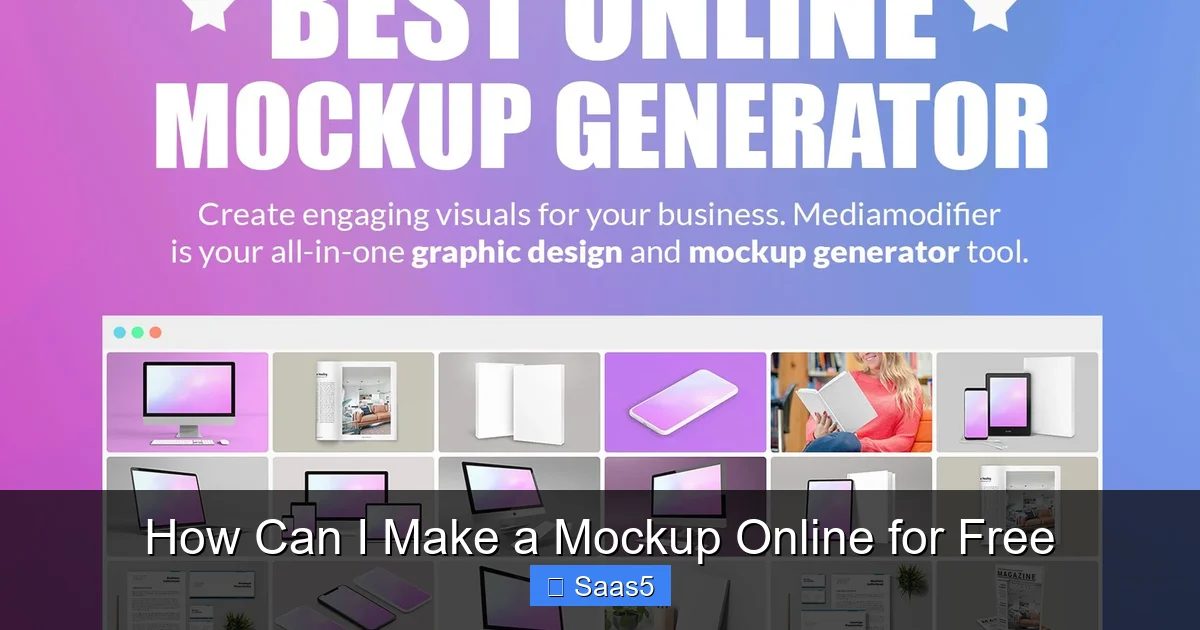
Visual guide about How Can I Make a Mockup Online for Free
Image source: mediamodifier.com
Website Mockups: Desktop, Tablet, Mobile
For websites, you need to show responsive design. The best free tool for this is still Smartmockups or Placeit.
- Workflow: You’ll create three separate mockups: one for a desktop laptop screen (e.g., MacBook Pro), one for a tablet (iPad), and one for a phone.
- Source File: Use your browser’s developer tools or a tool like Screenshot Machine to capture full-page, high-resolution screenshots of your live site at the exact dimensions of your target device. For example, a standard desktop viewport is often 1920×1080.
- Pro Tip: In your mockup tool, use a “multi-device” template that shows all three screens side-by-side on a desk. This is incredibly powerful for showing your site’s responsive nature in a single image.
Print & Stationery Mockups: Business Cards, Brochures, Books
Here’s where Mockup World and Placeit shine. The texture, lighting, and physicality matter immensely.
- Workflow (using a PSD from Mockup World):
- Download a “business card mockup” PSD.
- Open it in GIMP (free).
- In the Layers panel, find the “Your Design Here” or “Smart Object” layer.
- Double-click it. A new window opens. Paste your business card design (must be the exact size and shape of the card template). Save and close that window.
- Instantly, your design is warped and shaded to fit perfectly into the photographed scene.
- Critical Tip: For print mockups, your source file must include bleed (usually 0.125 inches around the edges) and be at 300 DPI. A low-res image will look glaringly fake on a textured paper mockup.
Product & Packaging Mockups: T-Shirts, Mugs, Boxes
This is the domain of Placeit and specialized free sites like Medialoot.
- The Challenge: Wrapping a flat design onto a 3D form. It involves distortion and shadow mapping that’s hard to do manually.
- Solution: Use a template with a smart layer or a dedicated online tool. For a t-shirt, upload your logo design. The tool will map it onto the shirt’s chest, adjusting for the folds and shadows of the fabric. Pay attention to the “wrap” strength—too much looks distorted; too little looks pasted on.
- Advanced Free Option: For simple box mockups, you can sometimes use the “Displace” filter in GIMP with a provided displacement map (a grayscale image of the box’s folds) to warp your design realistically. This is advanced but free.
Pro Tips to Make Your Free Mockups Look Premium (Not Cheap)
Anyone can drag and drop. What separates amateur results from professional ones is attention to detail. Apply these mental checklists.
1. Start with the Highest Possible Source File
This is non-negotiable. A blurry, pixelated app screenshot placed on a 4K phone frame is the fastest way to look unprofessional. Always export your original UI at 2x or 3x resolution. For print, 300 DPI is the standard. You can always downsize, but you can never add quality.
2. Master the Art of the Background
A plain white or solid color background is safe but boring. A subtle, out-of-focus environmental background (a café, a desk with a plant, a concrete wall) adds instant depth and context. In tools like Smartmockups, use their background uploader. For PSD mockups, the background is usually a separate layer you can replace. Ensure your background doesn’t clash with your design’s colors.
3. Respect Lighting and Shadow Direction
Look at the mockup template. Where is the light source coming from? Top-left? Front? Your design’s highlights and shadows should match. If the scene has a strong shadow cast to the lower right, your design should not have a drop shadow in the opposite direction—it will look glued on. Most good smart object templates handle this automatically, but always check.
4. Mind the Details: Bezel, Notch, Camera Bump
Modern devices have physical characteristics. A good mockup template will have a transparent area for the dynamic island/notch, the camera bump, or the phone’s bezel. Make sure your uploaded design does not cover these elements. Your app’s status bar should align with the device’s status bar area. This tiny detail screams authenticity.
5. Consistency is Branding
If you’re making a series of mockups for the same product (e.g., a suite of apps), use the same device model, same background style/color, and same lighting setup across all of them. This creates a cohesive, branded presentation that looks intentional and high-end.
6. Don’t Over-Export
When you download, choose the appropriate resolution. For a website hero image or Instagram post, standard 72 DPI web resolution is fine and keeps file size small. For a keynote presentation or a printable one-pager, choose the highest resolution available. Don’t use a 4000px wide image for a 500px wide slot—it’s wasteful.
When Free Tools Aren’t Enough: Knowing When to Upgrade
Free tools are incredible, but they have hard ceilings. Recognizing these limits is key to knowing when a small investment will yield a massive return.
The Watermark Wall
Tools like Placeit’s free tier allow one watermark-free download per day. If you need 20 mockups for a product launch, that’s a 20-day process. A paid plan (often $15-$30/month) removes watermarks entirely and unlocks the full library. For any commercial or client-facing work, a watermark is unacceptable.
The Resolution Ceiling
Some free tiers cap exports at 1080p or 2000px wide. If you need a billboard, a large trade show banner, or high-end print, you need the source files or vector-based exports that paid plans provide.
The Template Lock
Free libraries are curated. They contain the most popular, generic devices and scenes. If you need a mockup of the latest obscure Android phone, a specific car dashboard, or a niche piece of industrial equipment, you’ll likely only find it in the paid library or on a premium marketplace like The Mockup Club.
The Customization Constraint
Free online generators often lock advanced customization. You might not be able to change the perspective angle, adjust the depth of field, or edit individual layer shadows. With a PSD template (from a paid source) or a pro tool like Photoshop, you have total control over every element of the scene.
The Bottom Line
Use free tools for: Personal projects, portfolio pieces, internal pitches, student work, testing ideas, and social media content where a small watermark might be acceptable or can be cropped out.
Invest in paid tools/templates for: Client deliverables, official company branding, large-scale print, products for sale, and any situation where your professional reputation is directly on the line. The $20/month for a Smartmockups Pro plan or a one-time $25 for a premium PSD bundle is a business expense that pays for itself with one client project.
Conclusion: Your Zero-Budget Design Studio is Open
The barrier to creating professional-grade visual presentations has been utterly demolished. The answer to “how can I make a mockup online for free?” is no longer a compromise; it’s a powerful, legitimate strategy. By understanding the difference between tool types (online generators vs. PSD templates), selecting the right tool for your specific project—be it an app, a website, or a printed t-shirt—and applying the pro tips for realism and consistency, you can produce mockups that will make people assume you have a full design team on retainer.
Start with the all-rounder, Smartmockups, for digital products. Dive into Placeit when you need a story. Master a PSD template from Mockup World for top-tier print work. The workflow is simple: prepare a high-res design, choose a fitting template, make subtle customizations, and export. It’s a skill that compounds. Each mockup you make enhances your portfolio, clarifies your own vision, and makes your next pitch more compelling. So go ahead. Take that app screenshot, that website URL, or that logo file, and spend 10 minutes in one of these free tools. You’ll be amazed at the professional result you can achieve with zero financial outlay. Your ideas deserve to be seen in their best light—now you have the means to make that happen, for free.
Frequently Asked Questions
Can I use free online mockups for commercial projects and client work?
It depends entirely on the tool’s license. Most free tiers of online generators (like Smartmockups or Placeit) allow commercial use of the mockups you create, but they may include a watermark or have resolution limits. Always read the Terms of Service. For PSD templates from sites like Mockup World, the license is usually for personal/commercial use, but you cannot redistribute or resell the template itself. When in doubt, assume a watermark means “not for final commercial use” and either upgrade or find a truly royalty-free source.
Do I need any design skills to use these free mockup tools?
No advanced skills are required. The core process is drag-and-drop. However, basic design sensibility helps. Knowing how to export your source file at the correct resolution and aspect ratio is the most important technical skill. Understanding composition (like leaving safe margins) and color theory (choosing complementary backgrounds) will make your mockups look much more professional, but the tools themselves are built for beginners.
What file formats should my original design be in to use in a mockup?
For digital (app/website) mockups, a PNG with a transparent background is the gold standard. A JPG with a solid background color works if the mockup template has a solid screen area. For print mockups (business cards, packaging), you must use a high-resolution (300 DPI) PDF, PNG, or JPG that matches the exact dimensions of the printable area, including any bleed. The mockup template’s instructions will specify the required size.
Are there any hidden costs or catches with “free” mockup makers?
Yes, the most common are: watermarks on the exported image, lower resolution exports (e.g., max 1080p), a limited daily number of downloads, reduced access to the best or newest templates, and mandatory attribution (requiring you to link to the tool). Paid plans remove these restrictions. Also, be wary of tools that are “free” but then require payment to download your final image—this is a classic bait-and-switch to avoid.
How do I make a mockup if I don’t have a live website or app yet?
You mock up the design file itself. Take a high-resolution screenshot of your Figma, Adobe XD, or Sketch artboard. If it’s a static design, export it as a PNG. You can then place that image file into any device or print mockup template. For websites, you can even create a simple “coming soon” page with your logo and tagline and mock that up. The key is having a visual representation of your final design, even if it’s not yet coded or built.
What’s the single biggest mistake beginners make when making mockups?
Using a low-resolution source image. It is the #1 culprit behind blurry, unprofessional-looking mockups. No matter how perfect the device frame, lighting, and background are, a pixelated app screen ruins everything. The second biggest mistake is ignoring aspect ratios, which results in your design being stretched, squashed, or having awkward letterboxing/pillarboxing. Always prepare your source file to match the target device’s screen dimensions exactly before uploading.