How Do I Increase My Ram on My Laptop
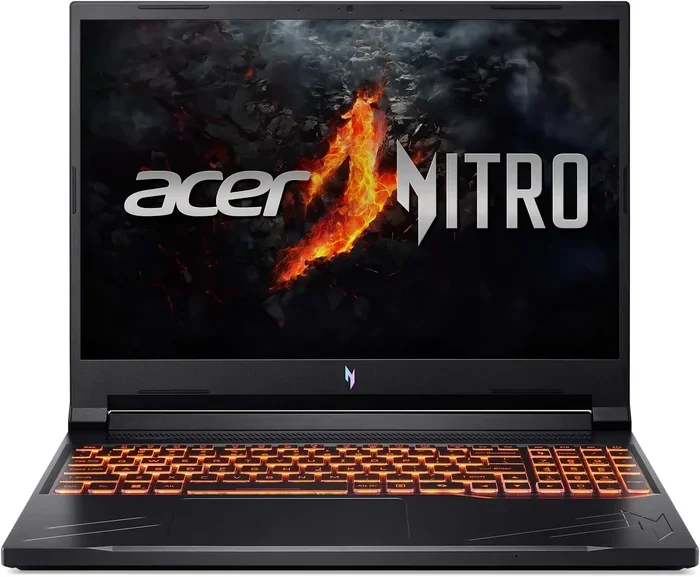
Increasing your laptop RAM is one of the easiest and most affordable ways to boost performance. Whether you want to multitask faster or run demanding apps, this guide walks you through every step. You will learn how to check your current RAM, find compatible upgrades, and install new memory like a pro.
Is your laptop running slow? Do apps freeze or take forever to load? The answer might be simpler than you think. Learning how do I increase my RAM on my laptop can transform your daily computing experience in minutes.
Random Access Memory, or RAM, is the short-term memory your laptop uses to handle tasks. More RAM means your computer can juggle more apps at once without breaking a sweat. Whether you are a student, a remote worker, or a casual gamer, upgrading your laptop RAM is one of the best investments you can make.
This guide covers everything you need to know. We will walk you through checking your current memory, finding the right upgrade, and installing it yourself. No tech degree required. Let us get started.
Key Takeaways
- Check Your Current RAM First: Knowing what you have helps you decide what to upgrade.
- Verify Compatibility: Not all RAM works with every laptop. Check your model and specs.
- Installation Is Simpler Than You Think: Most laptops allow easy RAM swaps at home.
- More RAM Means Smoother Multitasking: Expect faster performance with heavier workloads.
- Max Out Your Slots: Filling all RAM slots gives the best speed boost.
- Consider Professional Help If Needed: Some laptops are tricky to open. It is okay to ask for help.
📑 Table of Contents
Why Increasing Your Laptop RAM Matters
Your laptop relies on RAM to keep everything running smoothly. When you open a browser with ten tabs, a word processor, and a music app, all of that lives in your memory. If your RAM is too low, your laptop slows down dramatically. It starts swapping data to your hard drive, which is much slower.
Here are some clear signs that you need more laptop memory:
- Your laptop takes forever to switch between apps.
- You get “out of memory” errors frequently.
- Videos and games lag or stutter.
- Your browser crashes when you open too many tabs.
- Your laptop feels sluggish even after a restart.
Upgrading your RAM can fix all of these issues. It is also one of the cheapest upgrades you can do. A new stick of DDR4 RAM or DDR5 RAM costs far less than a new laptop. And the performance boost is immediate and noticeable.
Before you buy anything, it helps to understand what your laptop currently has. You can check the RAM on your laptop using built-in Windows tools or your system settings. This tells you how much memory you have and how many slots are still available.
How to Check Your Current RAM
Using Windows Task Manager
The easiest way to see your current RAM is through Task Manager. Press Ctrl + Shift + Esc on your keyboard. Click the Performance tab and then select Memory. You will see your total RAM, how much is in use, and how many slots are occupied.
This method works on Windows 10 and Windows 11. It gives you a quick snapshot of your laptop specs RAM without downloading anything extra.
Using System Information
Another reliable method is through the System Information tool. Press the Windows key, type “System Information,” and hit Enter. Look for the “Installed Physical Memory (RAM)” section. This shows your total memory in gigabytes.
If you want a more detailed view, you can also use the Command Prompt. Type “wmic memorychip get capacity, speed” and press Enter. This shows the size and speed of each RAM stick installed.
Using Third-Party Tools
Tools like CPU-Z and Speccy give you even more details about your memory. They show the type, speed, and form factor of your RAM sticks. This is helpful when you are shopping for an upgrade because you need to match the exact specifications.
Once you know your current setup, you can plan your upgrade. Ask yourself: how much RAM do I actually need? For basic tasks like browsing and office work, 8 GB is usually enough. For video editing, gaming, or programming, 16 GB or more is better.
Understanding RAM Types and Compatibility
DDR3 vs DDR4 vs DDR5
RAM comes in different generations, and they are not interchangeable. DDR3 is older and slower. DDR4 is the current standard for most laptops. DDR5 is the newest generation and offers the best performance.
Your laptop motherboard determines which type of RAM it supports. You cannot put DDR5 RAM into a DDR4 slot. Always double-check your laptop model before purchasing any memory.
SO-DIMM vs DIMM
Laptops use smaller RAM modules called SO-DIMMs. Desktop computers use full-size DIMMs. Make sure you buy SO-DIMM RAM for your laptop upgrade. This is one of the most common mistakes people make when shopping for memory.
Speed and Frequency
RAM speed is measured in megahertz (MHz). Higher MHz means faster data transfer. However, your laptop motherboard has a maximum speed it can support. Buying RAM that is faster than your motherboard supports will not give you any extra benefit. It will simply run at the maximum speed your laptop allows.
Maximum RAM Your Laptop Can Handle
Every laptop has a maximum RAM capacity. Some older models only support 8 GB or 16 GB total. Newer laptops can handle 32 GB or even 64 GB. Check your laptop manufacturer’s website or user manual to find the max RAM laptop supports.
How to Increase Your RAM on a Laptop Step by Step
Step 1: Gather Your Tools
You do not need many tools for this job. Here is what you will need:
- A small Phillips-head screwdriver
- An anti-static wrist strap (optional but recommended)
- A clean, flat workspace
- Your new RAM stick(s)
Having everything ready before you start makes the process smooth and stress-free.
Step 2: Back Up Your Data
While upgrading RAM is very safe and does not affect your files, it is always smart to back up your data first. Use an external drive or a cloud service. This way, you have nothing to worry about during the process.
Step 3: Power Down and Unplug
Turn off your laptop completely. Unplug the power cable and disconnect any peripherals. If your laptop has a battery that can be removed, take it out. This ensures safety while you work inside the machine.
Step 4: Open the Laptop Back Panel
Flip your laptop over and locate the screws on the bottom panel. Use your screwdriver to remove them carefully. Keep the screws in a safe place. Gently pry off the back panel using a plastic spudger or your fingernail.
Some laptops have easy-access panels specifically for RAM. Others require removing the entire bottom cover. Check your laptop model online for specific instructions.
Step 5: Locate the RAM Slots
Once the panel is off, you will see your existing RAM sticks. They are long, thin boards that plug into slots on the motherboard. If both slots are filled, you may need to remove an existing stick to replace it with a larger one.
Press the small metal clips on either side of the RAM stick. The stick will pop up at an angle. Gently pull it out. This is how you remove old memory to make room for the new.
Step 6: Install the New RAM
Take your new RAM stick out of its anti-static bag. Align the notch on the bottom of the stick with the ridge in the slot. Press the stick firmly and evenly until the metal clips snap into place. You should hear a click.
If you are adding RAM rather than replacing, simply insert the new stick into an empty slot using the same method. Make sure it is fully seated and secure.
For a detailed walkthrough, you can also check our guide on how to install RAM on a laptop for additional tips.
Step 7: Close Up and Test
Replace the back panel and screw it back in. Plug in your power cable and turn on the laptop. Once it boots up, check your RAM again through Task Manager or System Information. The new memory should now be recognized.
If the system does not detect the new RAM, try reseating the stick. Sometimes it just needs a little extra pressure to click into place fully.
How Much RAM Do You Really Need?
The right amount of RAM depends on how you use your laptop. Here is a simple breakdown:
| Usage Type | Recommended RAM | Notes |
|---|---|---|
| Basic browsing and office work | 8 GB | Sufficient for everyday tasks |
| Multitasking and moderate gaming | 16 GB | Great balance of performance and cost |
| Video editing and heavy workloads | 32 GB | Ideal for professionals |
| 3D rendering and intensive tasks | 64 GB | Maximum performance for power users |
If you are unsure what you need, start with 16 GB. It covers most use cases and gives you room to grow. You can also check our article on how much RAM do I need on my laptop for more detailed guidance.
Keep in mind that adding RAM is not the only way to boost your laptop speed. An SSD upgrade can also make a huge difference. But for multitasking and running heavy applications, more memory is the way to go.
Common Mistakes to Avoid When Upgrading RAM
Even though upgrading RAM is straightforward, mistakes can happen. Here are some pitfalls to watch out for:
- Buying the wrong RAM type: Always match DDR generation, speed, and form factor.
- Mixing RAM brands: While it often works, matching brands and specs gives the best stability.
- Forgetting to ground yourself: Static electricity can damage components. Use an anti-static wrist strap or touch a metal surface first.
- Not seating the RAM fully: A half-inserted stick will not work. Listen for the click and make sure the clips lock in place.
- Ignoring your laptop’s max capacity: Buying 32 GB sticks for a laptop that only supports 16 GB total is a waste of money.
Avoiding these simple mistakes saves you time, money, and frustration. Take your time and double-check everything before you start.
When to Seek Professional Help
Most laptop RAM upgrades are DIY-friendly. But some laptops are designed to be difficult to open. Ultra-thin models and certain brand-specific laptops may have proprietary screws or sealed panels.
If you feel uncomfortable opening your laptop, there is no shame in seeking help. Many local computer repair shops will install RAM for a small fee. You can also check with your laptop manufacturer for authorized service options.
For HP laptop users specifically, we have a dedicated guide on how to upgrade RAM on HP laptop that covers model-specific steps.
Final Thoughts
Increasing your laptop RAM is one of the simplest and most impactful upgrades you can make. It costs less than most people expect and delivers immediate results. Your laptop will boot faster, apps will open quicker, and multitasking becomes effortless.
Start by checking your current memory and finding out what your laptop supports. Then buy the right RAM and follow the installation steps in this guide. In less than 30 minutes, you can breathe new life into your laptop.
Do not let a slow laptop hold you back any longer. Upgrade your RAM today and feel the difference every time you open your computer. Your future self will thank you.
Frequently Asked Questions
Can I increase my laptop RAM if it is soldered?
Some modern laptops have RAM that is soldered directly to the motherboard. This means you cannot upgrade or replace it. Before purchasing a laptop, always check if the RAM is upgradeable. Look for models with accessible RAM slots if future upgrades matter to you.
How do I know if my laptop supports RAM upgrades?
Check your laptop model on the manufacturer’s website or look up its specs online. If your laptop has removable RAM slots, you can upgrade it. You can also use a tool like CPU-Z to see if your memory is replaceable. Most traditional laptops support upgrades, but many thin and light models do not.
Will adding more RAM make my laptop faster?
Yes, adding more RAM will make your laptop noticeably faster, especially when multitasking. It helps your laptop handle more apps and browser tabs without slowing down. However, if your laptop already has enough RAM for your tasks, adding more will not make a big difference.
How much does it cost to upgrade laptop RAM?
A single 8 GB or 16 GB RAM stick typically costs between $20 and $60. The price depends on the type, speed, and brand. Overall, it is one of the most affordable upgrades you can do for your laptop. The performance improvement is well worth the small investment.
Can I mix two different RAM sticks in my laptop?
Yes, you can mix RAM sticks, but it is best to use matching pairs. Same brand, same size, same speed, and same generation give the best results. Mixing different RAM can sometimes cause stability issues or reduce performance. If you must mix, try to match as many specs as possible.
How long does it take to upgrade laptop RAM?
The entire process usually takes 15 to 30 minutes. Checking your current RAM and buying the right stick may take a bit longer. But the actual installation is quick and straightforward. Even beginners can complete it with ease by following a step-by-step guide.