How Much Ram Does a Laptop Have

Not sure how much RAM does a laptop have? This guide shows you quick ways to check your laptop’s memory, explains what the numbers really mean, and helps you decide if you need more. Read on for simple steps, real‑world examples, and expert tips.
Key Takeaways
- Check instantly: Use built‑in system tools on Windows, macOS, or Linux to see exact RAM size in seconds.
- Understand the numbers: 4 GB, 8 GB, 16 GB, and 32 GB each serve different usage scenarios—from browsing to heavy video editing.
- Upgradability matters: Some laptops let you add or replace RAM, while others have it soldered onto the motherboard.
- Speed counts too: DDR4, DDR5, and higher MHz ratings boost performance, especially for gaming and professional apps.
- Balance cost and need: More RAM isn’t always better; match memory to your typical tasks to avoid overspending.
- Future‑proofing: Buying a laptop with extra RAM slots or higher‑capacity modules can extend the device’s useful life.
- Battery impact: More RAM can use slightly more power, but the effect is minimal compared with CPU or screen size.
📑 Table of Contents
- Introduction: Why Knowing Your Laptop’s RAM Matters
- 1. How to Check How Much RAM Your Laptop Has
- 2. Decoding RAM Sizes: What Does 8 GB vs 16 GB Really Mean?
- 3. RAM Speed and Type: DDR4, DDR5, and MHz Explained
- 4. Upgrading or Adding RAM: Is It Possible?
- 5. How Much RAM Do Different Users Actually Need?
- 6. Real‑World Examples: How Much RAM Does a Popular Laptop Have?
- Conclusion: Making the Right Choice
Introduction: Why Knowing Your Laptop’s RAM Matters
When you buy a laptop, the first thing you see on the spec sheet is the amount of RAM. But many shoppers ask themselves, “how much ram does a laptop have?” without really understanding why the number is important. RAM – short for Random Access Memory – is the short‑term memory that stores the data your computer needs right now. It’s what lets you switch between browsers, open a spreadsheet, and stream a video without lag.
In this article we’ll walk you through the easiest ways to find out exactly how much RAM does a laptop have, explain what the numbers mean, and give you practical advice on whether you should upgrade or buy a new machine. Think of it as a friendly chat over coffee, with clear steps and real‑world examples you can apply today.
1. How to Check How Much RAM Your Laptop Has
Before you can decide if you need more memory, you need to know the answer to the basic question: how much ram does a laptop have right now? Below are the quickest methods for the three major operating systems.
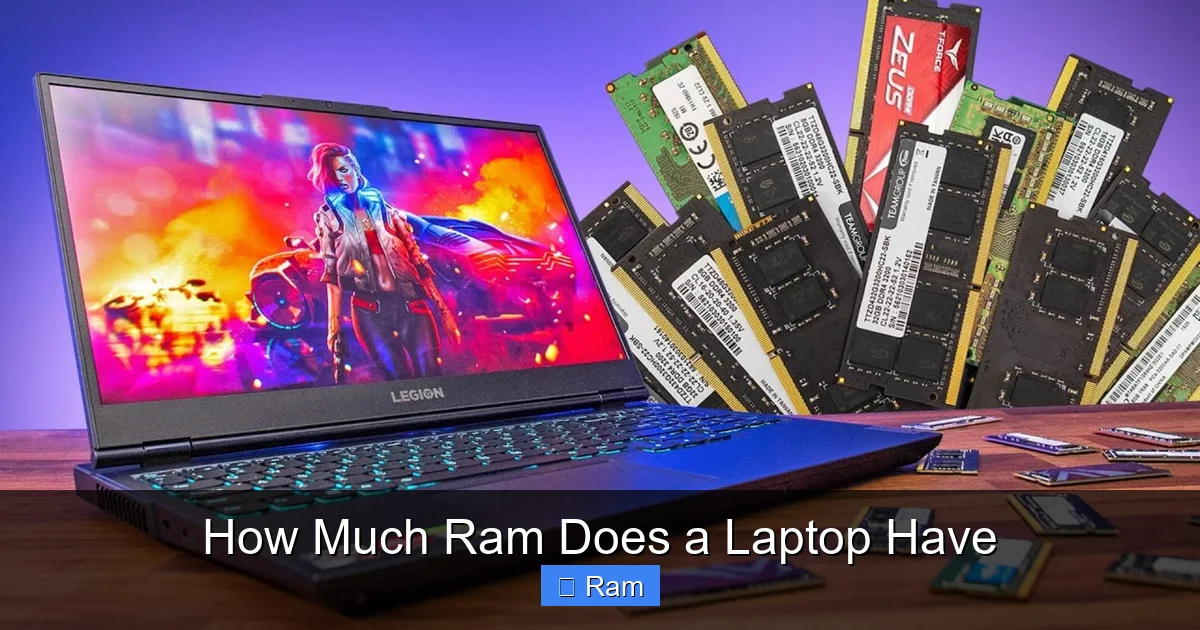
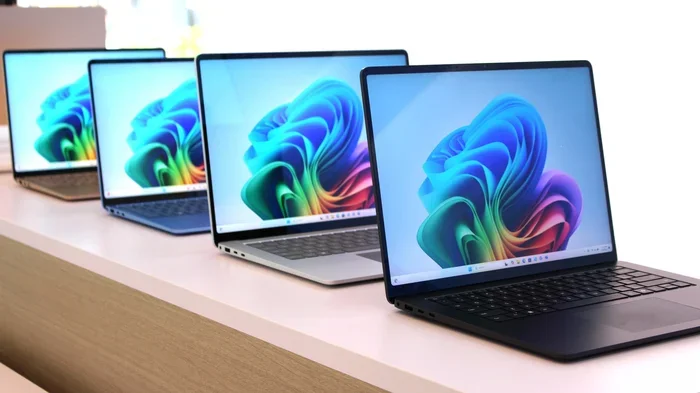
Visual guide about How Much Ram Does a Laptop Have
Image source: robots.net
Windows 10/11
- Press Windows + Pause/Break or right‑click This PC and select Properties. The “System” page shows “Installed RAM”.
- For more detail, open Task Manager (Ctrl + Shift + Esc), click the Performance tab, then select Memory. You’ll see total capacity, speed (e.g., 3200 MHz), and how many slots are used.
- Alternatively, type “System Information” in the Start menu and look under “Installed Physical Memory (RAM)”.
macOS
- Click the Apple menu > About This Mac. The Overview tab displays the total RAM (e.g., 16 GB).
- For slot details, click System Report… then select Memory in the sidebar. You’ll see each module’s size and speed.
Linux (Ubuntu, Fedora, etc.)
- Open a terminal and type
free -h. The “total” line under “Mem:” shows the installed RAM. - For hardware specifics, run
sudo lshw -c memoryordmidecode -t memory. These commands list each DIMM, its size, and speed.
Quick tip: Use a third‑party app
Tools like CPU-Z* (Windows) or iStat Menus* (macOS) provide a visual readout of RAM type, speed, and slot usage. They’re handy if you prefer a graphical interface.
2. Decoding RAM Sizes: What Does 8 GB vs 16 GB Really Mean?
Now that you know how much ram does a laptop have, let’s translate those numbers into everyday performance.
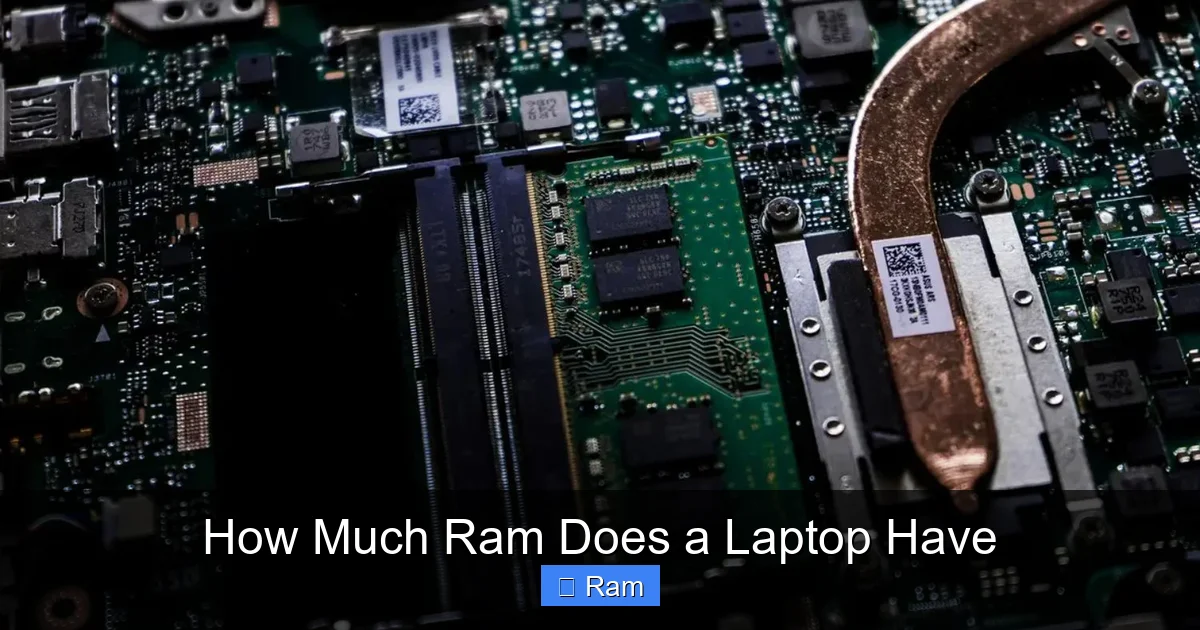
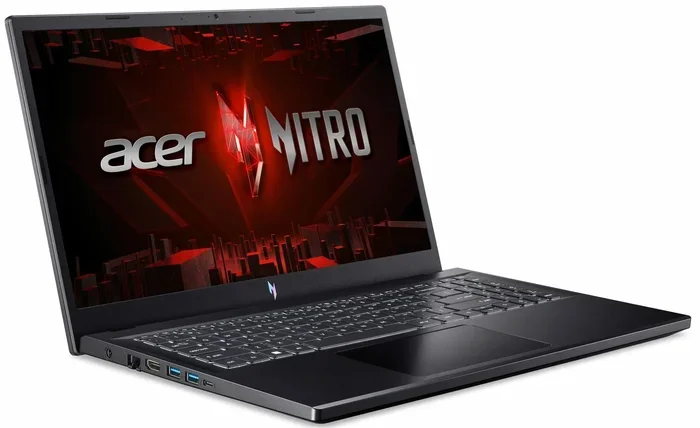
Visual guide about How Much Ram Does a Laptop Have
Image source: robots.net
4 GB – The Bare Minimum
Four gigabytes can handle basic tasks: web browsing with a few tabs, email, and light Office work. However, modern browsers (Chrome, Edge) can easily consume 1–2 GB per tab, so multitasking feels cramped.
8 GB – The Sweet Spot for Most Users
Eight gigabytes is the current sweet spot for students and office workers. You can run multiple apps, stream video, and even edit photos without noticeable slowdown. For most gamers, 8 GB is the minimum; you’ll want to pair it with a good GPU.
16 GB – Power Users and Creators
Sixteen gigabytes is ideal for video editors, 3D modelers, and heavy multitaskers. Applications like Adobe Premiere Pro or Autodesk Maya can easily use 8–10 GB while rendering. If you often run virtual machines, 16 GB keeps everything smooth.
32 GB and Above – Future‑Proofing
Thirty‑two gigabytes is overkill for everyday tasks but essential for professionals working with 4K video, large datasets, or multiple VMs. It also provides a safety net as software becomes more memory‑hungry.
How Much RAM Does a Laptop Have vs. What It Can Use?
Some operating systems limit usable RAM. For example, a 32‑bit Windows install can’t address more than 4 GB. Always ensure your OS matches the RAM you plan to use.
3. RAM Speed and Type: DDR4, DDR5, and MHz Explained
When you ask “how much ram does a laptop have”, you might also wonder about the speed. Two key specs matter: the generation (DDR4, DDR5) and the frequency (MHz).
Visual guide about How Much Ram Does a Laptop Have
Image source: laptopvoyager.com
DDR4 vs. DDR5
- DDR4: Most laptops from 2016‑2022 use DDR4, with speeds ranging from 2133 MHz to 3200 MHz.
- DDR5: Newer models (2022 onward) feature DDR5, which starts at 4800 MHz and can go above 5600 MHz, offering higher bandwidth and lower power consumption.
Why MHz Matters
Higher megahertz means the RAM can move more data per second. In real life, the difference is noticeable in tasks that shuffle large files quickly – like loading big game worlds or rendering video clips.
Latency (CL) and Real‑World Performance
Latency is measured in “CL” (CAS Latency). A DDR4‑3200 CL16 module is roughly equivalent in speed to a DDR4‑3600 CL18 module. Lower latency can offset a slightly lower frequency, especially in gaming.
Practical tip: Match RAM to your CPU
Most CPUs have a recommended RAM speed. Installing RAM that’s too fast won’t hurt, but the system may default to a lower speed, wasting potential performance.
4. Upgrading or Adding RAM: Is It Possible?
Now that you know how much ram does a laptop have, the next question is whether you can increase that amount.
Check the Manufacturer’s Specs
Visit the laptop’s support page and look for “memory upgrade” information. It will tell you:
- Maximum supported RAM (e.g., 64 GB)
- Number of slots (1 or 2)
- Supported type (DDR4‑3200, DDR5‑4800, etc.)
Soldered vs. Removable Modules
Many ultrabooks and thin‑and‑light laptops have RAM soldered directly onto the motherboard. In those cases, you cannot add more memory – you’re stuck with the original amount.
Conversely, larger laptops and gaming notebooks often have one or two removable DIMM slots. If you have a free slot, you can simply add another module. If both slots are occupied, you can replace the existing sticks with higher‑capacity ones.
Step‑by‑Step Upgrade Guide (Typical 2‑Slot Laptop)
- Power down and unplug. Remove the battery if it’s removable.
- Open the back panel. Usually held by 4–6 Phillips screws.
- Locate the RAM slots. They look like long, thin sockets with clips on each side.
- Release the clips. The module will pop up at an angle.
- Insert the new module. Align the notch and push down until the clips click.
- Reassemble and test. Boot the laptop and verify the new RAM appears in system info.
When Upgrading Isn’t Worth It
If your laptop only supports up to 8 GB and you need more, it may be cheaper to buy a new machine with higher capacity. Also, if the cost of compatible RAM approaches the price of a new laptop, consider the latter.
5. How Much RAM Do Different Users Actually Need?
Answering “how much ram does a laptop have” is only half the story. Matching that number to your daily tasks ensures you get the best value.
Students and Casual Users
- Typical tasks: web browsing, streaming, word processing.
- Recommended: 8 GB.
- Tip: Choose a model with at least one free slot for future upgrades.
Business Professionals
- Typical tasks: video conferencing, large spreadsheets, light photo editing.
- Recommended: 16 GB if you run multiple Office apps and a browser with many tabs.
- Tip: Look for laptops with DDR4‑3200 or DDR5‑4800 for smoother multitasking.
Gamers
- Typical tasks: modern 3D games, streaming, occasional video editing.
- Recommended: 16 GB (8 GB can work but may limit future titles).
- Tip: Pair RAM with a strong GPU; 3200 MHz DDR4 is a solid baseline.
Creative Professionals (Video, Audio, 3D)
- Typical tasks: 4K video editing, 3D rendering, large Photoshop files.
- Recommended: 32 GB or more.
- Tip: Ensure the laptop supports high‑speed DDR5 and has multiple RAM slots.
Developers and IT Pros
- Typical tasks: IDEs, Docker containers, virtual machines.
- Recommended: 16–32 GB depending on the number of VMs.
- Tip: Look for laptops with ECC‑compatible memory if data integrity is critical (rare in consumer laptops).
6. Real‑World Examples: How Much RAM Does a Popular Laptop Have?
Let’s look at a few common models to see how the “how much ram does a laptop have” question is answered in practice.
Example 1: Dell XPS 13 (2023)
- Base model: 8 GB DDR4‑3200 (soldered)
- Upgrade option: 16 GB soldered (no user upgrade)
- Best for: Students, professionals who value portability.
Example 2: ASUS ROG Zephyrus G14
- Standard: 16 GB DDR4‑3200 (2 × 8 GB, removable)
- Maximum: 32 GB (2 × 16 GB)
- Best for: Gamers and creators who need performance in a small chassis.
Example 3: Apple MacBook Pro 14‑inch (M2 Pro, 2024)
- Unified memory: 16 GB (configured at purchase, not user‑upgradeable)
- Maximum: 64 GB (ordered from Apple)
- Best for: Professionals using Apple’s ecosystem, video editors.
What These Examples Teach Us
Manufacturers often lock RAM in thin laptops, while larger gaming or workstation models keep it upgradeable. Knowing “how much ram does a laptop have” before purchase helps you avoid a surprise later.
Conclusion: Making the Right Choice
Understanding how much ram does a laptop have is the first step toward a smooth computing experience. Use the built‑in tools to check your current memory, interpret the numbers based on your daily workload, and decide whether an upgrade is possible or necessary. Remember that more RAM is only beneficial when paired with a capable CPU, fast storage, and a suitable GPU.
Whether you’re a student, gamer, or creative professional, matching RAM to your needs will keep your laptop fast, responsive, and future‑proof. Keep these tips handy, and the next time you shop for a laptop, you’ll know exactly what to look for.
Frequently Asked Questions
How can I quickly see how much RAM my laptop has?
On Windows, press Windows + Pause/Break or open Task Manager’s Performance tab. On macOS, choose Apple menu → About This Mac. Linux users can run free -h in the terminal.
Does more RAM always make a laptop faster?
More RAM helps when you run many apps or memory‑heavy programs, but it won’t speed up a slow CPU or a sluggish hard drive. Pair sufficient RAM with a good processor and SSD for best performance.
Can I upgrade the RAM in any laptop?
Only laptops with removable DIMM slots allow upgrades. Ultrabooks and many MacBooks have soldered RAM, so you must choose the desired amount at purchase.
What is the difference between DDR4 and DDR5 RAM?
DDR5 offers higher frequencies (starting at 4800 MHz) and lower power consumption compared to DDR4, which tops out around 3200 MHz. DDR5 provides better bandwidth for demanding tasks.
How much RAM do I need for gaming?
Most modern games run well with 16 GB. Some older or less demanding titles are fine with 8 GB, but 16 GB gives you headroom for background apps and future releases.
Will increasing RAM affect my laptop’s battery life?
The impact is minimal. RAM uses a small amount of power, so adding more memory may slightly reduce battery life, but the difference is usually negligible compared to the CPU or display.