Why Is My Hp Laptop Battery Draining So Fast
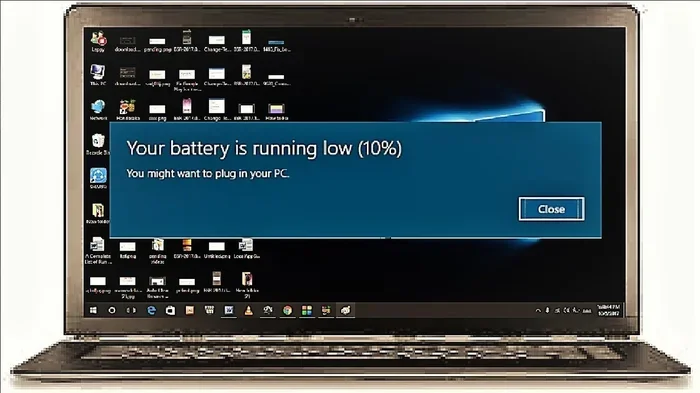
Your HP laptop battery drains fast because of background apps, high screen brightness, power-hungry settings, and aging battery health. Simple fixes like adjusting power plans, closing unused programs, and updating drivers can dramatically improve battery life. This guide covers every major cause and gives you actionable steps to stop battery drain on your HP laptop.
Key Takeaways
- Background apps are the #1 silent killer of HP laptop battery life, running even when you are not actively using them.
- Screen brightness and power settings have a massive impact on how fast your battery drains during daily use.
- An old or degraded battery may need replacement if it cannot hold a charge even after proper calibration.
- Windows power plans and battery saver mode are easy tools that can significantly extend your laptop runtime.
- Regular maintenance like updating drivers and managing startup programs keeps your HP laptop running efficiently.
- High CPU usage and heat accelerate battery drain, so keeping your system cool helps preserve battery health.
- Small daily habits like dimming your screen and unplugging peripherals add up to longer battery life over time.
📑 Table of Contents
Why Is My HP Laptop Battery Draining So Fast?
Nothing is more frustrating than sitting down to work on your HP laptop only to find the battery is already low. A HP laptop battery draining so fast is a common problem, and it has several possible causes. Sometimes the fix is simple, like lowering your screen brightness. Other times, something deeper is going on inside your system.
This guide walks you through every major reason your battery might be dying quickly. We also share practical fixes you can try right now. Whether you use your laptop for work, school, or entertainment, you will find useful tips here to get more hours out of every charge.
Before we dive in, it helps to understand how your laptop battery life actually works. Most HP laptops use lithium-ion batteries. These batteries have a limited number of charge cycles. Over time, their ability to hold a full charge decreases. But before you assume your battery is old, let us look at the things you can control.
Common Reasons Your HP Laptop Battery Drains Quickly
Background Apps and Processes
Many programs keep running in the background even after you close their windows. These background apps use your processor and memory, which pulls power from your battery. Things like cloud sync tools, antivirus scans, and software updaters are common culprits.
You can check what is using your resources by opening the Task Manager. Press Ctrl + Shift + Esc and look at the Processes tab. Sort by CPU usage to find the biggest power hogs. Closing unnecessary programs can make a noticeable difference in how long your battery lasts.
Some apps are worse than others. For example, if you have noticed that Opera GX is using so much CPU, that heavy browser usage will drain your battery fast. Heavy browsers and resource-intensive apps are among the top reasons for rapid battery drain on any laptop.
Screen Brightness and Display Settings
Your laptop screen is one of the biggest battery consumers. A bright display uses significantly more power than a dim one. If your HP laptop battery is dying fast, check your screen brightness first.
Here are a few display settings that affect battery life:
- Screen brightness level — Lowering it by even 20% can add meaningful battery time.
- Screen timeout settings — A shorter idle time before the screen turns off saves power.
- Keyboard backlight — Turning this off when you do not need it helps too.
- High refresh rate displays — If your HP laptop has a 120Hz or 144Hz screen, it uses more power than a 60Hz display.
Simple habit changes like using a darker wallpaper and reducing auto-brightness can help. Your eyes might also appreciate a slightly dimmer screen in low-light rooms.
Power Plan and Windows Settings
Windows comes with different power plans that control how your laptop uses energy. The Balanced plan is a good middle ground, but the Power Saver plan is designed specifically to extend battery life. If you are not already using it, switching to Power Saver can help a lot.
You can also adjust individual settings. Go to Settings > System > Power & Sleep and explore the additional power settings. Some useful tweaks include:
- Setting the screen to turn off after 5 minutes of inactivity.
- Setting the laptop to sleep after 10 minutes of no use.
- Turning off Wi-Fi and Bluetooth when you are not connected to anything.
- Disabling push notifications for apps that do not need them.
These small changes add up. Over a full workday, they can give you an extra hour or more of laptop battery life.
How to Check Your Battery Health
If you have tried the fixes above and your HP laptop battery still drains fast, it might be time to check the battery health. Windows has a built-in tool that generates a battery report. Here is how to use it:
- Open the Command Prompt as Administrator.
- Type
powercfg /batteryreportand press Enter. - The report saves as an HTML file. Open it in your browser.
- Look at the DESIGN CAPACITY and FULL CHARGE CAPACITY numbers.
If the full charge capacity is much lower than the design capacity, your battery has degraded. A difference of 20% or more usually means it is time to consider a replacement. A healthy battery should hold at least 80% of its original design capacity.
You can also check your battery health through HP Support Assistant. This free tool from HP scans your system and gives you a clear battery health score. It also recommends drivers and firmware updates that can improve power management.
Tips to Extend Your HP Laptop Battery Life
Use Battery Saver Mode
Windows 10 and 11 have a Battery Saver mode that limits background activity and reduces power usage. You can turn it on from the system tray or in Settings > System > Power & Sleep. When Battery Saver is active, your laptop automatically adjusts settings to conserve energy.
This mode is especially useful when you are away from a power outlet and need every minute of charge. You can set it to turn on automatically at a specific battery percentage, such as 20%.
Manage Startup Programs
Every program that starts when you boot your laptop uses battery power from the very beginning. Disabling unnecessary startup programs is one of the easiest ways to reduce battery drain.
To manage startup apps, open Task Manager and go to the Startup tab. Right-click on programs you do not need right away and select Disable. You can always re-enable them later if needed.
Keep Your Laptop Cool
Heat is a battery killer. When your HP laptop runs hot, the battery degrades faster and holds less charge. High temperatures also cause the system to work harder, which uses more power.
If you notice high CPU temperatures at idle, that excess heat could be contributing to your battery problems. Make sure your laptop vents are not blocked. Use it on a hard surface rather than a bed or couch. A cooling pad can also help in warm environments.
Update Your Drivers and BIOS
Outdated drivers can cause your laptop to use power inefficiently. HP regularly releases updates that improve power management and fix bugs. Keeping your system updated is one of the simplest things you can do for better battery performance.
Check for updates through HP Support Assistant or visit the HP support website for your specific model. Pay special attention to BIOS and chipset driver updates, as these often include power management improvements.
When Should You Replace Your HP Laptop Battery?
Even with the best care, every battery eventually wears out. Here are signs that your HP laptop battery needs replacing:
- The battery charges to less than 80% of its original capacity.
- Your laptop shuts down unexpectedly even when the battery shows charge remaining.
- The battery swells or the laptop case feels warped near the battery area.
- You need to keep your laptop plugged in constantly to get through the day.
- The battery health report shows a significant gap between design and full charge capacity.
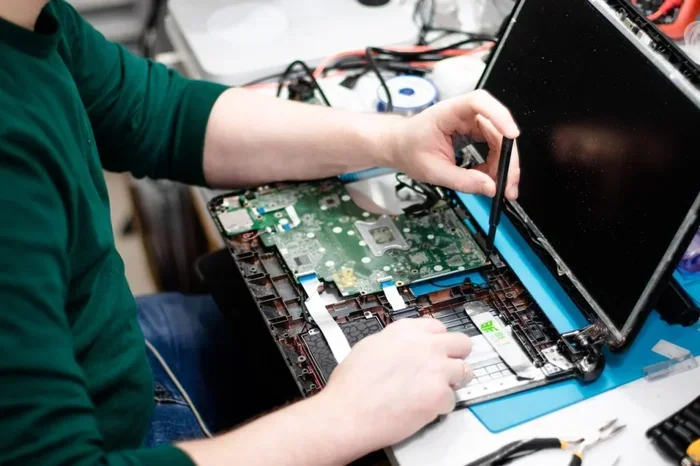
Replacement batteries are available directly from HP or through third-party sellers. Always check compatibility before purchasing. You can find the right battery by entering your HP laptop model number on the HP website.
Replacing a battery is usually straightforward. Most HP laptops have a removable battery on the bottom. If yours has an internal battery, you may want to visit an HP service center for safe replacement.
Quick Tips to Save Battery on the Go
Here are some fast habits that help you squeeze more minutes out of every charge:
- Turn off Bluetooth and disconnect USB devices you are not using.
- Use headphones instead of speakers for audio playback.
- Close browser tabs you are not actively reading.
- Switch to a dark theme if your laptop has an OLED or AMOLED display.
- Avoid using demanding applications like video editors on battery power.
- Keep your laptop plugged in for tasks that require full performance.
- Lower the volume to the minimum comfortable level.
None of these tips alone will transform your battery life. But together, they create a compounding effect. You will notice the difference, especially during long work sessions away from an outlet.
Conclusion
A HP laptop battery draining so fast is almost always fixable. Start with the simple stuff like lowering brightness, closing background apps, and switching to a power-saving plan. Check your battery health to see if it is time for a replacement. Keep your system updated and cool for the best long-term results.
By following the tips in this guide, you can get more hours of use from every charge. Your HP laptop is a powerful tool, and with the right settings and habits, its battery will work harder for you. Take action today and enjoy a longer-lasting, more reliable laptop experience.
Frequently Asked Questions
Why does my HP laptop battery drain even when I am not using it?
This usually happens because of background apps and processes running on your system. Things like Windows updates, antivirus scans, and cloud sync services continue working even when the laptop is idle. Check your Task Manager to find and close unnecessary background programs.
How long should an HP laptop battery last on a single charge?
Most HP laptops last between 5 and 10 hours on a single charge, depending on the model and usage. Heavy tasks like video editing or gaming reduce battery life significantly. Light tasks like browsing and word processing give you the best runtime.
Can I use my HP laptop while it is charging without harming the battery?
Yes, you can use your laptop while charging. However, keeping it plugged in all the time can reduce battery health over the long term. HP laptops with battery care features can help by limiting the charge to 80% to extend battery lifespan.
How do I calibrate my HP laptop battery?
To calibrate your battery, charge it to 100%, then unplug and use the laptop until it shuts down from low battery. Let it rest for a few hours, then charge it back to 100% without interruption. This helps Windows recalibrate the battery percentage readings accurately.
Is it safe to replace the HP laptop battery myself?
It is safe if you follow HP’s instructions carefully and use the correct replacement battery. Make sure your laptop is powered off and unplugged before starting. If your battery is internal, consider visiting an HP service center to avoid any risk of damage.
Does using a dark mode really save HP laptop battery?
Yes, but only if your laptop has an OLED or AMOLED display. On these screens, black pixels are turned off, which uses less power. On standard LCD screens, dark mode has a minimal effect on battery life. It can still reduce eye strain, which is a nice bonus.