What Happens If Your Iphone Gets Stuck on the Little Apple Logo
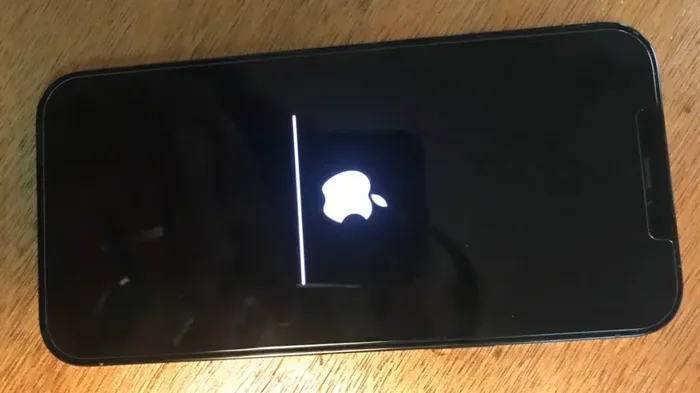
When your iPhone is stuck on the little Apple logo, it can be a frustrating experience. This usually means the device is stuck in a boot loop and won’t fully start. In this guide, we’ll walk you through the common causes, simple fixes, and when you need professional help.
Have you ever pressed the power button on your iPhone only to see the little Apple logo appear… and just sit there? The screen freezes. The phone won’t start. You wait, but nothing changes. This is the dreaded boot loop, and it can happen to anyone. What happens if your iPhone gets stuck on the little Apple logo? In simple terms, the device is unable to complete its startup process. It keeps restarting or hangs on the logo screen. This article explains exactly what is going on and how you can fix it.
Dealing with a stuck iPhone is stressful. You might worry about losing your photos, messages, or apps. But take a deep breath. Most of the time, this problem has a simple solution. We will walk you through the causes, the fixes, and when to call for help. By the end, you will know exactly what to do. Let us get your iPhone working again.
Key Takeaways
- Boot loop is the main symptom: Your iPhone repeatedly restarts and shows only the Apple logo.
- Software glitches are the most common cause: A failed update or corrupted file can trigger the issue.
- A force restart often fixes it: This simple step clears temporary memory without losing data.
- Recovery Mode and DFU Mode are advanced fixes: Use them if a force restart does not work.
- Hardware problems need professional repair: A damaged logic board or battery can cause the logo to hang.
- Prevention is possible: Keep your iPhone updated and avoid unsafe charging habits.
📑 Table of Contents
What Does It Mean When Your iPhone Is Stuck on the Apple Logo?
When your iPhone is stuck on the Apple logo, it means the device is stuck in a boot loop. A boot loop happens when the phone tries to start but fails. It then restarts and tries again. You see the Apple logo over and over. The phone never reaches the home screen. This is not normal operation. It is a sign that something is blocking the startup process.
The Apple logo screen is supposed to appear for just a few seconds during a normal restart. If it stays for more than a minute, or keeps repeating, you have a problem. The issue can be software related or hardware related. Software issues are much more common. They include corrupted files, failed updates, or bugs. Hardware issues are rarer but more serious. They involve damaged components like the logic board or battery.
Before you panic, remember that a stuck logo does not always mean your phone is dead. In many cases, a simple fix can bring it back to life. The key is to stay calm and follow the right steps. We will cover those steps in detail below.
Common Causes of iPhone Stuck on Apple Logo
Understanding why your iPhone is stuck helps you choose the right fix. Here are the most common reasons this happens.
Software Glitches
Every iPhone runs on a complex operating system. Sometimes, a small software glitch can cause the phone to hang during startup. This might happen after you install a new app or change a setting. The system tries to load but hits an error. The phone then gets stuck on the Apple logo. You might also notice a flower icon on your iPhone camera acting up at the same time. That flower icon is a separate feature, but when it appears alongside the logo freeze, it often points to a deeper software conflict.
Failed Software Updates
Apple releases updates to fix bugs and add features. But sometimes an update goes wrong. If your phone loses power during an update, the software can become corrupted. The next time you turn it on, it gets stuck on the logo. This is a very common cause. The update file might be incomplete, or the installation process was interrupted. In these cases, the phone cannot find the correct system files to boot.
Hardware Issues
Hardware problems are less common but more serious. A drop or a liquid spill can damage internal parts. If the logic board, which is the brain of the iPhone, gets damaged, the phone may not start properly. You might see a red light on your camera stay on even when the phone is off. That red light could signal a short circuit or a failing component. Unlike laptop RAM issues that usually cause slow performance, iPhone hardware problems often result in a complete boot failure. The phone simply cannot start.
Battery Problems
A weak or damaged battery can also cause the logo to hang. If the battery cannot deliver enough power during startup, the phone will stall. This often happens with older iPhones or phones that have been dropped. The battery might look fine on the outside but be failing internally. A battery replacement often fixes this type of stuck logo issue.
Step-by-Step Fixes to Get Your iPhone Unstuck
Now that you know the causes, let us look at the fixes. We start with the simplest solution and move to the more advanced ones. Most people find success with the first or second step.
| Fix Method | When to Use | What It Does | Data Loss Risk |
|---|---|---|---|
| Force Restart | First step for any logo freeze | Clears temporary memory and forces a fresh start | None |
| Recovery Mode | Force restart did not work | Connects to a computer to reinstall the operating system | Low (can restore from backup) |
| DFU Mode | Recovery mode fails or phone is not recognized | Deeper restore that can fix severe software corruption | Low (requires backup) |
Fix 1: Force Restart Your iPhone
A force restart is the easiest and safest fix. It does not delete any of your data. It simply forces the phone to turn off and back on. The method depends on your iPhone model.
For iPhone 8 and newer: Press and quickly release the Volume Up button. Then press and quickly release the Volume Down button. Next, press and hold the Side button until you see the Apple logo. Release the button and wait for the phone to start.
For iPhone 7 and 7 Plus: Press and hold both the Volume Down button and the Side button at the same time. Keep holding them until the Apple logo appears. Then release both buttons.
For iPhone 6s and older: Press and hold both the Home button and the Top (or Side) button together. Hold until the Apple logo shows up. Then let go.
After the force restart, check if your iPhone boots normally. If it does, you are all set. If it gets stuck again, move to the next step.
Fix 2: Use Recovery Mode
Recovery Mode lets you connect your iPhone to a computer and restore the software. You will need a USB cable and a computer with iTunes (on Windows) or Finder (on Mac). This method can fix problems caused by software glitches or failed updates.
First, connect your iPhone to the computer. Then put the phone into Recovery Mode. The steps are similar to the force restart, but you hold the buttons longer. For iPhone 8 and newer: Press and release Volume Up, then Volume Down, then hold the Side button until you see the recovery mode screen. For iPhone 7: Hold Volume Down and Side button together until the recovery mode screen appears. For iPhone 6s and older: Hold Home and Side button together until the recovery mode screen shows.
On your computer, you will see a message that says “Recovery Mode” or “Update” or “Restore.” Choose “Update” first. This tries to reinstall the software without erasing your data. If that does not work, choose “Restore.” This erases the phone and installs a fresh copy of iOS. You can then restore your data from a backup.
Fix 3: Try DFU Mode
DFU (Device Firmware Update) Mode is the deepest restore option. Use it only if Recovery Mode does not work. DFU Mode can fix severe software corruption that Recovery Mode cannot reach. It is more advanced, but it does not delete your data if you restore from a backup.
The steps to enter DFU Mode are a bit tricky. For iPhone 8 and newer: Connect to a computer. Press and release Volume Up, then Volume Down, then hold the Side button for 10 seconds. Without releasing the Side button, press and hold the Volume Down button for 5 seconds. Then release the Side button but keep holding the Volume Down button for another 5 seconds. The screen should stay black. If you see the Apple logo, you held the buttons too long. Start over.
For iPhone 7 and 7 Plus: Hold Volume Down and Side button for 10 seconds, then release the Side button and keep holding Volume Down for 5 seconds. For iPhone 6s and older: Hold Home and Side button for 10 seconds, then release Side and keep holding Home for 5 seconds.
Once in DFU Mode, your computer will detect the phone. You can then choose to restore it. Follow the on-screen instructions. After the restore, your iPhone should boot normally.
Fix 4: Factory Reset as a Last Resort
If none of the above fixes work, you might need a factory reset. This erases everything on your iPhone. Only do this if you have a recent backup. You can perform a factory reset from Recovery Mode by choosing “Restore” on your computer. This will wipe the phone and install a clean version of iOS. After the reset, you can restore your apps and data from iCloud or iTunes.
When to Seek Professional Help
Most logo issues are software related and can be fixed at home. But sometimes the problem is hardware. Knowing when to visit a repair shop can save you time and money.
Signs of Hardware Failure
Watch for these warning signs that point to a hardware problem. If your iPhone gets stuck on the Apple logo and also makes strange clicking noises, that is a red flag. A swollen battery or a phone that feels hot to the touch is another sign. If the phone was dropped or exposed to water, hardware damage is likely. You might also notice a red light on your camera that stays on even when the phone is off. These symptoms suggest a physical component is failing.
What to Expect at the Repair Shop
A professional technician will run diagnostic tests. They can check the logic board, battery, and other internal parts. If the issue is a damaged component, they will recommend a replacement. For example, a faulty battery might need swapping. A damaged screen or logic board repair is more complex. The cost varies depending on the model and the damage. Always ask for a quote before agreeing to any repair. Choose a certified repair center to avoid further damage.
How to Prevent iPhone from Getting Stuck on the Logo Again
Prevention is always better than cure. A few simple habits can keep your iPhone running smoothly and avoid the dreaded logo freeze.
Keep Your iPhone Updated
Apple regularly releases iOS updates that fix bugs and improve stability. Set your iPhone to update automatically. Go to Settings, then General, then Software Update, and toggle on Automatic Updates. This ensures your phone always has the latest security patches and fixes. Regular updates reduce the chance of a software glitch that could cause a boot loop.
Practice Safe Charging Habits
Use only Apple-certified chargers and cables. Cheap knockoff chargers can cause power surges that damage the battery or logic board. Avoid charging your phone in extreme heat or cold. Overheating during charging can weaken the battery over time. If your phone gets very hot while charging, unplug it and let it cool down. A healthy battery is less likely to cause startup failures.
Avoid Jailbreaking and Unauthorized Apps
Jailbreaking removes Apple’s safety restrictions. It can give you more customization, but it also opens the door to unstable software. Many jailbreak apps conflict with the iOS system. This can lead to crashes and boot loops. If you want a stable phone, stick to the official App Store. Only download apps from trusted developers. If you ever decide to jailbreak, be aware of the risks.
Protect Your Phone from Physical Damage
Use a sturdy case and a screen protector. A good case absorbs shock from drops. Keep your phone away from water and moisture. Even if your iPhone has water resistance, it is not waterproof forever. Physical damage is one of the leading causes of hardware failure that results in a stuck Apple logo.
Conclusion
Seeing your iPhone stuck on the little Apple logo can be scary, but it is usually not the end of the world. Most of the time, a simple force restart or a Recovery Mode restore will fix the problem. We covered the common causes, from software glitches to hardware issues, and gave you clear step-by-step fixes. Remember that a boot loop is often just a temporary software hiccup. By staying calm and following the right steps, you can bring your iPhone back to life.
If the problem persists, do not hesitate to seek professional help. A damaged battery or logic board needs expert attention. And once your iPhone is working again, make prevention part of your routine. Keep your software updated, charge safely, and protect your phone from drops. These small habits go a long way in keeping your device healthy. Now you know exactly what happens if your iPhone gets stuck on the little Apple logo, and you have the tools to fix it.
Frequently Asked Questions
Why does my iPhone keep restarting and showing the Apple logo?
This is called a boot loop. It usually happens because of a software glitch or a failed update. The phone tries to start but cannot find the right system files, so it restarts repeatedly.
Can a force restart fix the iPhone stuck on Apple logo problem?
Yes, in most cases. A force restart clears temporary memory and forces the phone to start fresh. It does not delete any of your data. Try it as the first step.
What is the difference between Recovery Mode and DFU Mode?
Recovery Mode is a simpler restore method that connects your iPhone to a computer. DFU Mode is a deeper restore that can fix more severe software corruption. DFU Mode is used when Recovery Mode does not work.
Will I lose my data if I restore my iPhone?
If you restore from a backup, you will not lose your data. Always back up your iPhone regularly using iCloud or iTunes. If you choose to restore without a backup, your data will be erased.
How do I know if the problem is hardware and not software?
Look for signs like strange noises, a swollen battery, or a red light on the camera that stays on. If the phone was dropped or exposed to water, hardware damage is likely. In these cases, visit a professional repair shop.
Can I prevent my iPhone from getting stuck on the Apple logo again?
Yes. Keep your iPhone updated, use Apple-certified chargers, avoid jailbreaking, and protect your phone from drops and water. These habits reduce the risk of software glitches and hardware failures.