How to Expand Ram in Laptop
Upgrading your laptop’s RAM is one of the most cost-effective ways to boost performance, and it’s often surprisingly simple to do yourself. Always check your laptop’s maximum supported RAM capacity and compatible module type before purchasing, then follow a step-by-step installation guide to safely complete the upgrade in minutes.
How to Expand Ram in Laptop
Let me tell you something that happened to me a couple of months ago. I was sitting there staring at my laptop screen, waiting for a simple web page to load. It felt like an eternity. My cursor was spinning, my tabs were freezing, and I was seriously considering throwing the whole thing out the window. Sound familiar? I bet it does. We have all been there, frustrated with a slow machine that just cannot keep up with our demands.
After doing some digging, I realized the problem was not my processor or my hard drive. It was my RAM. Random Access Memory is the short-term memory of your computer, and when it runs low, everything slows to a crawl. The good news is that figuring out how to expand RAM in a laptop is not as complicated as it sounds. In fact, it is one of the most cost-effective upgrades you can make to breathe new life into your machine.
In this guide, I am going to walk you through everything you need to know about expanding your laptop’s RAM. We will cover how to check what you currently have, how to find the right memory sticks, and how to physically install them. Whether you are a total beginner or someone who has tinkered with hardware before, this article has got you covered. Let’s jump right in.
Key Takeaways
- Check compatibility: Verify your laptop’s maximum RAM capacity and supported type before purchasing.
- Power off completely: Always shut down and unplug your laptop before opening the RAM compartment.
- Ground yourself: Use an anti-static wrist strap to prevent damage to sensitive components.
- Align the notch: Match the RAM module’s notch with the slot to ensure correct installation.
- Seat firmly: Press down until the clips click, securing the RAM in place.
- Verify in BIOS: Confirm the new RAM is detected in system settings after restarting.
- Upgrade in pairs: Use matching RAM sticks for optimal dual-channel performance.
📑 Table of Contents
- How to Check Your Current RAM Before Expanding
- Finding the Right RAM for Your Laptop
- Preparing Your Laptop for the RAM Upgrade
- Step-by-Step Guide to Installing New RAM
- Testing Your New RAM After Installation
- Common Mistakes to Avoid When Expanding RAM
- How to Expand RAM in Laptop: Cost and Performance Benefits
- When Expanding RAM Is Not Enough
- Conclusion
How to Check Your Current RAM Before Expanding
Before you go out and buy new memory, you need to know exactly what is already inside your laptop. Think of it like this: you would not buy a new pair of shoes without knowing your size, right? The same logic applies here. Checking your current setup helps you understand how much RAM you have, what type it is, and how many slots are available for expansion.
Using Windows Task Manager
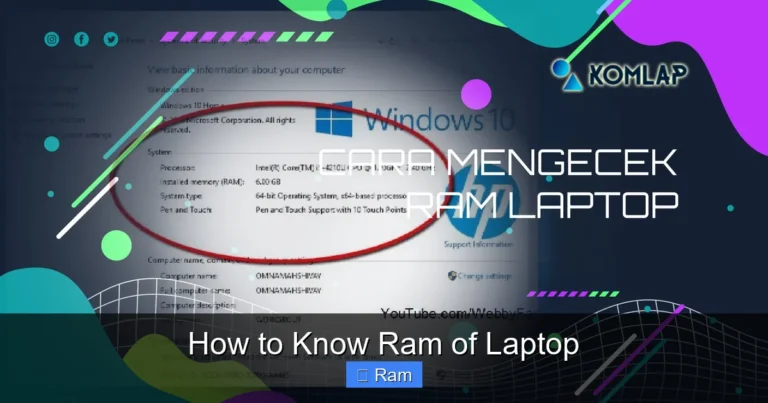
The quickest way to check your RAM on a Windows laptop is through the Task Manager. Just press Ctrl + Shift + Esc on your keyboard, and it should pop right up. Click on the “Performance” tab, then select “Memory” from the left sidebar. Here you will see your total RAM, how much is currently being used, and the speed of your memory. You will also see something called “Slots used,” which tells you how many RAM slots are occupied. For instance, if it says “1 of 2,” that means you have an open slot ready for an upgrade.
Using System Information Tools
For a more detailed look, you can use the System Information tool. Press Windows Key + R, type msinfo32, and hit Enter. This gives you a breakdown of your total physical memory and available physical memory. If you want even more granular details like the exact speed and manufacturer, I recommend downloading a free tool called CPU-Z. It tells you everything about your memory, including the type (DDR3, DDR4, or DDR5), the module size, and the manufacturer. This information is absolutely critical when you go shopping for new RAM. You need to match the specifications exactly for the best compatibility.
Finding the Right RAM for Your Laptop
Now that you know what you have, it is time to figure out what you can add. Not all RAM is created equal, and buying the wrong type is one of the most common mistakes people make. Let me help you avoid that headache.
Understanding RAM Types and Speeds
Laptops use a specific kind of memory called SO-DIMM, which stands for Small Outline Dual Inline Memory Module. It is smaller than the desktop version, so do not accidentally buy desktop RAM because it simply will not fit. You also need to pay attention to the generation. If your laptop uses DDR4 memory, you cannot put DDR5 in it. They have different physical notches and are not backward compatible. The speed matters too. If your current RAM runs at 2666 MHz, you should try to match that or go higher. Mixing speeds is possible, but your faster stick will slow down to match the slower one, which defeats the purpose of upgrading.
How Much RAM Do You Actually Need?
This depends entirely on what you do with your laptop. For basic tasks like web browsing and word processing, 8GB is usually enough. If you are into gaming or video editing, you will want at least 16GB. Professional workloads like 3D rendering or running virtual machines might require 32GB or more. Most modern laptops can handle up to 32GB, but some high-end models support 64GB. Check your laptop manufacturer’s website to find the maximum supported memory for your specific model. This is an important step because exceeding the maximum can cause stability issues or simply not work at all.
If you are still unsure about how to pick the right memory, you can read more about how to know the RAM of your laptop to get a clearer picture of your current setup and what upgrades are possible.
Preparing Your Laptop for the RAM Upgrade
Alright, you have your new RAM sticks in hand. Before you start unscrewing things, let’s make sure you are fully prepared. Taking a few minutes to set up properly can save you a lot of trouble down the road.

Visual guide about How to Expand Ram in Laptop
Image source: alchetron.com
Gathering the Right Tools
You will need a small Phillips-head screwdriver, usually a size #0 or #1. A plastic prying tool is also helpful for popping off the back panel without scratching it. Some people use a guitar pick or an old credit card, which works just fine. Make sure you are working on a clean, flat surface with good lighting. An anti-static wrist strap is a nice touch, but if you do not have one, just touch a metal object like a doorknob before handling your components to discharge any static electricity.
Backing Up Your Data
I know, I know. This sounds boring and obvious. But hear me out. While upgrading RAM is generally a safe process and does not affect your stored data, accidents can happen. A slipped screwdriver, a dropped screw, or an unexpected static discharge could potentially cause issues. So before you do anything, back up your important files to an external drive or cloud storage. It takes five minutes and gives you peace of mind. Trust me, your future self will thank you.
Step-by-Step Guide to Installing New RAM
This is the part you have been waiting for. Let’s get that new memory installed. Take a deep breath and follow these steps carefully. It is easier than you think.

Visual guide about How to Expand Ram in Laptop
Image source: img.freepik.com
Power Down and Open the Laptop
First, shut down your laptop completely. Do not just put it to sleep or hibernate it. A full shutdown is essential. Once it is off, unplug the charger and remove the battery if it is removable. Some modern laptops have internal batteries, so if yours does not come out easily, that is fine. Just make sure the laptop is completely powered down. Next, flip it over and remove all the screws from the bottom panel. Keep them organized because they are often different lengths. Use your plastic prying tool to gently pop off the back panel. Start from a corner and work your way around the edges. Do not force anything. If it feels stuck, there might be a hidden screw you missed.
Locating and Removing the Old RAM
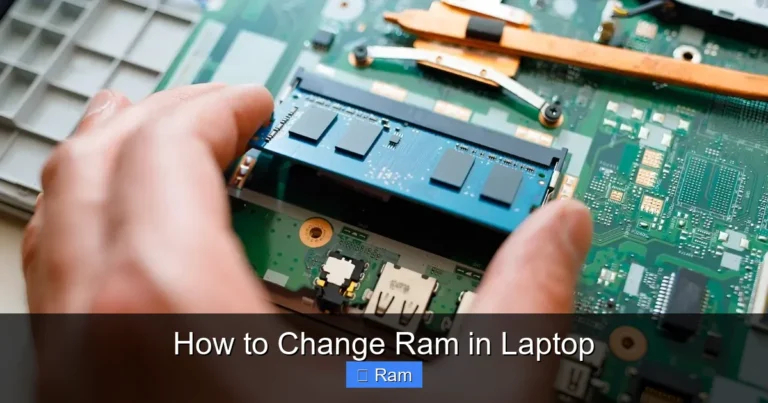
With the back panel off, look for the RAM slots. They are usually easy to spot. They look like small sticks inserted into long slots with clips on each end. If you are replacing existing RAM, push the clips outward on both sides, and the stick will pop up at an angle. Gently pull it out by the edges. Do not touch the gold contacts. If you are adding a new stick to an empty slot, just skip this step and move on to the next one.
Inserting the New RAM Stick
Take your new RAM stick out of its anti-static bag. Line it up with the slot, making sure the notch on the bottom of the stick matches the ridge in the slot. This prevents you from inserting it the wrong way. Slide it in at about a 30-degree angle, then press down firmly until the clips on both sides click into place. You should hear and feel a satisfying snap. If the clips do not close, the stick is not fully seated. Try again, making sure it is straight and pushed all the way in.
If you want a more detailed walkthrough, check out this guide on how to install RAM in a laptop for additional tips and visual references.
Testing Your New RAM After Installation
You have installed the new memory, put the back panel back on, and screwed everything together. But before you celebrate, let’s make sure everything is working properly. Skipping this step would be like baking a cake and never tasting it.

Visual guide about How to Expand Ram in Laptop
Image source: spiritual-meaning.uk
Boot Up and Check Recognition
Turn your laptop back on and let it boot into your operating system. Once you are at the desktop, open the Task Manager again using Ctrl + Shift + Esc. Go to the Performance tab and click on Memory. You should now see your new total RAM displayed. If you upgraded from 8GB to 16GB, it should say 16GB. If the number looks right, that is a great sign. You can also check the System Information tool to confirm the total physical memory.
Running a Memory Diagnostic
Windows has a built-in memory diagnostic tool that is worth using. Press Windows Key + R, type mdsched.exe, and hit Enter. Choose the option to restart and check for problems. Your laptop will reboot into a blue screen and run a series of tests on your memory. This usually takes about 10 to 20 minutes. If it passes without any errors, your new RAM is working perfectly. If it detects a problem, it could mean the stick was not installed properly, or it might be a defective module. In either case, you will want to troubleshoot further before moving on.
Common Mistakes to Avoid When Expanding RAM
Even though upgrading RAM is straightforward, there are a few pitfalls that catch people off guard. Let me share some lessons learned so you do not have to make the same mistakes.

Visual guide about How to Expand Ram in Laptop
Image source: altexsoft.com
Mismatched RAM Modules
One of the biggest mistakes is mixing RAM sticks with different speeds, timings, or brands. While your laptop might technically run with mismatched modules, it can cause crashes, blue screens, and reduced performance. Ideally, you should use two identical sticks for the best stability and to take advantage of dual-channel performance. If you are adding a new stick, try to match the brand, speed, and capacity of your existing one as closely as possible.
Forgetting to Check Maximum Supported Memory
Every laptop has a maximum RAM limit set by the motherboard and processor. Going beyond this limit does not give you extra performance. In fact, the system might not even recognize the additional memory. For example, if your laptop supports a maximum of 16GB and you install 32GB, the extra 16GB will simply go unused. Always check your manufacturer’s specifications before purchasing.
Not Grounding Yourself
Static electricity is the silent killer of computer components. A tiny static discharge that you cannot even feel can damage your new RAM stick or other internal parts. Always work in a static-free environment. Touch a grounded metal object before handling components, and avoid working on carpeted floors. This small precaution can save you from a very expensive mistake.
How to Expand RAM in Laptop: Cost and Performance Benefits
Let’s talk numbers for a moment. Upgrading your RAM is one of the cheapest ways to improve your laptop’s performance, and the results are often dramatic. A basic 8GB DDR4 SO-DIMM stick costs around $20 to $30. A 16GB kit might run you $40 to $70. Compare that to buying a new laptop, which could cost $500 or more, and it is a no-brainer.

Visual guide about How to Expand Ram in Laptop
Image source: img1.kakaku.k-img.com
| RAM Configuration | Best For | Approximate Cost | Performance Improvement |
|---|---|---|---|
| 4GB to 8GB | Basic web browsing, office work | $20 – $30 | Significant boost in multitasking |
| 8GB to 16GB | Gaming, photo editing, programming | $30 – $60 | Major improvement in heavy applications |
| 16GB to 32GB | Video editing, 3D rendering, virtual machines | $60 – $120 | Handles professional workloads smoothly |
As you can see, the cost-to-performance ratio is incredibly favorable. A $30 upgrade can transform your laptop from a frustratingly sluggish machine into a smooth, responsive powerhouse. You will notice faster boot times, smoother multitasking with multiple browser tabs open, and better performance in memory-hungry applications like Photoshop or Premiere Pro. If you want to explore more about how to upgrade RAM in a laptop with specific model recommendations, there are plenty of resources available to help you make the best choice.
When Expanding RAM Is Not Enough
I want to be honest with you here. While expanding RAM is fantastic, it is not a magic fix for every performance issue. If your laptop has a traditional hard drive instead of an SSD, upgrading to an SSD will make a much bigger difference in everyday responsiveness than adding more RAM. Similarly, if your processor is outdated, no amount of RAM will compensate for a slow CPU. Think of it this way: RAM is like the size of your desk. A bigger desk lets you spread out more papers, but if the person working at the desk is slow, a bigger desk will not speed them up.

Visual guide about How to Expand Ram in Laptop
Image source: wallpapercave.com
Signs You Need More Than Just RAM
- Your laptop takes more than a minute to boot up — this likely points to a slow hard drive rather than insufficient RAM
- Programs crash even when you have plenty of available memory — this could indicate a software issue or overheating
- Your fan runs loudly all the time — this suggests a thermal problem, not a memory one
- Games lag even with high RAM — the bottleneck might be your graphics card instead
If you are experiencing these issues, upgrading RAM alone might not solve your problems. Consider a more comprehensive approach that includes cleaning up your software, upgrading to an SSD, or even replacing an aging laptop altogether.
Conclusion
Learning how to expand RAM in a laptop is one of the most rewarding DIY upgrades you can tackle. It is affordable, relatively simple, and the performance improvements are immediately noticeable. From checking your current memory to selecting the right sticks and installing them step by step, the entire process can be completed in under an hour. You do not need to be a tech expert or a computer engineer to do this. All you need is a screwdriver, a bit of patience, and the confidence to give it a try.
Remember to always check your laptop’s specifications before buying new RAM, ground yourself to prevent static damage, and test everything after installation. If you follow the steps outlined in this guide, you will be enjoying a faster, smoother laptop in no time. So go ahead, take the plunge, and give your laptop the memory boost it deserves. Your productivity and sanity will thank you for it.
Frequently Asked Questions
How to expand RAM in a laptop?
To expand RAM in a laptop, first check your laptop’s maximum supported RAM and compatible type (e.g., DDR4/DDR5). Then, purchase the correct module, open the back panel, and install it into the available slot.
Can I add RAM to any laptop?
Not all laptops allow RAM upgrades; some ultrabooks and MacBooks have soldered memory. Check your laptop’s specifications or user manual to confirm if the RAM is user-upgradeable.
How much RAM can my laptop support?
The maximum RAM your laptop supports depends on the motherboard and processor. You can find this information in the laptop’s manual or by using system information tools like CPU-Z.
What type of RAM does my laptop need?
Laptops typically use SO-DIMM modules, and the specific type (DDR3, DDR4, or DDR5) depends on your laptop’s generation. Always match the speed and voltage for optimal performance.
Is it safe to install RAM myself?
Yes, installing RAM is generally safe if you follow proper precautions like grounding yourself to avoid static discharge. Most laptops have easy-access panels for memory upgrades.
Will expanding RAM improve laptop performance?
Expanding RAM can significantly improve multitasking and overall system responsiveness, especially if you currently have less than 8GB. It’s one of the most cost-effective upgrades for older laptops.