How to Know Ram of Laptop
Want to know how much RAM your laptop has? Whether you’re buying a new machine or planning an upgrade, this guide shows you five easy ways—Windows settings, macOS About This Mac, BIOS, command line, and free utilities—to check your laptop’s memory in minutes. Follow the step‑by‑step instructions and avoid costly mistakes.
Key Takeaways
- Multiple methods: You can check RAM from the operating system, BIOS/UEFI, or a simple command line query.
- Windows & macOS differences: Each OS has a dedicated “About” panel that displays total memory and speed.
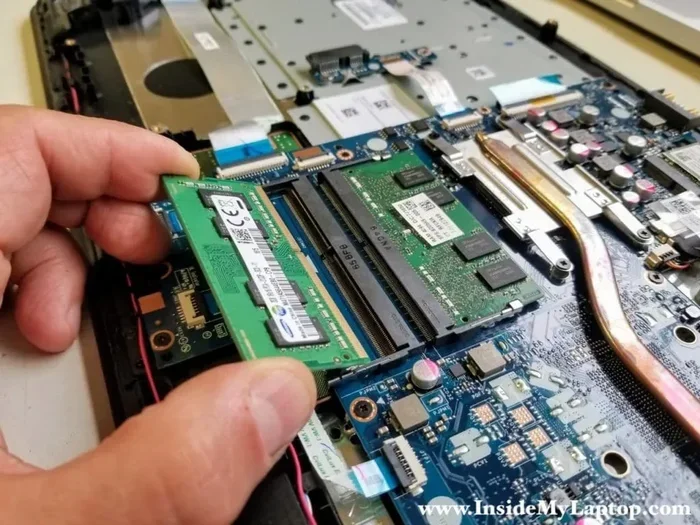
- Physical inspection: Opening the laptop (when possible) reveals the exact modules, slots, and upgrade limits.
- Free tools: Utilities like CPU‑Z, HWiNFO, and Speccy give detailed RAM specs without installing heavy software.
- Upgrade planning: Knowing the type (DDR3, DDR4, DDR5), speed, and slot count helps you buy compatible modules.
- Common pitfalls: BIOS may hide mismatched sticks; Windows can show “usable” RAM lower than installed due to hardware reservations.
- Safety first: Always power down, unplug, and ground yourself before touching internal components.
📑 Table of Contents
- Introduction: Why Knowing Your Laptop’s RAM Matters
- 1. Checking RAM from the Operating System
- 2. Using BIOS/UEFI to View Memory Details
- 3. Command‑Line Tools for Power Users
- 4. Free Third‑Party Utilities
- 5. Physically Inspecting the Laptop (When Possible)
- 6. Interpreting the Data and Deciding on an Upgrade
- Conclusion
Introduction: Why Knowing Your Laptop’s RAM Matters
Imagine you’re trying to run a video editor, a game, or a handful of browser tabs, and everything feels sluggish. The first thing most tech‑savvy friends will ask is, “How much RAM does your laptop have?” RAM (Random‑Access Memory) is the short‑term memory that lets your computer juggle programs instantly. If you don’t know the amount, speed, or configuration of the RAM inside your laptop, you’re flying blind when it comes to performance tweaks or upgrades.
In this guide we’ll walk through every practical way to discover the RAM details of any laptop—whether it runs Windows, macOS, or Linux. We’ll also cover how to peek inside the chassis for a physical count, use free diagnostic tools, and interpret the data so you can decide if a memory upgrade will actually help you.
1. Checking RAM from the Operating System
1.1 Windows 10 & 11: Settings and Task Manager
Windows makes it surprisingly easy:
Visual guide about How to Know Ram of Laptop
Image source: simmtronics.co.in
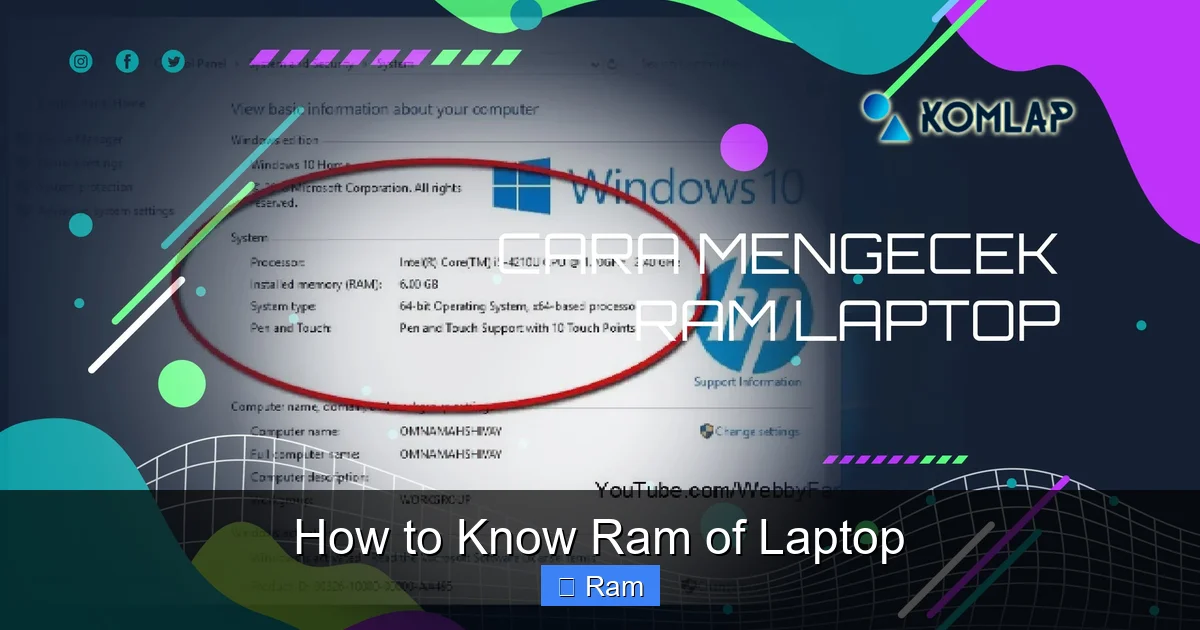
- Settings → System → About: Scroll down to “Device specifications.” You’ll see “Installed RAM” (e.g., 8 GB) and the system type (64‑bit).
- Task Manager → Performance tab → Memory: Opens a window showing total capacity, type (DDR4), speed (e.g., 2666 MHz), slots used, and form factor.
These built‑in tools are perfect for a quick check. They also tell you how much memory Windows actually has available for apps, which can be lower than the physical amount due to hardware reservations.
1.2 macOS: About This Mac
On a Mac, click the Apple menu → About This Mac. The Overview tab lists “Memory” with the total size and the number of “Memory Slots.” For deeper details, click “System Report,” then select “Memory” on the left. You’ll see each slot’s capacity, type (e.g., DDR4), and speed.
1.3 Linux: Free Command and /proc/meminfo
If you run a Linux distribution, open a terminal and type:
free -hThis prints total, used, and free memory in human‑readable format. For slot‑level data, install dmidecode and run:
sudo dmidecode --type memoryThe output lists each DIMM, its size, type, speed, and whether it’s currently in use.
2. Using BIOS/UEFI to View Memory Details
2.1 When to Use BIOS
Sometimes the OS hides certain details—especially if a stick is faulty or mismatched. Booting into the BIOS/UEFI gives you a raw view of each memory module as the firmware sees it.
Visual guide about How to Know Ram of Laptop
Image source: robots.net
2.2 Access Steps
- Shut down the laptop.
- Power it on and immediately press the key shown on the splash screen (commonly F2, Del, Esc, or F10).
- Navigate to the “System Information,” “Memory,” or “Advanced” tab.
- Note the total installed RAM, module sizes, and speed.
Every manufacturer labels the BIOS menus slightly differently, but the information is always there somewhere.
3. Command‑Line Tools for Power Users
3.1 Windows PowerShell
Open PowerShell and run:
Visual guide about How to Know Ram of Laptop
Image source: itarian.com
Get-CimInstance -ClassName Win32_PhysicalMemory | Select-Object Manufacturer, Capacity, Speed, MemoryTypeThis returns each stick’s capacity in bytes, speed in MHz, and the type code (e.g., 24 for DDR4).
3.2 macOS Terminal
Enter the following command:
system_profiler SPMemoryDataTypeThe output shows each slot, its size, type, and speed. It’s handy when you’re remote‑connecting to a Mac.
3.3 Linux lshw
Install lshw if it isn’t already, then run:
sudo lshw -c memoryThe result gives a concise list of DIMMs, including vendor, size, clock speed, and whether the module is currently in use.
4. Free Third‑Party Utilities
4.1 CPU‑Z (Windows)
CPU‑Z is a lightweight, no‑install portable app. After launching, click the “Memory” tab. You’ll see total size, each slot’s capacity, type, and timings (e.g., CL16‑18‑18‑38). It also highlights mismatched sticks.
4.2 HWiNFO (Windows)
HWiNFO offers a “Sensors” view and a detailed “Memory” section. It’s great for monitoring real‑time usage and verifying that the BIOS reports the same speed as the OS.
4.3 Speccy (Windows)
Speccy provides a clean summary of RAM alongside CPU, storage, and graphics. The “RAM” tab lists total, used, and free memory plus slot‑by‑slot details.
4.4 iStat Menus (macOS)
While primarily a system monitor, iStat Menus shows memory type, speed, and slot usage in the menu bar, making it a quick reference for Mac users.
5. Physically Inspecting the Laptop (When Possible)
5.1 When to Open the Case
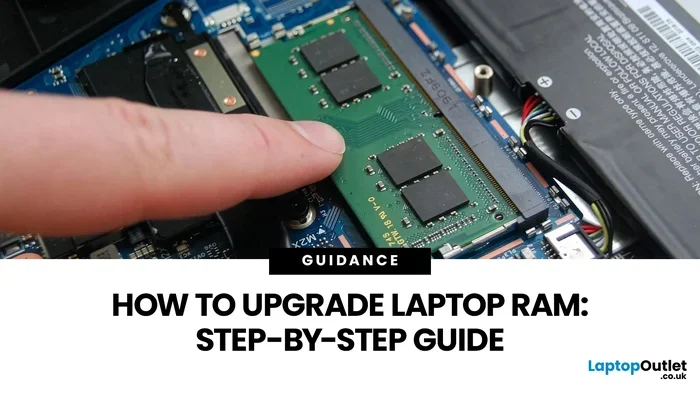
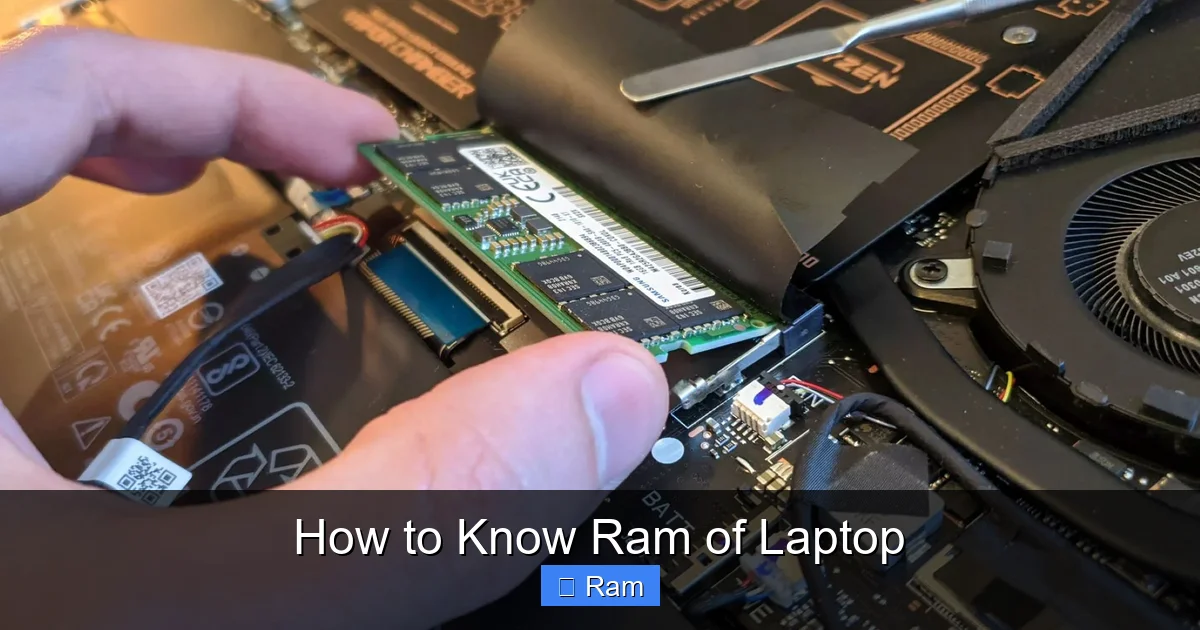
If you own a user‑upgradeable model (most business‑class laptops, gaming notebooks, and many DIY‑oriented ultrabooks), opening the back panel is the most reliable way to see the exact modules.
5.2 Tools and Safety
- Small Phillips #0 screwdriver (or Torx, depending on the model).
- Anti‑static wrist strap or a grounded metal surface.
- Plastic pry tool to avoid scratching the chassis.
Power down, unplug, and remove the battery (if removable) before you start.
5.3 Identifying Modules
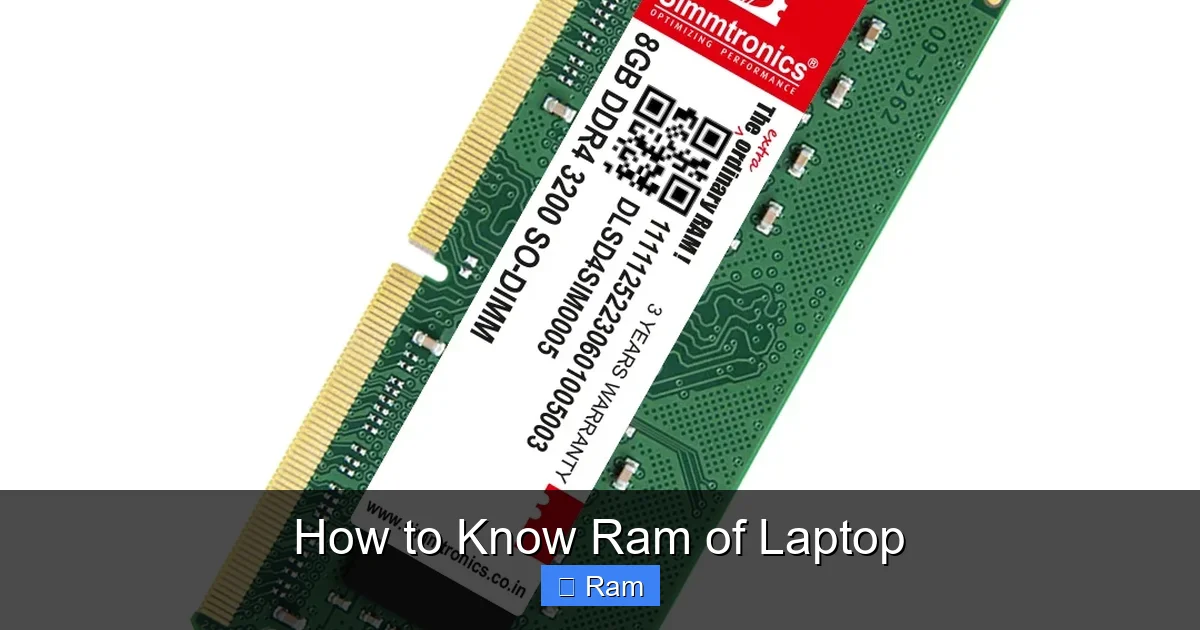
Look for rectangular chips about 30 mm long. They’ll have a sticker indicating:
- Capacity (e.g., 4 GB, 8 GB).
- Type (DDR3, DDR4, DDR5).
- Speed (e.g., 2400 MHz, 3200 MHz).
- Part number (useful for ordering exact replacements).
Count the occupied slots and note any empty ones—this tells you how many sticks you can add.
5.4 Compatibility Checklist
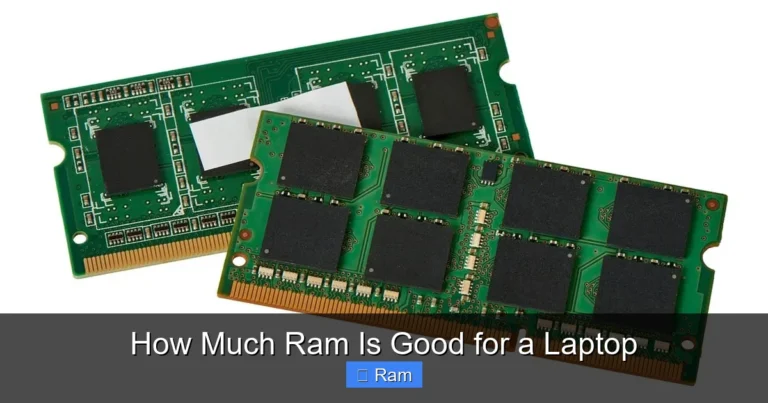
- Form factor: Most laptops use SO-DIMM (small outline) modules, not the full‑size DIMMs found in desktops.
- Voltage: DDR3 runs at 1.5 V (or 1.35 V for low‑power), DDR4 at 1.2 V, DDR5 at 1.1 V. Mixing voltages is not possible.
- Speed: The laptop’s motherboard supports a maximum speed; installing faster RAM will default to the lower supported speed.
- Dual‑channel: For best performance, install matched pairs (same size and speed) in the correct slots.
6. Interpreting the Data and Deciding on an Upgrade
6.1 How Much RAM Do You Need?
General guidelines:
- 8 GB: Adequate for web browsing, office work, and light media consumption.
- 16 GB: Recommended for multitasking, photo/video editing, and modern gaming.
- 32 GB or more: Needed for 3D rendering, large datasets, virtual machines, or professional‑grade video production.
6.2 Spotting Bottlenecks
If you notice the “Available” memory in Task Manager or Activity Monitor staying low while the “Total” is high, you may be hitting a software limit (e.g., 32‑bit OS) or a hardware reservation (integrated graphics). Upgrading RAM helps only when the bottleneck is truly memory‑related.
6.3 Cost‑Benefit Analysis
DDR4 SO‑DIMMs typically cost $30‑$50 per 8 GB stick, while DDR5 is still premium ($70‑$100 per 8 GB). If your laptop only supports DDR4, buying DDR5 will never work. Always match the type and voltage.
6.4 Installation Tips
- Insert the module at a 30‑degree angle, then press down until the clips click.
- If you have two sticks, place them in the slots indicated by the motherboard manual for dual‑channel (usually slots 1 & 3 or 2 & 4).
- Boot the laptop and verify the new total in the OS or BIOS.
Conclusion
Knowing the RAM of your laptop isn’t just trivia—it’s the first step toward a smoother, faster computing experience. Whether you prefer a quick glance at Windows Settings, a deep dive with PowerShell, or a hands‑on inspection of the memory modules, the methods covered here give you a complete picture. Armed with accurate data, you can decide if an upgrade is worth the investment, order the right sticks, and install them with confidence. Remember: the right amount of RAM paired with a compatible speed and proper dual‑channel configuration can breathe new life into an older notebook and keep a brand‑new laptop performing at its peak for years to come.
Frequently Asked Questions
How can I tell if my laptop has unused RAM slots?
Open Task Manager (Windows) or Activity Monitor (macOS) and check the “Slots used” number. BIOS/UEFI and tools like CPU‑Z also display empty slots.
Why does Windows show less usable RAM than the amount installed?
Hardware reservations for the integrated graphics, BIOS limits, or a 32‑bit OS can reduce the usable amount. Check the “Hardware Reserved” value in Task Manager.
Can I mix different sizes of RAM sticks in a laptop?
Yes, you can mix sizes (e.g., 4 GB + 8 GB), but dual‑channel performance is optimal with matching pairs. The system will run in flex‑mode, using the matching portion in dual‑channel and the remainder in single‑channel.
Is it safe to upgrade RAM on a laptop with a non‑removable battery?
Yes, as long as you power down, unplug the charger, and wait a few minutes for residual charge to dissipate. Using an anti‑static wrist strap adds extra safety.
Do I need to reinstall the operating system after adding more RAM?
No. Modern OSes detect the new memory automatically at boot. Just verify the new total in Settings or System Report.
What if my laptop only supports up to 16 GB of RAM but I need more?
In that case, consider external solutions like a USB‑C SSD for virtual memory, or upgrade to a newer laptop that supports higher capacities.