How To Fix Your Mouse If Its Not Moving On Screen Today
Is your mouse not moving on screen? You are not alone, and the good news is that most fixes are quick and easy. This guide walks you through every common reason your mouse cursor is not moving and shows you exactly how to solve it. From driver updates to simple restart tricks, you will have your mouse working again in minutes.
There is nothing more frustrating than moving your mouse and watching the cursor sit still on your screen. Whether you are working on an important project or just browsing the web, a frozen or stuck mouse can bring everything to a halt. The good news is that this is one of the most common tech issues, and it is almost always fixable at home.
In this guide, we will walk you through every possible reason your mouse cursor is not moving and show you the exact steps to get it working again. We will cover wired and wireless mice, laptop touchpads, and everything in between. By the end, you will know exactly what to do and how to prevent this from happening again.
Let us dive right in and get your mouse back on track.
Key Takeaways
- Check physical connections first: A loose USB cable or dead batteries cause most mouse problems.
- Update or reinstall your mouse driver: Outdated drivers are a top reason your mouse stops working.
- Adjust your mouse settings: Sometimes the fix is as simple as changing pointer speed or disabling touchpad conflicts.
- Try a different USB port or device: This helps you rule out hardware issues quickly.
- Restart your computer: A simple reboot can resolve many temporary glitches with your cursor.
- Use keyboard shortcuts as a workaround: You can still navigate your laptop even when the mouse is stuck.
📑 Table of Contents
- Why Is My Mouse Not Moving On Screen?
- How To Fix Your Mouse If Its Not Moving On Screen
- Laptop-Specific Fixes For A Stuck Mouse Cursor
- How To Prevent Mouse Problems In The Future
- Quick Tips When Your Mouse Is Not Working
- When To Seek Professional Help
- Common Mistakes People Make When Fixing Mouse Issues
- Final Thoughts
Why Is My Mouse Not Moving On Screen?
Before you start fixing anything, it helps to understand what might be causing the problem. A mouse cursor not moving can happen for many reasons, and each one has a simple solution. Let us look at the most common causes.
Physical Connection Issues
The number one reason a mouse stops working is a loose or broken connection. If you use a wired mouse, check the USB cable. Make sure it is plugged in all the way. Try a different USB port on your computer. Sometimes the port itself is the problem, not the mouse.
For wireless mice, the issue might be dead batteries. Replace them with fresh ones and see if that fixes the problem. Also check that the USB receiver is plugged in properly. Some wireless mice use Bluetooth, so make sure Bluetooth is turned on in your system settings.
Driver Problems
Your computer needs the right mouse driver to communicate with your mouse. If the driver is outdated or corrupted, your cursor might freeze or stop moving altogether. This happens more often after a Windows update or when you plug in a new mouse.
You can check your driver status through the Device Manager. Look for any yellow warning signs next to your mouse or pointing device. If you see one, that is a clear sign your driver needs attention.
Touchpad Conflicts on Laptops
If you are using a laptop, your touchpad might be accidentally disabled. This is more common than you think. A quick tap on a specific corner or a function key combo can turn it off without you noticing. Also, plugging in an external mouse can sometimes cause the touchpad to disable itself automatically.
Check your touchpad settings in your control panel. Make sure it is set to “On” or “Enabled.” If you are dealing with a specific laptop brand issue, you might want to check out this guide on fixing laptop mouse issues for brand-specific solutions.
How To Fix Your Mouse If Its Not Moving On Screen
Now that you know the common causes, let us get into the fixes. Follow these steps in order, and you will likely solve the problem quickly.
Step 1: Restart Your Computer
Before anything else, try a simple restart. This clears temporary glitches and refreshes all your hardware connections. It sounds too simple, but it works more often than you would think. Save your work, shut down your computer completely, wait a few seconds, and turn it back on.
Step 2: Check Your Physical Connections
Unplug your mouse and plug it back in. If you have a USB hub, try connecting the mouse directly to your computer instead. For wireless mice, remove the USB receiver, wait ten seconds, and plug it back in. Replace the batteries if they are low.
If you have another mouse available, test it on the same computer. This will tell you whether the problem is with your mouse or your computer. If the second mouse works, you know your original mouse needs replacing or repairing.
Step 3: Update Your Mouse Driver
Open the Device Manager by right-clicking the Start button and selecting “Device Manager.” Expand the “Mice and other pointing devices” section. Right-click your mouse and choose “Update driver.” Follow the on-screen prompts and let Windows search for the latest driver.
If updating does not work, try uninstalling the driver and then restarting your computer. Windows will automatically reinstall a fresh driver when it boots back up.
Step 4: Adjust Mouse Settings
Sometimes the issue is not hardware but settings. Go to your Control Panel and open “Mouse” settings. Check the “Pointer Options” tab. Make sure the pointer speed is not set to zero. Uncheck the box that says “Hide pointer while typing” if it is checked.
You should also check the “Device Settings” tab if you have multiple pointing devices. Make sure your active mouse is set as the default device.
Step 5: Run the Mouse Troubleshooter
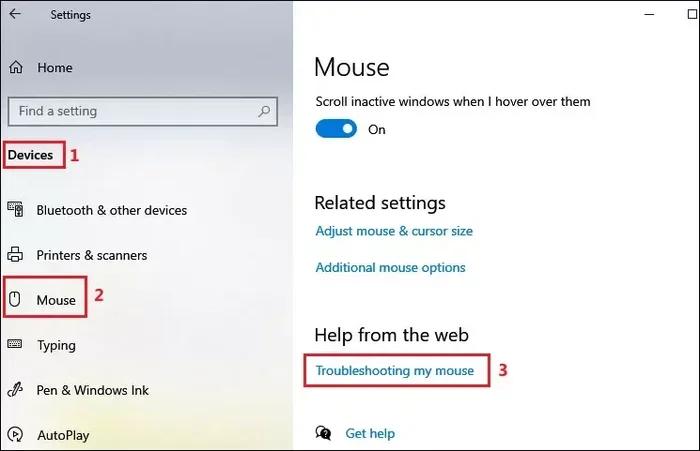
Windows has a built-in troubleshooter that can detect and fix common mouse problems. Go to Settings > Update & Security > Troubleshoot > Additional troubleshooters > Mouse. Run the troubleshooter and follow any recommendations it gives you.
This tool can often find issues you might not even think to check. It is a quick and easy step that many people skip.
Laptop-Specific Fixes For A Stuck Mouse Cursor
Laptops add a layer of complexity because they have both a touchpad and the option for an external mouse. Sometimes both can cause problems at the same time. Here are fixes that are specific to laptops.
Enable Your Touchpad
Many laptops have a function key that disables the touchpad. Look for an icon that looks like a touchpad with a line through it. Press that key plus the Fn key to turn the touchpad back on. The exact key combination varies by brand, so check your laptop manual if you are not sure.
You can also go to Settings > Devices > Touchpad and make sure the touchpad is turned on. Some laptops let you adjust touchpad sensitivity there too.
Check for Hardware Conflicts
If you plug in an external mouse and your touchpad stops working, that is normal behavior on most laptops. But if your external mouse also stops working, there may be a deeper hardware conflict. Try removing all USB devices except your mouse and see if that helps.
Sometimes a faulty USB port can cause intermittent issues. Test your mouse in different ports to narrow down the problem. If only one port works, that port might need repair.
When To Consider Replacing Your Mouse
If none of the software fixes work, your mouse might be physically broken. Signs of a dying mouse include erratic movement, double-clicking on its own, or complete unresponsiveness. In these cases, replacement is usually the best option.
A basic wired mouse is inexpensive and reliable. If you prefer wireless, look for models with good reviews and a warranty. You can also check out this resource on fixing mouse problems on laptops for more detailed troubleshooting before you buy a new one.
How To Prevent Mouse Problems In The Future
Once you get your mouse working again, you want to keep it that way. Here are simple habits that help prevent future issues.
- Keep your drivers updated: Set a monthly reminder to check for driver updates. This is especially important after major Windows updates.
- Replace batteries regularly: For wireless mice, swap out batteries before they die completely. Low power can cause erratic behavior.
- Keep your mouse clean: Dust and dirt can build up on the sensor and cause tracking issues. Wipe the bottom of your mouse with a soft cloth every few weeks.
- Use a mouse pad: A clean, flat surface helps your mouse sensor track accurately. Avoid using your mouse on textured or uneven surfaces.
- Avoid USB hub overload: Too many devices on one USB hub can cause connection issues. Plug critical devices like your mouse directly into your computer.
Quick Tips When Your Mouse Is Not Working
While you are troubleshooting, you still need to get work done. Here are some quick tips to keep going without a working mouse.
- Use keyboard shortcuts: Press Tab, Enter, and arrow keys to navigate menus and buttons. Most programs have keyboard alternatives for every function.
- Use the on-screen keyboard: Press Windows Key + Ctrl + O to open the on-screen keyboard. This lets you type and click using your mouse pointer or touch screen.
- Use the Run dialog: Press Windows Key + R to open the Run box. Type commands to open programs and settings without needing a mouse.
- Enable sticky keys: Press Shift five times to turn on Sticky Keys. This lets you press keyboard shortcuts one key at a time instead of all at once.
If you are stuck and need more help, check out this guide on working a laptop without a mouse. It has additional tips for getting by when your pointing device is not cooperating.
When To Seek Professional Help
Most mouse issues can be fixed at home with the steps above. But sometimes the problem is deeper than a simple fix. Here are signs you should call a professional.
- Your mouse works on other computers but not yours, and you have tried all the software fixes.
- You notice a burning smell or visible damage to your USB ports.
- Your laptop touchpad is physically damaged or unresponsive after a drop or spill.
- You have tried multiple mice and none of them work on your computer.
In these cases, the problem might be with your motherboard or internal USB controller. A tech professional can diagnose and repair these issues safely.
Common Mistakes People Make When Fixing Mouse Issues
Avoid these common mistakes that can make the problem worse or waste your time.
- Skipping the simple fixes: Many people jump to advanced solutions before checking if the mouse is plugged in or has batteries. Always start with the basics.
- Ignoring driver updates: An outdated driver is a hidden culprit in many mouse problems. Always check drivers before replacing hardware.
- Using the wrong USB port: Some USB ports provide less power than others. Plug your mouse into a port directly on the computer, not on a keyboard hub.
- Not testing with another device: If you skip testing with a different mouse, you might replace a perfectly good mouse when the real issue is your computer.
For more troubleshooting tips on related hardware issues, you might also find this article on identifying blown speakers helpful if you are dealing with multiple hardware problems at once.
Final Thoughts
A mouse that is not moving on screen can feel like a disaster, but it is almost always a fixable problem. Start with the simple things, check your connections, update your drivers, and adjust your settings. Most of the time, one of these steps will get your cursor moving again in just a few minutes.
Remember to keep your drivers updated, clean your mouse regularly, and replace batteries before they die. These small habits go a long way in preventing future issues. If you have tried everything and the problem persists, do not hesitate to seek professional help. Your time and productivity are worth it.
Now that you know how to fix your mouse if its not moving, you can tackle the problem with confidence. Save this guide for the next time your cursor decides to take a break. Your future self will thank you.
Frequently Asked Questions
Why is my mouse cursor not moving even though I am moving the mouse?
This usually happens because of a driver issue, a loose connection, or your touchpad being disabled. Start by restarting your computer and checking your physical connections. If that does not work, update your mouse driver through Device Manager. Most of the time, one of these simple steps resolves the problem quickly.
How do I fix a wireless mouse that stopped working?
First, replace the batteries with fresh ones. Then remove the USB receiver, wait a few seconds, and plug it back into a different USB port. Make sure Bluetooth is enabled if your mouse uses a Bluetooth connection. If the mouse still does not work, try connecting it to another computer to rule out a hardware failure.
Can a virus or malware cause my mouse to stop working?
Yes, in rare cases malware can interfere with your mouse drivers and settings. Run a full antivirus scan to check for any threats. If the scan finds something, follow your antivirus software’s recommended steps to remove it. Afterward, restart your computer and check if your mouse is working again.
Why does my touchpad work but my external mouse does not?
This usually means your external mouse has a connection issue or the wrong driver. Try a different USB port, check the cable, and update the mouse driver. You can also test the external mouse on another computer to confirm whether the mouse itself is the problem.
How do I reset my mouse settings to default?
Go to Settings > Devices > Mouse and look for a reset or default option. You can also go to the Control Panel, open Mouse settings, and click “Restore Defaults” on the Pointer Options tab. After resetting, restart your computer and test your mouse to see if the issue is resolved.
Is it better to use a wired or wireless mouse for reliability?
Wired mice tend to be more reliable because they do not depend on batteries or wireless signals. However, modern wireless mice are very stable and convenient. Choose based on your needs. If you work in a fixed location, a wireless mouse is great. If you need guaranteed performance, a wired mouse is the safer choice.