How to Format Sd Card for Trail Camera

Formatting your SD card correctly is the first step to reliable trail‑camera performance. Follow this friendly guide to choose the right card, set up the proper file system, and troubleshoot common issues—so you never miss a moment in the wild.
Key Takeaways
- Choose the right card: Capacity, speed class, and durability matter for outdoor use.
- Use the correct file system: Most trail cameras work best with FAT32 or exFAT.
- Format in‑camera when possible: This ensures optimal compatibility and clears hidden errors.
- Backup before reformatting: Always copy existing footage to a computer or external drive.
- Keep a spare card: Having a second, pre‑formatted card prevents downtime.
- Regular maintenance: Re‑format after 100‑200 GB of use to maintain speed.
- Use a quality card reader: A good reader prevents corruption when transferring files.
📑 Table of Contents
- Introduction: Why Proper Formatting Matters
- 1. Picking the Perfect SD Card for Your Trail Camera
- 2. Understanding File Systems: FAT32 vs. exFAT
- 3. Step‑by‑Step: Formatting the Card Directly in the Camera
- 4. Formatting on a Computer: When and How
- 5. Maintaining Your SD Card for Longevity
- 6. Troubleshooting Common Formatting Issues
- Conclusion: A Small Step for Big Results
Introduction: Why Proper Formatting Matters
Imagine you’re out in the woods early morning, your trail camera is set up, and you hear the rustle of a deer. You later check the footage only to find a corrupted file or missing video. The culprit is often an improperly formatted SD card.
Formatting isn’t just “erasing data.” It sets up the card’s file system, aligns sectors, and tells the camera how to read and write files efficiently. A clean, correctly formatted card means faster write speeds, fewer errors, and longer life for both the card and the camera.
1. Picking the Perfect SD Card for Your Trail Camera
Capacity matters
Most trail cameras accept cards from 8 GB up to 256 GB. Larger capacities store more footage but can be slower to format. A good rule of thumb: match capacity to your shooting schedule. For a week‑long deployment, 32 GB to 64 GB is usually enough.
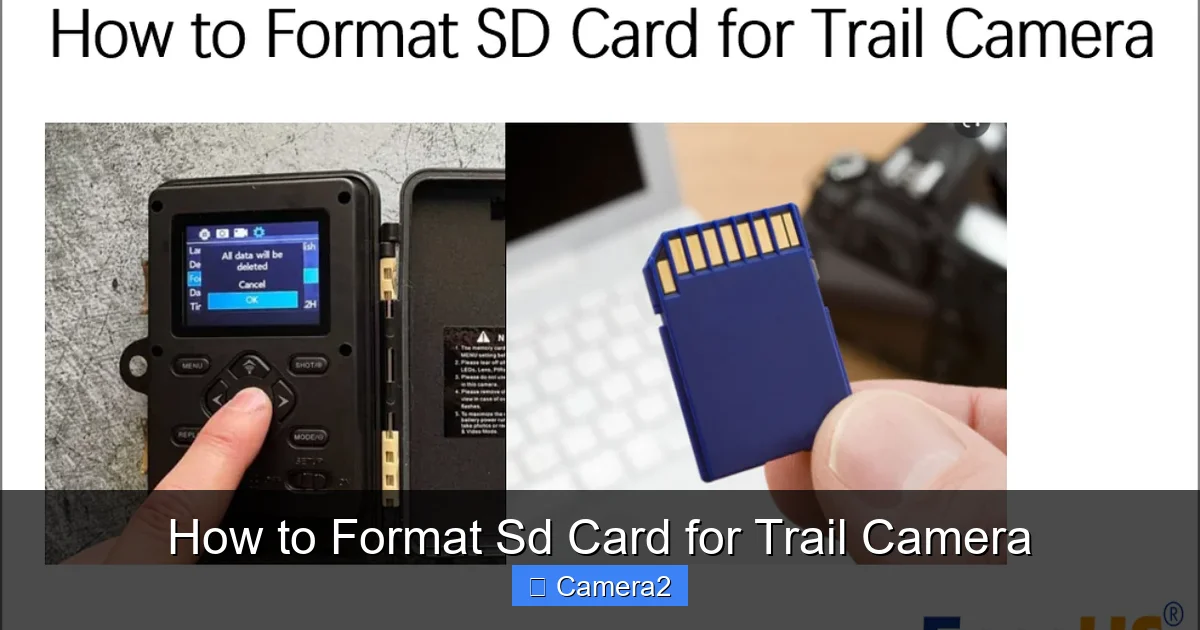
Visual guide about How to Format Sd Card for Trail Camera
Image source: easeus.com
Speed class and durability
Look for a card with at least Class 10 or UHS‑I U1 rating. Faster cards reduce the chance of missed frames when the camera captures rapid motion. Also, choose cards marketed as “high‑temperature” or “rugged” because trail cameras endure heat, cold, and moisture.
Recommended brands
SanDisk Extreme, Kingston Canvas React, and Transcend High Endurance are popular among wildlife photographers. For a deeper dive on choosing the right card, see our guide on Sd Card For Trail Camera.
2. Understanding File Systems: FAT32 vs. exFAT
What is a file system?
A file system is the way data is organized on the card. Trail cameras typically support FAT32 and, for larger cards (over 32 GB), exFAT.
Visual guide about How to Format Sd Card for Trail Camera
Image source: i.ytimg.com
When to use FAT32
FAT32 works with cards up to 32 GB and is universally compatible. It’s a safe choice for older cameras that may not recognize exFAT.
When to use exFAT
exFAT handles cards larger than 32 GB and offers faster file allocation. If your camera’s manual lists exFAT as supported, use it for 64 GB or larger cards.
How to check your camera’s supported formats
Consult the user manual—many manufacturers provide a PDF. For example, the Wildgame Innovations Trail Camera Manual explains supported file systems in detail (Wildgame Innovations Trail Camera Manual).
3. Step‑by‑Step: Formatting the Card Directly in the Camera
Why format in‑camera?
Formatting inside the camera ensures the card is set up exactly how the device expects it. This method also clears hidden system files that a computer might leave behind.

Visual guide about How to Format Sd Card for Trail Camera
Image source: dnm.nflximg.net
General steps (may vary by model)
- Power on the camera and navigate to the Settings menu.
- Select Format SD Card or Initialize Card.
- Choose the desired file system if prompted (FAT32 or exFAT).
- Confirm the action. The camera will erase all data and prepare the card.
- Wait for the confirmation message before removing the card.
Tips for a smooth in‑camera format
- Ensure the battery is fully charged or the camera is plugged into an external power source.
- Do not interrupt the process—no button presses or power loss.
- If the camera freezes, remove the battery, wait 10 seconds, and restart.
4. Formatting on a Computer: When and How
When to use a computer
You might prefer a computer if you need to format a card that the camera won’t recognize, or if you want to quickly create multiple partitions.
Using Windows
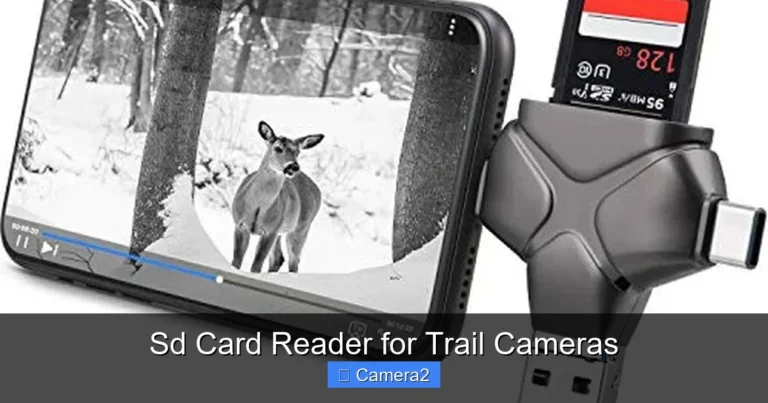
- Insert the SD card into a reliable Sd Card Reader For Game Cameras.
- Open File Explorer, right‑click the card, and select Format.
- Choose FAT32 for ≤32 GB or exFAT for larger cards.
- Leave “Quick Format” checked for speed, but uncheck it for a thorough scan.
- Click Start and wait for completion.
Using macOS
- Open Disk Utility from Applications → Utilities.
- Select the SD card in the sidebar.
- Click Erase, choose MS‑DOS (FAT) for FAT32 or ExFAT for larger cards.
- Name the volume (optional) and click Erase.
Key points to remember
- Always back up existing footage before formatting.
- Use the “Full Format” option once a year to check for bad sectors.
- Avoid third‑party “formatting tools” that claim to boost speed—they often cause more harm than good.
5. Maintaining Your SD Card for Longevity
Regular reformatting schedule
Even with a high‑end card, data fragmentation can slow write speeds. Reformat every 100‑200 GB of recorded footage, or roughly once a month for heavy users.
Protecting against environmental damage
- Store cards in a waterproof case when not in use.
- Avoid exposing the card to extreme heat (above 60 °C) for long periods.
- Keep the contacts clean; a soft, lint‑free cloth works well.
Using a spare card
Carry a second, pre‑formatted card on every outing. Swap it out if the first card shows errors or fills up quickly. This practice eliminates downtime and ensures continuous recording.
6. Troubleshooting Common Formatting Issues
“Card not recognized” error
Try the following:
- Re‑insert the card, ensuring it clicks securely.
- Use a different card reader.
- Format the card on a computer first, then re‑insert into the camera.
Slow write speeds after formatting
Make sure you selected the correct file system. FAT32 on a 64 GB card forces the camera to split files, which can slow performance. Switch to exFAT if supported.
Corrupted files despite formatting
This often points to a failing card. Run a “Check Disk” utility on Windows (right‑click → Properties → Tools → Check) or use macOS’s First Aid. If errors persist, replace the card.
Conclusion: A Small Step for Big Results
Formatting your SD card correctly is a simple habit that pays huge dividends. By choosing the right card, using the proper file system, and following the step‑by‑step guide—whether in‑camera or on a computer—you’ll keep your trail camera ready to capture every rustle, snap, and sunrise. Remember to back up, reformat regularly, and keep a spare on hand. Happy wildlife watching!
Frequently Asked Questions
How often should I reformat my SD card?
Reformat after every 100‑200 GB of recorded footage, or roughly once a month if you use the camera heavily. This prevents fragmentation and maintains speed.
Can I use the same SD card for multiple trail cameras?
Yes, as long as each camera supports the card’s capacity and file system. Always format the card in the new camera before use to avoid compatibility issues.
What is the difference between FAT32 and exFAT?
FAT32 works up to 32 GB and is universally compatible, while exFAT supports larger capacities and faster file handling. Choose based on your card size and camera support.
Why does my camera say “Card Error” after I format it on a computer?
The camera may require a specific allocation size or may not recognize the way the computer formatted it. Try formatting directly in the camera or use the exact settings (FAT32/exFAT) recommended in the manual.
Do I need a special SD card reader for trail cameras?
A reliable USB‑type reader is sufficient. For best results, use a reader designed for high‑capacity cards, such as those reviewed in our Sd Card Readers For Game Cameras article.
Can I format the card while it’s still in the camera?
Yes, most modern trail cameras have a built‑in format option in the settings menu. This is the preferred method because it ensures the card is set up exactly as the camera expects.