How to Link Bose Speakers
Want flawless sound across every corner of your home? This guide shows you exactly how to link Bose speakers—whether you’re using Bluetooth, Wi‑Fi, or the Bose Music app. Follow the simple steps, avoid common pitfalls, and start streaming your favorite tunes instantly.
Key Takeaways
- Multiple linking methods: Bose speakers can be paired via Bluetooth, Wi‑Fi, or the Bose Music app, each suited to different setups.
- Preparation matters: Updating firmware and resetting devices before linking prevents most connection errors.
- Speaker groups: Create stereo pairs or whole‑home groups for synchronized playback.
- Troubleshooting basics: Common fixes include moving routers, checking Wi‑Fi bands, and restarting the app.
- Compatibility check: Not all Bose models support every linking method; know what your speaker can do.
- Optimal placement: Position speakers for the best sound and strongest wireless signal.
- Future‑proofing: Keep your system updated to enjoy new features and improved stability.
📑 Table of Contents
- Introduction: Why Linking Bose Speakers Is a Game Changer
- 1. Preparing Your Bose Speakers for Pairing
- 2. Linking via Bluetooth: Quick and Simple
- 3. Linking via Wi‑Fi: The Whole‑Home Solution
- 4. Using the Bose Music App: Centralized Control
- 5. Troubleshooting Common Issues
- 6. Optimizing Placement and Performance
- Conclusion: Enjoy Seamless Sound Everywhere
Introduction: Why Linking Bose Speakers Is a Game Changer
Imagine walking from the kitchen to the living room and hearing the same song without any gaps or delays. That’s the magic you get when you link Bose speakers. Whether you own a pair of Bose Home Speakers 300, a SoundTouch 10, or the newer Smart Soundbar 700, connecting them turns a single audio source into an immersive, whole‑home experience.
Most people think linking is complicated, but Bose designed its ecosystem to be as friendly as possible. With a few taps on your phone, a quick Bluetooth press, or a simple Wi‑Fi setup, you can have every room playing the same playlist or create a dedicated stereo pair for your movie night. This article walks you through every method, shares practical tips, and helps you troubleshoot the hiccups that sometimes pop up.
1. Preparing Your Bose Speakers for Pairing
1.1 Update Firmware First
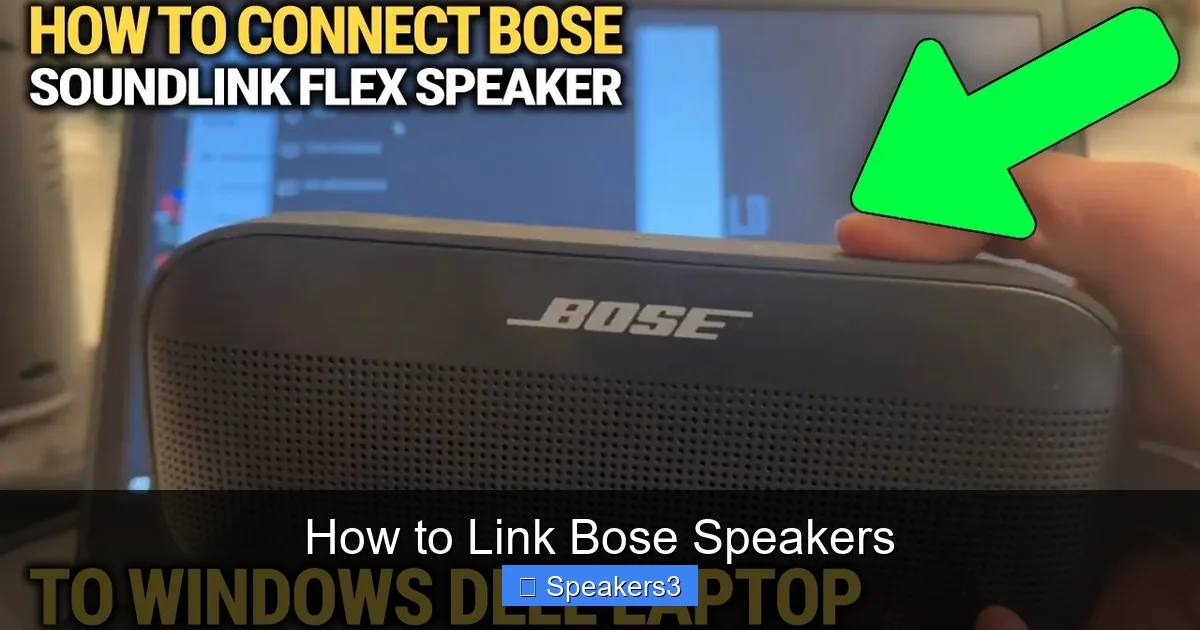
Before you start, make sure each speaker runs the latest firmware. Out‑of‑date software is the most common cause of failed connections. Open the Bose Music app, go to Settings → Software Update**, and let the app do its job. The process usually takes 5‑10 minutes.
Visual guide about How to Link Bose Speakers
Image source: i.ytimg.com
1.2 Resetting Speakers (When Needed)
If a speaker has been used with another device or you’re experiencing glitches, perform a factory reset:
- Bose Home Speaker 300/500: Press and hold the Power button for 10 seconds until the LED flashes orange.
- SoundTouch Series: Hold the Play/Pause button for 10 seconds.
- Smart Soundbar: Unplug for 30 seconds, then plug back in while holding the Power button.
After resetting, the speaker will enter pairing mode automatically.
1.3 Check Compatibility
Not every Bose model supports every linking method. For example, the SoundLink Revolve works great with Bluetooth but cannot join a Wi‑Fi group. Review the user manual or the product page to confirm whether your speakers support Bluetooth, Wi‑Fi, or both.
2. Linking via Bluetooth: Quick and Simple
2.1 When to Use Bluetooth
Bluetooth is perfect for:
Visual guide about How to Link Bose Speakers
Image source: audioreputation.com
- Connecting a single speaker to a phone, tablet, or laptop.
- Temporary setups, like a backyard party.
- Devices that don’t have a strong Wi‑Fi network.
2.2 Step‑by‑Step Bluetooth Pairing
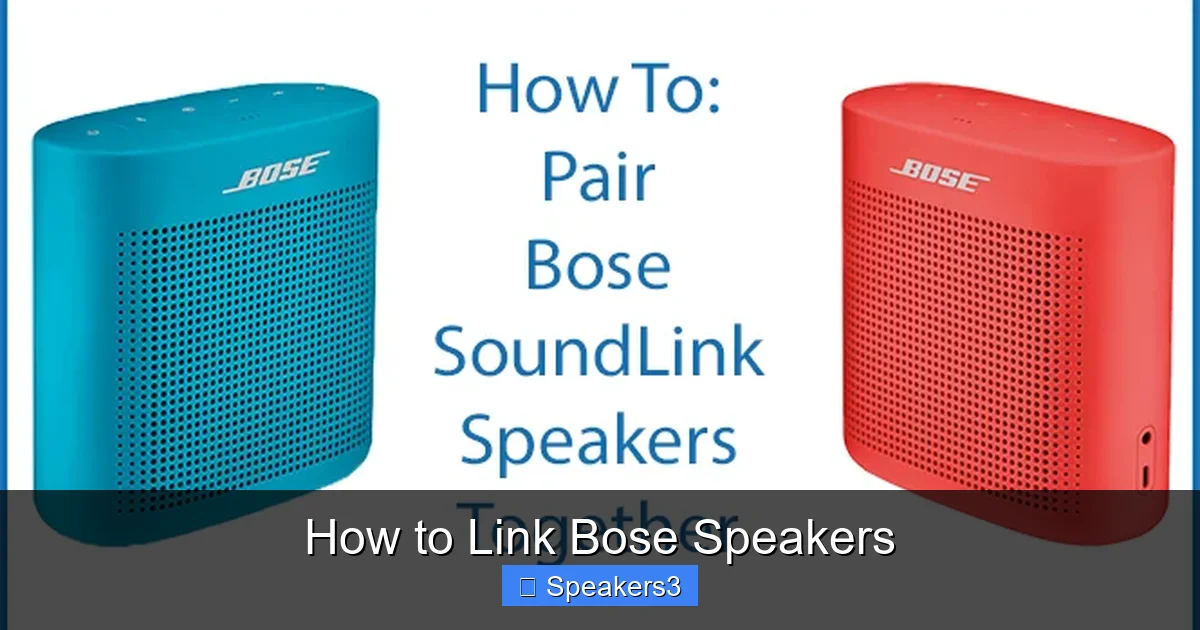
- Turn on the first Bose speaker and press the Bluetooth button until you hear “Ready to pair.”
- On your smartphone, open Settings → Bluetooth and select the speaker’s name (e.g., “Bose‑Home‑300”).
- Once connected, repeat the process with the second speaker, but this time select “Add a speaker” within the Bose Music app to create a Bluetooth speaker group.
Note: Bluetooth groups are limited to two speakers for most Bose models. If you need more, switch to Wi‑Fi linking.
2.3 Tips for a Stable Bluetooth Connection
- Keep speakers within 30 feet of the source device.
- Avoid obstacles like walls or large metal objects.
- Turn off other Bluetooth devices that might cause interference.
3. Linking via Wi‑Fi: The Whole‑Home Solution
3.1 Why Wi‑Fi Beats Bluetooth for Multi‑Room Audio
Wi‑Fi offers higher bandwidth, lower latency, and the ability to connect dozens of speakers simultaneously. It also lets you control everything from the Bose Music app, including volume, EQ, and source selection.
Visual guide about How to Link Bose Speakers
Image source: pic.pngsucai.com
3.2 Setting Up a Wi‑Fi Network for Bose Speakers
- Connect at least one speaker to your router using the Bose Music app. Choose Wi‑Fi Setup and follow the on‑screen prompts.
- If your router supports both 2.4 GHz and 5 GHz bands, select 2.4 GHz for the best range, unless all speakers are close to the router, then 5 GHz works fine.
- After the first speaker is online, the app will automatically detect other Bose devices on the same network.
3.3 Creating Speaker Groups
Once all speakers are on the same Wi‑Fi network, you can create groups:
- Stereo Pair: Choose two identical speakers (e.g., two Home Speaker 300) and select “Create Stereo Pair” in the app.
- Whole‑Home Group: Select “Add Speakers” and choose every speaker you want in the group. Name it “Living Room” or “House Party.”
Groups synchronize playback to the millisecond, eliminating echo or lag.
3.4 Practical Example: Setting Up a Home Theater
Suppose you have a Bose Smart Soundbar 700 and two Bose Surround Speakers. Follow these steps:
- Connect the Soundbar to Wi‑Fi via the app.
- Add the two surround speakers to the same network.
- In the app, select “Create Home Theater.” The app will automatically assign left, right, and surround channels.
- Test with a movie clip; you should hear clear, immersive surround sound.
4. Using the Bose Music App: Centralized Control
4.1 Installing and Navigating the App
Download the Bose Music app from Google Play or the App Store. After signing in, you’ll see a dashboard with all detected speakers.
4.2 Advanced Features in the App
- Multi‑room playlists: Create a playlist that plays on every speaker simultaneously.
- Room‑specific EQ: Tailor bass and treble for each space.
- Voice assistant integration: Link Alexa or Google Assistant for hands‑free control.
4.3 Linking Speakers Using the “Add a Speaker” Button
When you tap Add a Speaker, the app searches for any Bose device in pairing mode. Select the desired speaker, assign it to a group, and you’re done. This method works for both Bluetooth and Wi‑Fi devices, making it the most versatile way to how to link Bose speakers.
5. Troubleshooting Common Issues
5.1 Speakers Not Appearing in the App
Try these steps:
- Ensure the speaker is in pairing mode (LED flashing).
- Restart your router and the speaker.
- Check that your phone’s Wi‑Fi is on the same network as the speakers.
5.2 Audio Drops or Lag
Lag is usually caused by Wi‑Fi congestion. Move the router to a central location, switch to a less‑crowded channel, or prioritize the Bose devices in your router’s QoS settings.
5.3 Bluetooth Connection Fails After Firmware Update
Sometimes updates reset Bluetooth settings. Simply repeat the Bluetooth pairing steps in Section 2.2.
5.4 Linking Different Bose Models Together
While most newer models can coexist, older SoundTouch speakers may not join a Wi‑Fi group with the latest Smart speakers. In such cases, use the How To Wire Speakers To Amp guide to connect them via a wired receiver for a unified audio source.
5.5 When All Else Fails – Reset the Network Settings
On the Bose Music app, go to Settings → Network Reset. This clears stored Wi‑Fi credentials, letting you start fresh.
6. Optimizing Placement and Performance
6.1 Ideal Speaker Positioning
- Place floor‑standing speakers at least 2 feet from walls to avoid bass boom.
- For ceiling‑mounted units, aim them toward the primary listening area.
- Keep Wi‑Fi speakers in open spaces; avoid cabinets or closets.
6.2 Enhancing Wi‑Fi Signal Strength
Use a mesh Wi‑Fi system if your home is large. Position a node near the main speaker cluster to ensure a strong, consistent signal.
6.3 Using a Dedicated Audio Router
If you have many high‑bandwidth devices (gaming consoles, 4K streaming), consider a separate router for audio devices. This reduces interference and keeps the music streaming smooth.
Conclusion: Enjoy Seamless Sound Everywhere
Linking Bose speakers is easier than you think. By updating firmware, choosing the right connection method (Bluetooth for quick setups, Wi‑Fi for whole‑home audio), and using the Bose Music app for control, you can create a powerful, synchronized sound system that fills every room. Remember to troubleshoot with the simple steps provided, and you’ll spend more time listening and less time fiddling with settings.
Now that you know how to link Bose speakers, fire up your favorite playlist, sit back, and let the music flow flawlessly from kitchen to bedroom.
Frequently Asked Questions
Can I mix Bluetooth and Wi‑Fi speakers in the same group?
Generally no. Bose groups work best when all speakers use the same connection type. Mixing can cause sync issues.
Do I need a Bose account to link speakers?
Yes, an account is required to use the Bose Music app, which handles most linking and group‑creation tasks.
How many Bose speakers can I connect to one Wi‑Fi network?
The app supports up to 20 speakers in a single group, though performance may vary with network strength.
What if my speaker won’t enter pairing mode?
Press and hold the power button for 10 seconds until the LED flashes orange. If it still won’t pair, try a factory reset.
Can I use the Bose Music app on a Windows PC?
The app is currently only available for iOS and Android. On a PC, you can use the web interface for some functions, but full linking features require the mobile app.
Is there a way to link Bose speakers without an internet connection?
Yes, you can use Bluetooth for direct pairing or set up a local Wi‑Fi network (router without internet) for the speakers to communicate.