How to Swap from Nvidia to Amd Gpu How to Switch from Amd to Nvidia Gpu a Very Detailed Step by Step Guide 2026
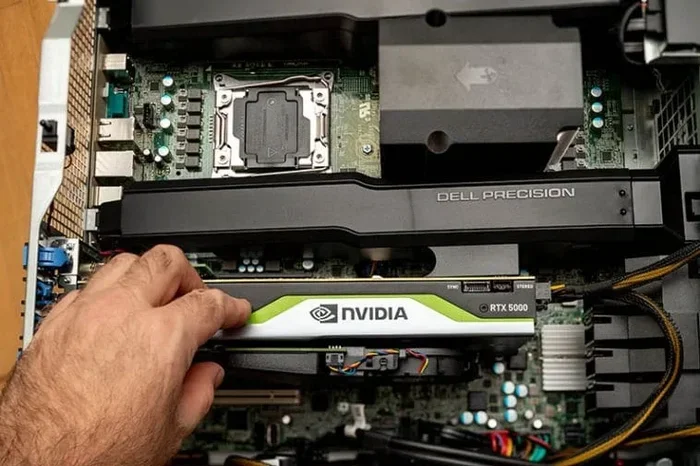
Swapping your graphics card between Nvidia and AMD is easier than you think. This guide walks you through every step to switch GPUs safely in 2026. You will learn how to remove your old card, install the new one, and set up drivers for the best performance.
Swapping your graphics card from one brand to another can feel intimidating. Maybe you want to move from Nvidia to AMD or go the other way from AMD to Nvidia. Either way, the process is straightforward if you follow the right steps.
In this guide, we walk you through how to swap GPUs in plain language. No confusing jargon. No skipped steps. Whether you are a beginner or a seasoned PC builder, you will find everything you need right here. We also cover important topics like GPU compatibility, driver cleanup, and performance tips.
By the end of this article, you will feel confident enough to do the swap yourself. You will save money on professional installation and learn how your PC works at a deeper level. Let us get started.
Key Takeaways
- Know Your Compatibility: Check that your motherboard and power supply support the new GPU before you start.
- Clean Installation Matters: Removing old drivers and junk files prevents conflicts when switching brands.
- Both Directions Are Covered: This guide works whether you go from Nvidia to AMD or AMD to Nvidia.
- Driver Setup Is Critical: Installing the right drivers ensures your new GPU runs at full speed.
- Safety First: Proper grounding and careful handling protect your hardware during the swap.
- Performance Tuning Helps: Small adjustments after installation can boost your gaming or work experience.
📑 Table of Contents
Why Swap Your GPU Between Nvidia and AMD?
People switch graphics cards for many reasons. Price drops, better performance, or new features can all push you to make a change. Understanding your motivation helps you make the best decision.
Performance Needs Change
Your graphics needs may evolve over time. A card that was great for gaming two years ago might struggle with today’s titles. AMD Radeon cards often offer strong value at mid-range prices. Nvidia GeForce cards tend to excel in ray tracing and AI-powered features.
Budget Considerations
Prices fluctuate constantly in the GPU market. Sometimes an AMD card fits your budget better. Other times, Nvidia offers a better deal. Swapping lets you stay current without buying a whole new PC.
Feature Preferences
Nvidia offers technologies like DLSS and CUDA cores that benefit specific workloads. AMD brings FidelityFX and smart access memory features. Choosing the right brand depends on what you do with your PC.
Before You Start: Preparation Steps
Jumping straight into the swap without preparation can cause problems. Taking a few minutes to prepare saves you hours of frustration later.
Check Your Power Supply
Your power supply unit (PSU) needs enough wattage to run the new card. Look up the power requirements for your chosen GPU. Make sure your PSU has the right connectors too. Most modern cards need either 6-pin, 8-pin, or 12-pin power cables.
Verify Physical Compatibility
Check that the new card fits inside your PC case. Measure the length, height, and width of the GPU. Also confirm that your motherboard has a compatible PCIe slot. If you are unsure about matching components, check out our guide on how to match a CPU and GPU for helpful tips on overall system compatibility.
Gather Your Tools
You do not need many tools for this job. Here is what you should have ready:
- A Phillips-head screwdriver
- Anti-static wrist strap (optional but recommended)
- A clean, soft cloth
- Isopropyl alcohol for cleaning the old card
- Your new GPU and its drivers downloaded on a USB drive
Back Up Your Data
While swapping a GPU rarely causes data loss, it is always smart to back up important files first. A simple backup gives you peace of mind.
How to Swap from Nvidia to AMD GPU
Switching from Nvidia to AMD follows a clear process. Follow each step carefully and you will have your new card running in no time.
Step 1: Uninstall Nvidia Drivers
Open Device Manager and find your Nvidia graphics card. Right-click and select “Uninstall device.” Check the box that says “Delete the driver software for this device.” This ensures no old Nvidia files linger on your system.
Step 2: Remove Junk Files
Old driver files can hide in temporary folders and cause conflicts. Use a trusted cleanup tool to remove leftover junk. You can also check out our guide on how to remove junk files from PC for a thorough cleanup before your swap.
Step 3: Power Down and Open the Case
Turn off your PC completely. Unplug the power cable. Press the power button a few times to drain any remaining electricity. Remove the side panel of your PC case to access the internal components.
Step 4: Remove the Nvidia Card
Locate the Nvidia GPU in the PCIe slot. Unscrew the bracket screw that holds it in place. Press the PCIe latch gently to release the card. Pull it straight out carefully. Set the old card aside in an anti-static bag.
Step 5: Install the AMD GPU
Take your new AMD Radeon card out of its packaging. Hold it by the edges to avoid touching the contacts. Align it with the PCIe slot and press down firmly until it clicks into place. Screw the bracket back in to secure the card.
Step 6: Connect Power Cables
Plug the appropriate power cables from your PSU into the new AMD card. Make sure each connector clicks in fully. Double-check that no cables are pinched or strained.
Step 7: Close the Case and Boot Up
Replace the side panel on your PC case. Plug in the power cable and turn on the PC. You should see the AMD logo appear during startup, which confirms the card is detected.
Step 8: Install AMD Drivers
Visit the AMD website and download the latest drivers for your specific Radeon model. Run the installer and follow the on-screen prompts. Restart your PC when prompted.
How to Switch from AMD to Nvidia GPU
Going from AMD to Nvidia follows a very similar process. The main difference is the driver software you need to install at the end.
Step 1: Uninstall AMD Drivers
Open Device Manager and locate your AMD graphics card. Right-click and choose “Uninstall device.” Select the option to delete the driver software. This clears the old AMD software from your system.
Step 2: Clean Up Remaining Files
AMD drivers sometimes leave behind files in the Program Files folder. Use a cleanup utility or manually search for AMD-related folders and delete them. This prevents driver conflicts with the new Nvidia card.
Step 3: Shut Down and Open the Case
Power off your computer completely. Disconnect the power cable. Remove the PC case side panel to access the motherboard and GPU.
Step 4: Remove the AMD Card
Find the AMD GPU seated in the PCIe slot. Unscrew the retention bracket. Release the PCIe latch and carefully pull the card out. Handle it by the edges only.
Step 5: Install the Nvidia Card
Take your new Nvidia GeForce card from the box. Align the gold contacts with the PCIe slot. Press down evenly until the card is fully seated. Secure it with the bracket screw.
Step 6: Connect Power and Close Up
Attach the power cables from your PSU to the Nvidia card. Confirm a snug fit on each connector. Replace the case panel and reconnect the power cable.
Step 7: Boot and Install Nvidia Drivers
Turn on your PC. If the screen displays an image, that is a great sign. Visit the Nvidia website and download the latest Game Ready or Studio driver for your card. Run the installer and restart your PC after installation completes.
Common Mistakes to Avoid During a GPU Swap
Even simple tasks can go wrong when you overlook small details. Here are the most common mistakes people make when swapping GPUs.
- Skipping driver uninstallation: Old driver files can cause blue screens and crashes. Always remove the old drivers completely first.
- Forgetting to ground yourself: Static electricity can damage sensitive components. Wear an anti-static strap or touch a metal surface before handling parts.
- Using the wrong power cables: Not all cables are interchangeable. Check the labeling on your PSU cables before plugging them in.
- Not checking the PCIe slot: Make sure the card is fully seated in the slot. A loose connection leads to no display output.
- Ignoring BIOS updates: Sometimes a motherboard BIOS update is needed to support newer GPUs. Check your motherboard manufacturer’s website.
Post-Swap Performance Tips
Once your new GPU is installed and drivers are set up, you can take a few extra steps to get the best performance.
Update Your Graphics Drivers Regularly
Both Nvidia and AMD release driver updates frequently. These updates often include performance boosts for new games and applications. Set a reminder to check for updates once a month.
Optimize Your Display Settings
Go into your GPU control panel and adjust settings for your usage. Nvidia users can access the NVIDIA Control Panel. AMD users should open the AMD Software: Adrenalin Edition. Tweak settings like anti-aliasing, texture filtering, and power management to suit your needs.
Monitor Temperatures
After a swap, keep an eye on your GPU temperatures. Use free software like HWMonitor or MSI Afterburner to track heat levels. If temperatures run high, consider improving your PC airflow or reapplying thermal paste.
Consider a System Upgrade
If you are swapping GPUs because your system feels slow overall, other components might need attention too. Upgrading your RAM can complement a new graphics card nicely. Check out our guide on how to upgrade the RAM of a laptop if you are working with a portable system.
Frequently Asked Questions
Can I swap GPUs without reinstalling Windows?
Yes, you can swap GPUs without reinstalling Windows. However, you must uninstall the old GPU drivers first. This prevents software conflicts and ensures a smooth transition to the new card.
Do I need to change my power supply when swapping GPUs?
It depends on the power requirements of your new card. If the new GPU needs more wattage or different connectors than your current PSU provides, you will need to upgrade the power supply as well.
Is it hard to switch from Nvidia to AMD or vice versa?
No, switching between Nvidia and AMD is not hard at all. The physical installation process is nearly identical for both brands. The main difference is the driver software you install afterward.
Will I lose my games and settings when I swap GPUs?
No, your games and settings stay on your hard drive. However, you may need to adjust in-game graphics settings after the swap since different GPUs handle rendering differently.
How long does a GPU swap take?
A GPU swap typically takes about 30 to 60 minutes. This includes removing the old card, cleaning the area, installing the new card, and setting up the drivers.
Do I need to update my motherboard BIOS before swapping GPUs?
In most cases, you do not need to update your BIOS. However, if you are switching to a very new GPU model, checking for a BIOS update can prevent compatibility issues. Visit your motherboard manufacturer’s website to find the latest version.
Final Thoughts
Swapping from Nvidia to AMD or going from AMD to Nvidia is a rewarding process. It saves you money and gives you a deeper understanding of your PC. With the steps laid out in this guide, you have everything you need to complete the swap confidently.
Remember to take your time. Do not rush through the preparation or driver cleanup phases. A clean installation leads to the best performance and fewest headaches. Whether you are upgrading for gaming, content creation, or general use, the right GPU makes all the difference.
Now that you know how to swap GPUs between brands, you can make informed decisions about your PC upgrades. Grab your screwdriver, follow the steps, and enjoy your new graphics card. Your improved experience is just one swap away.