Do Hdmi Extenders Cause Lag
HDMI extenders can cause some lag, but the amount depends on the type of extender, the signal quality, and how you set it up. Most modern active HDMI extenders add very little delay, making them great for everyday use and even gaming. Understanding how HDMI extenders work and choosing the right one helps you avoid frustrating lag and keep your setup running smoothly.
If you have ever plugged in an HDMI extender and noticed a slight delay on your screen, you are not alone. The question do HDMI extenders cause lag comes up a lot among home theater fans, office workers, and gamers alike. The short answer is yes, they can. But the full picture is much more interesting than a simple yes or no.
HDMI extenders let you stretch your video signal far beyond the normal cable length. Without them, a standard HDMI cable works well up to about 15 to 20 feet. After that, the signal starts to weaken. An extender solves this problem by boosting or converting the signal so it travels farther. But that process can sometimes introduce a small amount of delay, known as input lag or display lag.
The good news is that most people will not notice any lag from a quality HDMI extender. Whether you are watching a movie, giving a presentation, or even gaming, the right extender keeps things running smoothly. Let us dig into exactly how this works and what you can do to minimize any delay.
Key Takeaways
- Passive HDMI extenders add almost no lag because they simply carry the existing signal without processing it.
- Active HDMI extenders may introduce slight delay due to signal boosting and conversion, but the impact is minimal in most cases.
- HDMI over fiber optic extenders offer the best balance of long-distance reach and low latency.
- Your refresh rate and resolution settings play a big role in how much lag you experience with any HDMI extender.
- Proper placement and cable quality can significantly reduce lag caused by HDMI extenders.
- Gaming setups need extra care when choosing an HDMI extender to avoid noticeable input delay.
📑 Table of Contents
What Is an HDMI Extender and How Does It Work?
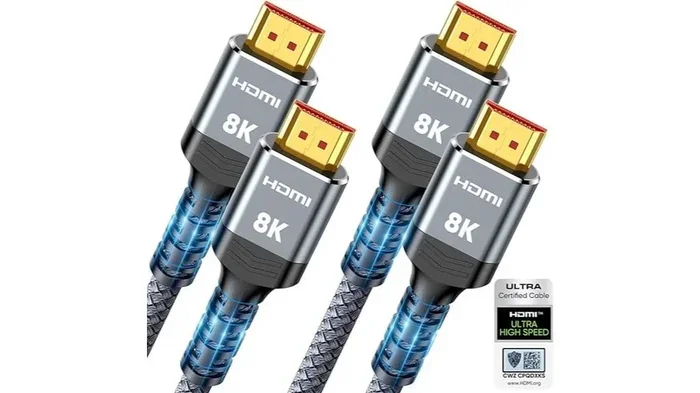
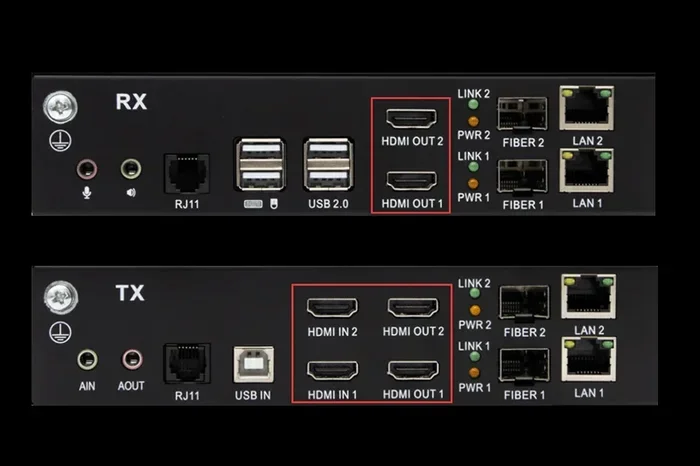
An HDMI extender is a device that sends an HDMI signal from one place to another over a longer distance than a regular HDMI cable allows. It usually comes in two parts: a sender unit and a receiver unit. The sender connects to your source device, like a laptop or streaming box. The receiver connects to your display, like a TV or monitor.
These devices use different technologies to move the signal. Some use a standard Ethernet cable. Others use fiber optic cable or even wireless transmission. Each method has its own strengths and weaknesses when it comes to lag and signal quality.
Passive vs. Active HDMI Extenders
There are two main types of HDMI extenders. Passive extenders use a cable to carry the signal without any amplification. They add almost zero lag because they do not process the signal at all. However, they still have distance limits and are not as common for long runs.
Active extenders, on the other hand, boost or convert the signal to travel farther. This is where a tiny bit of lag can appear. The extender has to process the incoming signal and push it back out. This processing takes a small amount of time. In most cases, the delay is so small that you will not notice it at all.
Do HDMI Extenders Cause Lag? The Truth
The honest answer to do HDMI extenders cause lag depends on several factors. The type of extender, the distance, the resolution, and even the source device all play a role. Let us break this down so you know what to expect.
How Much Lag Is Normal?
Most quality active HDMI extenders add between 1 and 5 milliseconds of delay. To put that in perspective, a single frame at 60Hz lasts about 16.7 milliseconds. So even a 5-millisecond delay is less than a third of a single frame. For watching videos or browsing the web, this is completely unnoticeable.
However, for competitive gaming or fast-action content, even a few milliseconds can feel like a difference. This is why gaming setups need extra attention when choosing an HDMI extender. The lower the lag, the better the experience.
Factors That Increase Lag
Several things can make lag worse when using an HDMI extender:
- Longer cable runs require more signal processing, which can add delay.
- Higher resolutions like 4K need more data to be processed, which can slow things down.
- Lower-quality extenders may use cheap chips that introduce extra lag.
- Signal conversion from HDMI to another format and back can add milliseconds.
- Wireless HDMI extenders tend to have more lag than wired ones because of the wireless transmission process.
If you want to keep lag to a minimum, focus on extenders that are designed for low latency. Brands that specialize in AV equipment often list the input lag in their product specifications. Always check for this before buying.
Types of HDMI Extenders and Their Lag Impact
Not all HDMI extenders are the same. The type you choose has a big impact on how much lag you will experience. Here is a closer look at the most common types.
HDMI Over Ethernet Extenders
These extenders use a standard Ethernet cable to carry the HDMI signal. They are popular because Ethernet cables are cheap and widely available. Most HDMI over Ethernet extenders add very little lag, usually under 3 milliseconds. They work well for distances up to 330 feet or more, depending on the quality of the cable.
These extenders are great for office setups, classroom presentations, and home theaters. They strike a nice balance between distance, quality, and low lag.
HDMI Over Fiber Optic Extenders
Fiber optic HDMI extenders use light to transmit the signal, which allows for incredibly long distances with very low lag. These are the best option if you need to run an HDMI signal over 100 feet or more. The lag is typically under 1 millisecond, making them ideal for gaming and professional use.
The downside is cost. Fiber optic extenders are more expensive than their Ethernet counterparts. But if you need the best performance with the least lag, they are worth the investment.
Wireless HDMI Extenders
Wireless HDMI extenders send the signal through the air instead of using a cable. They are super convenient because there are no cables to run. However, they tend to have more lag than wired options. Most wireless extenders add between 5 and 20 milliseconds of delay.
For casual viewing, this is still fine. But for gaming or anything where timing matters, a wired extender is a better choice. If you are curious about how different connection types compare, you might also want to check whether laptops have VGA ports for a broader look at video connectivity options.
How to Reduce Lag When Using an HDMI Extender
If you are already using an HDMI extender and notice lag, there are several things you can do to reduce it. Most of these tips are simple and do not require any special tools.
Lower the Resolution or Refresh Rate
Higher resolutions like 4K require more data to be processed by the extender. This can increase lag. If you are not watching 4K content, try dropping your output to 1080p. You will likely see an immediate improvement in responsiveness.
The same goes for refresh rate. A 120Hz signal carries more data than a 60Hz signal. If lag is a concern, 60Hz is usually the sweet spot for most setups.
Use High-Quality Cables
The cable between the sender and receiver matters a lot. A cheap or damaged Ethernet cable can cause signal issues that lead to extra processing and more lag. Use cables that are rated for the distance you need and from reputable brands.
Place the Extender Properly
Heat can affect the performance of electronic devices. Keep your HDMI extender in a well-ventilated area. Avoid stacking it on top of other devices or enclosing it in a tight space. Good airflow keeps the extender running cool and performing at its best.
Update Firmware and Drivers
Many HDMI extenders have firmware updates that improve performance and reduce lag. Check the manufacturer’s website for updates. Also, make sure your source device has the latest graphics drivers installed. Up-to-date drivers help your device communicate more efficiently with the extender.
For more tips on keeping your setup running well, you might find our guide on what to do after installing a new GPU helpful for overall display optimization.
HDMI Extenders for Gaming: What You Need to Know
Gaming is where lag matters the most. Even a small delay between your controller input and what happens on screen can make the difference between winning and losing. If you are using an HDMI extender for gaming, there are a few things you should keep in mind.
Look for Low-Latency Models
Some HDMI extenders are specifically designed for gaming. These models prioritize low lag over other features. They often support high refresh rates and fast signal processing. When shopping, look for extenders that advertise “low latency” or “gaming mode.”
Consider a Wired Connection
Wireless HDMI extenders are tempting because of the convenience. But for gaming, a wired connection is almost always better. Ethernet-based or fiber optic extenders provide a more stable and faster connection with less lag.
Professional gamers know that every millisecond counts. If you want to improve your setup further, you might enjoy reading about how pro gamers train to sharpen their reaction times and reduce input delay.
Test Before You Commit
Every setup is different. What works perfectly for one person might not work for another. Before you buy an expensive extender, test a budget-friendly option first. Play a fast-paced game and see if you notice any delay. If the lag is acceptable, you have found a great solution without spending too much.
Common HDMI Extender Problems and How to Fix Them
HDMI extenders are generally reliable, but they can sometimes cause issues beyond just lag. Here are the most common problems and simple fixes.
- No signal on the display: Check that both the sender and receiver are powered on. Try swapping the HDMI cables at each end. Sometimes a loose connection is all it takes.
- Flickering or intermittent signal: This usually points to a cable issue. Replace the Ethernet or fiber cable and see if the problem goes away. Also check for kinks or bends in the cable.
- Poor image quality: Lower the resolution on your source device. If the extender cannot handle the resolution, the image will look blurry or pixelated.
- Audio sync issues: Some extenders have a slight delay on audio compared to video. Look for an extender with audio sync adjustment in the settings.
- Extender overheats: Move the extender to a cooler location or add a small fan nearby. Overheating can cause signal drops and increased lag.
Most of these problems have simple solutions. A little troubleshooting can save you from buying a new extender unnecessarily.
Final Thoughts
So, do HDMI extenders cause lag? Yes, but usually only a tiny amount that most people will never notice. The key is choosing the right type of extender for your needs and setting it up properly. Whether you go with an Ethernet-based, fiber optic, or wireless model, understanding how each one works helps you make a smart choice.
For everyday use like streaming movies or giving presentations, almost any HDMI extender will work great. For gaming, invest in a low-latency model and keep your resolution and refresh rate in check. With the right setup, you get the freedom of a long-distance HDMI connection without the frustration of lag.
Take the time to pick a quality extender, follow the tips in this guide, and your setup will feel fast and responsive. A little knowledge goes a long way toward a smooth and enjoyable viewing experience.
Frequently Asked Questions
Can an HDMI extender add noticeable lag?
In most cases, no. Quality HDMI extenders add only 1 to 5 milliseconds of delay, which is too small for most people to notice. However, cheap or low-quality extenders, especially wireless ones, can add more lag that becomes noticeable during fast-paced activities like gaming.
Which type of HDMI extender has the least lag?
HDMI over fiber optic extenders have the lowest lag, often under 1 millisecond. Ethernet-based extenders are also very low lag, usually under 3 milliseconds. Wireless HDMI extenders tend to have the most lag, typically between 5 and 20 milliseconds.
Does 4K HDMI extender cause more lag than 1080p?
Yes, 4K extenders can cause slightly more lag because they process more data. If you are sensitive to lag, using a 1080p output through your extender can help reduce delay significantly while still providing a clear and sharp picture.
Are wireless HDMI extenders bad for gaming?
Wireless HDMI extenders are not bad, but they are not ideal for competitive gaming. The wireless transmission process adds more lag compared to wired options. If you are a casual gamer, a wireless extender should be fine. For competitive play, choose a wired Ethernet or fiber optic extender.
How can I test if my HDMI extender is causing lag?
Connect your device directly to your display with a standard HDMI cable and note the response time. Then connect through the extender and compare. If you notice a difference, the extender is adding some lag. Using a low-latency mode or lowering the resolution can help reduce it.
Do all HDMI extenders support high refresh rates?
No, not all HDMI extenders support high refresh rates. Check the product specifications before buying. If you want 120Hz or 144Hz support, make sure the extender explicitly lists these refresh rates in its specs to avoid disappointment and unnecessary lag.
=== CONCLUSION ===
The answer to do HDMI extenders cause lag is clear: they can, but the impact is usually minimal. By choosing the right type of extender, using quality cables, and optimizing your settings, you can enjoy a long-distance HDMI connection with virtually no delay. Whether you are setting up a home theater, a conference room, or a gaming station, the right HDMI extender keeps your experience smooth and lag-free.