Is a Mini Displayport the Same as a Mini Hdmi
A Mini DisplayPort and a Mini HDMI are not the same. They look similar in size but carry different signals, serve different purposes, and require different adapters. Understanding the difference saves you from buying the wrong cable and dealing with frustrating connectivity issues.
Key Takeaways
- Different Signals: Mini DisplayPort carries a DisplayPort signal, while Mini HDMI carries an HDMI signal. They are not interchangeable without an adapter.
- Physical Shape Differs: The connector shapes are distinct. A Mini DisplayPort has a rectangular plug with a beveled edge, while Mini HDMI is smaller and thinner.
- Audio and Video: Both can carry audio and video, but HDMI does it more universally across consumer devices.
- Compatibility Matters: Your device’s port type determines which cable or adapter you need. Check before you buy.
- Adapters Bridge the Gap: You can use adapters to convert between the two, but you may lose some features like audio passthrough.
- Performance Varies: Both support high resolutions, but DisplayPort generally offers better bandwidth for professional displays.
- Know Your Device: Laptops, tablets, and cameras use these ports differently. Always check your device specs first.
📑 Table of Contents
- Is a Mini Displayport the Same as a Mini Hdmi?
- Key Differences Between Mini DisplayPort and Mini HDMI
- Which Devices Use Mini DisplayPort?
- Which Devices Use Mini HDMI?
- Can You Convert Between the Two?
- Common Mistakes When Choosing Between Mini DisplayPort and Mini HDMI
- Quick Tips for Choosing the Right Cable
- Expert Insights on Mini DisplayPort and Mini HDMI
- Frequently Asked Questions
- Conclusion
Is a Mini Displayport the Same as a Mini Hdmi?
The short answer is no. A Mini DisplayPort and a Mini HDMI are two completely different connectors. They may look alike at a glance because both are small-sized ports, but they carry different signals and serve different purposes. If you have ever grabbed the wrong cable and wondered why your external monitor would not connect, this is likely why.
Understanding the difference between these two ports matters a lot. Whether you are connecting a laptop to a projector, a camera to a monitor, or a tablet to a TV, using the right cable makes all the difference. In this article, we break down everything you need to know about Mini DisplayPort vs Mini HDMI. We cover what each port is, how they differ, and which one you should use for your setup.
What Is a Mini DisplayPort?
A Mini DisplayPort is a small version of the full-size DisplayPort connector. Apple popularized it when it started using the port on its MacBook lineup. The connector is rectangular with a slight bevel on one side. It transmits both video and audio signals through a single cable. The Mini DisplayPort supports high resolutions and refresh rates, which makes it great for professional monitors and high-performance displays.
The Mini DisplayPort was designed primarily for video output. It uses a packet-based signaling method that is different from HDMI. This means the internal architecture of the signal is not the same, even though both ports can deliver crisp visuals. The port is commonly found on older MacBooks, some Windows laptops, and certain digital cameras.
What Is a Mini HDMI?
A Mini HDMI is a smaller version of the standard HDMI connector. It carries the same HDMI signal as a full-size HDMI port. This means it supports audio and video over a single cable, just like the bigger version. Mini HDMI ports are often found on smaller devices like tablets, compact cameras, and some older laptops.
The Mini HDMI connector is much thinner and flatter compared to the Mini DisplayPort. It has a distinct shape that is easy to identify once you know what to look for. Many people confuse the two because of their similar size, but the internal pins and signal type are completely different. If your device has a Mini HDMI port, you will need a Mini HDMI cable or a standard HDMI cable with a Mini HDMI adapter.
Key Differences Between Mini DisplayPort and Mini HDMI
Now that you know what each port is, let us look at the key differences. These differences matter when you are choosing cables, adapters, or setting up your workspace.
Connector Shape and Design
The physical shape of the two connectors is the easiest way to tell them apart. The Mini DisplayPort has a more squared-off, rectangular shape with a small bevel on one side. The Mini HDMI is thinner, flatter, and has a more tapered profile. They are not interchangeable by design, which prevents accidental damage from forcing the wrong connector into a port.
Signal Type
This is the most important difference. A Mini DisplayPort uses DisplayPort signaling, which is a packet-based protocol. A Mini HDMI uses HDMI signaling, which is a transition-minimized differential signaling (TMDS) protocol. These are fundamentally different technologies. A Mini DisplayPort cable cannot carry an HDMI signal, and a Mini HDMI cable cannot carry a DisplayPort signal without a converter.
Audio and Video Capabilities
Both ports can carry audio and video simultaneously. However, HDMI has a slight edge in consumer device compatibility. Most TVs, projectors, and monitors use HDMI as the standard input. If you are connecting a laptop to a TV, Mini HDMI is usually the simpler choice. For professional-grade monitors and high-refresh-rate displays, Mini DisplayPort often provides better performance.
Resolution and Bandwidth
Both ports support high resolutions, but the bandwidth capabilities differ. DisplayPort technology generally offers higher bandwidth, which allows for greater resolutions and refresh rates. Mini DisplayPort 1.2 supports up to 4K at 60Hz. Mini HDMI 1.4 also supports 4K but at 30Hz in some implementations. The bandwidth difference can matter if you are using a 4K monitor or a high-refresh-rate display.
Which Devices Use Mini DisplayPort?
Several devices use the Mini DisplayPort connector. Apple was one of the biggest adopters. Many MacBook models from 2008 to 2016 featured a Mini DisplayPort. The MacBook Air and MacBook Pro during that era relied on this port for external display connectivity. Some iMacs and Mac Minis also included Mini DisplayPort outputs.
Beyond Apple, certain Windows laptops used Mini DisplayPort as well. Some business-class laptops from Lenovo, Dell, and HP included the port for docking stations and external monitor setups. Professional cameras from brands like Canon and Sony also use Mini DisplayPort for previewing footage on external monitors. If you are unsure whether your device has a Mini DisplayPort, check the port shape. It will be rectangular with a slight bevel, and it will not fit a standard HDMI cable.
Which Devices Use Mini HDMI?
Mini HDMI is more commonly found on compact and portable devices. Many action cameras, including older GoPro models, use Mini HDMI for direct video output. Some tablets, especially Android tablets from years past, included a Mini HDMI port for connecting to larger screens. Certain DSLR and mirrorless cameras also use Mini HDMI for playback and live preview.
Some older Windows laptops and netbooks featured Mini HDMI ports as well. These were popular in the early 2010s when manufacturers were trying to include video output in thin and lightweight devices. If your device has a Mini HDMI port, you will see a thinner, flatter connector that looks quite different from the Mini DisplayPort. Always double-check before purchasing a cable.
Can You Convert Between the Two?
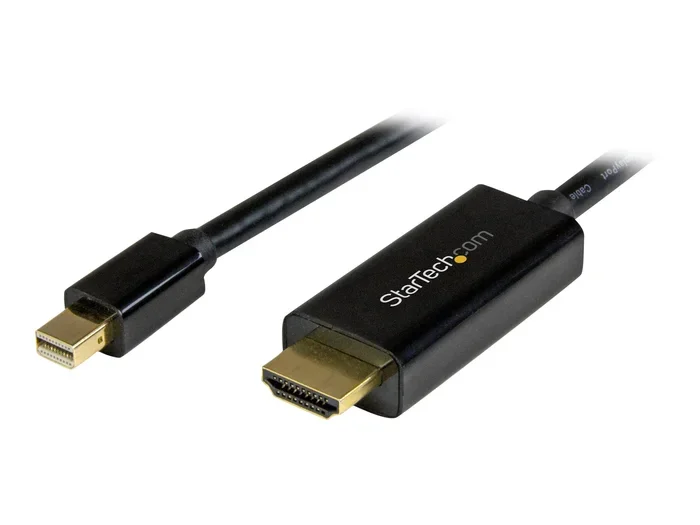
Yes, you can convert between Mini DisplayPort and Mini HDMI, but you need the right adapter or cable. A Mini DisplayPort to Mini HDMI adapter allows you to connect a device with a Mini DisplayPort output to a display with a Mini HDMI input. Similarly, you can find a Mini HDMI to Mini DisplayPort adapter for the reverse connection.
Active adapters are usually required for these conversions. A passive adapter simply reshapes the physical connection but does not convert the signal. Since the signaling protocols are different, you need an active chip inside the adapter to translate the signal from one format to another. This means adapters can sometimes be more expensive than simple cables.
When choosing an adapter, look for one that supports the resolution and refresh rate you need. Not all adapters handle 4K or high refresh rates well. Cheap adapters may also drop audio or cause flickering. Investing in a quality adapter from a reputable brand saves you a lot of headaches.
Common Mistakes When Choosing Between Mini DisplayPort and Mini HDMI
One of the biggest mistakes people make is assuming the two ports are the same because of their similar size. This leads to buying the wrong cable and returning it later. Another common mistake is using a passive adapter when an active one is needed. This results in no signal or a poor-quality connection.
Some users also overlook the importance of checking their device specs before buying a cable. If your laptop has a Mini DisplayPort, a Mini HDMI cable will not work, no matter how hard you try to force it. The same goes the other way around. Always verify the port type on both your device and your display before making a purchase. If you are also dealing with issues related to your laptop’s input devices, you may want to check what the mouse on a laptop is called to better understand your device’s connectivity options.
Quick Tips for Choosing the Right Cable
- Check the port shape: Rectangular with a bevel means Mini DisplayPort. Thin and flat means Mini HDMI.
- Read your device manual: The manual will clearly state the port type and supported resolutions.
- Buy the right adapter: If you need to convert, get an active adapter, not a passive one.
- Test before you commit: If possible, test the connection with a known working setup first.
- Consider your needs: For TV connections, Mini HDMI is usually simpler. For professional monitors, Mini DisplayPort is often better.
- Check bandwidth support: Make sure the cable or adapter supports the resolution and refresh rate you need.
Expert Insights on Mini DisplayPort and Mini HDMI
From a technical standpoint, both Mini DisplayPort and Mini HDMI serve the same fundamental purpose: transmitting high-quality video and audio from a source device to a display. The difference lies in the underlying technology and the ecosystem each port belongs to. DisplayPort was developed by VESA as a standard for computer displays, while HDMI was developed by a consortium of consumer electronics companies for home theater and AV devices.
This difference in origin explains why HDMI is more common in living room setups and consumer electronics, while DisplayPort dominates the professional and computer monitor space. When choosing between the two, consider where and how you will use the connection. For a home theater setup, Mini HDMI is the natural choice. For a desk setup with a computer monitor, Mini DisplayPort is usually the better option.
It is also worth noting that modern devices are moving away from both Mini DisplayPort and Mini HDMI. Newer laptops and tablets are adopting USB-C with DisplayPort Alt Mode and full-size HDMI 2.1 ports. If you are shopping for new gear, consider future-proofing your setup with devices that support these newer standards.
Frequently Asked Questions
Can I plug a Mini HDMI cable into a Mini DisplayPort?
No, you cannot plug a Mini HDMI cable directly into a Mini DisplayPort. The connectors are physically different and carry different signals. You will need an active adapter to convert between the two formats. Using the wrong cable without an adapter will not damage your device, but it will not work either.
Does Mini DisplayPort support audio?
Yes, Mini DisplayPort supports both audio and video over a single cable. You can send sound and picture to a compatible display without needing a separate audio cable. This makes it convenient for setups where you are connecting a laptop to an external monitor or projector.
Is Mini HDMI the same as micro HDMI?
No, Mini HDMI and micro HDMI are different connectors. Mini HDMI is larger than micro HDMI. Micro HDMI is even smaller and is typically found on very compact devices like some smartphones and action cameras. Always check which size your device requires before purchasing a cable.
Can I use a full-size HDMI cable with a Mini HDMI port?
No, a full-size HDMI cable will not fit into a Mini HDMI port. You need either a Mini HDMI cable or a full-size HDMI cable with a Mini HDMI adapter. The adapter bridges the size difference and allows the connection to work properly.
Which is better for 4K displays, Mini DisplayPort or Mini HDMI?
Generally, Mini DisplayPort handles 4K better because of its higher bandwidth support. Mini DisplayPort 1.2 can drive 4K at 60Hz, while Mini HDMI 1.4 may only support 4K at 30Hz in some cases. If you need smooth 4K performance, Mini DisplayPort is the stronger choice.
Are there adapters that convert Mini DisplayPort to full-size HDMI?
Yes, there are many adapters available that convert Mini DisplayPort to full-size HDMI. These active adapters translate the DisplayPort signal into an HDMI signal, allowing you to connect a Mini DisplayPort-equipped laptop to any HDMI monitor or TV. Just make sure the adapter supports the resolution you need.
Conclusion
A Mini DisplayPort and a Mini HDMI are not the same. They look similar in size but serve very different purposes. The Mini DisplayPort uses DisplayPort signaling and is best suited for computer monitors and professional displays. The Mini HDMI uses HDMI signaling and works well with TVs, projectors, and consumer devices. Knowing the difference helps you avoid buying the wrong cable and saves you time and frustration.
When setting up your workspace or connecting your devices, always check the port type first. If you are unsure, look up your device specifications or check the connector shape. Use the right cable or adapter for the best experience. With the right knowledge, you can confidently connect any device to any display without guesswork.
Whether you are using a laptop for work, a camera for content creation, or a tablet for entertainment, understanding these small but important ports makes a big difference. Take a moment to verify your connections, and your setup will work smoothly every time.