Are Thunderbolt and Usb C the Same
Thunderbolt and USB-C are not the same, even though they share the same connector shape. USB-C is a cable connector type, while Thunderbolt is a high-speed protocol that can use the USB-C connector. Understanding this difference matters when buying cables, enclosures, and docking stations for your devices.
You plug in a cable, and it fits. That is about where the similarity ends between Thunderbolt and USB-C. These two terms get thrown around a lot, and honestly, they cause a lot of confusion. People see the small, oval-shaped port on their laptop and assume it does one thing. But the truth is, the port shape and the technology inside are two very different things.
This article breaks down everything you need to know. We will look at what each technology does, how they differ, and what you should actually buy. Whether you are shopping for an M.2 NVMe to USB-C SSD enclosure or picking up a new cable, this guide has you covered.
The short answer? No, they are not the same. But they work together in smart ways. Let us dive in.
Key Takeaways
- Different protocols: USB-C is a connector shape, while Thunderbolt is a data protocol that uses the USB-C connector.
- Speed matters: Thunderbolt 3 offers up to 40Gbps, while standard USB-C typically maxes out at 10Gbps with USB 3.1 or 3.2.
- Not all USB-C ports are Thunderbolt: Many laptops and devices have USB-C ports that do not support Thunderbolt.
- Compatibility is key: Thunderbolt cables and devices work with USB-C ports, but you may not get full Thunderbolt speeds.
- Check your needs: Choose Thunderbolt for heavy data transfers and multi-display setups; USB-C works fine for charging and basic peripherals.
📑 Table of Contents
- What Is USB-C?
- What Is Thunderbolt?
- Key Differences Between Thunderbolt and USB-C
- Thunderbolt vs USB-C Comparison Table
- How to Tell If Your Port Is Thunderbolt or Just USB-C
- When to Choose Thunderbolt
- When USB-C Is All You Need
- Common Mistakes People Make
- Expert Tips for Getting the Most Out of Your Connections
- The Future of USB-C and Thunderbolt
- Conclusion
What Is USB-C?
USB-C is a type of connector. That is it. It is the small, reversible oval-shaped plug that you can plug in either way. It replaced the older, bulkier USB-A and USB-B connectors. The USB-C connector is now used across laptops, phones, tablets, and many other devices.
Here is what makes USB-C special:
- Reversible design: You never flip it twice trying to get it right.
- Small form factor: It is compact and fits in thin devices easily.
- Versatile: It can carry data, video, and power all at once.
- Standardized: It is an industry-wide connector standard, not tied to one company.
USB-C does not have a built-in speed limit. The speed depends on the protocol running through it. A basic USB-C port might support USB 2.0, which is slow. A better one might support USB 3.1 or USB 3.2, which is much faster. So when someone says “USB-C,” they are talking about the physical plug and port, not the speed.
USB-C Speeds Explained
Not all USB-C ports deliver the same performance. Here is a quick breakdown:
- USB 2.0 over USB-C: Up to 480Mbps. This is very slow and mostly used for charging.
- USB 3.1 over USB-C: Up to 10Gbps. Good for external hard drives and flash drives.
- USB 3.2 over USB-C: Up to 20Gbps. Better for large file transfers.
- USB4 over USB-C: Up to 40Gbps. This is where things get really fast.
See how the speed varies? That is because USB-C is just the shape. The protocol inside determines what it can do. This is a key point that trips up many buyers.
What Is Thunderbolt?
Thunderbolt is a protocol developed by Intel in collaboration with Apple. It is not a connector shape. It is a technology standard that defines how fast data moves, how many devices you can connect, and what kinds of signals it carries.
Thunderbolt has gone through several versions over the years:
- Thunderbolt 1: Introduced in 2011. Used a Mini DisplayPort connector. Max speed of 10Gbps.
- Thunderbolt 2: Also used Mini DisplayPort. Still 20Gbps max.
- Thunderbolt 3: A big shift. It adopted the USB-C connector shape. Speed jumped to 40Gbps.
- Thunderbolt 4: Built on USB-C as well. Maintains 40Gbps but adds stricter requirements for video and security.
- Thunderbolt 5: The latest version. Supports up to 80Gbps with the USB-C connector.
The important thing to notice is that starting with Thunderbolt 3, the connector shape became USB-C. This is why so many people mix them up. The port looks the same, but the technology inside is completely different.
If you are shopping for storage, you might come across an Acasis 80Gbps M.2 NVMe SSD enclosure compatible with Thunderbolt 5. This is a perfect example of Thunderbolt-specific gear that takes full advantage of the latest protocol speeds.
Key Differences Between Thunderbolt and USB-C
Now that you know what each one is, let us look at the real differences. These matter when you are making buying decisions.
Speed and Bandwidth
This is the biggest difference. Thunderbolt 3 and 4 offer 40Gbps bandwidth. Thunderbolt 5 pushes that to 80Gbps. Standard USB-C ports usually max out at 10Gbps or 20Gbps, depending on the USB version they support.
For everyday tasks like charging your phone or plugging in a mouse, USB-C is perfectly fine. But if you need to move huge video files or connect multiple high-resolution displays, Thunderbolt makes a huge difference.
Video Output
Both Thunderbolt and USB-C can carry video signals. However, Thunderbolt supports more displays and higher resolutions. Thunderbolt 4, for example, requires support for at least two 4K displays or one 8K display. Standard USB-C might only support one display, and the resolution could be limited.
So if you are a creative professional who needs to run multiple monitors, Thunderbolt is the way to go.
Daisy Chaining
Thunderbolt supports daisy chaining. This means you can connect multiple devices in a line from a single port. You plug your laptop into a Thunderbolt dock, then connect another drive and a monitor to that dock, and they all work. USB-C does not natively support daisy chaining in the same way.
Power Delivery
Both Thunderbolt and USB-C support USB Power Delivery (USB-PD). This means both can charge laptops and other devices. The power delivery specs are the same regardless of whether the port is Thunderbolt or plain USB-C. So charging capability is not a differentiator between the two.
Cost
Thunderbolt cables and devices cost more. The technology is more advanced, and Intel charges licensing fees. A Thunderbolt cable might cost two to three times as much as a standard USB-C cable. For many users, this extra cost is not worth it. But for professionals who need the speed and reliability, it is a no-brainer.
Thunderbolt vs USB-C Comparison Table
| Feature | USB-C | Thunderbolt 3/4 | Thunderbolt 5 |
|---|---|---|---|
| Connector Shape | Oval, reversible | Same as USB-C | Same as USB-C |
| Max Data Speed | 10-20Gbps (USB 3.1/3.2) | 40Gbps | 80Gbps |
| Video Support | Varies by device | Up to 2x 4K or 1x 8K | Up to 4x 4K or 1x 8K |
| Daisy Chaining | No | Yes (up to 6 devices) | Yes (up to 6 devices) |
| Power Delivery | Yes (USB-PD) | Yes (USB-PD) | Yes (USB-PD) |
| Cost | Low to moderate | Higher | Highest |
| Compatibility | Universal | Works with USB-C devices | Works with USB-C and TB4 devices |
As you can see from the table, the connector is the same. The technology underneath is what sets them apart. This is why you can plug a USB-C device into a Thunderbolt port and it will work. You just will not get Thunderbolt speeds.
How to Tell If Your Port Is Thunderbolt or Just USB-C
This is one of the most common questions people ask. The port looks identical. So how do you know?
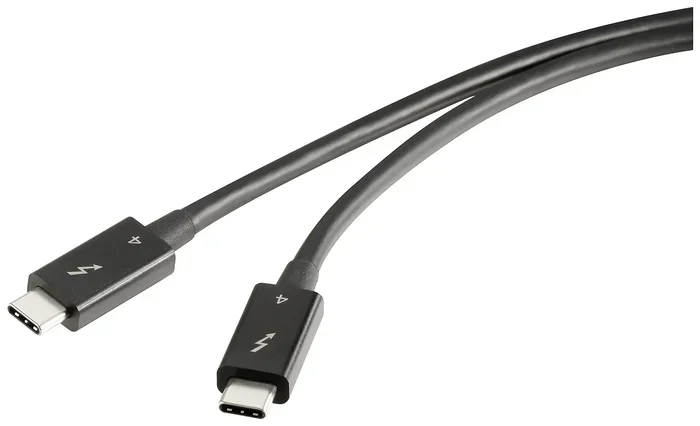
Look for the lightning bolt icon. Next to the port, there should be a small lightning bolt symbol. If you see it, you have a Thunderbolt port. If you do not see the lightning bolt, it is likely just a standard USB-C port.
You can also check your device specifications. The manufacturer will clearly list whether the port supports Thunderbolt. On MacBooks, most ports are Thunderbolt. On many Windows laptops, only certain ports are Thunderbolt, and the rest are standard USB-C.
If you are using an external drive or an M.2 NVMe SSD in USB enclosures, knowing which type of port you have helps you pick the right gear for the best performance.
When to Choose Thunderbolt
Thunderbolt is not for everyone. But if any of these situations apply to you, it is worth the investment:
- You work with large video files: 4K and 8K video editing requires fast data transfer. Thunderbolt delivers.
- You use multiple external monitors: Thunderbolt can drive more displays at higher resolutions than standard USB-C.
- You need a single-cable solution: One Thunderbolt cable can handle data, video, and power. This reduces cable clutter.
- You use professional audio or music production gear: Low latency and high bandwidth matter in these workflows.
- You connect many peripherals through a docking station: Thunderbolt docking stations offer more bandwidth for all connected devices.
If you are building a setup with an M.2 NVMe SSD enclosure Thunderbolt 4, you will get the full benefit of fast external storage without bottlenecks.
When USB-C Is All You Need
For most casual users and everyday tasks, standard USB-C is more than enough. Here are situations where USB-C works great:
- Charging your phone or laptop: USB-C Power Delivery handles this easily.
- Connecting a mouse or keyboard: These devices do not need high bandwidth.
- Using a basic external hard drive: USB 3.1 or USB 3.2 speeds are plenty for backup and storage.
- Plugging in a USB flash drive: No need for Thunderbolt here.
- Using a simple USB-C adapter or hub: For connecting a few peripherals at once.
You do not need to spend extra on Thunderbolt if your daily tasks do not demand the extra speed. Save your money and use standard USB-C cables and devices.
Common Mistakes People Make
There are a few mistakes that people make all the time when dealing with USB-C and Thunderbolt. Avoid these to save money and frustration.
Mistake 1: Buying a Thunderbolt cable for a non-Thunderbolt port. A Thunderbolt cable will work in a USB-C port, but you will not get Thunderbolt speeds. You paid extra for nothing.
Mistake 2: Assuming all USB-C ports are the same. Your laptop might have two USB-C ports. One could be Thunderbolt and the other could be basic USB-C. Check your manual.
Mistake 3: Using a cheap cable for high-speed transfers. Not all USB-C cables are created equal. A cheap cable might not support the speeds your device is capable of. Invest in quality cables from reputable brands.
Mistake 4: Ignoring the lightning bolt symbol. That little icon next to the port tells you everything. Do not guess. Look for it.
Expert Tips for Getting the Most Out of Your Connections
Here are some practical tips from someone who works with these technologies every day:
- Label your cables: It is easy to mix up Thunderbolt and USB-C cables. Put a small tag on each one so you always know what you are using.
- Buy cables that are certified: Look for Thunderbolt 4 certification or USB-IF certification. This guarantees the cable meets the speed and safety standards.
- Match your cable to your fastest device: If you have a Thunderbolt SSD, use a Thunderbolt cable to get the full speed. A USB-C cable will slow it down.
- Check your docking station: Not all USB-C docks support Thunderbolt speeds. If you need maximum performance, make sure the dock is Thunderbolt-certified.
- Keep your firmware updated: Sometimes, updating your laptop or device firmware can improve USB-C and Thunderbolt compatibility.
These small steps make a big difference in your daily workflow. You will get fewer headaches and better performance from your devices.
The Future of USB-C and Thunderbolt
The two technologies are converging more than ever. USB4 is built on the Thunderbolt 3 protocol. This means that future USB-C devices will increasingly offer Thunderbolt-like speeds without the Thunderbolt branding. The line between the two will continue to blur.
What does this mean for you? It means more speed at lower prices. USB4 devices are already hitting the market, and they offer 40Gbps speeds using the USB-C connector. You do not always need to pay the Thunderbolt premium anymore.
However, Thunderbolt 5 is pushing the envelope further with 80Gbps speeds. For professionals who need every bit of bandwidth, Thunderbolt remains the gold standard. For everyone else, USB4 over USB-C is a fantastic and more affordable option.
Either way, the USB-C connector is here to stay. It is becoming the universal port for laptops, tablets, phones, and accessories. Understanding the difference between the connector and the protocol will serve you well as technology keeps evolving.
Conclusion
So, are Thunderbolt and USB-C the same? The answer is no, but they are closely related. USB-C is the physical connector. Thunderbolt is the high-speed technology that can run through that connector. Knowing this difference helps you make smarter buying decisions for cables, enclosures, and docking stations.
If you need maximum speed, multi-display support, and daisy chaining, go with Thunderbolt. If you just need a reliable connection for charging and everyday peripherals, standard USB-C will do the job just fine. Check your ports, buy the right cables, and you will be set.
The next time someone asks you, “Are Thunderbolt and USB-C the same?” you will know exactly what to tell them. Share this guide with a friend who is still confused. It happens more often than you think.
Frequently Asked Questions
Can I use a USB-C cable with a Thunderbolt port?
Yes, you can. A standard USB-C cable will work in a Thunderbolt port. However, you will not get Thunderbolt speeds. The connection will fall back to whatever the USB-C cable supports, usually up to 10Gbps or 20Gbps.
Can I use a Thunderbolt cable with a USB-C port?
Yes, a Thunderbolt cable is backward compatible with USB-C ports. It will work, but again, you will not get Thunderbolt speeds. The port and device on the other end determine the maximum speed.
Why does my USB-C port not support Thunderbolt?
USB-C is just a connector shape. Manufacturers choose whether to include Thunderbolt support in their devices. Many laptops and phones use USB-C for cost reasons and do not include the Thunderbolt technology, which requires an Intel license.
Is Thunderbolt 5 faster than USB4?
Thunderbolt 5 supports up to 80Gbps, while USB4 supports up to 40Gbps. Thunderbolt 5 is faster. However, USB4 version 2.0 can also reach 80Gbps. Both use the USB-C connector and share the same underlying protocol.
Do I need Thunderbolt for external storage?
It depends on your needs. If you are transferring large files regularly, Thunderbolt will save you time. For casual use, like backing up photos or documents, a standard USB-C connection with USB 3.1 or USB 3.2 speeds is perfectly fine.
How can I tell if my cable is Thunderbolt or just USB-C?
Thunderbolt cables usually have the lightning bolt icon on the connector. USB-C cables do not have this symbol. Also, Thunderbolt cables often feel thicker and are labeled with “Thunderbolt” text near the plug.