Is It Possible to Connect Micro Usb to Hdmi
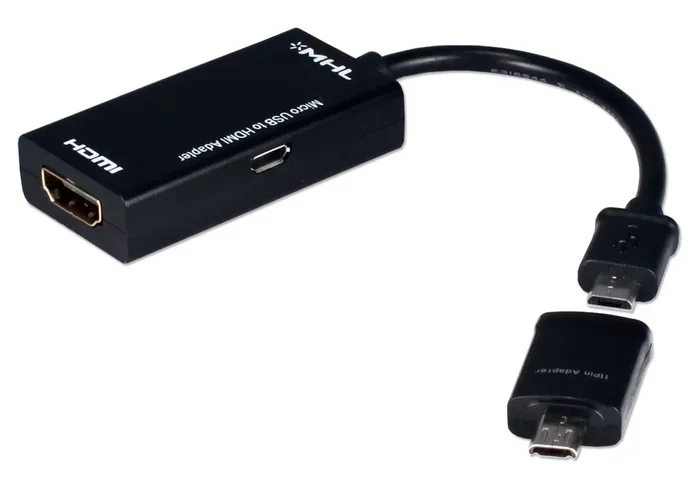
Yes, it is possible to connect Micro USB to HDMI using an active adapter or converter cable. This setup lets you mirror your screen or output video to a larger display. The right adapter depends on your device, its capabilities, and what you want to achieve.
Have you ever wanted to plug your phone into a TV and watch something on a bigger screen? Maybe you have a tablet with a Micro USB port and a spare HDMI monitor. The question is it possible to connect Micro USB to HDMI comes up a lot. The short answer is yes. But the full answer is a little more involved than just plugging one cable into another.
Connecting a Micro USB device to an HDMI display requires the right adapter, the right technology, and a bit of know-how. This guide walks you through everything you need to know. We will cover how the connection works, which adapters to buy, which devices support it, and how to fix common problems. By the end, you will feel confident setting up your own Micro USB to HDMI adapter setup at home or on the go.
Key Takeaways
- Micro USB to HDMI is possible: You need an active adapter that converts the signal from Micro USB to HDMI output.
- Not all devices support it: Your device must support MHL or SlimPort technology for video output over Micro USB.
- Adapter type matters: Passive cables won’t work. You need an active adapter with built-in chip conversion.
- Check compatibility first: Verify your phone or tablet supports display output before buying any adapter.
- Common issues are fixable: Most connection problems come from incompatible cables or unsupported devices.
📑 Table of Contents
- What Is a Micro USB to HDMI Connection?
- How Does Micro USB to HDMI Conversion Work?
- Types of Micro USB to HDMI Adapters
- Devices That Support Micro USB to HDMI Output
- Step-by-Step Guide to Connecting Micro USB to HDMI
- Common Problems and How to Fix Them
- Quick Tips for the Best Experience
- Expert Insights on Micro USB to HDMI Connectivity
- Is It Worth Buying a Micro USB to HDMI Adapter?
- Final Thoughts
What Is a Micro USB to HDMI Connection?
A Micro USB to HDMI connection is a way to send video and audio from a device with a Micro USB port to a display with an HDMI input. Your phone or tablet acts as the source. The TV or monitor acts as the screen. The adapter or cable in between handles the conversion.
Micro USB is a data and charging connector. It was very common in older phones and many portable devices. HDMI is a high-definition audio and video standard used in TVs, monitors, and projectors. These two technologies speak different languages. So you need a translator. That translator is the adapter.
The most common use cases include:
- Screen mirroring: Displaying your phone screen on a TV.
- Media playback: Watching videos from your device on a larger monitor.
- Gaming on big screens: Playing mobile games with a better display.
- Presentations: Showing slides or content from a tablet on a projector.
How Does Micro USB to HDMI Conversion Work?
Understanding how the conversion works helps you choose the right gear. A USB adapter for HDMI does not just pass signals through. It actively converts the digital data from Micro USB into HDMI-compatible output.
The Role of MHL and SlimPort
Two main technologies enable video output over Micro USB. The first is MHL, which stands for Mobile High-Definition Link. MHL sends both audio and video through a single Micro USB cable. The second is SlimPort, developed by Analogix Semiconductor. SlimPort works similarly but uses a standard Micro USB connector without needing special power pins.
Not every device supports either technology. Before buying an adapter, you must check if your phone or tablet supports MHL or SlimPort. You can usually find this information in the device specifications on the manufacturer website.
Active vs. Passive Adapters
Here is a key point many people miss. A passive cable simply connects pins. It cannot convert signals. For Micro USB to HDMI, you need an active adapter. Active adapters have a built-in chip that does the signal conversion work.
Think of it this way. A passive cable is like a pipe that carries water. An active adapter is like a machine that turns one type of water into another. Without the conversion chip, the signal simply cannot reach the HDMI display.
Types of Micro USB to HDMI Adapters
Not all adapters are the same. Different types serve different needs and devices. Here are the most common options you will find on the market.
Micro USB to HDMI Cable Adapters
These are all-in-one cables. One end plugs into your device’s Micro USB port. The other end has an HDMI male connector. You plug the HDMI end directly into your TV or monitor. These adapters are compact and convenient. They work well for quick setups and travel.
Micro USB to HDMI Dongle Adapters
Dongle-style adapters are small box-shaped devices. You plug the Micro USB end into your device. Then you connect a standard HDMI cable from the dongle to your display. Dongles often provide better signal quality because they have more room for internal components. They also tend to be more reliable for longer sessions.
USB-C to HDMI Adapters (For Reference)
Many newer devices use USB-C instead of Micro USB. If you have a USB-C device, you need a different adapter. USB-C to HDMI adapters are widely available and often support higher resolutions. Some devices that used Micro USB in the past have moved to USB-C. If you are unsure which port your device has, check before purchasing.
| Feature | Cable Adapter | Dongle Adapter |
|---|---|---|
| Size | Compact and lightweight | Slightly larger |
| Signal Quality | Good for short distances | Better for longer use |
| Price Range | Usually lower | Moderate to higher |
| Portability | Very portable | Moderately portable |
| Reliability | Good | Often better |
Devices That Support Micro USB to HDMI Output
This is where many people run into trouble. Not every device with a Micro USB port can output video over HDMI. You need to verify compatibility before you buy an adapter.
Android Phones That Support MHL
Many Android phones from brands like Samsung, Sony, LG, and Huawei supported MHL technology. Popular models from the mid-2010s often included MHL support. Newer phones have mostly moved away from Micro USB entirely. If you have an older Android phone, check the specs for MHL or SlimPort support.
Tablets and Media Players
Some Android tablets and portable media players also support video output through Micro USB. Certain budget tablets and older models from brands like Lenovo and Asus included this feature. Again, you will want to confirm this in the device manual or on the official product page.
Devices That Do Not Support It
Many modern smartphones do not support MHL or SlimPort. Apple devices use Lightning or USB-C and require different adapters. Some budget Android devices use Micro USB only for charging and data. They do not support video output through that port. Always double-check before spending money on an adapter.
Step-by-Step Guide to Connecting Micro USB to HDMI
Setting up a Micro USB to HDMI connection is straightforward once you have the right equipment. Follow these steps for a smooth setup.
Step 1: Check Your Device Compatibility
Go to your device settings or the manufacturer website. Look for MHL or SlimPort support. If your device supports either technology, you are good to go. If not, you may need a different solution, such as a wireless screen mirroring option.
Step 2: Purchase the Right Adapter
Buy a Micro USB to HDMI adapter that matches your device. Look for adapters that explicitly state MHL or SlimPort support. Avoid cheap passive cables that claim to do the job but do not. A quality active adapter costs between $10 and $30 in most cases.
Step 3: Connect the Adapter to Your Device
Plug the Micro USB end of the adapter into your phone or tablet. Make sure it fits snugly. Some adapters also pass through charging, so you can charge your device while using it.
Step 4: Connect the HDMI Cable
If you are using a dongle adapter, plug an HDMI cable into the adapter. Then connect the other end of the HDMI cable to your TV or monitor. Use a good quality HDMI cable for the best results.
Step 5: Switch Your Display Input
On your TV or monitor, switch the input source to HDMI. Use your remote to select the correct HDMI port. You should see your device screen appear on the display.
Step 6: Adjust Settings if Needed
Some devices ask you to enable screen output in the settings. You may also need to adjust the resolution or orientation. Most adapters support up to 1080p output, but check your adapter specs for details.
Common Problems and How to Fix Them
Even with the right adapter, you might run into issues. Here are the most common problems and their solutions.
No Signal on the TV
If your TV shows no signal, first check that the HDMI cable is firmly connected. Try a different HDMI port on your TV. Make sure your device supports video output over Micro USB. Restarting both devices often resolves this issue.
Black Screen or Flickering
A black screen or flickering usually means the adapter is not getting enough power. Try connecting your device to a power source while using the adapter. You can also try a different adapter or a shorter HDMI cable to reduce signal loss.
Audio Not Working
If video works but there is no sound, check your TV audio settings. Make sure the HDMI connection is set as the audio source. Some adapters pass audio through automatically. Others require you to enable audio output in your device settings.
Adapter Not Recognized
If your device does not recognize the adapter, the adapter may be incompatible. Not all adapters work with all devices. Try a different brand or model of adapter. Also make sure your Micro USB port is clean and free of dust or debris.
Quick Tips for the Best Experience
- Use a short HDMI cable: Shorter cables reduce signal loss and improve stability.
- Charge your device: Active adapters draw power. Keep your device plugged in during use.
- Buy from reputable brands: Cheap no-name adapters often fail or produce poor quality output.
- Check for firmware updates: Some devices need updated software to support video output properly.
- Test with a known working setup: If possible, test your adapter with a device you know is compatible first.
Expert Insights on Micro USB to HDMI Connectivity
Technology experts often point out that Micro USB to HDMI adapters are a great bridge between older devices and modern displays. The technology has been around for over a decade and remains widely supported. However, as devices move toward USB-C and wireless solutions, the demand for Micro USB adapters is gradually declining.
If you are working with an older device that still has a Micro USB port, an active HDMI adapter is your best bet. These adapters are affordable and widely available online and in electronics stores. Just make sure your device supports the underlying technology. Without MHL or SlimPort support, no adapter will work.
For those exploring connectivity options, it is also worth noting that similar principles apply to other adapter types. For example, the way an NVMe SSD to USB adapter converts one connection type to another mirrors how a Micro USB to HDMI adapter converts video signals. Understanding the role of active conversion helps you make better purchasing decisions across the board.
Another useful comparison is with M.2 NVMe to USB-C SSD enclosures that also bridge different connection standards. The concept remains the same: different ports and protocols need active hardware to communicate. This pattern repeats across many tech accessories.
Is It Worth Buying a Micro USB to HDMI Adapter?
The answer depends on your situation. If you have an older device with a Micro USB port and want to connect it to a modern TV or monitor, the answer is yes. These adapters are inexpensive and do the job well. They are especially useful for presentations, media playback, and gaming on a bigger screen.
If you have a newer device with USB-C, you are better off with a USB-C to HDMI adapter. These offer better performance and wider compatibility. If you have a device that does not support MHL or SlimPort, a Micro USB to HDMI adapter will not work no matter what you try. In that case, consider wireless options like Chromecast or screen mirroring apps.
Final Thoughts
So, is it possible to connect Micro USB to HDMI? Absolutely. With the right active adapter and a compatible device, you can turn any Micro USB-equipped phone or tablet into a media output source. The key is understanding your device capabilities and choosing the correct adapter type.
Remember to check for MHL or SlimPort support first. Invest in a quality active adapter rather than a cheap passive cable. Follow the setup steps carefully. And do not hesitate to troubleshoot common issues using the tips above. Once you get it working, the experience of mirroring your device screen on a big display is incredibly satisfying.
Technology evolves fast, and Micro USB is gradually giving way to newer standards. But for now, Micro USB to HDMI adapters remain a practical and affordable solution for millions of devices still in use. Whether you want to watch movies, give presentations, or play games on a larger screen, this simple adapter opens up a world of possibilities.
Frequently Asked Questions
Can I use a Micro USB to HDMI adapter with any phone?
No, not every phone supports video output over Micro USB. Your device must support MHL or SlimPort technology. Check your phone specifications before buying an adapter to avoid wasting money on an incompatible product.
Do I need an active or passive adapter for Micro USB to HDMI?
You need an active adapter. Passive cables cannot convert the Micro USB signal to HDMI output. Active adapters have a built-in chip that handles the signal conversion, making them essential for this type of connection.
What resolution can I expect from a Micro USB to HDMI adapter?
Most Micro USB to HDMI adapters support up to 1080p resolution. Some higher-end models may support 4K output. Check the specifications of your specific adapter to confirm the maximum resolution it supports.
Can I charge my device while using a Micro USB to HDMI adapter?
Many adapters include a pass-through charging port. This lets you connect a charger to the adapter while it is in use. This is helpful because active adapters draw power from your device during operation.
Why does my Micro USB to HDMI adapter keep disconnecting?
Frequent disconnections usually happen due to a loose connection or insufficient power. Try a different HDMI cable or a shorter cable length. Also make sure your device is fully charged or plugged into a power source during use.
Are there wireless alternatives to Micro USB to HDMI connections?
Yes, wireless options like Chromecast, Miracast, or screen mirroring apps can send your device screen to a TV without any cables. These work over Wi-Fi and are great if your device does not support MHL or SlimPort.
=== CONCLUSION ===
Connecting Micro USB to HDMI is absolutely possible with the right active adapter and a compatible device. This guide covered everything from how the technology works to step-by-step setup instructions and common troubleshooting tips. The key takeaway is to always verify your device supports MHL or SlimPort before purchasing an adapter. With the right gear and a little patience, you can enjoy your phone or tablet content on any HDMI display. Start with the tips in this article and you will be up and running in no time.