Do Usb to Usb C Cables Work
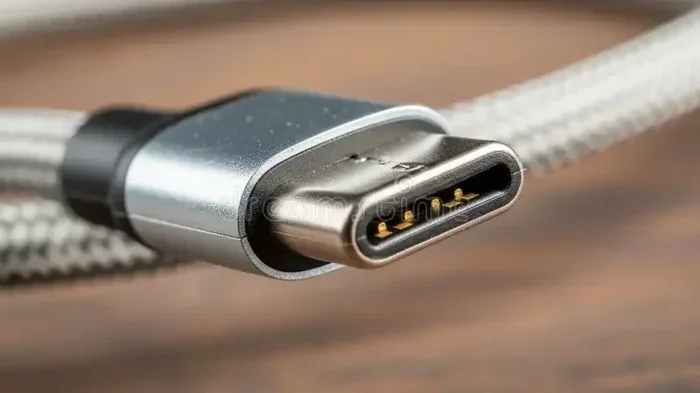
Do USB to USB C cables work? Yes, they do! These cables connect older USB-A devices to modern USB C ports, enabling charging and data transfer. Understanding how they work helps you avoid compatibility issues and get the best performance from your gear.
Have you ever grabbed a USB cable and a USB C device and wondered, do USB to USB C cables work? It is a fair question. With so many different connector types floating around, it is easy to feel confused. The good news is that these cables do work, and they are more useful than you might think.
USB to USB C cables bridge the gap between older devices and newer technology. Whether you want to charge a phone, transfer files, or connect peripherals, these cables make it possible. Let us dive into everything you need to know about them.
The world of USB cables can feel overwhelming. You have USB-A, USB-B, USB Mini, USB Micro, and USB C. Each connector serves a purpose. But when you pair a traditional USB-A plug with a USB C plug, something magical happens. You get a versatile cable that works across many devices. So let us break down exactly how these cables function and what you can expect from them.
Key Takeaways
- USB to USB C cables are fully functional: They bridge older USB-A ports with modern USB C devices for charging and data transfer.
- Not all cables are equal: Cable quality, wire gauge, and USB standard version affect speed and power delivery.
- Data transfer speeds vary: USB 2.0 cables offer slower speeds, while USB 3.0 and USB 3.1 versions deliver much faster transfer rates.
- Power delivery depends on the cable: Some USB to USB C cables support fast charging and USB Power Delivery protocols.
- Common issues are fixable: Most problems with USB to USB C cables stem from cable quality, port damage, or driver issues.
- Check device compatibility first: Always verify that your devices support the cable type before purchasing.
📑 Table of Contents
- What Exactly Is a USB to USB C Cable?
- How Do USB to USB C Cables Work?
- What Can You Use USB to USB C Cables For?
- How to Choose the Right USB to USB C Cable
- Common Problems with USB to USB C Cables (And How to Fix Them)
- Quick Tips for Getting the Most Out of Your USB to USB C Cables
- Expert Insights on USB to USB C Cable Performance
- Frequently Asked Questions
- Final Thoughts
What Exactly Is a USB to USB C Cable?
A USB to USB C cable has a standard USB-A connector on one end and a smaller USB C connector on the other. The USB-A end plugs into most computers, wall chargers, and power banks. The USB C end connects to modern laptops, smartphones, tablets, and many accessories.
This design makes the cable incredibly versatile. You can use it to charge devices, sync data, or connect peripherals like keyboards and mice. The USB C connector is also reversible, which means you never have to flip it around to plug it in. That alone is a huge upgrade from older USB designs.
These cables come in different lengths and quality levels. Some support fast data transfer, while others are basic charging-only cables. Understanding the differences helps you pick the right one for your needs.
How Do USB to USB C Cables Work?
USB to USB C cables transfer data and power through internal wires. The USB-A connector sends signals to the USB C connector, which then communicates with your device. The process is seamless when everything works correctly.
Inside the cable, you will find multiple wires. Some carry power, while others handle data signals. The number of wires inside determines what the cable can do. Basic cables have fewer wires and only charge devices. Higher-quality cables have more wires and support fast data transfer too.
The USB Standard Matters
Not all USB cables are created equal. The USB standard defines how fast data moves and how much power flows through the cable. Here are the main standards you will encounter:
- USB 2.0: The most common standard. It offers data transfer speeds up to 480 Mbps. Most USB to USB C cables fall into this category.
- USB 3.0: Also called USB 3.2 Gen 1. It delivers speeds up to 5 Gbps. These cables often have a blue insert inside the USB-A connector.
- USB 3.1: Also called USB 3.2 Gen 2. It pushes speeds up to 10 Gbps. These cables are faster and usually more expensive.
- USB Power Delivery (USB PD): This protocol allows higher power output, up to 100 watts. It enables fast charging for laptops and tablets.
When you buy a USB to USB C cable, check which standard it supports. This information is usually printed on the packaging or listed in the product description.
What Can You Use USB to USB C Cables For?
The uses for these cables are wide-ranging. Here are the most common ways people use them every day:
- Charging smartphones and tablets: Plug the USB-A end into a wall charger or power bank, and the USB C end into your phone.
- Transferring files between devices: Connect a USB flash drive or external hard drive to your computer and transfer photos, videos, or documents.
- Connecting peripherals: Use the cable to hook up keyboards, mice, webcams, or printers to a laptop with a USB C port.
- Syncing cameras: Transfer photos from a camera to a computer using the USB C connection.
- Connecting USB C accessories: Many modern accessories use USB C. These cables let you use them with older USB-A ports.
Some people also use these cables to connect M 2 NVMe SSD enclosures to their computers. The USB C end connects to the enclosure, and the USB-A end plugs into a desktop or laptop. This setup works great for adding extra storage to older machines.
How to Choose the Right USB to USB C Cable
Not all cables perform the same way. Picking the right one depends on what you need it to do. Here are the key factors to consider:
Check the Cable Rating
Look for cables that clearly state their USB standard and power delivery capabilities. A good cable will list its specs right on the packaging or the cable itself. Avoid cables with no labeling or vague descriptions. These often perform poorly or may even damage your devices.
Consider the Wire Gauge
Thicker wires carry more power. If you need fast charging, look for cables with a thicker wire gauge, usually 24 AWG or lower. Thinner cables work fine for data transfer but may charge slowly.
Length Matters
Longer cables are convenient but can lose signal strength over distance. For best results, keep your USB to USB C cables under 6 feet. If you need a longer cable, choose one that supports USB 3.0 or higher to maintain signal quality.
Brand Reputation
Stick with trusted brands when buying cables. Cheap, unbranded cables might seem like a bargain, but they often lack proper wiring and safety features. A reliable cable protects your devices and delivers consistent performance.
Common Problems with USB to USB C Cables (And How to Fix Them)
Even good cables can cause frustration sometimes. Here are the most common issues and simple solutions:
Cable Does Not Charge the Device
This usually happens when the cable only supports data transfer and not power delivery. Check the cable specifications to confirm it supports charging. Also, try a different wall charger or power source to rule out other issues.
Slow Data Transfer Speeds
If your file transfers crawl, the cable might be a USB 2.0 model. Upgrade to a USB 3.0 or USB 3.1 cable for much faster speeds. Also, make sure both your computer and device support the faster standard.
Loose Connection
A wobbly connection often means the cable connector is worn out. Replace the cable with a new one. Avoid forcing the connector into the port, as this can damage both the cable and the device port.
Device Not Recognized
If your computer does not detect the connected device, try a different USB port. You can also check your device manager for driver issues. Sometimes simply unplugging and replugging the cable solves the problem.
For those wondering about connecting other devices, if you are dealing with a mouse connection issue, a USB to USB C cable can sometimes help bridge the gap between wireless receivers and newer laptop ports.
Quick Tips for Getting the Most Out of Your USB to USB C Cables
- Always check compatibility: Make sure your devices support the cable standard before buying.
- Store cables properly: Coil them loosely and avoid tight bends to extend their lifespan.
- Test cables before relying on them: Try a new cable with a known working device first.
- Label your cables: Use small tags or colored markers to identify which cable does what.
- Keep spare cables handy: Having a backup USB to USB C cable saves you from unexpected downtime.
These small habits make a big difference over time. Your cables last longer, and you avoid the headache of searching for a working cable when you need it most.
Expert Insights on USB to USB C Cable Performance
Technology experts agree that USB to USB C cables are essential in today’s device ecosystem. The USB C connector is becoming the universal standard for laptops, phones, and tablets. Having a reliable USB to USB C cable in your bag ensures you stay connected everywhere you go.
Many users also pair these cables with NVMe SSD to USB adapters for blazing-fast external storage. The combination of a quality USB to USB C cable and a good adapter delivers impressive performance for creative professionals and everyday users alike.
When it comes to audio, some people use USB C cables with USB Type C headphones. These headphones plug directly into the USB C end of the cable and connect to the USB-A port on a computer. It is a simple way to enjoy high-quality audio without Bluetooth.
The versatility of these cables cannot be overstated. They are small, lightweight, and surprisingly powerful. Whether you are at home, in the office, or traveling, a good USB to USB C cable is one of the most practical tech accessories you can own.
Frequently Asked Questions
Do all USB to USB C cables support data transfer?
No, not all of them. Some USB to USB C cables are charging-only and do not support data transfer. Always check the product specifications before buying. Look for cables that explicitly state they support data transfer or list a USB standard like USB 2.0, 3.0, or 3.1.
Can I use a USB to USB C cable for fast charging?
Yes, but only if the cable supports USB Power Delivery or the appropriate wattage for your device. Check the cable’s power rating and match it to your device’s charging requirements. Using a cable that does not support fast charging will result in slower charging speeds.
Are USB to USB C cables backward compatible?
Yes, they are. USB C is designed to work with older USB standards like USB 2.0 and USB 3.0. However, the speed and power delivery will be limited by the older standard. A USB 3.0 USB to USB C cable will still work with a USB 2.0 port, but at USB 2.0 speeds.
Why does my USB to USB C cable stop working after a few months?
Cables wear out over time, especially at the connector joints. Frequent bending, pulling, and coiling can break the internal wires. To extend cable life, avoid sharp bends and store them loosely. If a cable stops working, it is usually more cost-effective to replace it than to repair it.
Can I connect a USB C device to a USB A port without an adapter?
Yes, a USB to USB C cable does exactly that. It has a USB-A plug on one end and a USB-C plug on the other. No additional adapter is needed. Just plug the USB-A end into your computer or charger and the USB-C end into your device.
What is the difference between USB 3.0 and USB 3.1 USB to USB C cables?
USB 3.0 (also called USB 3.2 Gen 1) offers speeds up to 5 Gbps. USB 3.1 (also called USB 3.2 Gen 2) doubles that to 10 Gbps. For most everyday tasks like file transfers and charging, USB 3.0 is more than sufficient. USB 3.1 is better for professionals who move large files frequently.
Final Thoughts
So, do USB to USB C cables work? Absolutely. They are simple, effective, and incredibly useful in a world full of mixed device ports. Whether you need to charge your phone, transfer files, or connect peripherals, a good USB to USB C cable gets the job done.
The key is choosing the right cable for your needs. Check the USB standard, confirm power delivery support, and buy from reputable brands. With the right cable in hand, you will never worry about compatibility again. Keep a couple of quality USB to USB C cables on hand, and you will always be ready to connect, charge, and transfer data with confidence.
Technology keeps evolving, and the USB C connector is here to stay. Embrace it. Stock up on reliable cables, and enjoy the seamless connectivity they bring to your everyday tech life.