Is Usb 3 2 Gen 2 the Same as Thunderbolt
USB 3.2 Gen 2 and Thunderbolt are not the same, even though they share the USB-C connector. Thunderbolt offers much higher speeds, broader compatibility, and unique features like daisy-chaining and display output. Understanding the differences helps you pick the right cable, enclosure, or docking station for your setup.
You plug a cable into your laptop, and it fits perfectly. The port is USB-C. So you assume it must support the fastest speeds available. But here is the thing: USB 3.2 Gen 2 and Thunderbolt look identical on the outside. They share the same connector shape. They both use the USB-C form factor. But underneath, they are very different beasts.
If you have ever wondered whether USB 3.2 Gen 2 is the same as Thunderbolt, you are not alone. This is one of the most common questions in the tech world today. The confusion is completely understandable. Both standards use the same connector. Both can transfer data. Both charge devices. But their capabilities are worlds apart.
In this guide, we will break down every major difference. We will cover speed, compatibility, hardware requirements, and real-world use cases. By the end, you will know exactly which standard fits your needs. No guesswork. No confusion. Just clear, practical answers.
Key Takeaways
- Different Protocols: USB 3.2 Gen 2 and Thunderbolt use different communication protocols, even when sharing the same USB-C port.
- Speed Gap: Thunderbolt 3 and 4 offer up to 40 Gbps, while USB 3.2 Gen 2 maxes out at 10 Gbps.
- Connector Confusion: Both standards use the USB-C shape, which causes widespread confusion among users.
- Cross-Platform Compatibility: Thunderbolt works across Windows, macOS, and Linux, while USB 3.2 Gen 2 is universal by design.
- Cost Difference: Thunderbolt cables and devices cost more due to extra hardware and chipset requirements.
- Use Case Matters: Choose USB 3.2 Gen 2 for simple data transfers and Thunderbolt for professional workflows like video editing and external GPU use.
📑 Table of Contents
What Is USB 3.2 Gen 2?
USB 3.2 Gen 2 is a USB standard that delivers data transfer speeds of up to 10 Gbps. It is part of the USB 3.2 family, which includes Gen 1 and Gen 2×2 variants. Gen 2 uses a single lane of SuperSpeed USB signaling to reach its top speed.
Most modern devices support this standard. External hard drives, flash drives, and M.2 NVMe SSD enclosures commonly use USB 3.2 Gen 2. It is reliable, widely available, and affordable. You can find M.2 NVMe SSD to USB 3.1 adapters and M.2 NVMe SSD enclosure adapters for USB 3.1 that work seamlessly with this protocol.
The beauty of USB 3.2 Gen 2 is its simplicity. It works with almost any device that has a USB-C port. You do not need special chipsets or expensive cables. Just plug in and go. For everyday tasks like backing up files or transferring photos, it gets the job done efficiently.
USB 3.2 Gen 2 Speed and Bandwidth
The maximum theoretical speed of USB 3.2 Gen 2 is 10 gigabits per second. In real-world tests, you usually see speeds around 800 MB/s to 1,000 MB/s for external drives. These numbers are plenty for most users.
Here is a quick breakdown of what you can expect:
- External HDDs: Around 100 to 150 MB/s
- External SSDs: Around 500 to 1,000 MB/s
- M.2 NVMe SSDs in USB enclosures: Up to 1,000 MB/s or more
For comparison, USB 3.2 Gen 1 maxes out at 5 Gbps, and USB 3.2 Gen 2×2 pushes 20 Gbps. Gen 2 sits right in the middle. It is the sweet spot for most consumers who want fast speeds without paying a premium.
What Is Thunderbolt?
Thunderbolt is a hardware interface developed by Intel in partnership with Apple. It combines PCIe and DisplayPort protocols into a single connection. This means Thunderbolt can do things that standard USB simply cannot. It supports data transfer, video output, and network connectivity all at the same time.
There are three main versions you should know about:
- Thunderbolt 3: Up to 40 Gbps over USB-C
- Thunderbolt 4: Up to 40 Gbps with stricter certification requirements
- Thunderbolt 5: Up to 80 Gbps with enhanced bandwidth
Thunderbolt uses a technology called PCIe tunneling. This allows it to connect directly to the host controller at a hardware level. That is why Thunderbolt devices like external GPUs, high-speed M.2 NVMe SSD enclosures compatible with Thunderbolt 4, and professional docking stations perform so well.
Devices like the Acasis 80 Gbps M.2 NVMe SSD enclosure compatible with Thunderbolt 5 show how far Thunderbolt has come. These enclosures push the boundaries of what external storage can do. They are designed for professionals who need every last bit of performance.
Thunderbolt vs USB-C: Understanding the Connector
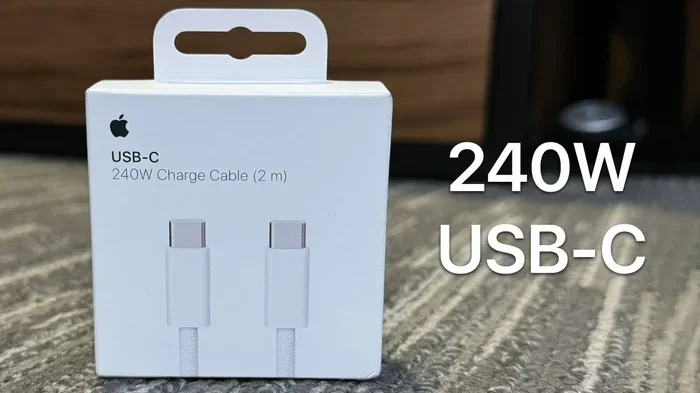
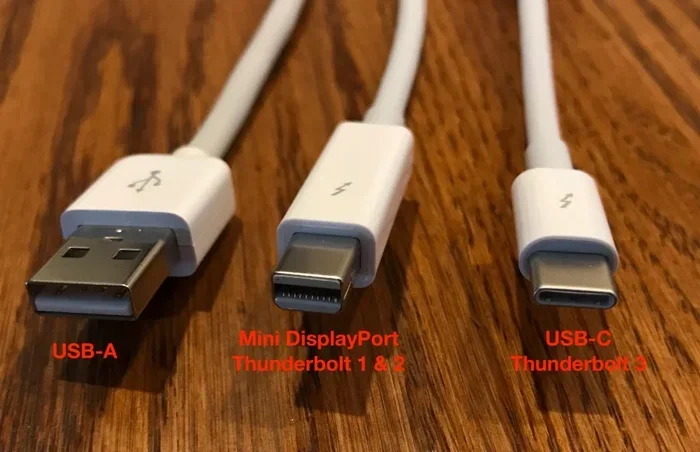
Here is where things get confusing. Thunderbolt 3, Thunderbolt 4, and USB 3.2 Gen 2 all use the USB-C connector. The port looks identical. The cable shape is the same. But the protocol inside is completely different.
Think of it like this. A USB-C connector is just a physical shape. It is like a wall outlet. Thunderbolt and USB 3.2 Gen 2 are like different appliances that plug into that outlet. They share the same plug, but they do very different things.
To tell them apart, look for the lightning bolt icon next to the port. That symbol means Thunderbolt. If there is no lightning bolt, it is likely just a standard USB port, even if it supports USB 3.2 Gen 2 speeds.
USB 3.2 Gen 2 vs Thunderbolt: Head-to-Head Comparison
Let us put the two side by side. This comparison table shows the key differences at a glance.
| Feature | USB 3.2 Gen 2 | Thunderbolt 3/4 |
|---|---|---|
| Max Speed | 10 Gbps | 40 Gbps |
| Connector | USB-C | USB-C |
| Video Output | No native support | Yes (DisplayPort Alt Mode) |
| Daisy Chaining | No | Yes (up to 6 devices) |
| PCIe Tunneling | No | Yes |
| Power Delivery | Up to 100W | Up to 100W |
| Cross-Platform Support | Universal | Windows, macOS, Linux |
| Cost | Low to moderate | Moderate to high |
| Chipset Required | No | Yes (Intel Thunderbolt controller) |
As you can see, the differences are significant. Thunderbolt offers four times the bandwidth of USB 3.2 Gen 2. It also supports features that standard USB simply does not have. But that comes at a cost, both literally and in terms of compatibility.
When to Choose USB 3.2 Gen 2
USB 3.2 Gen 2 is the right choice for most everyday users. If you are backing up files to an external drive, transferring photos, or connecting a simple peripheral, Gen 2 handles it perfectly.
It is also the better choice if you want broad compatibility. You do not need to worry about whether your device supports Thunderbolt. USB 3.2 Gen 2 works with virtually everything that has a USB-C port. For a reliable and affordable external storage solution, check out a M.2 NVMe SSD to USB 3.1 adapter or an M.2 NVMe SSD enclosure adapter for USB 3.1.
Quick tip: If you are buying an enclosure for an NVMe SSD, make sure it supports USB 3.2 Gen 2. This ensures you get the full 10 Gbps speed. Cheaper enclosures may bottleneck your drive at USB 3.0 speeds.
When to Choose Thunderbolt
Thunderbolt is for power users and professionals. If you work with large video files, use an external GPU, or need to connect multiple high-speed devices at once, Thunderbolt is the way to go.
Here are some scenarios where Thunderbolt shines:
- Video editors who need to transfer huge 4K or 8K footage quickly
- Music producers connecting multiple audio interfaces and monitors
- Gamers using external GPUs for desktop-class graphics
- Developers who need to dock a laptop and connect multiple displays
- Photographers working with RAID arrays of high-speed NVMe drives
For these users, the 40 Gbps speed of Thunderbolt 3 or 4 makes a real difference. A M.2 NVMe SSD enclosure compatible with Thunderbolt 4 can push speeds well beyond what USB 3.2 Gen 2 can offer. The Acasis 80 Gbps M.2 NVMe SSD enclosure compatible with Thunderbolt 5 takes it even further for cutting-edge workflows.
Compatibility and Cross-Platform Support
One of the biggest advantages of USB 3.2 Gen 2 is its universal compatibility. It works on Windows, macOS, ChromeOS, and Linux without any special drivers or software. You just plug it in, and it works.
Thunderbolt also supports multiple platforms, but with a catch. You need a Thunderbolt-compatible host controller on your device. Not all laptops or desktops have one. Apple has been a strong supporter of Thunderbolt, and most MacBooks come with Thunderbolt ports. On the Windows side, support has grown but is not universal. You need to check your device specifications carefully.
If you are using a M.2 NVMe SSD enclosure, compatibility matters a lot. A USB 3.2 Gen 2 enclosure works almost everywhere. A Thunderbolt enclosure requires Thunderbolt hardware on both ends. Make sure your laptop or desktop has a Thunderbolt port before investing in a Thunderbolt enclosure.
Common Compatibility Mistakes
Many users buy a Thunderbolt cable or device expecting it to work at full speed, only to discover their laptop does not have a Thunderbolt port. Always check for the lightning bolt icon. Also, some USB-C ports on computers only support USB 3.2 Gen 2 or even USB 2.0. They will not provide Thunderbolt speeds even with a Thunderbolt cable.
Another common mistake is assuming all USB-C cables are the same. A standard USB-C cable may not support the full 10 Gbps of USB 3.2 Gen 2 or the 40 Gbps of Thunderbolt. Always use certified cables that match your speed requirements.
Can You Use Thunderbolt and USB 3.2 Gen 2 Interchangeably?
The short answer is yes, with limitations. A Thunderbolt port is backward compatible with USB 3.2 Gen 2 devices. You can plug a USB 3.2 Gen 2 drive into a Thunderbolt port, and it will work. However, it will only run at USB 3.2 Gen 2 speeds, not Thunderbolt speeds.
The reverse is also true. You can plug a Thunderbolt device into a USB 3.2 Gen 2 port. But it will not deliver Thunderbolt features like video output or PCIe tunneling. It may work at USB speeds, or it may not work at all, depending on the device.
This backward compatibility is helpful, but it can also cause frustration. Users sometimes plug in a Thunderbolt dock and expect full functionality, only to get limited USB data transfer. Always match your device to the right port for the best experience.
Expert Tips for Choosing the Right Connection
Here are some practical tips to help you make the right choice:
- Check your port: Look for the lightning bolt icon. If it is not there, you likely have USB 3.2 Gen 2 or lower.
- Match your needs: For simple file transfers, USB 3.2 Gen 2 is plenty. For professional workflows, invest in Thunderbolt.
- Buy certified cables: Cheap cables can bottleneck your speeds. Look for USB-IF certification or Thunderbolt certification.
- Read device specs carefully: Do not assume a USB-C port supports Thunderbolt. Check the manufacturer’s documentation.
- Consider your budget: Thunderbolt devices cost more. If you do not need the extra speed, save your money with USB 3.2 Gen 2.
If you are building a home office or creative workstation, the choice between these two standards can shape your entire workflow. Take the time to understand what each one offers. Your future self will thank you.
For users looking to set up external storage, a M.2 NVMe SSD enclosure adapter for USB 3.1 is a cost-effective way to get fast USB 3.2 Gen 2 speeds. If you need the absolute best performance, look into Thunderbolt-compatible enclosures and cables.
Conclusion
USB 3.2 Gen 2 and Thunderbolt are not the same, even though they share the USB-C connector. Thunderbolt offers superior speed, more features, and broader capabilities. But USB 3.2 Gen 2 wins on affordability, simplicity, and universal compatibility.
The right choice depends entirely on your needs. For most users, USB 3.2 Gen 2 provides more than enough speed for everyday tasks. For professionals who demand the fastest possible transfers and multi-device connectivity, Thunderbolt is the clear winner.
Now that you understand the differences, you can make a confident decision. Pick the right standard, grab the right cables, and enjoy a setup that works exactly the way you need it to.
Frequently Asked Questions
Is USB 3.2 Gen 2 the same as Thunderbolt 3?
No, they are not the same. While both use the USB-C connector, Thunderbolt 3 uses a different protocol that supports speeds up to 40 Gbps, video output, and PCIe tunneling. USB 3.2 Gen 2 maxes out at 10 Gbps and does not support these features.
Can I use a Thunderbolt cable with a USB 3.2 Gen 2 port?
Yes, but the connection will operate at USB 3.2 Gen 2 speeds, not Thunderbolt speeds. The cable will work for data transfer and charging, but you will not get Thunderbolt-specific features like daisy-chaining or display output.
Do I need special cables for USB 3.2 Gen 2?
Any standard USB-C cable that supports 10 Gbps will work with USB 3.2 Gen 2. Look for cables rated for SuperSpeed USB 10 Gbps. Avoid cheap or unrated cables, as they may limit your speeds to USB 2.0 levels.
Is Thunderbolt 4 better than USB 3.2 Gen 2?
Yes, Thunderbolt 4 is significantly better in terms of speed and features. It offers 40 Gbps bandwidth, supports multiple displays, allows daisy-chaining of up to six devices, and provides PCIe tunneling. USB 3.2 Gen 2 is simpler and more affordable but lacks these advanced capabilities.
Can I get Thunderbolt speeds with a USB 3.2 Gen 2 cable?
No, a USB 3.2 Gen 2 cable cannot deliver Thunderbolt speeds. Thunderbolt requires certified Thunderbolt cables that are designed to handle the higher bandwidth and protocol requirements. Using the wrong cable will limit your speeds to USB 3.2 Gen 2 levels.
Which is better for external SSDs: USB 3.2 Gen 2 or Thunderbolt?
For most users, USB 3.2 Gen 2 is perfectly fine for external SSDs. It delivers up to 1,000 MB/s, which is more than enough for everyday use. Thunderbolt is better if you need the absolute fastest speeds, especially with high-end NVMe drives in Thunderbolt-compatible enclosures like the Acasis 80 Gbps M.2 NVMe SSD enclosure compatible with Thunderbolt 5 or a M.2 NVMe SSD enclosure compatible with Thunderbolt 4.