Why Do Some Usb C Cables Not Work
Not all USB C cables are created equal, and that’s exactly why some fail when you need them most. Whether it’s a cheap cable, a damaged connector, or a compatibility issue, a USB C cable not working can be frustrating. This guide breaks down the real reasons and gives you simple fixes to get your cable working again.
You plug in your USB C cable, and nothing happens. The screen stays dark, the device won’t charge, and data won’t transfer. It’s one of the most annoying tech problems you can face. But here’s the good news: most USB C cable failures have simple explanations and even simpler fixes.
USB C cables have become the standard for charging phones, laptops, tablets, and many other devices. They’re small, reversible, and fast. But despite their convenience, USB C cables can and do fail. Sometimes it’s the cable itself. Sometimes it’s the port on your device. And sometimes it’s a compatibility issue you never saw coming.
In this guide, we’ll walk through every major reason a USB C cable might not work. We’ll also show you how to spot the problem and fix it yourself. Whether you’re dealing with a USB C cable not working for charging, data transfer, or both, you’ll find answers here.
Key Takeaways
- Cable Quality Matters: Cheap or uncertified USB C cables often fail to deliver proper power or data transfer speeds.
- Physical Damage Is Common: Bent connectors, frayed wires, and worn-out cables are leading causes of USB C cable failure.
- Compatibility Issues Exist: Not every USB C cable works with every device, even if the connector fits.
- Power Delivery Varies: USB C cables support different wattages, and using the wrong one can cause charging problems.
- Simple Fixes Work: Most USB C cable issues can be solved with basic troubleshooting like cleaning ports or trying a different cable.
- Certification Guarantees Performance: Look for USB-IF certified cables to ensure they meet safety and speed standards.
📑 Table of Contents
Understanding USB C Cable Basics
Before we dive into why cables fail, it helps to understand what makes a USB C cable tick. The USB C connector is just the shape of the plug. Inside, the cable can support different speeds, power levels, and protocols. Not all USB C cables are the same, even if they look identical.
A basic USB C cable might only support 2.0 speeds and 60 watts of power. A premium USB C cable can handle 3.1 or 3.2 speeds and up to 240 watts with USB Power Delivery. When a cable can’t meet your device’s needs, it might seem like the cable isn’t working at all.
What Makes a USB C Cable Different
Several factors determine how well a USB C cable performs:
- USB Version: USB 2.0, 3.0, 3.1, and 3.2 cables offer different data speeds.
- Power Delivery: Some cables handle 60W, others handle 100W or more.
- E-Marker Chip: This tiny chip inside the cable tells devices what the cable can handle.
- Wire Gauge: Thicker wires carry more power safely.
- Certification: USB-IF certified cables meet strict quality and safety standards.
When you buy a cheap USB C cable off the shelf, it might not have all of these features. That’s often the first reason a USB C cable stops working as expected. The cable physically connects, but it can’t deliver the power or speed your device needs.
Common Reasons Why USB C Cables Fail
There are many reasons a USB C cable might not work. Some are obvious, and some are sneaky. Let’s look at the most common culprits.
1. Damaged or Worn-Out Connectors
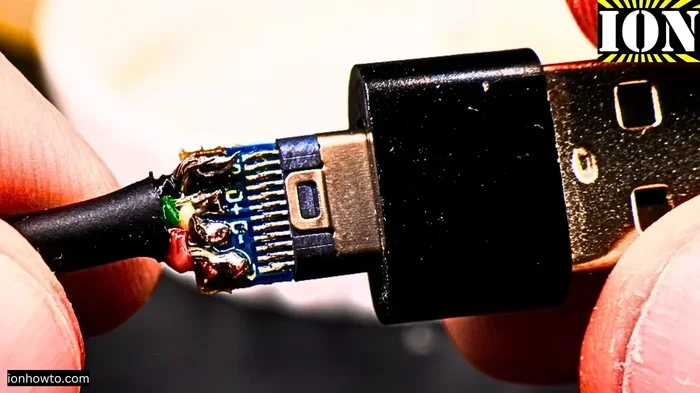
The USB C connector is small and exposed. It gets plugged in and pulled out dozens of times a day. Over time, the plastic housing weakens, and the metal pins inside can bend or break. A bent connector is one of the top reasons a USB C cable not working issue happens.
You might notice the cable only works when you hold it at a certain angle. Or it might fall out of the port easily. These are clear signs of physical damage. Once the connector is damaged, the cable usually can’t be repaired. You’ll need a replacement.
2. Frayed or Broken Internal Wires
Inside every USB C cable, there are multiple thin wires. These carry data, power, and ground signals. If the cable is bent too sharply, stepped on, or pinched, these wires can break. The outer jacket might look fine, but the internal wires are damaged.
This type of failure often shows up as intermittent problems. The cable works sometimes but not others. If you wiggle the cable and it starts working again, the internal wires are likely the problem. This is a very common reason a USB C cable not working issue comes and goes.
3. Incompatible Cable With Your Device
Not every USB C cable works with every device. Your phone might need a cable that supports USB 3.1 speeds and specific power profiles. Your laptop might need a cable with full USB Power Delivery support. If the cable doesn’t match, it might charge slowly, not charge at all, or fail to transfer data.
For example, if you’re trying to connect an external drive and your USB mouse not working on the same hub, the cable might not support the data speed needed. Always check what your device requires before assuming the cable is bad.
4. Dirty or Damaged Ports
Sometimes the cable isn’t the problem at all. Dust, lint, and debris can build up inside the USB C port on your device. This blocks the connection between the cable and the port. Even a tiny piece of lint can prevent a proper connection.
Moisture damage is another hidden cause. If liquid gets into the port, it can corrode the internal contacts. This slowly weakens the connection until the cable stops working altogether. Keeping your ports clean is one of the easiest ways to prevent USB C cable issues.
5. Firmware or Software Issues
Some USB C problems aren’t hardware-related at all. Your device’s firmware or operating system might need an update. A software glitch can cause the system to not recognize the cable or the connected device. This is more common with laptops and tablets than with simple phones.
If you’ve tried multiple cables and they all fail with the same device, a software issue might be to blame. Try updating your device, checking for driver updates, or resetting USB settings before assuming the cable is defective.
USB C Cable Quality and Standards
The USB C cable market is flooded with cheap options. Many of these cables don’t meet the standards they claim to support. Understanding cable quality can save you a lot of frustration.
USB-IF Certification
The USB Implementers Forum (USB-IF) is the organization that sets USB standards. When a cable is USB-IF certified, it means it’s been tested to meet specific performance and safety requirements. Certified cables carry the USB-IF logo.
Buying a certified cable is the best way to avoid USB C cable not working problems. Certified cables are guaranteed to support the speeds and power levels they advertise. They’re also safer and less likely to damage your devices.
E-Marker Chips Explained
An E-Marker chip is a tiny electronic component inside high-quality USB C cables. It stores information about the cable’s capabilities. When you plug the cable in, the device reads the E-Marker chip and adjusts power and data settings accordingly.
Cheap cables often skip the E-Marker chip. Without it, your device might default to lower power and slower speeds. In some cases, the device simply won’t recognize the cable properly. If you need high-power charging or fast data transfer, always choose a cable with an E-Marker chip.
Cable Length and Performance
Did you know cable length affects performance? Longer USB C cables have more resistance, which can reduce power delivery and data speeds. A 2-meter cable might not charge as fast as a 0.5-meter cable of the same quality. If you need long cables, look for ones specifically rated for high power at extended lengths.
How to Tell If Your USB C Cable Is Damaged
Catching a damaged cable early can save your devices and your time. Here are the warning signs to watch for:
- The cable only works at a certain angle: This points to a broken connector or internal wire.
- Charging slows down or stops randomly: Intermittent connection usually means internal wire damage.
- The cable gets hot during use: Overheating is a serious safety concern and often means poor cable quality.
- Visible damage to the jacket or connector: Fraying, cuts, or bent pins are obvious red flags.
- Your device won’t recognize the cable: This can happen with both damaged cables and incompatible ones.
- Data transfer speeds are much slower than expected: The cable might only support USB 2.0 speeds.
If you notice any of these signs, stop using the cable. A damaged USB C cable can not only fail to work but also damage your device’s charging port or battery. When in doubt, replace the cable with a certified, high-quality option.
How to Fix USB C Cable Connection Issues
Before you throw away a USB C cable that won’t work, try these troubleshooting steps. Many issues have simple solutions.
Step 1: Clean the USB C Port
Use a can of compressed air or a soft brush to clean out your device’s USB C port. Blow gently to remove dust and lint. You can also use a toothpick very carefully to dislodge any debris stuck in the port. A clean port often fixes connection problems instantly.
Step 2: Try a Different Cable
This is the easiest diagnostic step. If a different cable works, your original cable is the problem. If no cable works, the issue might be with your device’s port or software.
Step 3: Try a Different Port
If your device has multiple USB C ports, test the cable in each one. A damaged port can make even a good cable seem defective. This is a quick way to narrow down the problem.
Step 4: Update Your Device Software
Check for operating system and firmware updates. Sometimes a simple update fixes USB C recognition issues. On laptops, you might also need to update USB controller drivers. This step is especially helpful if you’re dealing with a laptop USB mouse not working situation that started after a system update.
Step 5: Reset USB Settings
Some devices let you reset USB settings to default. This can clear software glitches that prevent proper cable recognition. On Windows laptops, you can do this through Device Manager by uninstalling and reinstalling USB controllers.
Choosing the Right USB C Cable
Prevention is always better than troubleshooting. Choosing the right USB C cable from the start can save you hours of frustration.
What to Look For
- USB-IF Certification: This is the gold standard for cable quality.
- Power Delivery Rating: Match the cable’s wattage to your device’s needs.
- Data Speed Rating: Choose USB 3.1 or 3.2 for fast transfers.
- Braided Jacket: Braided cables are more durable and resist fraying.
- Right Length: Choose the shortest cable that meets your needs for best performance.
- Reputable Brand: Stick with brands you trust or well-reviewed options.
Avoid buying the cheapest cable you can find. A $3 USB C cable might seem like a great deal, but it often can’t deliver the power or speeds you need. Investing in a quality cable pays off in reliability and safety.
Quick Tips for USB C Cable Care
Taking care of your cables extends their lifespan significantly:
- Don’t yank the cable out by the wire. Always pull from the connector.
- Avoid sharp bends. Don’t wrap the cable too tightly or bend it at extreme angles.
- Store cables loosely. Don’t toss them in a bag where they can get tangled and pinched.
- Keep cables away from heat. Don’t leave them on hot car dashboards or near heaters.
- Use cable organizers. Velcro ties or cable clips prevent accidental damage.
Following these simple habits can keep your USB C cables working for years. It also helps you avoid a mouse not working on laptop situation that’s actually caused by a faulty cable rather than a mouse problem.
When to Replace Your USB C Cable
Sometimes the only fix is a new cable. Here’s when you should replace yours:
- The connector is visibly bent, cracked, or broken.
- The cable has exposed wires or the jacket is torn.
- The cable overheats during normal use.
- You’ve tried all troubleshooting steps and the cable still fails.
- The cable is more than two years old and showing wear.
When you buy a replacement, choose a certified cable from a reputable brand. Spending a little more upfront saves you from buying multiple cheap cables that don’t work. A good USB C cable should last several years with proper care.
Conclusion
A USB C cable not working is almost always caused by something fixable. Whether it’s a damaged connector, a low-quality cable, a dirty port, or a simple compatibility issue, the solution is usually within reach. Understanding why cables fail helps you prevent problems before they start.
Invest in certified, high-quality cables. Take care of them properly. And when problems arise, work through the troubleshooting steps methodically. Most USB C cable issues can be solved without professional help. With the right cable and a little knowledge, you’ll keep all your devices charged, connected, and running smoothly.
The next time a USB C cable lets you down, don’t throw it away in frustration. Use what you’ve learned here to diagnose the problem and find the right fix. Your devices and your wallet will thank you.
Frequently Asked Questions
Why does my USB C cable work sometimes but not others?
Intermittent USB C cable issues are usually caused by internal wire damage or a loose connector. The cable might have a broken wire inside that only connects when the cable is bent a certain way. Try wiggling the cable gently at the connector to see if it starts working. If it does, the cable is damaged and needs replacement.
Can a bad USB C cable damage my device?
Yes, a low-quality or damaged USB C cable can potentially harm your device. Cheap cables without proper safety features can deliver incorrect voltage, which may damage the charging port or battery. Always use certified cables from reputable brands to protect your devices.
How can I tell if my USB C cable supports fast charging?
Check the cable for its power delivery rating. Cables that support fast charging usually list their wattage on the packaging or the cable itself. Look for cables rated at 60W or 100W with USB Power Delivery support. A certified USB-IF cable will clearly state its capabilities.
Why won’t my USB C cable transfer data even though it charges?
This usually means the cable only supports charging, not data transfer. Some USB C cables are designed as charge-only cables and lack the extra wires needed for data. Make sure you buy a cable that explicitly supports data transfer if you need to move files between devices.
Does cable length affect USB C performance?
Yes, longer USB C cables can reduce power delivery and data speeds due to increased resistance. For best performance, use the shortest cable that meets your needs. If you need a longer cable, look for one specifically rated for high power at that length.
What should I do if cleaning the port doesn’t fix the issue?
If cleaning the port doesn’t help, try a different cable and a different port on your device. If the problem persists across multiple cables, the issue might be with your device’s USB port or software. In that case, updating your device software or consulting a professional technician is the next step.
=== CONCLUSION ===
A USB C cable not working doesn’t have to be a mystery. With the right knowledge, you can quickly identify the cause and apply the fix. From cable quality and connector damage to compatibility and port issues, the reasons are varied but usually solvable. Keep certified cables on hand, practice good cable habits, and you’ll rarely face this frustrating problem again.