Do Amazon Tablets Have Usb Ports
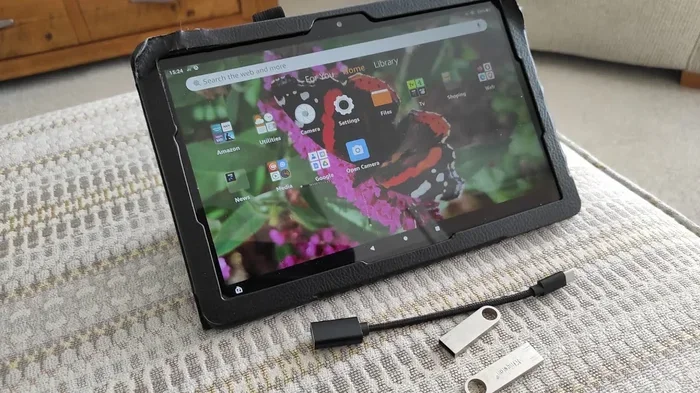
Most Amazon Fire tablets include a micro-USB or USB-C port for charging and data transfer. The port type depends on the model and generation. Knowing which USB connection your tablet uses helps you pick the right cables, adapters, and accessories.
Amazon Fire tablets are some of the most popular budget-friendly tablets on the market. They work great for streaming, reading, browsing, and light gaming. But one question comes up again and again: do Amazon tablets have USB ports? The answer is yes, but the type of port and what you can do with it depends on the model. In this guide, we walk through everything you need to know about USB connectivity on Amazon tablets.
Whether you own a Fire HD 8, a Fire HD 10, or a newer Fire Max 11, understanding your tablet’s USB capabilities helps you get the most out of it. You can charge your device, transfer files, connect accessories, and even use external storage. Let’s dive into the details and make sure you never have to guess again.
Key Takeaways
- USB Port Types: Amazon Fire tablets use either micro-USB or USB-C depending on the model.
- File Transfer Made Easy: The USB port lets you move files between your tablet and a computer.
- Accessory Compatibility: You can use USB hubs, OTG cables, and external storage with Fire tablets.
- Model Matters: Newer Fire HD models tend to use USB-C, while older ones use micro-USB.
- Charging Works Too: The USB port handles both charging and data transfer simultaneously.
- Check Your Model: Always confirm your specific tablet model before buying accessories.
📑 Table of Contents
- Which USB Port Types Do Amazon Fire Tablets Use?
- What Can You Do With the USB Port on an Amazon Tablet?
- Amazon Fire Tablet Models and Their USB Specs
- Common USB Accessories for Amazon Tablets
- Quick Tips for Getting the Most Out of Your Tablet’s USB Port
- Common Mistakes People Make With Tablet USB Ports
- Expert Insights on Tablet USB Connectivity
- Final Thoughts
Which USB Port Types Do Amazon Fire Tablets Use?
Amazon has used different USB connector types across its Fire tablet lineup over the years. The port type mainly depends on the model and the year it was released. Here is a quick breakdown of what to expect.
Micro-USB Ports on Older Models
Many older Fire tablets, especially the Fire HD 8 and Fire HD 10 models from earlier generations, use a micro-USB port. This is the same small, rectangular connector you find on many Android phones. Micro-USB was the standard for budget devices for a long time. If you have an older Fire tablet, there is a good chance it uses micro-USB for charging and data transfer.
The good news is that micro-USB cables are everywhere. You probably already have a few lying around the house. However, micro-USB does not support the fastest data transfer speeds. It also cannot carry video output in most cases. For basic charging and file transfers, it works just fine.
USB-C Ports on Newer Models
Newer Amazon Fire tablets, including the Fire HD 10 (2021 and later) and the Fire Max 11, use USB-C ports. USB-C is a bigger, oval-shaped connector that offers several advantages. It supports faster charging and quicker file transfers. It is also reversible, so you never have to flip the cable to get it right.
USB-C is becoming the universal standard across devices. Laptops, phones, and even some laptops now rely on USB-C for video and data. If your Amazon tablet has USB-C, you get more flexibility with accessories and connections.
How to Check Which Port Your Tablet Has
If you are not sure which port your Fire tablet uses, there are a few easy ways to find out. First, look at the physical port on the bottom or side of your tablet. Micro-USB is smaller and flat. USB-C is wider and oval-shaped. You can also check your tablet model number in the settings under “About Tablet.” Amazon’s website lists the specs for each model, including the port type.
What Can You Do With the USB Port on an Amazon Tablet?
The USB port on an Amazon tablet is not just for charging. It opens up a range of useful possibilities. Here are the most common things you can do with the port.
Charging Your Tablet
This is the most obvious use. You plug in your charging cable, and the tablet gets powered up. USB-C models can often charge faster than micro-USB ones. Amazon includes a charging cable with most Fire tablets, but you may want a faster wall adapter for quicker charges.
Keep in mind that using a low-quality cable can slow down charging. Always use the cable that came with your tablet or a reputable brand. A good cable ensures safe and efficient tablet charging every time.
Transferring Files to and from a Computer
The USB port makes it simple to move photos, videos, documents, and music between your tablet and a computer. Just connect your tablet with a USB cable, and your computer should recognize it as a storage device. You can then drag and drop files back and forth.
This is especially handy if you take lots of photos on your tablet and want to back them up. It also works great for moving large files that are too big for cloud storage. For faster transfers, USB-C models clearly have the edge over older micro-USB versions.
Connecting External Storage
Need extra space on your tablet? The USB port lets you connect external drives. You can plug in a USB flash drive or an external SSD to expand your storage. This is perfect for storing movies, large files, or backups without relying solely on cloud services.
For example, you can connect a SanDisk Extreme Portable SSD to a USB-C Fire tablet and enjoy blazing-fast read and write speeds. This setup works great for people who travel and need lots of storage on the go.
Using USB Adapters and Hubs
Want to connect multiple devices at once? A USB hub or adapter is your best friend. You can plug a M.2 NVMe SSD to USB 3.1 adapter into your tablet and connect an external drive for massive storage expansion. There are also OTG (On-The-Go) adapters that let you plug in USB-A devices like keyboards, mice, or flash drives into a USB-C tablet.
These adapters are affordable and widely available. They turn your tablet into a more versatile device. Just make sure the adapter is compatible with your tablet’s port type.
Amazon Fire Tablet Models and Their USB Specs
Not all Fire tablets are the same when it comes to USB connectivity. Here is a look at some popular models and what USB features they offer.
| Model | USB Port Type | Fast Charging | Data Transfer |
|---|---|---|---|
| Fire HD 8 (older gen) | Micro-USB | Standard | Yes |
| Fire HD 10 (2021+) | USB-C | Yes | Yes (faster) |
| Fire Max 11 | USB-C | Yes | Yes (faster) |
| Fire HD 8 (2022+) | USB-C | Yes | Yes |
As you can see, newer models are moving toward USB-C. If you are shopping for a new Fire tablet, USB-C is a big advantage. It future-proofs your device and gives you more options for tablet accessories and connectivity.
Common USB Accessories for Amazon Tablets
Once you know your tablet has a USB port, you can start exploring accessories that make it even more useful. Here are some popular options.
- USB-C to USB-A Cable: Lets you connect older USB-A devices to a newer USB-C tablet.
- OTG Adapter: A small adapter that allows you to plug in USB flash drives, keyboards, and mice.
- USB Hub: Expands a single port into multiple ports for connecting several devices at once.
- External SSD: Adds bulk storage for files, movies, and backups. A NVMe SSD to USB adapter can turn an internal drive into portable storage.
- USB-C Charger: A fast-charging wall adapter that speeds up tablet charging significantly.
These accessories are affordable and widely available online. They can truly transform how you use your Amazon tablet every day.
Quick Tips for Getting the Most Out of Your Tablet’s USB Port
Here are some practical tips to keep in mind when using the USB port on your Amazon tablet.
- Always check your model number before buying any USB accessory. Different models use different ports.
- Use high-quality cables to avoid slow charging or data transfer issues.
- Eject external drives properly before unplugging them to prevent data loss.
- Keep your port clean by gently removing dust with a soft brush or compressed air.
- Avoid cheap knockoff adapters as they can damage your tablet or fail to work reliably.
- Update your tablet software regularly to ensure the best compatibility with USB accessories.
These simple habits will keep your USB port working smoothly for years. They also protect your data and your device.
Common Mistakes People Make With Tablet USB Ports
There are a few mistakes that many tablet users make when it comes to USB connectivity. Avoiding these can save you time and frustration.
One common mistake is using the wrong cable. Just because a cable fits does not mean it supports data transfer. Some cables are charge-only and will not let you move files. Another mistake is forcing a connector into the wrong port. If it does not fit easily, check the shape and size before pushing harder.
People also forget to check compatibility with adapters. Not every USB hub works perfectly with every tablet. Some adapters need specific drivers or settings. Finally, many users ignore firmware updates. Keeping your tablet updated ensures the best performance with USB devices.
Expert Insights on Tablet USB Connectivity
From a tech perspective, USB connectivity on budget tablets has improved a lot over the years. Amazon has made smart moves by switching to USB-C on newer Fire tablets. This aligns with broader industry trends and gives users more flexibility.
If you need fast and reliable storage on the go, consider pairing your tablet with a portable M.2 NVMe to USB C SSD enclosure. This setup lets you connect high-speed drives directly to your tablet. It is a game-changer for anyone who works with large files or needs backup storage away from a computer.
The bottom line is that Amazon tablets are more capable than many people realize. The USB port is a gateway to productivity, storage expansion, and versatile connectivity. Once you understand what your tablet supports, the possibilities are wide open.
Final Thoughts
So, do Amazon tablets have USB ports? Absolutely. Every Fire tablet comes with a USB port for charging and data transfer. The key is knowing which type of port your specific model uses. Older models rely on micro-USB, while newer ones feature the faster and more versatile USB-C standard.
With the right cables and accessories, your Amazon tablet can do so much more than just stream content. You can transfer files, connect external storage, use peripherals, and expand your tablet’s capabilities in meaningful ways. Take a few minutes to understand your tablet’s USB setup, and you will unlock a whole new level of convenience.
Whether you are a student, a professional, or just someone who loves entertainment on the go, the USB port on your Amazon tablet is a feature worth paying attention to. Use it wisely, and your tablet will serve you even better.
Frequently Asked Questions
Do all Amazon Fire tablets have a USB port?
Yes, every Amazon Fire tablet comes with a USB port for charging and data transfer. The port type varies between micro-USB and USB-C depending on the model and generation. Check your specific tablet model to confirm which port type it uses.
Can I use a USB flash drive with my Amazon tablet?
Yes, you can connect a USB flash drive to most Amazon Fire tablets using an OTG adapter or USB-C cable. This is a great way to expand storage or transfer files quickly. Make sure your tablet supports USB host mode, which all Fire tablets do.
Is USB-C better than micro-USB for Amazon tablets?
Yes, USB-C offers faster charging, faster data transfer, and a reversible connector. It is also more versatile and supports a wider range of accessories. Newer Fire tablets use USB-C, while older models use micro-USB.
Can I charge my Amazon tablet with any USB cable?
You can charge your tablet with most USB cables, but using the cable that came with your tablet or a high-quality replacement is best. Cheap cables may charge slowly or not support data transfer. Always check that the cable matches your tablet’s port type.
How do I transfer files from my Amazon tablet to a computer?
Connect your tablet to your computer using the USB cable that came with your device. Your computer should recognize the tablet as a storage drive. You can then drag and drop files between the two devices. USB-C models generally offer faster transfer speeds than micro-USB models.
Can I connect an external hard drive to my Amazon Fire tablet?
Yes, you can connect an external hard drive or SSD to your Fire tablet using the USB port. For USB-C models, you may just need the right cable. For micro-USB models, an OTG adapter is usually required. Make sure the drive is formatted in a compatible file system like FAT32 or exFAT.