What Is a Usb 20 Billboard Device
A USB 2.0 Billboard Device is a special USB device class that helps your laptop identify and communicate with USB Type-C accessories. It acts like a digital label, telling your computer what a connected device can do. Understanding this technology is key for anyone who uses USB-C cables, docks, or adapters with their laptop.
If you have ever plugged a USB-C dock into your laptop and wondered why it did not work right away, the answer might lie in a small but powerful piece of technology called a USB 2.0 Billboard Device. This term sounds technical, but the idea behind it is actually quite simple. Think of it as a digital business card that a USB device hands to your computer the moment you plug it in.
In the world of USB Type-C, many devices can do different things. Some carry video signals. Some deliver power. Some act as simple storage drives. The USB Billboard Device Class is the standard that tells your laptop exactly what a connected device is capable of doing. Without it, your computer would not know how to talk to the device properly.
For laptop users, this matters a lot. Whether you are connecting an external monitor, a USB hub, or a charging cable, the billboard device class helps make sure everything works as it should. In this guide, we will break down exactly what a USB Billboard Device is, how it works, and why it is so important for your daily computing experience.
Key Takeaways
- What it is: A USB Billboard Device is a standard that lets USB Type-C devices announce their capabilities to your laptop.
- Why it matters: It ensures your laptop can properly recognize docks, monitors, and other USB-C accessories without confusion.
- How it works: The device sends a descriptor to your USB host controller, which then loads the correct driver for full functionality.
- Common uses: USB-C hubs, docking stations, display adapters, and power delivery devices all rely on the billboard class.
- Compatibility: Most modern laptops with USB-C ports support billboard devices, but older systems may need driver updates.
- Troubleshooting: If a USB-C dock is not working, a missing or outdated billboard driver is often the cause.
📑 Table of Contents
- What Is a USB 2.0 Billboard Device?
- How Does a USB Billboard Device Work?
- Why USB Billboard Devices Matter for Laptops
- Common Uses and Applications
- USB Billboard Device vs Other USB Device Classes
- How to Identify a USB Billboard Device on Your Laptop
- Common Problems and How to Fix Them
- Final Thoughts
What Is a USB 2.0 Billboard Device?
A USB 2.0 Billboard Device is a device class defined by the USB Implementers Forum, also known as the USB-IF. It was created specifically for USB Type-C devices that support Alternate Modes and USB Power Delivery. The billboard class acts as a communication channel between the connected device and your laptop’s operating system.
When you plug in a USB-C device, your laptop needs to figure out what that device is. Is it a monitor? A charging cable? A data hub? The billboard device sends a special message called a device descriptor that answers these questions. This descriptor contains information about the device’s capabilities, supported modes, and power requirements.
Think of it like a restaurant menu. Before you order, you need to know what is available. The billboard device gives your laptop that menu. Your operating system then reads it and loads the right device driver so the device can function correctly.
How the Billboard Class Differs from Standard USB
Standard USB devices use a basic set of classes. A flash drive falls under the mass storage class. A keyboard falls under the human interface device class. But USB-C devices are more complex. They can do many things at once. The billboard device class was added to handle this complexity.
For example, a single USB-C cable might carry data, video, and power all at the same time. The billboard device tells your laptop how to manage each of those streams. It makes sure the video signal goes to your display, the data goes to your storage, and the power goes to your battery.
How Does a USB Billboard Device Work?
The process of a billboard device communicating with your laptop is called device enumeration. This is the step-by-step process where your laptop identifies and sets up a new device. Let us walk through how it works in simple terms.
Step 1: Connection and Detection
When you plug a USB-C device into your laptop, the USB host controller detects the connection. It sends a signal to the device and waits for a response. The billboard device responds with its descriptor, which includes its class, subclass, and protocol information.
Step 2: Descriptor Reading
Your operating system reads the descriptor sent by the billboard device. This descriptor contains important details such as:
- The device’s supported USB modes
- Whether it supports DisplayPort Alternate Mode
- Whether it supports HDMI Alternate Mode
- The maximum power it can deliver or receive
- The device’s manufacturer and product information
Step 3: Driver Loading
Once the operating system reads the descriptor, it loads the appropriate driver. If the device is a dock, it loads the dock driver. If it is a display adapter, it loads the display driver. This entire process happens in seconds, and you usually do not even notice it happening.
Step 4: Full Functionality
After the driver is loaded, the device is fully operational. You can now use it for its intended purpose. If it is a hub, you can plug in peripherals. If it is a monitor, you can see your display. If it is a charger, your laptop starts receiving power.
It is worth noting that if the billboard descriptor is missing or corrupted, your laptop may not recognize the device correctly. This is one of the most common reasons a USB-C dock or hub fails to work on a laptop.
Why USB Billboard Devices Matter for Laptops
Modern laptops are thinner and lighter than ever. As a result, many of them have fewer ports. This is where USB-C docks and hubs come in. But these accessories only work properly if your laptop can understand what they are. That is exactly where the USB Billboard Device class plays its role.
Here are the main reasons why this technology matters for laptop users:
- Plug and Play Support: Billboard devices make USB-C accessories work right out of the box. You do not need to install extra software in most cases.
- Multi-Function Support: A single USB-C cable can handle video, data, and power. The billboard class helps your laptop manage all three at once.
- Cross-Platform Compatibility: The billboard standard works across Windows, macOS, and Linux. This means your USB-C dock works no matter what laptop you use.
- Power Delivery Negotiation: The billboard device helps your laptop negotiate the right amount of power from a charger or dock.
- Future-Proofing: As USB-C becomes the universal standard, understanding billboard devices helps you make better buying decisions.
For most users, having 8GB of RAM is enough for everyday tasks. But when you connect a USB-C dock, your laptop needs to handle more data streams. The billboard device class ensures that this extra workload is managed smoothly. If you are curious about how much RAM your laptop actually needs, you can check out this guide on whether 8GB of RAM is good for a laptop.
Common Uses and Applications
You will find USB Billboard Devices in many everyday laptop accessories. Here are the most common ones:
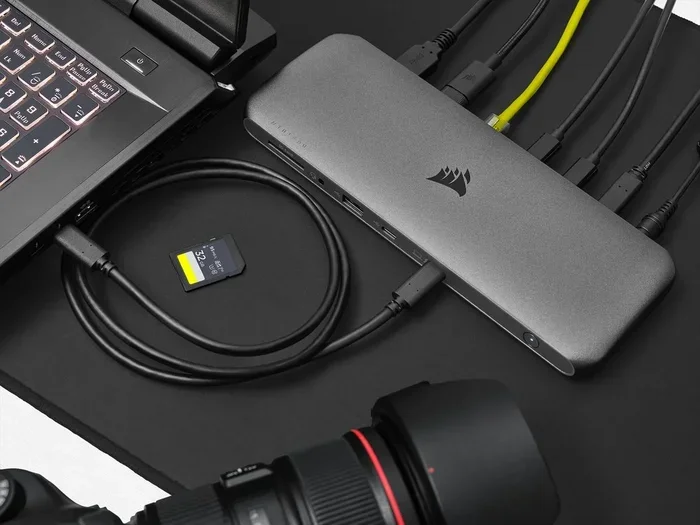
USB-C Docking Stations
A docking station connects to your laptop through a single USB-C cable and gives you back all the ports you lost. It provides HDMI output, USB-A ports, Ethernet, and sometimes even SD card readers. The billboard device class tells your laptop that this dock is a multi-function device and sets it up accordingly.
USB-C to HDMI Adapters
These small adapters let you connect your laptop to an external monitor. They rely on the billboard class to tell your laptop that the adapter supports video output through DisplayPort Alternate Mode or HDMI Alternate Mode.
USB-C Hubs
A USB-C hub expands a single port into multiple ports. You can connect a mouse, keyboard, flash drive, and charging cable all at once. The billboard device ensures your laptop knows how to route data to each connected device.
USB-C Chargers and Power Banks
Even chargers and power banks use the billboard class. It allows your laptop to negotiate the correct charging speed through USB Power Delivery protocols. This is why some USB-C chargers can charge a laptop at 60W or 100W while others only provide 15W.
Video Capture Cards
Content creators who use USB-C video capture cards also depend on the billboard device class. It tells the laptop that the card is designed for video input, so the correct software drivers are loaded.
USB Billboard Device vs Other USB Device Classes
To understand the billboard class better, it helps to compare it with other USB device classes. Here is a simple comparison:
| Device Class | Purpose | Common Examples |
|---|---|---|
| Billboard Device | Identifies USB-C device capabilities | USB-C docks, adapters, hubs |
| Mass Storage | Data storage and transfer | Flash drives, external hard drives |
| Human Interface Device | Input devices | Keyboards, mice, webcams |
| Audio Device | Sound input and output | Headsets, speakers, microphones |
| Video Device | Video capture and output | Webcams, capture cards, monitors |
The main difference is that the billboard class does not handle data or media directly. Instead, it acts as a guide. It tells your laptop what other device classes are present inside the USB-C device. Think of it as the navigator that helps your operating system find the right path.
If you are experiencing issues with a USB-C device on your laptop, it could be related to driver problems. Sometimes, a GPU driver conflict can cause USB devices to malfunction. You can learn more about keeping your GPU temperature in check to avoid such issues in our guide on what is a good idle GPU temperature.
How to Identify a USB Billboard Device on Your Laptop
If you want to check whether a connected device is using the billboard class, you can do so through your operating system. Here is how:
On Windows:
- Open Device Manager by right-clicking the Start button.
- Look for a category called “Universal Serial Bus controllers.”
- Expand it and look for entries that mention “Billboard Device.”
- Right-click the device and select Properties to see more details.
On macOS:
- Click the Apple menu and select System Information.
- Go to the USB section in the left sidebar.
- Look for devices listed under the Billboard Device class.
- Click on the device to see its descriptor information.
On Linux:
- Open a terminal window.
- Type the command
lsusband press Enter. - Look for devices with the Billboard Device class ID (0x02_0x01).
- Use the command
usb-devicesfor more detailed information.
If your laptop does not show the billboard device when you connect a USB-C accessory, the driver might be missing. In that case, updating your operating system or installing the manufacturer’s driver usually fixes the problem. Just like making sure your laptop has enough RAM, keeping your drivers updated is a simple step that prevents many issues. You can read more about RAM and its role in your laptop in our article on what is the RAM on a laptop.
Common Problems and How to Fix Them
Even with the billboard standard, things can go wrong. Here are the most common issues and their solutions:
Device Not Recognized
If your laptop does not recognize a USB-C dock, try unplugging it and plugging it back in. If that does not work, check Device Manager for any yellow warning icons. A missing billboard driver is often the culprit.
No Video Output
If you connect a USB-C to HDMI adapter but see no signal, the billboard device may not have properly advertised the display mode. Try a different cable or adapter, and make sure your GPU drivers are up to date.
Slow Data Transfer
If a USB-C hub is transferring data slowly, it might be because the billboard descriptor was not read correctly. Reconnecting the device or using a different USB-C port can often resolve this.
Power Delivery Issues
If your laptop is not charging through a USB-C dock, the billboard device may not have negotiated the correct power profile. Try using a different USB-C cable that supports USB Power Delivery.
Final Thoughts
The USB 2.0 Billboard Device class might not be something you think about every day, but it plays a huge role in making your USB-C accessories work seamlessly. From docking stations to charging cables, this standard quietly runs in the background and ensures your laptop can communicate with a wide range of devices.
As USB-C continues to become the standard port for laptops, tablets, and phones, understanding how the billboard device class works will become even more valuable. The next time you plug in a USB-C hub or dock and it just works, you will know the little billboard device behind the scenes made it happen.
For more tips on keeping your laptop running smoothly, check out our resources on laptop hardware and connectivity. And if you are a gamer who uses your laptop for intensive tasks like playing Fortnite, making sure your USB devices and drivers are in good shape can make a real difference in performance.
Frequently Asked Questions
What exactly does a USB Billboard Device do?
A USB Billboard Device tells your laptop what a connected USB-C accessory is capable of. It sends a descriptor that includes information about supported modes, such as video output, data transfer, and power delivery. Your operating system uses this information to load the correct driver and set up the device properly.
Do all USB-C devices use the Billboard Device class?
No, not all USB-C devices use the billboard class. Simple devices like flash drives or basic chargers do not need it. The billboard class is mainly used for complex USB-C devices that support Alternate Modes, such as docking stations, display adapters, and multi-function hubs.
Can I use a USB-C dock without a Billboard Device?
Some basic USB-C docks may work without full billboard support, but they might not function correctly. The billboard device class ensures that your laptop can properly identify and configure the dock. Without it, you might experience missing ports, no video output, or charging issues.
Is the USB Billboard Device class the same as USB 2.0?
The billboard device class was introduced as part of the USB Type-C and USB 3.0 specifications. While it can work with USB 2.0 and USB 3.0 connections, it is specifically designed for the capabilities of USB-C connectors and USB Power Delivery protocols.
How do I update my Billboard Device driver on Windows?
Open Device Manager, find the Billboard Device under Universal Serial Bus controllers, right-click it, and select Update Driver. You can also visit your laptop manufacturer’s website to download the latest USB drivers. Keeping your drivers updated helps prevent connection issues with USB-C accessories.
Will a USB Billboard Device work on both Windows and Mac?
Yes, the Billboard Device class is a universal USB standard. It works across Windows, macOS, and Linux. This cross-platform support is one of the biggest advantages of the USB-C ecosystem. You can use the same dock or adapter with different laptops without worrying about compatibility.