Nvme M.2 Ssd for Ps5

Upgrading your PS5 with a NVMe M.2 SSD is the easiest way to expand storage and keep games loading fast. The PS5 supports PCIe Gen4 NVMe drives, and choosing the right one can boost your gaming experience significantly. This guide covers compatibility, top picks, setup steps, and common mistakes to avoid.
If you love gaming on PlayStation 5, you already know that storage fills up fast. A single game can take up 100GB or more. That is where a NVMe M.2 SSD for PS5 comes in. Adding an internal solid state drive lets you store more games and enjoy faster load times. In this guide, we will walk you through everything you need to know. From compatibility to setup, we have you covered.
The PS5 uses a custom NVMe M.2 SSD for its internal storage. Sony designed the console to support PCIe Gen4 NVMe drives. This means you get blazing fast read speeds right out of the box. But what happens when your storage runs low? You can expand it with a second M.2 drive. This is a simple upgrade that anyone can do at home. No special tools or technical skills are needed.
Key Takeaways
- PS5 Needs a PCIe Gen4 NVMe M.2 SSD: Your console requires a specific type of drive for internal storage expansion.
- Capacity Options Range from 500GB to 4TB: Choose based on how many games you plan to store.
- Installation Is Simple: You can swap in a new NVMe M.2 SSD for PS5 in under 15 minutes.
- Speed Matters for Fast Load Times: PCIe Gen4 drives offer the best performance for PS5 games.
- Cooling Is Important: A heatsink keeps your drive running at peak performance during long sessions.
- Not All SSDs Work: Always check the PS5 compatibility list before buying.
📑 Table of Contents
What Is an NVMe M.2 SSD?
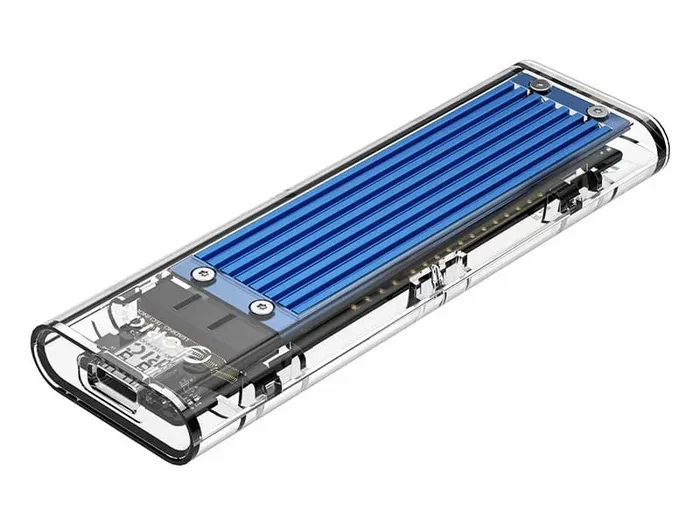
An NVMe M.2 SSD is a small, flat storage drive that plugs directly into your motherboard. Unlike traditional hard drives, it has no moving parts. This makes it faster, quieter, and more durable. The M.2 form factor is compact, about the size of a stick of gum. NVMe stands for Non-Volatile Memory Express. It is a protocol that allows the drive to communicate faster with your system.
For the PS5, Sony uses a PCIe Gen4 NVMe M.2 SSD. This gives the console its impressive load times. Games launch in seconds, and open worlds load almost instantly. When you add a second drive, you get the same speed benefits. Your new SSD NVMe PCIe M.2 will work just as fast as the internal one.
Why NVMe Is Faster Than SATA
Not all SSDs are created equal. SATA SSDs use an older connection type. They max out at around 550MB per second. NVMe drives use the PCIe bus directly. This allows them to reach speeds of 5,000MB per second or more. The M.2 NVMe SSD is the clear winner for PS5 storage. You get the fastest possible performance for your games.
Why Upgrade Your PS5 Storage?
Modern games are huge. Titles like Call of Duty and Cyberpunk 2077 can take up 150GB each. The PS5 comes with 825GB of storage, but only about 667GB is usable. After a few big games, you will run out of space. An NVMe M.2 SSD for PS5 solves this problem completely.
Here are the main reasons to upgrade your storage:
- More Space for Games: Store dozens of titles without deleting anything.
- Faster Load Times: A second NVMe drive keeps your speeds high.
- Easy Game Management: Move games between drives without reinstalling.
- Future-Proof Your Console: Game sizes keep growing. Extra storage helps you stay ready.
- Better Overall Performance: A fast drive reduces stuttering and pop-in.
When you compare an external USB SSD to an internal NVMe drive, the difference is clear. External drives use USB connections, which are slower. Internal NVMe drives connect directly to the motherboard. This means faster speeds and better performance. For the best PS5 experience, an internal upgrade is the way to go.
PS5 NVMe M.2 SSD Compatibility
Not every M.2 SSD works with the PS5. Sony has specific requirements for internal drives. Understanding these specs helps you avoid buying the wrong drive. Here is what you need to know.
Key Compatibility Requirements
The PS5 requires an M.2 NVMe SSD that meets these criteria:
- Interface: PCIe Gen4 NVMe (Gen3 drives work but are slower).
- Form Factor: M.2 2230, 2242, 2260, 2280, or 2111.
- Capacity: 250GB or larger.
- Read Speed: Sony recommends 5,500MB per second or faster.
- Heatsink: Required if the drive does not have one built in.
The PS5 comes with a 512GB NVMe M.2 SSD internally. When shopping for a replacement or expansion drive, look for PCIe Gen4 support. Drives like the 512GB NVMe M.2 SSD are popular choices for many gamers. They offer a good balance of speed and price.
PS5 Compatible SSD List
Sony maintains a list of tested and approved M.2 drives. You can find it on their official website. Some popular options include the Samsung 970 EVO Plus and the Crucial T705. The Samsung 970 EVO Plus NVMe M.2 SSD is a top pick for many PS5 owners. It delivers excellent speeds and reliable performance.
If you want the latest technology, consider a PCIe Gen5 drive. The Crucial T705 PCIe Gen5 NVMe M.2 SSD offers incredible speeds. Even though the PS5 uses Gen4, a Gen5 drive is backward compatible. You get the fastest possible performance today.
Best NVMe M.2 SSDs for PS5
Choosing the right drive can feel overwhelming. There are so many options on the market. To help you decide, here are some of the best choices for PS5 storage expansion.
Top Picks by Capacity
Different gamers have different needs. Some want a small boost. Others want to store their entire library. Here are the best options by capacity tier.
For a moderate upgrade, a 1TB NVMe M.2 SSD is the sweet spot. It gives you plenty of room for 10 to 15 large games. The 2TB SSD M.2 NVMe is perfect for serious collectors. It holds 30 or more games without breaking a sweat. If you want maximum space, look at 4TB options as well.
| Capacity | Best For | Approximate Price |
|---|---|---|
| 1TB | Casual gamers with 10-15 titles | $60 – $90 |
| 2TB | Regular gamers with 20-30 titles | $110 – $150 |
| 4TB | Hardcore collectors with 40+ titles | $220 – $300 |
Speed Comparison
Not all NVMe drives are the same speed. The PS5 benefits from drives with 5,500MB per second read speeds or higher. Slower drives still work, but you will not get the full PS5 experience. When choosing a drive, look at the sequential read speed. This number tells you how fast the drive can transfer data.
The SSD NVMe PCIe M.2 category includes many great options. Always pick a Gen4 drive for the best results. If budget allows, a Gen5 drive gives you future-proof performance.
How to Install an NVMe M.2 SSD in Your PS5
Installing a new NVMe M.2 SSD for PS5 is straightforward. You do not need to be a tech expert. With a screwdriver and about 10 minutes, you are done. Here is a step-by-step guide.
What You Need
- A compatible M.2 NVMe SSD
- A Phillips-head screwdriver
- A small tray or container for screws
- A heatsink (if your drive does not have one)
Step-by-Step Installation
- Turn off your PS5 and unplug all cables.
- Lay the console on its side. Find the expansion slot on the bottom.
- Remove the screw holding the expansion cover.
- Slide the cover off to reveal the M.2 slot.
- Insert the SSD at a 30-degree angle into the slot.
- Press the drive down gently until it seats firmly.
- Secure it with the screw. Do not overtighten.
- Replace the expansion cover.
- Plug in your PS5 and turn it on.
- Go to Settings > Storage. Your new drive should appear.
Once the drive is detected, you can format it and start moving games. The PS5 makes this easy through its settings menu. You can also move games from the internal drive to the new M.2 SSD for PS5 without losing any data.
Quick Tips for Installation
- Always ground yourself before touching the drive. Static can damage electronics.
- Do not force the SSD into the slot. It should slide in smoothly.
- If the drive gets hot during use, check that the heatsink is properly attached.
- Keep your screws in a safe place. Losing them can cause problems later.
Common Mistakes to Avoid
Upgrading your PS5 storage is simple, but mistakes can happen. Here are some common errors to watch out for.
- Buying a SATA M.2 SSD: The PS5 only supports NVMe drives. SATA drives will not work.
- Skipping the Heatsink: Without proper cooling, your drive may throttle and slow down.
- Choosing Too Little Storage: A 250GB drive fills up fast. Aim for at least 1TB.
- Forgetting to Format: A new drive must be formatted before use. The PS5 handles this automatically.
- Overtightening the Screw: This can damage the M.2 slot. snug is enough.
Avoiding these mistakes ensures a smooth upgrade experience. Take your time and follow each step carefully. Your new NVMe M.2 SSD for PS5 will work perfectly when done right.
Expert Insights: Maximizing Your PS5 SSD Performance
Getting the fastest speeds from your NVMe M.2 SSD for PS5 is about more than just buying the right drive. A few extra steps can make a big difference.
First, keep your PS5 firmware updated. Sony regularly releases updates that improve storage management. Second, enable the PS5’s built-in game activity feature. This lets you jump directly into specific game modes without loading the full game. Third, use the rest mode feature to keep downloads and updates running in the background.
Another pro tip is to organize your games by drive. Put your most-played titles on the internal SSD. Move less-used games to the expansion drive. This keeps your most important games loading at top speed. You also get the benefit of having all your games available without swapping discs or re-downloading.
If you ever need to move your PS5, always handle the M.2 drive with care. A loose drive can cause performance issues or even fail to boot. Periodically check that the screw is tight. This small habit keeps your setup running smoothly for years.
Frequently Asked Questions
Can I use any M.2 SSD in my PS5?
No, the PS5 requires a PCIe Gen4 NVMe M.2 SSD. SATA M.2 drives will not work. Always check the interface before buying. The drive must also meet Sony’s minimum speed requirements of 5,500MB per second read speed.
Do I need a heatsink for my PS5 M.2 SSD?
Yes, a heatsink is required unless your drive comes with one built in. The PS5 expansion slot does not provide active cooling. Without a heatsink, the drive may overheat and slow down. Many NVMe M.2 SSD for PS5 options come with heatsinks included.
How much storage do I need for PS5?
It depends on how many games you keep installed. A 1TB drive holds about 10 to 15 large games comfortably. A 2TB SSD M.2 NVMe gives you room for 25 or more titles. If you buy lots of new releases, go for 2TB or higher.
Can I use the PS5 expansion slot and external storage at the same time?
Yes, you can use both. The internal expansion slot is for PS5 and PS4 games. External USB storage works for PS4 games and media. You cannot install PS5 games on external drives, though. Only the internal SSD and the M.2 expansion slot support PS5 titles.
Is installing an NVMe SSD in the PS5 difficult?
Not at all. The process takes about 10 to 15 minutes. You only need a small screwdriver. Sony even includes a step-by-step guide in the PS5 settings. The SSD NVMe PCIe M.2 installation is one of the easiest console upgrades you can do.
Will upgrading my PS5 SSD improve game load times?
Yes, significantly. The PS5 is designed for fast NVMe storage. A quality M.2 NVMe SSD for PS5 delivers load times that match the internal drive. Games launch faster, levels load quicker, and you spend less time waiting. It is one of the best upgrades you can make for your console.
Conclusion
Upgrading your PS5 with a NVMe M.2 SSD for PS5 is one of the best decisions you can make for your gaming setup. It gives you more space, faster load times, and a smoother overall experience. Whether you choose a 1TB, 2TB, or larger drive, the benefits are clear. Just make sure your drive meets the compatibility requirements, use a heatsink, and follow the installation steps carefully.
The process is simple enough for anyone. You do not need technical expertise or expensive tools. With the right NVMe M.2 SSD for PS5, your console will feel faster and more capable than ever. Take the leap today and give your PS5 the storage upgrade it deserves.