Nvme M 2 Ssd by Pcie
NVMe M.2 SSDs by PCIe deliver blistering speeds by connecting directly to your motherboard’s PCIe lanes. This compact form factor eliminates cables, offering faster boot times and game loads than SATA SSDs. Ideal for gamers and professionals needing top-tier performance without bulky installations.
Key Takeaways
- PCIe is the Highway: NVMe M.2 SSDs use the high-speed PCIe bus (usually lanes x4) for direct communication with the CPU, bypassing slower legacy interfaces.
- NVMe is the Language: The NVMe protocol is designed specifically for flash memory, offering vastly lower latency and higher queue depth than the older AHCI protocol used by SATA SSDs.
- M.2 is the Form Factor: This small, gumstick-shaped card plugs directly into an M.2 slot on the motherboard, saving space and eliminating the need for power or data cables.
- Generations Matter: PCIe 4.0 (current mainstream) doubles the bandwidth of PCIe 3.0, while PCIe 5.0 (emerging) doubles it again. Your SSD and motherboard must support the same generation.
- Not All M.2 Slots Are Equal: A motherboard’s M.2 slot may support SATA, PCIe 3.0, or PCIe 4.0 SSDs. Check your motherboard manual to avoid compatibility issues.
- Heat is a Real Factor: High-speed NVMe drives generate significant heat. Many come with heatsinks, and motherboard slots may have integrated plates. Good case airflow is essential for sustained performance.
- Use Case Driven: For most users, a PCIe 3.0 NVMe SSD is a massive upgrade over SATA. Creators and enthusiasts benefit most from PCIe 4.0/5.0, though real-world differences can be subtle outside large file transfers.
📑 Table of Contents
- Demystifying the Jargon: What Exactly Is an “NVMe M.2 SSD by PCIe”?
- The PCIe Highway: How Data Moves at Lightning Speed
- Inside the NVMe Protocol: Leaving AHCI in the Dust
- The M.2 Form Factor: Small Size, Big Convenience
- Real-World Performance: What the Speeds Actually Mean For You
- Buying Guide & Compatibility Checklist: Don’t Buy Before Reading This
- Conclusion: The Clear Choice for Modern Systems
Demystifying the Jargon: What Exactly Is an “NVMe M.2 SSD by PCIe”?
Let’s break this down because it sounds like a mouthful of tech buzzwords. At its heart, this is the fastest, most modern type of solid-state drive you can buy for a desktop PC or laptop today. Think of it as a team effort between three key technologies working in perfect harmony.
First, PCIe (Peripheral Component Interconnect Express) is the ultra-high-speed “superhighway” inside your computer. It’s what your graphics card uses to talk to the brain of your PC (the CPU). Second, NVMe (Non-Volatile Memory Express) is the sophisticated, efficient “language” or set of rules specifically created for flash storage (like SSDs) to use on that PCIe highway. It’s a massive upgrade over the older, clunkier language (AHCI) designed for spinning hard drives. Finally, M.2 is the physical shape and connector. It’s a tiny, slim card that plugs directly into a dedicated slot on your motherboard. So, an “NVMe M.2 SSD by PCIe” is a small card that uses the NVMe language to zoom data along the PCIe superhighway directly into your computer’s core. No messy cables, no bottlenecks.
Why This Combination Is a Game-Changer
Before this combo, the fastest consumer SSDs used the SATA interface. SATA is fine—it was revolutionary when it replaced hard drives—but it has a hard speed limit of about 550 MB/s. A standard NVMe M.2 SSD on a PCIe 3.0 x4 link can easily hit 3,500 MB/s. That’s over six times faster. On a PCIe 4.0 x4 link? We’re talking 7,000 MB/s and beyond. This isn’t just about numbers on a spec sheet. It means your operating system boots in seconds, games and large applications load almost instantly, and moving huge video files or project assets becomes a quick task instead of a coffee break.
The PCIe Highway: How Data Moves at Lightning Speed
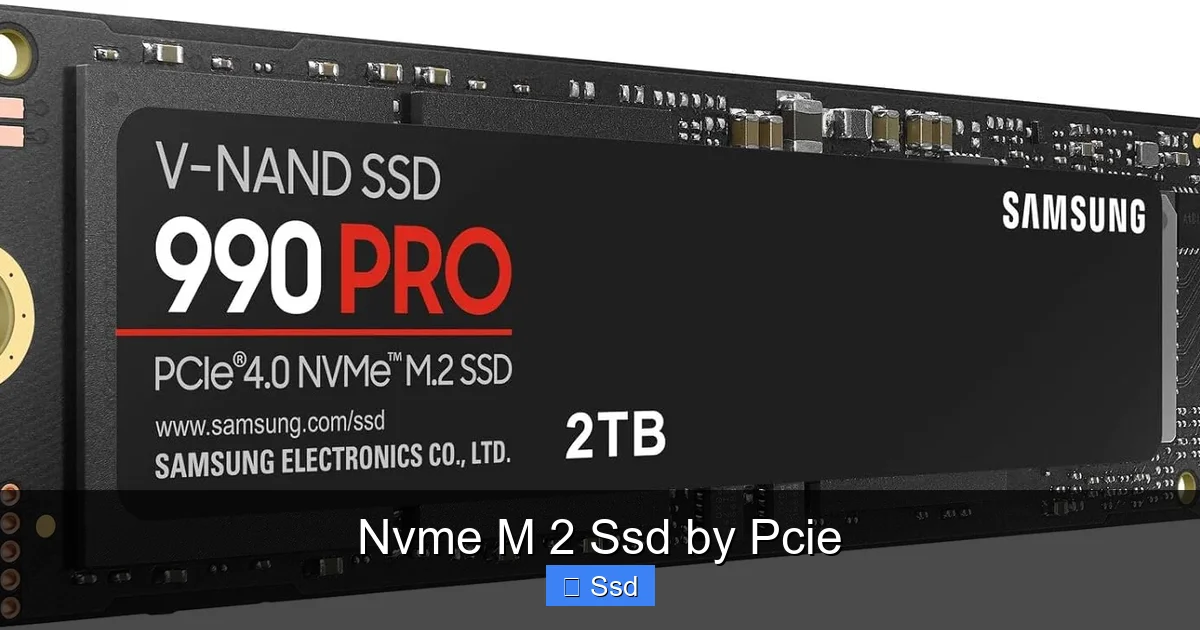
To understand the magic, picture your computer’s data as cars on a highway. The number of “lanes” on that highway determines how many cars can travel side-by-side. PCIe lanes are exactly that.
Visual guide about Nvme M 2 Ssd by Pcie
Image source: m.media-amazon.com
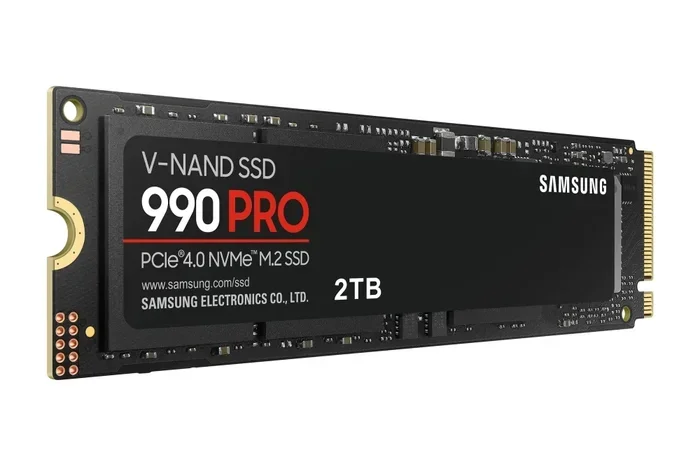
An NVMe M.2 SSD typically uses four PCIe lanes (x4). That’s a significant allocation, dedicated solely to your storage. The “generation” of PCIe determines the speed limit of each lane. A single PCIe 3.0 lane can move about 1 GB/s of data per second in each direction. Multiply that by four lanes, and you get a theoretical maximum of ~4 GB/s (or 4,000 MB/s) for a PCIe 3.0 x4 SSD. PCIe 4.0 doubles the speed per lane, so a PCIe 4.0 x4 SSD has a theoretical ceiling of ~8 GB/s (8,000 MB/s). PCIe 5.0, just starting to arrive, doubles it again to ~16 GB/s.
Shared Lanes vs. Dedicated Lanes
Here’s a crucial practical detail. On many motherboards, the M.2 slots share PCIe lanes with other components, like additional SATA ports or other PCIe slots (like your second or third graphics card slot). If you populate certain slots, you might “disable” or reduce the speed of others. Always check your motherboard’s manual—it will have a detailed chart showing which M.2 slots are fully independent and which share bandwidth. For a primary NVMe drive, you usually want to use the slot connected directly to the CPU for guaranteed full x4 speed.
Inside the NVMe Protocol: Leaving AHCI in the Dust
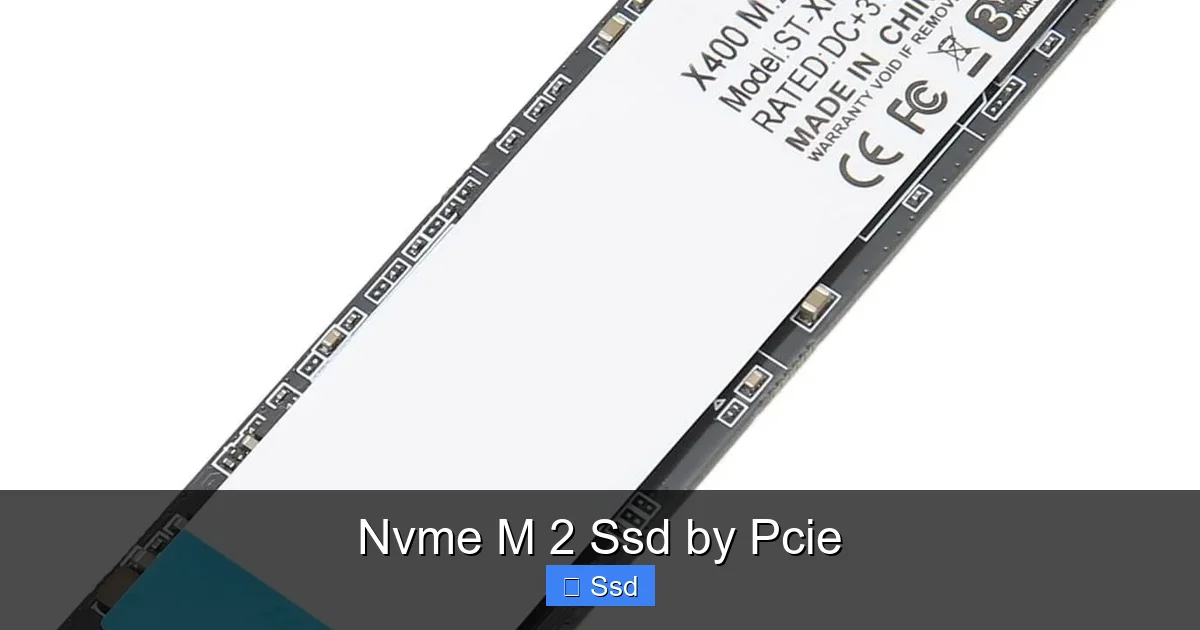
The jump from SATA to NVMe isn’t just about a faster physical connection (PCIe vs. SATA). The software instruction set is completely different. SATA SSDs still use the AHCI (Advanced Host Controller Interface) protocol. AHCI was invented in the early 2000s for spinning hard drives. It’s optimized for a world of slow, sequential access with just one command queue. Flash memory is fundamentally different—it can handle thousands of simultaneous, random read/write operations.
Visual guide about Nvme M 2 Ssd by Pcie
Image source: m.media-amazon.com
NVMe was built from the ground up for flash. Its advantages are profound:
- Massive Queue Depth: NVMe supports up to 65,535 command queues, each with up to 65,535 commands. AHCI? Just one queue with 32 commands. This allows the SSD’s internal controller to process an enormous volume of read/write requests simultaneously, which is perfect for modern operating systems and applications that do many things at once.
- Lower Latency: NVMe commands are simpler and more efficient. It also interrupts the CPU less often. The result? Faster response times. You feel this as snappier system responsiveness.
- No Legacy Overhead: NVMe doesn’t need to maintain compatibility with decades-old IDE/ATA command sets. It’s lean and mean.
This protocol efficiency is a huge reason why even a PCIe 3.0 NVMe drive feels so much faster than a SATA SSD in everyday use, not just in large file copy benchmarks.
The M.2 Form Factor: Small Size, Big Convenience
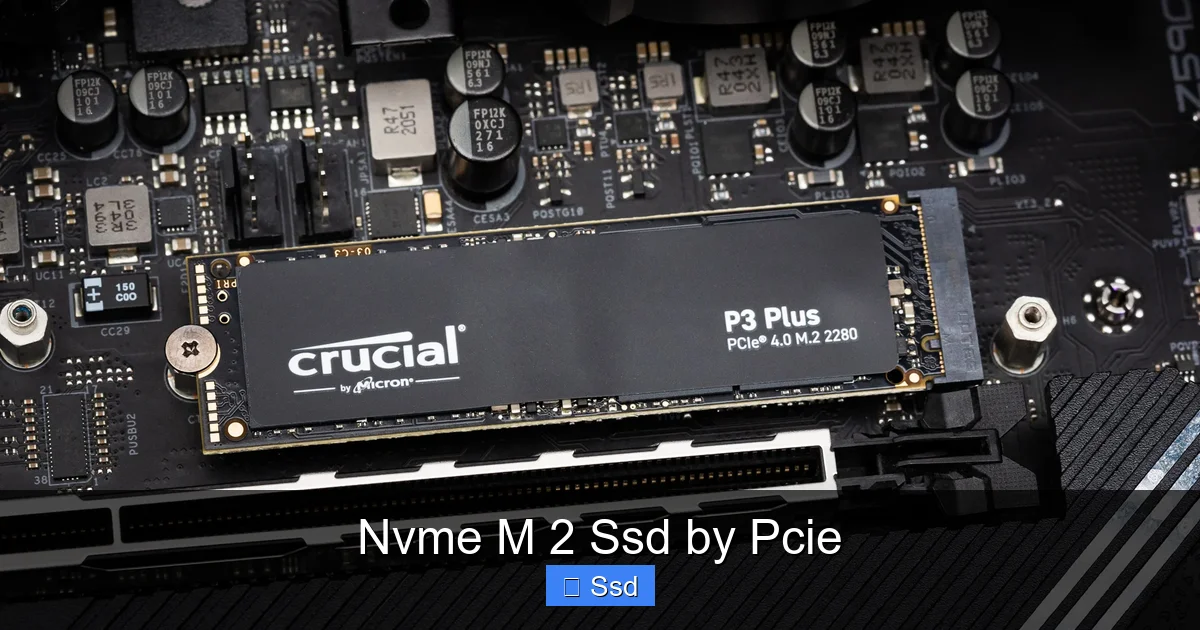
The M.2 form factor is a masterclass in minimalist design. It’s a small circuit board, usually 22mm wide and either 30mm, 42mm, 60mm, 80mm, or 110mm long (denoted as 2230, 2242, 2260, 2280, 22110). The 2280 (22mm x 80mm) is the most common size for consumer desktop and laptop SSDs. It’s secure, tidy, and requires zero cabling.
Visual guide about Nvme M 2 Ssd by Pcie
Image source: cdn.mos.cms.futurecdn.net
Keying and Compatibility: Notch Matters
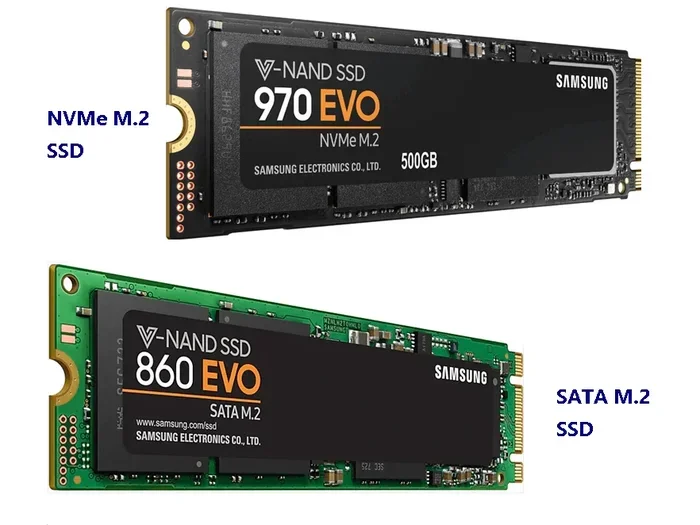
Look at the edge connector of an M.2 SSD. You’ll see one or two notches (missing pins). These “keys” prevent you from plugging an incompatible card into a slot. The key types are:
- M Key (B+M): This is the standard for NVMe PCIe SSDs. It has the notch in a specific position. Most M.2 slots that support PCIe are M-keyed.
- B Key (B+M): This is typically used for SATA M.2 SSDs and some older Wi-Fi/Bluetooth cards. It has the notch in a different place.
- B+M Key: Many SSDs are “B+M” keyed, meaning their connector has both notches. This is a compatibility feature allowing them to physically fit into both B-key and M-key slots. However, a B+M keyed SSD will only operate in the protocol (SATA or PCIe) that your specific motherboard slot supports. It does not magically change protocols.
Practical Tip: When buying an M.2 SSD, ensure it’s NVMe (PCIe) and has an M key (or B+M, but confirm your slot supports PCIe). Your motherboard’s M.2 slot will be labeled something like “M.2_1 (PCIe 4.0 x4 / SATA)” or just “M.2 (PCIe 3.0)”. The presence of “PCIe” in the spec is what you need.
Real-World Performance: What the Speeds Actually Mean For You
Benchmark numbers are fun, but what do they translate to in daily use? Let’s separate the scenarios.
Boot Times and Application Launches
This is where NVMe shines most perceptibly. A clean Windows 10/11 install on a good NVMe SSD will often boot to the login screen in 8-12 seconds on modern hardware, compared to 15-25 seconds on a SATA SSD. Opening heavy applications like Adobe Photoshop, Visual Studio, or a complex spreadsheet feels noticeably faster. There’s less “waiting for the spinner” sensation. For gaming, the difference is more game-dependent. Open-world games with massive, streaming asset pools (like *Red Dead Redemption 2* or *Microsoft Flight Simulator*) see the most benefit, with reduced pop-in and faster travel-to-new-area loads. For competitive shooters where levels are small and pre-loaded, the difference between SATA and NVMe is often imperceptible.
Large File Workflows
If you regularly work with huge files—4K/8K video editing, massive 3D renders, or moving hundreds of GB of data—the sequential read/write speeds of PCIe 4.0/5.0 become critical. Copying a 100GB game folder or a 50GB video project file can be minutes faster on a PCIe 4.0 drive vs. a good PCIe 3.0 drive. This is the pure, raw throughput advantage.
The Sustained Performance & Thermal Throttling Caveat
High-end NVMe SSDs, especially PCIe 4.0 and 5.0 models, get extremely hot under sustained workloads. To prevent thermal throttling (where the drive deliberately slows down to cool off), manufacturers include heatsinks. Some motherboards have built-in M.2 heatsinks. Without adequate cooling, a top-tier drive might drop from 7,000 MB/s to 3,000 MB/s after a few seconds of heavy writing. For most users, this is a non-issue. For a video editor rendering a 4-hour timeline, it’s a big deal. Always consider thermal solutions for high-performance drives in poorly ventilated cases.
Buying Guide & Compatibility Checklist: Don’t Buy Before Reading This
Choosing the right NVMe M.2 SSD is easy if you follow this checklist.
Step 1: Identify Your Motherboard’s Capabilities
This is the most important step. Find your exact motherboard model (e.g., ASUS ROG Strix B650E-F, MSI MPG Z790 Carbon WiFi). Go to the manufacturer’s website, find the product page, and look at the specifications for “Storage” or “M.2 Slots.” You need to know:
- How many M.2 slots do you have?
- What PCIe generation does each slot support? (e.g., PCIe 4.0 x4, PCIe 3.0 x4)
- Do any slots share bandwidth with other devices? (The manual/chart will show this)
- What are the supported M.2 lengths? (2280 is standard, but some tiny boards only take 2242)
Example: You have a motherboard with one PCIe 4.0 x4 slot (CPU-linked) and one PCIe 3.0 x4 slot (chipset-linked). You should install your OS and primary games on the PCIe 4.0 slot for maximum performance.
Step 2: Choose Your PCIe Generation
- PCIe 3.0 NVMe: Still excellent. Drives like the Samsung 970 EVO Plus or WD Black SN750 offer ~3,500 MB/s. Perfect for general use, gaming, and most productivity. Often found on sale at great prices. The sweet spot for value.
- PCIe 4.0 NVMe: The current mainstream for new builds. Drives like the Samsung 980 Pro, WD Black SN850X, or Crucial T500 hit 7,000-7,400 MB/s. Great for high-end gaming PCs, content creators, and future-proofing. Requires a motherboard with PCIe 4.0 support (most from 2020 onward).
- PCIe 5.0 NVMe: The bleeding edge. Drives like the Crucial T705 or WD Black SN850X (PCIe 5.0 version) exceed 12,000 MB/s. They require a motherboard with PCIe 5.0 support (Intel 13th/14th Gen, AMD Ryzen 7000 series on specific boards) and almost always come with a massive heatsink. For 99% of users, the real-world benefit over a good PCIe 4.0 drive is minimal right now. It’s for early adopters and specific professional workloads.
Step 3: Consider Capacity, Endurance, and Price
Capacity is straightforward: 1TB is the new comfortable minimum for a primary drive. 2TB offers great value per GB for your OS and library. Endurance (TBW – Terabytes Written) matters more for professional write-heavy workloads. For a gaming PC, any reputable drive’s TBW will be more than sufficient for years. Finally, compare price per GB. Often, the best value isn’t the top flagship model but the slightly slower “mainstream” NVMe from the same brand.
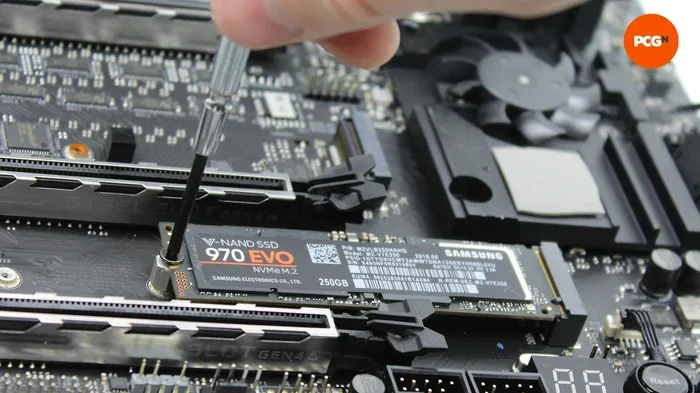
Step 4: Installation and Setup
Installing an M.2 SSD is simple:
- Power down and unplug your PC. Ground yourself.
- Locate the M.2 slot. It’s usually near the CPU or top of the board, perpendicular to the board.
- Remove the small mounting screw and any existing heatsink.
- Insert the SSD at a ~30-degree angle into the slot, pressing it down gently but firmly.
- Secure it flat against the motherboard with the mounting screw. Don’t overtighten!
- If your drive or motherboard has a heatsink, install it now, often with a thermal pad between the SSD and heatsink.
- Reassemble, boot, and initialize/format the drive in your OS (Disk Management in Windows).
Pro Tip: If your motherboard has an M.2 heatsink that uses a thermal pad, ensure the pad makes contact with the SSD’s controller and memory chips (the main chips on the drive). Sometimes you need to remove a plastic film from the pad.
Conclusion: The Clear Choice for Modern Systems
An NVMe M.2 SSD connected via PCIe is no longer a luxury; it’s the standard for any new PC build or major upgrade. It represents the culmination of decades of storage evolution, delivering speeds that were science fiction a decade ago in a package smaller than a stick of gum. The performance uplift over SATA is tangible and immediate for system responsiveness. While the jump from PCIe 3.0 to 4.0 is dramatic on paper, for most users, a quality PCIe 3.0 NVMe drive remains a phenomenal value that will feel fast for years. PCIe 4.0 is the safe, forward-looking recommendation for new builds today. When shopping, your motherboard’s spec sheet is your best friend. Choose a reputable brand, match the generation to your board, and enjoy the blistering-fast, cable-free storage that truly unleashes your system’s potential. The future of storage is here, and it’s tiny, fast, and plugged directly into the heart of your computer.
Frequently Asked Questions
Is an NVMe M.2 SSD the same as a PCIe SSD?
Essentially, yes. “NVMe M.2 SSD” describes the common physical form factor (M.2) and protocol (NVMe). It connects via the PCIe bus. Some older, rarer PCIe SSDs used the older “add-in card” (AIC) form factor that plugs into a full-size PCIe slot, but the term “PCIe SSD” today almost always refers to an M.2 NVMe drive.
Do I need a PCIe 4.0 SSD if my motherboard only supports PCIe 3.0?
No. A PCIe 4.0 SSD is backward compatible with a PCIe 3.0 slot. It will simply run at the PCIe 3.0 speed limit (around 3,500 MB/s). You’d be paying for performance you can’t use. Buy a good PCIe 3.0 NVMe SSD instead and save money.
Can I use an M.2 SATA SSD in an M.2 slot that says “PCIe”?
It depends on the motherboard. Many M.2 slots are flexible and support either SATA or PCIe protocols (but not both at the same time). The manual will specify. If your slot is PCIe-only, a SATA M.2 drive will not work. Conversely, a PCIe SSD won’t work in a SATA-only M.2 slot. The keying (notch) is often the same for both, so physical fit isn’t a guarantee of compatibility.
Do I really need a heatsink for my NVMe M.2 SSD?
For mainstream PCIe 3.0 drives, the built-in label or a simple motherboard heatsink is usually enough. For high-performance PCIe 4.0 and all PCIe 5.0 drives, a heatsink is highly recommended. These drives consume more power and generate much more heat, which can cause thermal throttling and sustained speed loss. Use the heatsink that comes with the drive or your motherboard’s integrated M.2 heatsink for best results.
Can I use an NVMe M.2 SSD as my boot drive?
Absolutely. This is one of the best uses for it. Installing your operating system on an NVMe drive provides the fastest possible boot and load times. Just ensure your motherboard’s firmware (BIOS/UEFI) supports booting from NVMe (all modern ones do) and set the correct drive as the first boot device.
Is an NVMe SSD worth it for gaming compared to a fast SATA SSD?
The difference in in-game FPS is zero. However, the difference in load times is noticeable, especially in large, open-world games. The biggest gaming benefit is reduced “pop-in” of textures and assets as you move through a world. For competitive gamers where every millisecond counts, the faster system responsiveness from an NVMe drive can also help. If you’re on a tight budget, a good SATA SSD is still fantastic. But for a new build, the price gap is small enough that NVMe is the clear winner for overall system feel.