Nvme M 2 Ssd 1tb
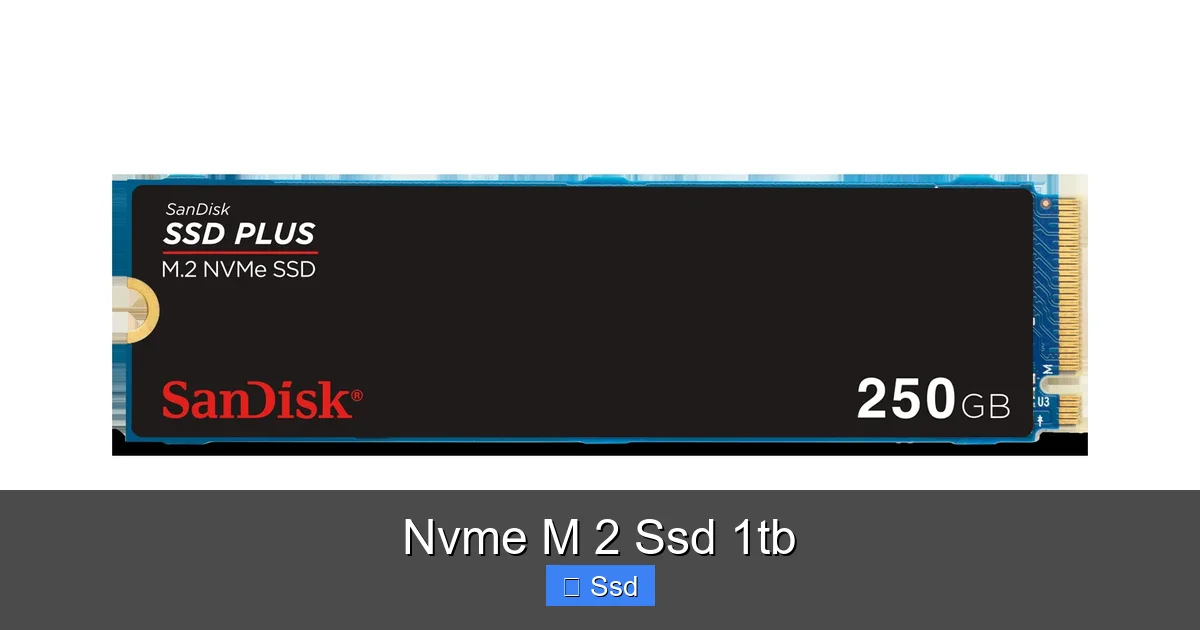
An NVMe M.2 SSD 1TB is a high-performance storage drive that connects directly to your motherboard via the PCIe bus, offering speeds many times faster than traditional SATA SSDs and hard drives. Its compact, gumstick-shaped M.2 form factor saves space and simplifies installation in both desktops and laptops. With a generous 1TB capacity, it’s the perfect sweet spot for operating systems, large game libraries, professional software projects, and massive media files, delivering a transformative boost to overall system responsiveness.
Key Takeaways
- Revolutionary Speed: NVMe M.2 SSDs use the PCIe interface, providing read/write speeds of 3,000-7,000 MB/s, drastically outperforming SATA SSDs (max ~550 MB/s) and HDDs.
- Space-Efficient Design: The M.2 form factor is tiny and plugs directly into the motherboard, eliminating bulky cables and making it ideal for compact PCs, laptops, and mini-ITX builds.
- 1TB is the Modern Sweet Spot: This capacity comfortably holds your OS, dozens of AAA games, a 4K video editing project, and a vast media collection without the premium cost of 2TB+ models.
- Heat Management is Crucial: High-speed NVMe drives generate significant heat. Many motherboards include M.2 heatsinks, or you can purchase an aftermarket one to prevent thermal throttling and maintain peak performance.
- Compatibility Check is Mandatory: Ensure your motherboard or laptop has an available M.2 slot that supports NVMe (PCIe) protocol, not just the older, slower SATA protocol. Check keying (M or B+M) and length support (usually 2280).
- Not Just for Enthusiasts: Prices have dropped dramatically. An NVMe M.2 SSD 1TB is now the recommended standard storage upgrade for any new PC build or older system refresh, offering immense value.
- Future-Proof Your System: As software and games grow larger, the speed and capacity of a 1TB NVMe drive ensure your system remains snappy and capable for years to come.
📑 Table of Contents
- What Exactly Is an NVMe M.2 SSD 1TB?
- The Unbelievable Speed Difference: NVMe vs. SATA vs. HDD
- Installation Demystified: It’s Easier Than You Think
- Why 1TB is the Smartest Capacity Choice in 2024
- Navigating the Market: What to Look For in a 1TB NVMe M.2 SSD
- The Heat Issue: Understanding Thermal Throttling
- The Future is Fast: PCIe 5.0 and Beyond
- Strong Conclusion
What Exactly Is an NVMe M.2 SSD 1TB?
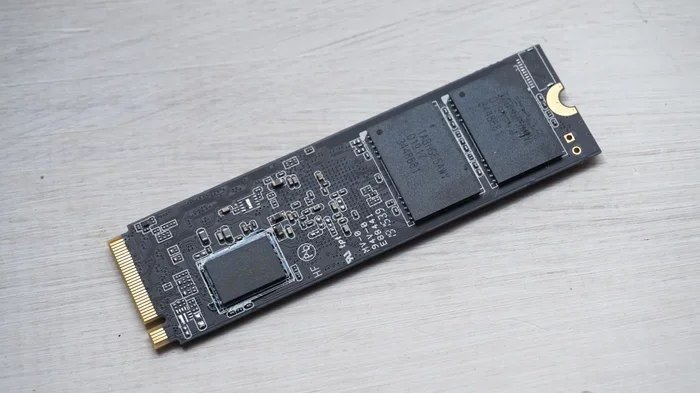
Let’s break down that technical name. SSD stands for Solid State Drive, meaning it has no moving parts like a traditional hard disk drive (HDD). Data is stored on flash memory chips, making it incredibly fast, silent, and resistant to shock. The M.2 part refers to the physical form factor—a small, flat card that’s about the size of a stick of gum. It connects to a dedicated M.2 slot on your computer’s motherboard, screwing in place and requiring no power or data cables.
The NVMe (Non-Volatile Memory Express) is the critical piece. It’s a communication protocol, a set of rules that tells the SSD how to talk to the rest of your computer. NVMe was designed specifically for flash storage, using the high-speed PCIe (Peripheral Component Interconnect Express) lanes that normally power your graphics card. This is what unlocks the stratospheric speeds. Finally, 1TB (Terabyte) is the storage capacity—1,000 gigabytes of space. It’s enough for most power users without the hefty price tag of larger capacities.
The Perfect Fusion: Size, Speed, and Capacity
The magic of the NVMe M.2 SSD 1TB combination is that it brings together three desirable traits. The M.2 form factor is minimal and elegant. The NVMe protocol delivers mind-blowing performance. And the 1TB capacity provides practical, usable space for a modern digital lifestyle. You get a storage solution that’s physically small, incredibly fast, and generously capacious.
The Unbelievable Speed Difference: NVMe vs. SATA vs. HDD
To understand the hype, you must see the numbers. A typical 7200 RPM desktop HDD might have sequential read/write speeds of 100-160 MB/s. A 2.5-inch SATA SSD, the previous generation champion, maxes out around 550 MB/s due to the limits of the SATA III interface. Now, enter the NVMe M.2 SSD.
Visual guide about Nvme M 2 Ssd 1tb
Image source: m.media-amazon.com
Using PCIe 3.0 x4 lanes (common in most current drives), you’ll see sustained speeds of 2,500 MB/s to 3,500 MB/s. That’s 5 to 7 times faster than a SATA SSD. Newer PCIe 4.0 drives (available on AMD Ryzen 3000+/Intel 11th Gen+ platforms) double that again, reaching 5,000 MB/s to 7,000 MB/s. Even the entry-level NVMe drives today outperform the best SATA SSDs of yesterday.
What Do These Speeds Mean in Real Life?
These aren’t just benchmark numbers. They translate to tangible, daily-use improvements:
- Boot Times: Your operating system (Windows, macOS, Linux) goes from the login screen to a fully loaded desktop in 5-10 seconds instead of 20-30.
- Game Loading: Open-world games like Red Dead Redemption 2 or Cyberpunk 2077 load into the world in half the time. No more staring at “Loading…” screens during fast travel.
- Application & File Launch: Large programs like Adobe Photoshop, Visual Studio, or complex Excel spreadsheets open almost instantly. Transferring a 50GB video project folder takes minutes, not tens of minutes.
- System Responsiveness: Even everyday tasks—opening a browser with dozens of tabs, launching Office apps, extracting ZIP files—feel smoother and more instantaneous. The system never feels like it’s “waiting” on storage.
Installation Demystified: It’s Easier Than You Think
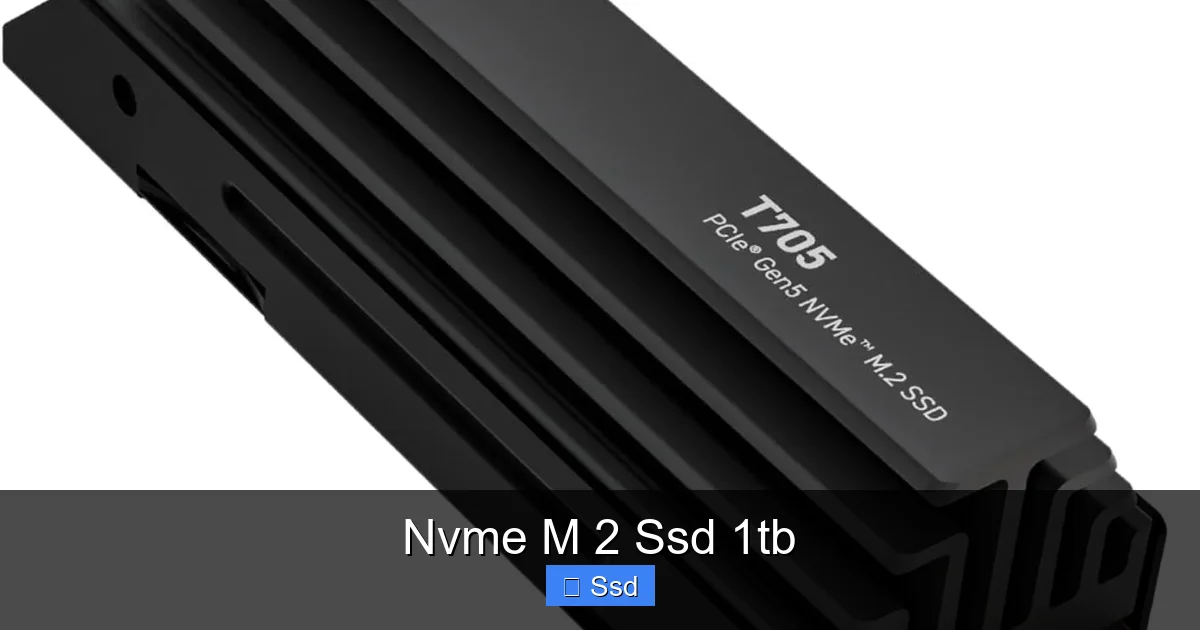
One of the biggest advantages of the M.2 form factor is its simplicity. For a desktop build, it’s often the easiest component to install. You locate the M.2 slot on your motherboard (usually near the CPU or PCIe slots), remove the tiny mounting screw, insert the SSD at a 30-degree angle, press it down, and secure it with the screw. That’s it. No cables to route, no brackets to mount.
Visual guide about Nvme M 2 Ssd 1tb
Image source: m.media-amazon.com
For a laptop upgrade, the process is similar but can require more disassembly. You’ll need to consult your laptop’s service manual, typically removing the bottom panel to access the M.2 bay. Again, it’s a simple unscrew, swap, and screw operation. Always remember to ground yourself to avoid static electricity and ensure your laptop is powered off and unplugged.
Critical Compatibility Checks Before You Buy
Don’t assume your system has a compatible slot. Here’s your pre-purchase checklist:
- Slot Type: Does your motherboard/laptop have an M.2 slot that supports NVMe (PCIe)? Some older or budget boards have M.2 slots that only support the slower SATA protocol. Check your manual’s specifications.
- Keying: M.2 slots and drives have a “key” (a notch) that prevents incorrect insertion. M-key slots support both NVMe and SATA. B-key slots typically only support SATA. B+M key drives are physically compatible with both but will run at SATA speeds in an NVMe slot. For NVMe, you want an M-key drive in an M-key (or universal) slot.
- Length: Most consumer drives are 2280 (22mm wide, 80mm long). Ensure your slot supports this length. Some slots support 2242, 2260, or 22110.
- PCIe Generation: A PCIe 4.0 SSD will work in a PCIe 3.0 slot, but it will be limited to 3.0 speeds. Conversely, a PCIe 3.0 SSD in a 4.0 slot works fine at 3.0 speeds. Match for best performance if possible.
Why 1TB is the Smartest Capacity Choice in 2024
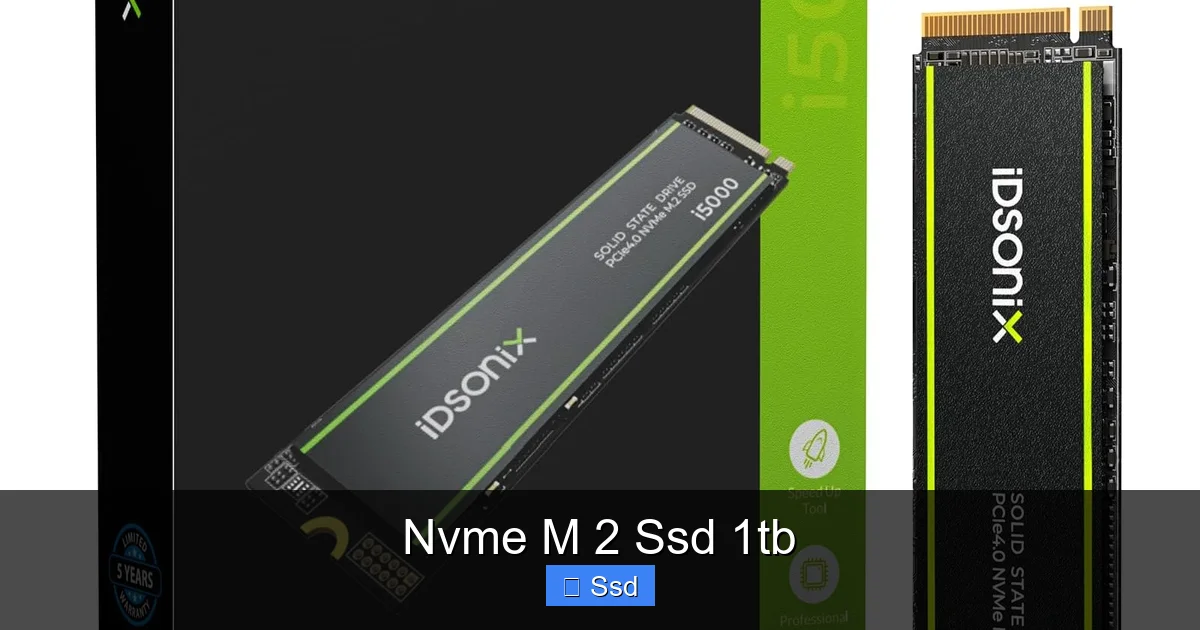
While 500GB drives are cheap and 2TB/4TB models are tempting, the 1TB NVMe M.2 SSD hits the perfect balance for the vast majority of users. Here’s why it’s the recommended capacity:
Visual guide about Nvme M 2 Ssd 1tb
Image source: m.media-amazon.com
- OS + Programs + Games: A fresh Windows 11 install takes ~40GB. Modern games like Call of Duty: Modern Warfare III or Alan Wake 2 can be 150GB-200GB+ each. A 500GB SSD fills up alarmingly fast after just the OS and a handful of apps/games. 1TB gives you breathing room.
- Creative Workloads: 4K video editing projects, especially with proxy files, can consume hundreds of gigabytes. A 1TB drive allows you to keep your active project and applications on the speedy SSD while archiving finished work to a larger, slower HDD or NAS.
- Price per Gigabyte: The cost per GB drops significantly from 500GB to 1TB. You get double the space for often less than 1.5x the price, making it far better value.
- Future-Proofing: Software updates, game patches, and new applications constantly grow in size. 1TB ensures you won’t be constantly managing storage space for the next 3-5 years.
The Dual-Drive Strategy: Best of Both Worlds
Many builders adopt a two-drive setup: a fast 1TB NVMe M.2 SSD for the operating system, all primary applications, and current project files, paired with a larger, cheaper 2TB-4TB SATA SSD or HDD for mass storage of completed projects, media libraries, and backups. This optimizes performance and cost.
Navigating the Market: What to Look For in a 1TB NVMe M.2 SSD
The market is crowded, but focus on these key specs and brands to make a smart choice.
Key Performance Specs
- Interface & Protocol: Ensure it’s PCIe NVMe. Avoid any that are just “M.2 SATA.”
- PCIe Generation: PCIe 4.0 is the current mainstream standard for new builds (AMD Ryzen 3000+/Intel 11th Gen+). PCIe 3.0 is still excellent and works on all platforms. PCIe 5.0 drives exist but are very expensive and offer minimal real-world benefit for most users currently.
- Read/Write Speeds: Look at the sequential speeds (e.g., 7,000 MB/s read, 5,000 MB/s write). Also check the random read/write (IOPS) numbers, which are more important for OS and application responsiveness. Higher is better.
- DRAM Cache: Some SSDs include a small amount of DRAM (like 1GB) as a fast buffer. It can help with sustained workloads. Many modern DRAM-less designs use clever algorithms (HMB – Host Memory Buffer) that use a slice of your system RAM, and for most users, the performance difference is negligible.
- Endurance (TBW): Terabytes Written. This indicates how much data you can write before the drive is likely to wear out. For a 1TB consumer drive, 600 TBW is excellent, 400 TBW is good. You’d have to write hundreds of GBs daily for years to reach this limit.
Top Brands & Series to Consider
Stick with reputable brands known for reliability and good warranties (typically 5 years).
- Samsung: The 980 Pro (PCIe 4.0) and 970 EVO Plus (PCIe 3.0) are perennial favorites. Excellent all-around performance and reliability.
- WD (Western Digital): The WD Black SN850X (PCIe 4.0) is a top-tier competitor, often with slightly better sustained writes. The SN770 (PCIe 4.0, DRAM-less) is a great value performer.
- Crucial (Micron): The P5 Plus (PCIe 4.0) and P3 Plus offer fantastic price-to-performance ratios. Crucial is Micron’s consumer brand, and they make their own memory.
- SK Hynix: The Platinum P41 and Gold P31 are exceptional, often leading in power efficiency and real-world performance, especially on laptops.
- Sabrent, Seagate, Kingston: These brands also offer excellent models, often at competitive prices. Read individual reviews.
Practical Tip: Don’t overpay for the absolute fastest drive if you’re mainly gaming. The difference between a 5,000 MB/s and a 7,000 MB/s drive in game load times is often 1-2 seconds. The jump from an HDD to *any* NVMe SSD is the monumental one.
The Heat Issue: Understanding Thermal Throttling
Speed generates heat. NVMe M.2 SSDs, especially high-end PCIe 4.0 models, can get very hot under sustained heavy workloads (like a large file transfer or rendering). When they get too hot (typically >70-80°C), they will thermal throttle—intentionally slow down to protect the components. This can cause your speeds to drop by 50% or more until the drive cools down.
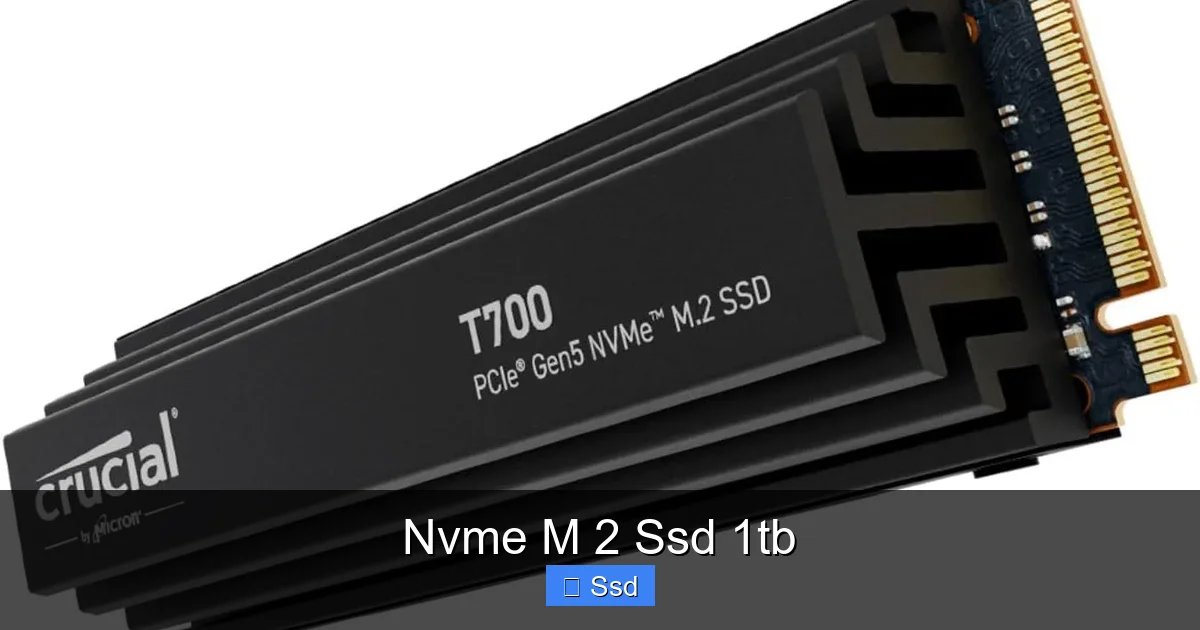
This is where motherboard design and heatsinks come in. Many modern motherboards, particularly mid-to-high-end models, include a metal heatsink that screws onto the M.2 drive, drawing heat away into the larger chassis. Some even have a small fan or heatpipe. For motherboards without a heatsink, or if you’re experiencing throttling (check with monitoring software like CrystalDiskInfo), an inexpensive aftermarket M.2 heatsink is a wise investment. It’s a simple clip-on or screw-on metal or aluminum plate that makes a significant difference.
Laptop Users: Pay Extra Attention
Laptops have far less airflow. A high-performance NVMe SSD in a thin-and-light laptop can throttle quickly during long video exports. Some gaming and professional laptops include thermal pads that connect the SSD to the chassis. When upgrading a laptop, research if your model has known thermal issues with its M.2 slot. Sometimes a heatsink isn’t an option, so you might opt for a slightly less power-hungry (and still very fast) PCIe 3.0 or efficient PCIe 4.0 drive.
The Future is Fast: PCIe 5.0 and Beyond
The technology doesn’t stop. PCIe 5.0 is here, doubling the theoretical bandwidth of PCIe 4.0. Early adopters with Intel 12th/13th Gen or AMD Ryzen 7000 series platforms can buy PCIe 5.0 SSDs boasting read speeds over 10,000 MB/s. However, they come with significant downsides: extreme heat requiring massive heatsinks (often two or three pieces), very high prices, and, most importantly, no real-world software that can leverage this speed yet. For 99% of users, a top-tier PCIe 4.0 drive provides more than enough performance headroom for the foreseeable future. PCIe 5.0 will become mainstream and affordable in a few years, but for now, it’s an enthusiast novelty.
The next frontier is storage class memory (SCM) like Intel’s Optane (now discontinued for consumers), which promised memory-like speeds with storage-like capacity. While not mainstream for consumers yet, the principles will eventually trickle down, making our storage even more seamless with system memory.
Strong Conclusion
The NVMe M.2 SSD 1TB is not just another computer component; it is the single most impactful upgrade you can make to a modern PC’s daily performance. The shift from a spinning hard drive or even a SATA SSD to this tiny, lightning-fast card is a revelation. You will feel the difference in every click, every load, every file transfer. It eliminates waiting, reduces frustration, and makes your machine feel genuinely new and powerful.
With 1TB of space, you get practical capacity without compromise. With careful attention to compatibility and a glance at thermal solutions, you can install and enjoy this upgrade with minimal fuss. Whether you’re a gamer tired of loading screens, a content creator battling with laggy previews, a professional needing instant access to large datasets, or just someone who wants their computer to feel snappy and responsive, the 1TB NVMe M.2 SSD is the definitive storage solution for 2024 and beyond. Do your research, pick a reputable brand within your budget, and experience the future of storage today.
Frequently Asked Questions
Is an NVMe M.2 SSD 1TB compatible with my old computer?
It depends. You need a free M.2 slot on your motherboard that supports the NVMe (PCIe) protocol. Check your motherboard’s manual or use a system information tool. If your PC is from the last 5-6 years, there’s a good chance it has one. If not, a SATA SSD remains a great, compatible upgrade.
Do I need a heatsink for my NVMe M.2 SSD 1TB?
It’s highly recommended, especially for PCIe 4.0 drives and in systems with poor airflow. Many motherboards include an M.2 heatsink. If yours doesn’t, buying a small, inexpensive aftermarket heatsink is a cheap insurance policy against thermal throttling, which can slow your drive down significantly during long tasks.
Can I upgrade my laptop’s storage with an NVMe M.2 SSD 1TB?
Very likely, if your laptop has an M.2 slot (many ultrabooks and gaming laptops do). You must open the back panel, check for an existing M.2 drive (often the boot drive), and verify the keying (M-key) and length (usually 2280). A 1TB drive is a perfect capacity for a laptop upgrade, giving you speed and space without bulk.
How long will a 1TB NVMe SSD last?
Extremely long. Modern NAND flash memory has a finite number of write cycles, but the endurance ratings (TBW – Terabytes Written) on consumer 1TB drives are typically 400-600 TBW or more. This means you’d have to write 100+ GBs of data every single day for over a decade to reach the rated limit. For normal use (OS, games, documents), the drive will likely become obsolete from old age before it wears out.
Is it worth paying extra for NVMe over a SATA SSD?
Absolutely, for any system with a compatible NVMe slot. The price difference is now minimal. The speed improvement is massive for OS booting, application launching, and file transfers. For a boot drive and primary applications, NVMe is the clear winner. Use a larger SATA SSD or HDD only for bulk storage of files you access infrequently.
Will a 1TB NVMe SSD work with my current Windows installation?
Yes, but you cannot simply “add” it to an existing Windows install on another drive without cloning. For a clean, best-performance setup, you would do a fresh Windows installation onto the new NVMe SSD. You can then use your old drive as a secondary storage drive. Cloning software can migrate your old system, but a fresh install is always cleaner and more reliable.