Ram For Video Editing 2 Everything You Need To Know
RAM for video editing is one of the most important components that determines how smoothly your editing software runs. Whether you are working with 1080p or 4K footage, having the right amount and type of RAM can make or break your workflow. In this guide, we cover everything from minimum requirements to the best RAM upgrades for video editors.
Ram for video editing is a topic that comes up every single day in the creative community. Whether you are a beginner just starting out or a seasoned professional working on Hollywood-level projects, your RAM plays a huge role in how your editing experience feels. Slow playback, long render times, and crashes often trace back to one thing: not enough memory.
In this guide, we will walk you through everything you need to know about RAM for video editing in 2024. We will cover how much RAM you actually need, which type to buy, and how to get the most out of your system. Let us dive right in.
Key Takeaways
- 16GB is the sweet spot: Most video editors get great performance with 16GB of RAM for everyday projects.
- 32GB is ideal for pro work: If you edit 4K footage or use heavy effects, 32GB gives you headroom.
- DDR4 and DDR5 are the top choices: Both offer fast speeds that help with rendering and playback.
- RAM speed matters too: Higher MHz speeds can improve responsiveness in editing software.
- Upgrading RAM is easy: Most laptops and desktops allow simple RAM upgrades without replacing the whole system.
- More RAM is not always better: Diminishing returns happen past 32GB for most editors.
📑 Table of Contents
Why RAM Matters for Video Editing
Video editing is one of the most demanding tasks you can throw at a computer. Your software needs to load high-resolution clips, apply effects in real time, and keep multiple layers active at once. All of this happens in your RAM. Without enough memory, your system starts swapping data to your storage drive, which causes lag and frustration.
Think of RAM as your workspace. The bigger the desk, the more files, tools, and documents you can have open at the same time. A small desk means you constantly have to shuffle things around. The same goes for your computer. More RAM means a bigger workspace for your editing timeline.
When you open a program like Adobe Premiere Pro, DaVinci Resolve, or Final Cut Pro, the software loads your project files into RAM. This is where all the scrubbing, trimming, and effects happen. If your RAM fills up, the software slows down dramatically. That is why choosing the right RAM for video editing 2 setup is so important.
How RAM Affects Playback and Rendering
Playback smoothness depends heavily on available memory. When you scrub through your timeline, the software previews each frame from RAM. If there is not enough space, it has to re-read data from your SSD or hard drive every time. This causes stuttering, dropped frames, and choppy previews.
Rendering works similarly. Your CPU and GPU process the final video, but they rely on RAM to hold intermediate data. More RAM means faster rendering because the system does not need to constantly offload and reload data.
How Much RAM Do You Need for Video Editing?
The answer depends on what kind of projects you work on. Here is a simple breakdown based on common editing scenarios.
8GB RAM: The Bare Minimum
Eight gigabytes of RAM is the absolute minimum for basic video editing. You can handle simple 1080p projects with minimal effects. However, you will likely run into performance issues with anything more demanding. If you are on a tight budget, 8GB works for learning and simple YouTube videos.
That said, we do not recommend 8GB for anyone serious about video editing. Even basic multitasking with a browser open will eat into your available memory. 8GB is simply not enough for a smooth editing experience in most modern workflows.
16GB RAM: The Sweet Spot
Sixteen gigabytes is the sweet spot for most video editors. It handles 1080p and light 4K editing with ease. You can run your editing software, a browser with reference materials, and a music app all at the same time without slowdowns.
For beginners and intermediate editors, 16GB strikes the perfect balance between price and performance. Most RAM for video editing 2 recommendations start at this level. It is enough to grow your skills without wasting money on specs you do not need yet.
32GB RAM: The Professional Choice
Thirty-two gigabytes is where serious video editors live. If you work with 4K or even 8K footage, heavy color grading, motion graphics, or complex multi-track timelines, 32GB keeps everything running smoothly.
Professionals who work on commercial projects or film should seriously consider 32GB. It also future-proofs your system for the next few years as editing software becomes more demanding. 32GB RAM laptops and desktops are widely available now and more affordable than ever.
64GB and Beyond: Overkill for Most
Sixty-four gigabytes and above is really only for extreme users. You might need this if you work with massive VFX compositions, 3D video editing, or simultaneous editing of multiple 8K streams. For 95% of video editors, 32GB is more than enough.
Types of RAM for Video Editing
Not all RAM is the same. The type you choose affects speed, compatibility, and overall performance. Here are the main types you will encounter.
DDR4 RAM
DDR4 is the most common type of RAM in modern systems. It offers solid speeds ranging from 2666MHz to 3600MHz. For video editing, DDR4 provides excellent performance at a reasonable price. Most laptops and desktops built in the last five years use DDR4.
If you are building or upgrading a system for editing, DDR4 is a safe and reliable choice. It handles all common editing tasks without any issues. DDR4 RAM is widely compatible with HP laptops and many other brands.
DDR5 RAM
DDR5 is the newest generation of RAM. It offers higher speeds, better efficiency, and improved bandwidth compared to DDR4. For video editing, DDR5 can provide a noticeable boost in rendering times and playback smoothness.
However, DDR5 systems tend to cost more. If you are building a new high-end editing workstation, DDR5 is worth the investment. But if you already have a DDR4 system, upgrading to DDR5 means replacing your motherboard too.
DDR3 RAM
DDR3 is an older generation that you will mostly find in legacy systems. It is slower than both DDR4 and DDR5. If you are still using DDR3, consider upgrading to DDR4 if your system supports it. For video editing, DDR3 will hold you back in terms of performance.
RAM Speed vs. RAM Capacity
One common question is whether speed or capacity matters more for video editing. The short answer is: both matter, but capacity comes first.
Capacity determines how much data your system can hold in active memory. More capacity means smoother multitasking and handling of large files. Speed, measured in MHz, determines how fast data moves in and out of the RAM module.
For most editors, prioritizing capacity over speed is the right move. Having 32GB of DDR4 at 3200MHz will outperform 16GB of DDR4 at 3600MHz in almost all editing scenarios. However, if you already have enough capacity, faster speeds can help with rendering and export times.
Quick Tips for Balancing Speed and Capacity
- Always prioritize capacity first. Get as much RAM as your budget allows.
- Speed matters after capacity. Aim for 3200MHz or higher if possible.
- Match your RAM sticks. Use identical modules for dual-channel performance.
- Check your motherboard. Make sure it supports the RAM type and speed you choose.
How to Upgrade Your RAM for Video Editing
Upgrading your RAM is one of the easiest and most cost-effective ways to improve your editing setup. Whether you are using a laptop or a desktop, the process is straightforward.
Upgrading RAM in a Laptop
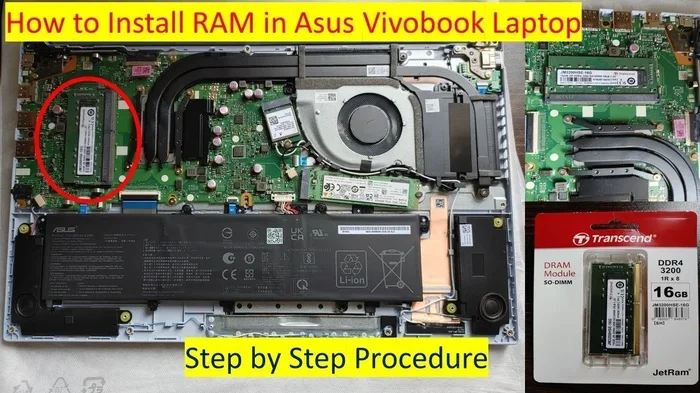
Many modern laptops have RAM soldered to the motherboard, which means you cannot upgrade them. However, some models still have accessible RAM slots. Before buying new RAM, check your laptop’s specifications to see if an upgrade is possible.
If your laptop supports upgrades, the process usually involves removing the back panel, locating the RAM slots, and swapping in new modules. RAM upgrades for laptops are well-documented and easy to follow with a screwdriver and a little patience.
Upgrading RAM in a Desktop
Desktops make RAM upgrades even easier. Most desktop motherboards have 2 to 4 RAM slots. You simply open the case, locate the slots, and press the new modules into place. The entire process takes about 10 minutes.
For the best performance, install RAM in matched pairs. This enables dual-channel mode, which doubles the data transfer rate between RAM and the CPU. If you currently have one 8GB stick, adding another 8GB stick of the same type will give you better performance than a single 16GB stick.
How Much Does RAM Upgrade Cost?
RAM prices have fluctuated over the years, but they remain relatively affordable. A 16GB DDR4 kit typically costs between $50 and $80. A 32GB kit ranges from $90 to $140. These are small investments that can dramatically improve your editing experience.
Common Mistakes to Avoid When Choosing RAM
Many people make avoidable mistakes when selecting RAM for their editing systems. Here are the most common ones.
Buying the Wrong RAM Type
Not all RAM fits all systems. DDR4 will not work in a DDR3 slot, and DDR5 requires a compatible motherboard. Always check your system specifications before purchasing RAM.
Ignoring Compatibility
Even if the RAM type matches, speed and capacity limits vary by system. Some laptops only support up to 16GB total. Some motherboards only work with certain speeds. Always double-check your motherboard or laptop manual.
Skipping Dual-Channel Configuration
Using a single RAM stick instead of a matched pair means you miss out on dual-channel performance. This can reduce memory bandwidth by up to 30%. Always install RAM in pairs for the best results.
Overspending on Unnecessary Speed
Paying a premium for 4000MHz+ RAM rarely provides meaningful benefits for video editing. Stick to reliable speeds like 3200MHz or 3600MHz and invest the savings in more capacity instead.
Final Thoughts on RAM for Video Editing
Choosing the right RAM for your video editing setup does not have to be complicated. Start by figuring out how much capacity you need based on your project types. Most editors will be happy with 16GB, while professionals should aim for 32GB. Pick DDR4 for reliability or DDR5 for future-proofing. And remember, upgrading your RAM is one of the simplest ways to breathe new life into an older system.
Whether you are editing videos for fun or as a career, having enough fast memory makes every part of the process better. Smoother playback, faster renders, and fewer crashes all come down to one component: your RAM. Invest wisely, and your editing workflow will thank you.
If you are looking for the best overall systems for your editing needs, check out our guide on the best laptops for video editing. And if you want to learn more about memory upgrades, our article on RAM upgrades for HP laptops has helpful step-by-step instructions.
Frequently Asked Questions
Is 16GB RAM enough for video editing in 2024?
Yes, 16GB is enough for most video editing tasks in 2024. It handles 1080p editing and light 4K work very well. If you work with heavy effects or 4K projects regularly, consider upgrading to 32GB.
Can I use regular DDR4 RAM for video editing?
Absolutely. Standard DDR4 RAM works great for video editing. Look for speeds of 3200MHz or higher for the best performance. DDR4 is reliable, widely available, and affordable.
Does RAM speed affect video editing performance?
Yes, but only to a degree. Faster RAM can improve rendering times and playback smoothness. However, having enough capacity matters more than raw speed. Always prioritize getting more RAM over faster RAM.
What is the best RAM for a video editing laptop?
The best RAM for a video editing laptop depends on your budget and needs. 16GB DDR4 at 3200MHz is a great starting point. For professional work, 32GB DDR4 or DDR5 provides excellent performance.
How do I know if my laptop RAM is upgradeable?
Check your laptop model’s specifications online or use a tool like Crucial’s System Scanner. Many gaming and business laptops still have accessible RAM slots, while ultrabooks often have soldered RAM.
Will more RAM reduce video rendering time?
More RAM can reduce rendering time, especially when working with large files or complex timelines. However, the CPU and GPU also play major roles. Upgrading RAM helps, but it is not the only factor in faster rendering.