Sgin Laptop Touchpad Not Working
A Sgin laptop touchpad not working is frustrating, but most fixes are simple and quick. This guide covers driver updates, settings resets, and hardware checks to get your touchpad back up and running. You will learn step-by-step solutions that actually work.
Key Takeaways
- Driver Issues: Outdated or corrupted touchpad drivers are the #1 cause of Sgin laptop touchpad problems.
- Quick Settings Fix: A simple toggle or restart often resolves the issue in minutes.
- Hardware Checks: Dirt, moisture, or physical damage can also disable your touchpad.
- Windows Updates Matter: Keeping your OS current prevents many touchpad-related bugs.
- External Mouse Works: Using an external mouse while troubleshooting keeps you productive.
- Safe Mode Helps Diagnose: Booting into Safe Mode reveals if software conflicts are the culprit.
📑 Table of Contents
Why Your Sgin Laptop Touchpad Not Working?
Your Sgin laptop touchpad not working can stop you in your tracks. You sit down to work, and suddenly you cannot move your cursor. It is a common problem, and the good news is that it is usually easy to fix.
The touchpad is one of the most used parts of any laptop. When it stops responding, everything feels broken. But before you panic, let us walk through the real reasons this happens and how you can fix it today.
Most of the time, the cause is software-related. A driver update, a setting change, or a Windows glitch can all lead to this issue. Sometimes, though, the problem is physical. Dirt, moisture, or wear and tear can affect the touchpad sensor. Understanding the root cause is the first step toward a solution.
Common Reasons Behind Touchpad Failures
Several things can make your Sgin laptop touchpad stop working. Here are the most common ones:
- Outdated or corrupted drivers — The touchpad driver tells Windows how to read your finger movements. When it breaks, the touchpad goes silent.
- Accidental disable — A keyboard shortcut or setting change can turn off your touchpad without you knowing.
- Windows update conflicts — Sometimes a new Windows update interferes with your touchpad driver.
- Dirt or moisture on the surface — Dust and liquid can block the touchpad sensors.
- Hardware damage — Drops, spills, or general wear can damage the touchpad ribbon cable or sensor.
How to Fix Sgin Laptop Touchpad Not Working
Now let us get into the fixes. These steps are ordered from simplest to most advanced. Start with the top one and work your way down. Most people find a solution in the first few steps.
Step 1: Restart Your Laptop
This sounds too simple, but it works more often than you think. A restart clears temporary glitches in your system. It resets the connection between Windows and your touchpad hardware. Save your work, shut down your Sgin laptop completely, wait 30 seconds, and turn it back on.
After the reboot, test your touchpad right away. If it works, the issue was just a temporary software hiccup. If not, move on to the next step.
Step 2: Check if the Touchpad Is Enabled
Sometimes the touchpad gets turned off by accident. On many laptops, pressing Fn + F7 (or a similar key combo) disables the touchpad. Check your Sgin laptop manual or look for a touchpad icon on the function keys.
You can also check this in Windows Settings:
- Go to Settings > Bluetooth & Devices > Touchpad.
- Make sure the touchpad toggle is set to On.
- If you see an option for “Leave touchpad on when a mouse is connected,” turn it off temporarily to test.
This simple check fixes the issue for many users. It takes less than a minute and requires no technical skills.
Step 3: Update or Reinstall the Touchpad Driver
A corrupted or outdated driver is the most common reason for a Sgin laptop touchpad not working. Updating the driver often resolves the problem completely. Here is how to do it:
- Right-click the Start button and select Device Manager.
- Expand the Mice and other pointing devices section.
- Right-click your touchpad device and select Update driver.
- Choose Search automatically for drivers.
- Follow the on-screen instructions and restart your laptop.
If updating does not help, try uninstalling the driver and reinstalling it:
- In Device Manager, right-click the touchpad device.
- Select Uninstall device.
- Restart your laptop. Windows will automatically reinstall the driver.
This method forces Windows to pull a fresh copy of the driver. It works wonders for many users dealing with touchpad issues.
Step 4: Run the Windows Troubleshooter
Windows has a built-in troubleshooter for hardware and devices. It can automatically detect and fix common problems. Here is how to run it:
- Go to Settings > System > Troubleshoot > Other troubleshooters.
- Click Run next to Hardware and Devices.
- Follow the on-screen prompts and let Windows scan for issues.
The troubleshooter may find a problem you did not notice. It can also apply fixes automatically. This is a great tool to use before diving into more advanced solutions.
When to Check Your Sgin Laptop Touchpad Hardware
If software fixes did not work, it is time to look at the hardware side. Physical issues can cause your touchpad to stop responding entirely. Let us explore what to check.
Look for Physical Damage
Inspect the touchpad surface carefully. Cracks, scratches, or discoloration can indicate internal damage. If your Sgin laptop has been dropped or exposed to liquid, the touchpad may be physically compromised.
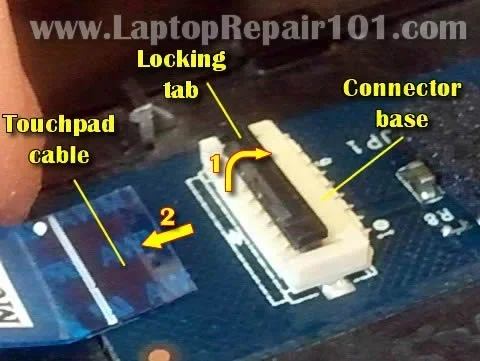
Also check the area around the touchpad. Sometimes the ribbon cable that connects the touchpad to the motherboard gets loose. This happens after impacts or frequent opening and closing of the laptop lid.
Clean the Touchpad Surface
Dirt and oils from your fingers can build up on the touchpad over time. This buildup can interfere with the sensors and make the touchpad unresponsive. Here is how to clean it properly:
- Power off your laptop first.
- Use a soft, slightly damp microfiber cloth.
- Gently wipe the touchpad surface in smooth strokes.
- Avoid using harsh chemicals or excessive moisture.
- Let it dry completely before turning the laptop back on.
Regular cleaning can prevent many touchpad issues. Make it a habit to wipe your touchpad once a week.
Test with an External Mouse
Connecting an external mouse helps you determine if the problem is with the touchpad itself or with the laptop’s input system. If the external mouse works fine, the issue is likely isolated to the touchpad hardware or its driver.
If you want to learn more about why external mice sometimes fail to connect, check out our guide on laptop external mouse not working for detailed troubleshooting steps.
Preventing Touchpad Problems on Your Sgin Laptop
Prevention is always better than cure. A few simple habits can keep your Sgin laptop touchpad working smoothly for years. Here are the best practices to follow.
Keep Your Drivers Updated
Windows updates do not always include the latest touchpad drivers. Visit your Sgin laptop manufacturer’s website periodically to download the latest drivers. You can also use a trusted driver update tool to automate this process.
Avoid Eating Over Your Laptop
Crumbs and spills are a touchpad’s worst enemy. Food particles can get under the touchpad and interfere with the sensor. Liquids can cause short circuits or corrosion. Keep food and drinks away from your laptop to avoid these problems.
Use a Laptop Sleeve or Case
A protective sleeve cushions your Sgin laptop from bumps and drops. It also keeps dust and debris out of the touchpad area. This small investment can save you from costly repairs down the road.
Disable the Touchpad When Using an External Mouse
If you use an external mouse regularly, you can disable the touchpad to prevent accidental taps and palm errors. This also reduces wear on the touchpad surface. Just remember to re-enable it when you are on the go.
Expert Tips for Sgin Laptop Touchpad Troubleshooting
Here are some advanced tips that can help you diagnose stubborn touchpad problems. These insights come from years of troubleshooting experience.
Boot Into Safe Mode
Safe Mode loads only the essential drivers and services. If your touchpad works in Safe Mode but not in normal mode, a third-party software or driver is causing the conflict. This is a powerful diagnostic tool that many people overlook.
To boot into Safe Mode, go to Settings > System > Recovery > Advanced startup and follow the prompts. Once in Safe Mode, test your touchpad and note the results.
Check for Conflicting Software
Some third-party apps can interfere with touchpad functionality. Programs like mouse customization tools, gaming software, or remote desktop apps are common culprits. Try uninstalling recent software installations and see if the touchpad starts working again.
Perform a System Restore
If the touchpad stopped working after a recent change, a System Restore can roll your laptop back to a previous state. This undoes recent changes without affecting your personal files. It is a safe and effective way to fix touchpad issues caused by software conflicts.
When to Seek Professional Help
If none of the above steps work, the problem may be hardware-related. A faulty ribbon cable, a damaged sensor, or a motherboard issue could be to blame. In these cases, it is best to consult a professional technician. They have the tools and expertise to diagnose and repair internal hardware problems safely.
If your touchpad issue is related to general laptop mouse problems, you may also find useful information in our article on why your mouse is not working on laptop which covers broader troubleshooting steps.
Conclusion
A Sgin laptop touchpad not working does not have to ruin your day. Most of the time, the fix is simple and takes just a few minutes. Start with the basics like restarting your laptop and checking your settings. Then move on to driver updates and hardware checks. By following the steps in this guide, you can resolve the issue yourself without spending a dime.
Remember to keep your drivers updated and your touchpad clean. These small habits go a long way in preventing future problems. If the issue persists, do not hesitate to seek professional help. Your Sgin laptop is a valuable tool, and getting the touchpad working again is well worth the effort.
For more related troubleshooting guides, check out our detailed resource on laptop mouse touchpad not working to explore additional solutions and tips for common touchpad and mouse issues across different laptop brands.
Frequently Asked Questions
Why did my Sgin laptop touchpad suddenly stop working?
The most common reason is a driver issue or an accidental disable through a keyboard shortcut. A Windows update or software conflict can also cause sudden touchpad failure. Try restarting your laptop and checking the touchpad settings first.
How do I update the touchpad driver on my Sgin laptop?
Open Device Manager, expand “Mice and other pointing devices,” right-click your touchpad, and select “Update driver.” Choose “Search automatically for drivers.” Windows will find and install the latest driver for your device.
Can I use an external mouse while fixing my touchpad?
Absolutely. Connecting an external USB mouse is a great way to keep working while you troubleshoot. It also helps you determine if the issue is isolated to the touchpad or affects the entire pointing device system on your laptop.
Is it safe to open my Sgin laptop to check the touchpad cable?
Only if you have experience with laptop hardware. Opening the laptop can void your warranty and risk further damage. For most users, it is safer to consult a professional technician for any internal hardware checks.
Does cleaning the touchpad really help fix it?
Yes, in many cases. Dirt, oils, and moisture on the touchpad surface can interfere with the sensors and cause erratic behavior. A gentle cleaning with a microfiber cloth often restores normal function quickly.
What should I do if none of the fixes work?
If all software solutions fail, the problem is likely hardware-related. Contact a certified technician or reach out to Sgin support for assistance. They can help determine if the touchpad needs replacement or if there is an internal component issue.