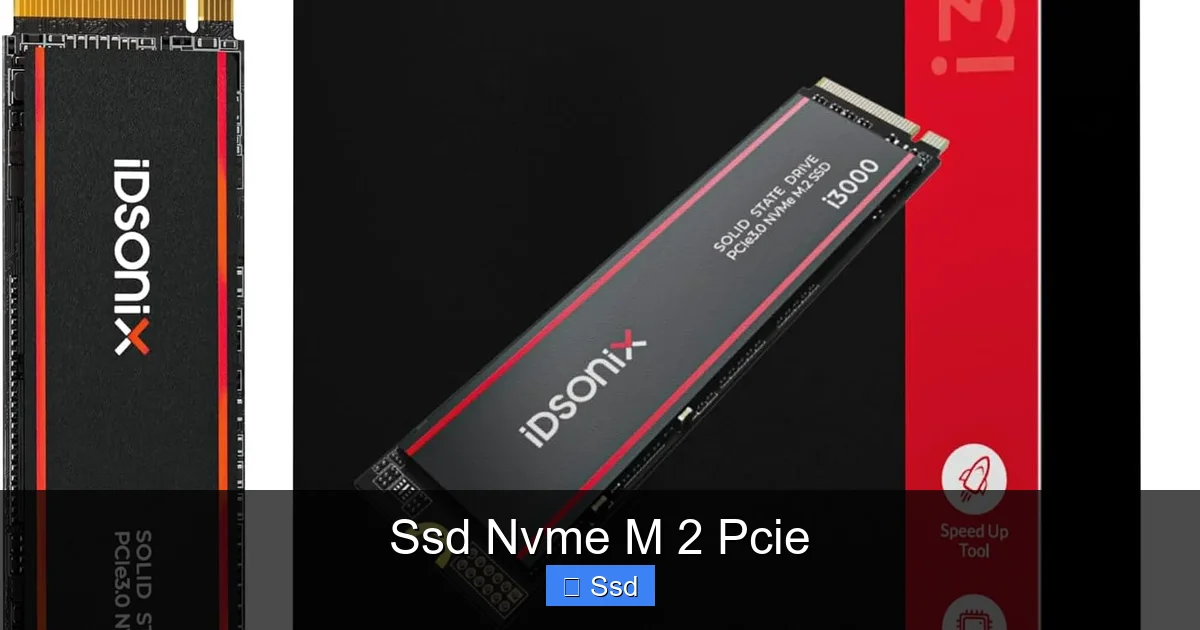
Ssd Nvme M 2 Pcie
SSD NVMe M.2 PCIe storage represents the current pinnacle of consumer solid-state drive technology, combining a tiny, screwless form factor with a high-speed PCIe interface to deliver sequential read/write speeds that dwarf older SATA SSDs. This guide cuts through the jargon to explain exactly what NVMe, M.2, and PCIe mean, how they work together, and why upgrading to one is the single most impactful performance boost you can give a modern PC or laptop. We’ll walk you through compatibility, buying the right drive, installation best practices, and debunk common myths, ensuring you can confidently harness this technology for gaming, content creation, or general computing.
You’re staring at your computer’s internals, or perhaps the specs sheet of a new laptop. You see the terms “SSD,” “NVMe,” “M.2,” and “PCIe.” They’re all thrown together like a tech alphabet soup. What does it all mean? Which one do you need? If you’ve ever felt a twinge of confusion, you’re not alone. For years, the humble 2.5-inch SATA SSD was the undisputed champion of system upgrades. Then, everything got smaller, faster, and a whole lot more confusing. Let’s fix that. Think of this as your friendly, no-nonsense tour through the world of SSD NVMe M.2 PCIe storage—the technology that powers today’s fastest PCs and laptops. We’ll break down what each term means, how they fit together, and give you the practical knowledge to make a smart purchase and installation, whether you’re a seasoned builder or a first-time upgrader.
At its heart, an SSD NVMe M.2 PCIe is a storage device. But it’s a storage device built from the ground up for the modern era of computing. To understand why it’s so special, we need to dissect that name. “SSD” tells us it’s solid-state, with no moving parts. “M.2” tells us its physical shape and connector. “PCIe” tells us the high-speed bus it uses to talk to your computer’s brain, the CPU. And “NVMe” is the ultra-efficient language that conversation happens in. Put them all together, and you get a storage solution that’s not just an incremental upgrade, but a paradigm shift in how data moves in and out of your system. Forget waiting for games to load or video projects to render. This is about making those waits almost vanish.
Key Takeaways
- NVMe is the protocol, not the drive: NVMe (Non-Volatile Memory Express) is a software communication standard designed specifically for flash memory, allowing drives to use the high-bandwidth PCIe lanes directly, bypassing the slower AHCI protocol used by SATA drives.
- M.2 is a physical form factor: M.2 describes the small, gumstick-shaped circuit board and its connector. It can host SATA, PCIe (NVMe), or even Wi-Fi/Bluetooth modules. An M.2 SSD’s speed depends entirely on whether it uses a SATA or PCIe (NVMe) interface.
- PCIe is the high-speed highway: The PCIe (Peripheral Component Interconnect Express) interface is the physical and electrical connection. NVMe M.2 SSDs plug into PCIe lanes on your motherboard, with Gen3, Gen4, and Gen5 offering progressively higher bandwidth.
- Speed gains are most noticeable in large file transfers and loading: While everyday tasks feel snappy on any SSD, NVMe drives excel at moving huge files (video projects, game installations) and reducing level load times in games, but the difference in simple web browsing is often negligible.
- Compatibility is key: Your motherboard must have an M.2 slot that supports PCIe (not just SATA) and the correct PCIe generation. Laptops may have length restrictions (2242, 2260, 2280). Always check your system’s specs before buying.
- Heat is a real performance factor: High-performance NVMe drives can throttle due to thermal throttling under sustained loads. Many come with heatsinks, and motherboard M.2 slots often have built-in heatsinks. Good case airflow is essential.
- Not all M.2 SSDs are equal: A cheap PCIe 3.0 NVMe drive will still vastly outperform SATA, but if your system supports PCIe 4.0, a Gen4 drive offers future-proofing and double the sequential throughput for large, sequential workloads.
📑 Table of Contents
- Dissecting the Jargon: What Do NVMe, M.2, and PCIe Actually Mean?
- The Evolution of Speed: From SATA to PCIe 5.0
- Why Upgrade to NVMe? Real-World Benefits and Who Needs It
- Buying Your First NVMe SSD: A Practical, No-Fluff Guide
- Installation and Optimization: Getting the Most Out of Your Drive
- Debunking Myths: What NVMe Isn’t
- The Future: PCIe 5.0, DirectStorage, and Beyond
- Conclusion: Your Next Smart Upgrade
Dissecting the Jargon: What Do NVMe, M.2, and PCIe Actually Mean?
Let’s start with the most common point of confusion: these terms describe different, but interconnected, aspects of the technology. They are not synonyms. Think of building a car. “PCIe” is the type of road you drive on. “M.2” is the size and shape of the car itself. “NVMe” is the high-performance engine and the fuel you put in it. “SSD” just means it’s an electric car (no moving parts). Now, let’s look under the hood of each term.
SSD: The Solid-State Foundation
This one is straightforward. An SSD, or Solid-State Drive, stores data on interconnected flash memory chips. Unlike an old Hard Disk Drive (HDD) that uses a spinning magnetic platter and a moving read/write arm, an SSD has no moving parts at all. This makes it inherently faster, quieter, more durable, and more power-efficient. Every modern computer, from a $300 Chromebook to a $5,000 gaming rig, uses an SSD as its primary drive because the performance difference is night and day. The “SSD” part of our equation is the fundamental technology. The rest—NVMe, M.2, PCIe—are all about how that SSD connects and communicates.
M.2: The Tiny, Versatile Form Factor
Remember those bulky 2.5-inch SATA SSDs that needed a power cable and a data cable? M.2 is their sleek, modern successor. An M.2 drive is a small, flat circuit board, usually about the size of a stick of gum (the most common length is 80mm, or “2280”). It plugs directly into a dedicated M.2 slot on your motherboard, requiring no cables at all. This saves immense space in small form factor builds and simplifies installation. Here’s the critical catch: an M.2 slot can support multiple types of devices and interfaces. It can host an M.2 Wi-Fi card, a Bluetooth module, or an SSD. That SSD, in turn, can use either the older SATA interface (with speeds maxing out around 550 MB/s) or the newer PCIe interface (with NVMe, reaching thousands of MB/s). You must check your motherboard’s manual to see what your M.2 slots support. Just because a slot is M.2 doesn’t mean it’s fast.
PCIe: The High-Speed Data Highway
PCIe (Peripheral Component Interconnect Express) is the primary communication system in your PC. Your graphics card, high-speed network cards, and now your fastest storage drives all plug into PCIe lanes directly from the CPU or chipset. Think of PCIe as a multi-lane superhighway. A PCIe 3.0 x4 link (what most early NVMe drives used) has four lanes, each capable of about 1 GB/s of bandwidth in each direction. A PCIe 4.0 x4 link doubles that, and PCIe 5.0 x4 doubles it again. An NVMe SSD plugged into an M.2 slot that provides a PCIe connection uses these lanes to achieve its mind-blowing speeds. The number of lanes (usually x2 or x4 for M.2) and the PCIe generation (3.0, 4.0, 5.0) directly determine the maximum potential speed of the drive.
NVMe: The Optimized Software Protocol
This is the secret sauce. NVMe stands for Non-Volatile Memory Express. It’s a software interface, a set of rules that tells the drive how to communicate with the rest of the computer. The old SATA interface uses a protocol called AHCI, which was designed in the 1980s for spinning hard drives. It’s slow, clunky, and introduces massive latency when talking to fast flash memory. NVMe was built from scratch for flash. It allows for massively parallel operations (thousands of commands at once vs. AHCI’s one), has lower latency, and is more efficient. An NVMe SSD on a PCIe connection isn’t just using a faster road (PCIe); it’s using a fleet of ultra-efficient, self-driving delivery trucks (NVMe) instead of a single, slow-moving horse and cart (AHCI). This is why a PCIe 3.0 NVMe drive is significantly faster than a PCIe 3.0 SATA drive, even though they use the same PCIe generation.
The Evolution of Speed: From SATA to PCIe 5.0
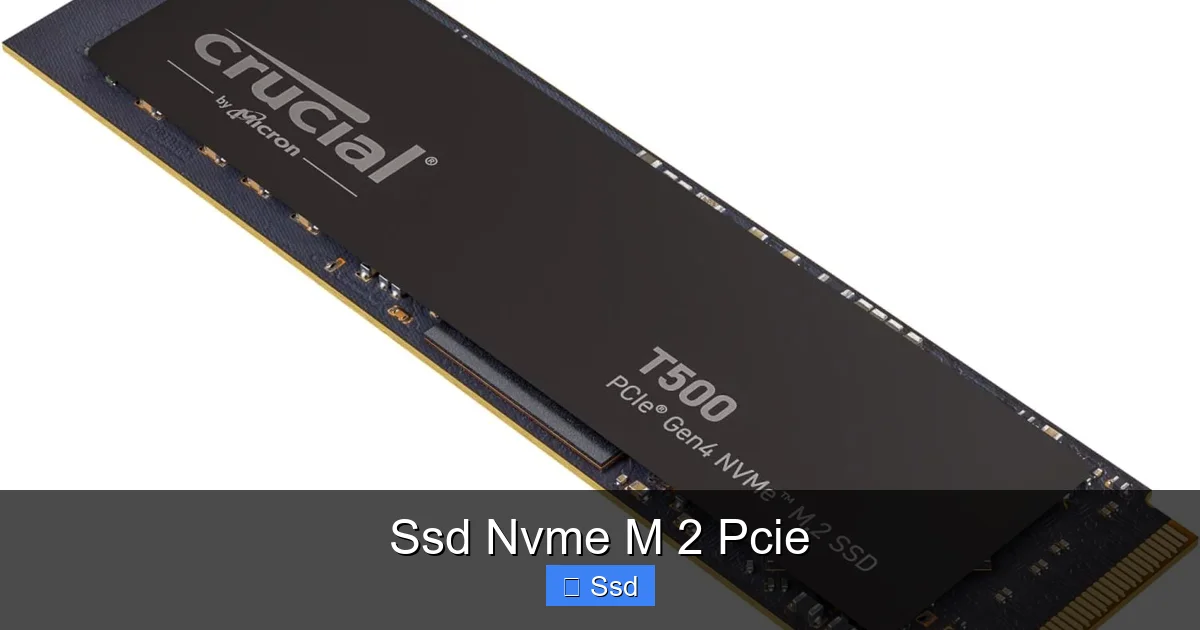
To truly appreciate how far we’ve come, let’s look at the raw numbers. We’ll focus on sequential read/write speeds (moving one big file) and random read/write speeds (accessing many small files, which is more indicative of OS and game performance). All speeds are approximate maximums.
Visual guide about Ssd Nvme M 2 Pcie
Image source: m.media-amazon.com
- SATA III (6 Gb/s): The long-reigning king of SSDs. Max theoretical speed: 600 MB/s. Real-world, high-end SATA SSDs hit ~550 MB/s sequential. Random 4K read/write: ~80-100K IOPS (Input/Output Operations Per Second). This was revolutionary over HDDs.
- PCIe 3.0 x4 NVMe: The first wave of consumer NVMe. Max theoretical: ~4,000 MB/s (4 GB/s). Real-world drives: 2,500-3,500 MB/s. Random IOPS: 300K-500K. A 5-7x jump over SATA for large files.
- PCIe 4.0 x4 NVMe: Doubled the bandwidth of Gen3. Max theoretical: ~8,000 MB/s. Real-world drives: 5,000-7,000 MB/s. Random IOPS: 700K-1M+. Now standard on AMD Ryzen 3000+/Intel 11th Gen+ platforms.
- PCIe 5.0 x4 NVMe: The new frontier. Max theoretical: ~16,000 MB/s. First-gen consumer drives are hitting 10,000-13,000 MB/s. Requires Intel 12th/13th/14th Gen or AMD Ryzen 7000 series with a compatible motherboard. Still very expensive and requires serious cooling.
The jump from SATA to PCIe 3.0 NVMe was huge. The jump from PCIe 3.0 to 4.0 was another doubling. But here’s the practical reality: for most users, the difference between a good PCIe 3.0 and a good PCIe 4.0 drive is barely noticeable in everyday use. You’ll see it in specific, sustained large file transfers (like moving a 100GB video project folder) or in synthetic benchmarks. Where PCIe 4.0 truly shines is for professional workloads with massive, constant data streams. For gaming? The load time difference between a fast SATA SSD and a top-tier PCIe 4.0 NVMe drive is often measured in fractions of a second. The biggest improvement comes from any SSD over an HDD. So don’t stress if your budget only allows for a quality PCIe 3.0 drive on a Gen4 motherboard—it’s still an phenomenal upgrade.
Why Upgrade to NVMe? Real-World Benefits and Who Needs It
Okay, so the specs are impressive. But what does that translate to when you’re actually using your computer? Let’s separate the marketing hype from the tangible benefits.
Visual guide about Ssd Nvme M 2 Pcie
Image source: cdn.wccftech.com
The Gaming Experience: Faster Loads, Smoother Streaming
This is the most visible benefit for enthusiasts. When you click “Play” on a modern AAA title like Cyberpunk 2077 or Red Dead Redemption 2, the game has to pull gigabytes of assets—textures, models, sound files—from storage into your system’s RAM and VRAM. A faster SSD reduces the time you spend staring at a loading screen or a static “press any button” splash. The difference between a SATA SSD and a PCIe 4.0 NVMe drive in loading a open-world game can be 2-5 seconds. That might not sound like much, but it adds up over hundreds of loads. More importantly, modern game engines are beginning to use fast storage for seamless world streaming. In games built for Microsoft’s DirectStorage API (like Forspoken), a fast NVMe drive can directly feed assets to the GPU, potentially eliminating loading screens entirely and allowing for vastly more detailed, instant-loading worlds. This is the future, and it requires an NVMe SSD.
Content Creation and Professional Workloads
If you work with video, large Photoshop files, 3D renders, or massive datasets, an NVMe SSD isn’t a luxury; it’s a productivity necessity. Consider a video editor working with 4K or 8K footage. Scrubbing through the timeline requires the editing software to read countless small video frames. A drive with high random read speeds (where NVMe excels) makes this scrubbing buttery smooth. Rendering a project? Your scratch disk (the temporary workspace) needs to feed data to the CPU/GPU as fast as possible. A slow storage bottleneck can add minutes or even hours to a render time. The same applies to compiling code, loading large scientific simulations, or working with giant Lightroom catalogs. The time saved here directly translates to money earned or stress avoided.
General Computing and System Responsiveness
Here’s where the law of diminishing returns is most apparent. Booting your operating system, launching Chrome, opening a Word document—these tasks involve mostly small, random file reads. Any decent SATA SSD handles these in well under a second. A PCIe 4.0 NVMe might shave off 0.2 seconds. It’s perceptible, but not life-changing. The biggest general computing win comes from bulk file transfers. Moving a 50GB folder from one drive to another? A PCIe 4.0 drive can do it in a fraction of the time of a SATA drive. If you constantly move large archives, game installations, or project folders, that time adds up. For the average user who primarily browses the web, uses Office, and streams video, a good SATA SSD is still perfectly fine. But for anyone who games, creates content, or values the absolute fastest possible system responsiveness, NVMe is the clear winner.
Buying Your First NVMe SSD: A Practical, No-Fluff Guide
You’ve decided to take the plunge. The market is crowded with brands, models, and specs. Don’t get overwhelmed. Here’s exactly what to look for, step by step.
Visual guide about Ssd Nvme M 2 Pcie
Image source: fastrax.com.py
Step 1: Check Your Motherboard’s M.2 Slots
This is non-negotiable. Open your case or look up your motherboard model online. Find the technical specifications page. You need three pieces of information:
- How many M.2 slots do you have? Many boards have two or more. Some slots may share bandwidth with SATA ports or PCIe slots.
- What interface do they support? It will say “M.2 Socket 3” or similar. The key thing is whether it says “Supports PCIe NVMe” or “Supports SATA & PCIe.” You want the PCIe/NVMe support.
- What PCIe generation? Look for “PCIe 4.0 x4” or “PCIe 3.0 x4.” This tells you the max speed your slot can handle. A PCIe 4.0 drive will work in a PCIe 3.0 slot, but it will be limited to Gen3 speeds.
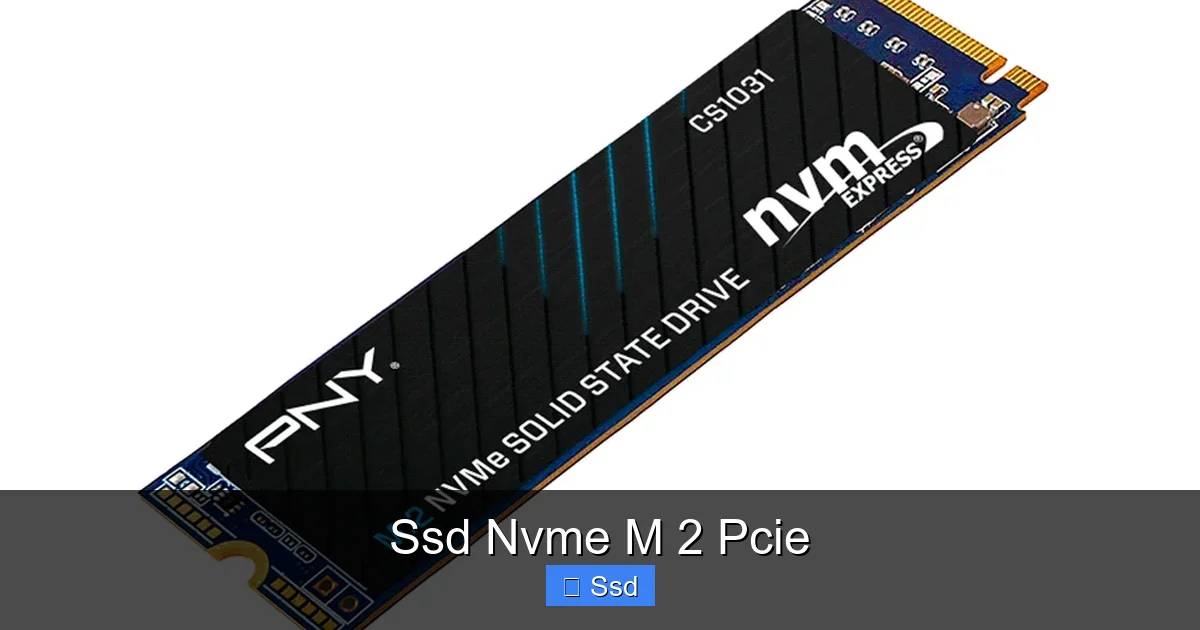
- What lengths are supported? The common 2280 (80mm) is supported by virtually all. Some boards also support 2242 (42mm) or 22110 (110mm), often in the second slot. Ensure your chosen drive’s length is listed.
Step 2: Choose Your PCIe Generation (3.0, 4.0, or 5.0?)
This is the biggest factor in price and performance.
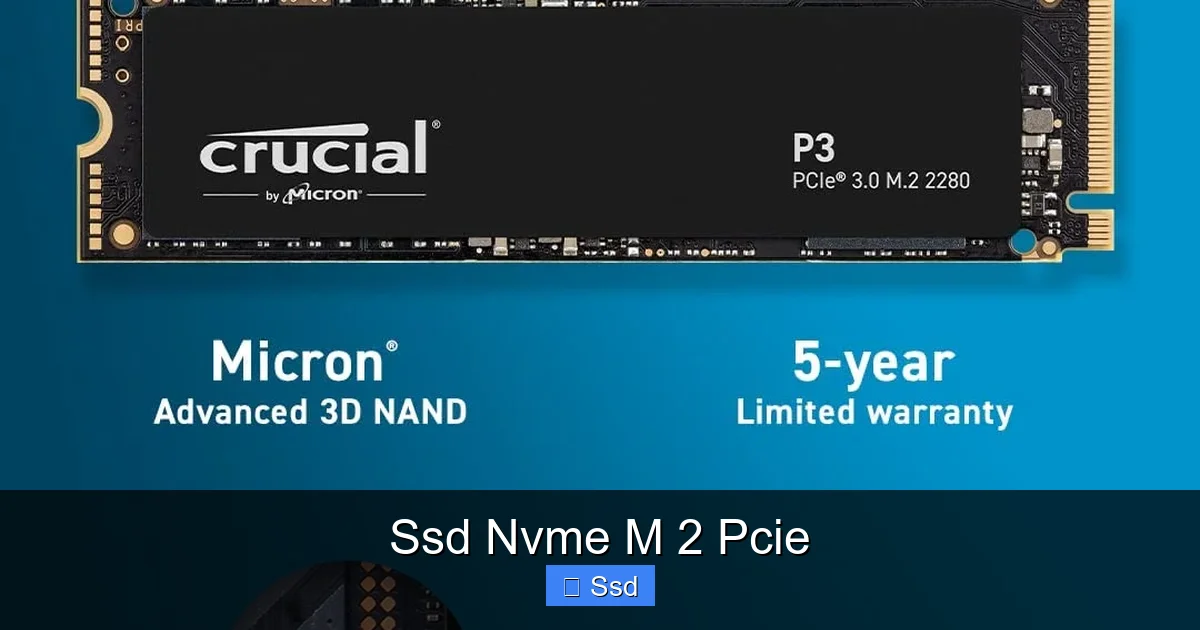
- PCIe 3.0 NVMe: The budget champion. Incredibly fast, widely compatible (works on Intel 6th Gen+ and AMD Ryzen systems), and often found on sale for as little as $40-$50 for 1TB. Perfect for most gamers and general users on older platforms. Recommended models: Samsung 970 EVO Plus, WD Blue SN570, Crucial P3.
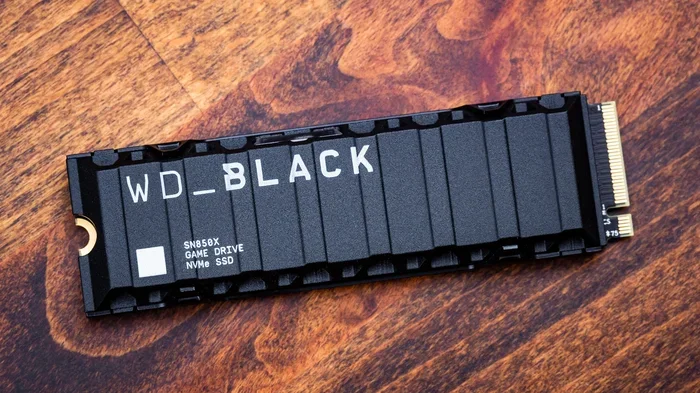
- PCIe 4.0 NVMe: The current sweet spot. The price premium over Gen3 is small now, and you get double the sequential speed. Essential for high-end gaming PCs (Intel 11th Gen+, AMD Ryzen 3000+), content creators, and future-proofing. Recommended models: Samsung 980 Pro, WD Black SN850X, Crucial P5 Plus, Sabrent Rocket 4 Plus.
- PCIe 5.0 NVMe: The bleeding edge. Extremely fast, very expensive, and requires a compatible Intel 12th/13th/14th Gen or AMD Ryzen 7000 system. They run extremely hot and almost always require a motherboard’s built-in heatsink or an aftermarket one. For 99% of people, the performance gain over a good Gen4 drive is not worth the cost and heat right now. Only consider for extreme professional workstations. Models: Crucial T700, WD Black SN850X (Gen5 version).
Step 3: Capacity and Value
Don’t cheap out on capacity. 500GB fills up faster than you think with modern games (some exceed 150GB) and OS files. 1TB is the new recommended minimum for a primary drive. 2TB offers great value per gigabyte if you have the budget. Look at the cost per gigabyte (CPG). Sometimes a 2TB drive has a lower CPG than a 1TB. Brands like Crucial (using Micron memory) and SK Hynix often offer excellent value.
Step 4: The Heat Issue: Heatsinks and Thermal Throttling
High-performance NVMe drives, especially PCIe 4.0 and 5.0 models, generate significant heat. When they get too hot (typically above 70-80°C), they “throttle”—intentionally slow down to prevent damage. This can cause your once-blazing 7,000 MB/s drive to drop to 4,000 MB/s during a long file copy.
- Do you need an aftermarket heatsink? Often, no. Many motherboards now include M.2 heatsinks (a metal plate with a thermal pad). Some drives (like the WD Black SN850X) come with a heatsink version. Use what your motherboard provides first.
- If your motherboard has no heatsink: Consider a drive that includes one (Samsung 980 Pro heatsink version) or buy a cheap, compatible aftermarket heatsink. Ensure it fits under your GPU if the slot is directly below it.
- Case airflow is critical. Ensure your M.2 slot has some airflow over it. A drive with a heatsink is useless if it’s sitting in a stagnant air pocket.
Step 5: Trusted Brands and DRAM
Stick with reputable brands that have good warranty and support policies: Samsung, WD (Western Digital), Crucial (Micron), SK Hynix, Sabrent, Solidigm (formerly Intel SSDs). A minor point of interest is DRAM cache. Some high-end drives have a small, fast DRAM chip to store a map of where data is, improving performance. Many modern, good-quality DRAM-less drives (using Host Memory Buffer technology) perform nearly identically in real-world use for consumers. Don’t let “DRAM-less” be an automatic disqualifier if the drive is highly rated.
Installation and Optimization: Getting the Most Out of Your Drive
You’ve got the drive. Now, let’s get it installed and running perfectly. The physical install is shockingly simple, but a few details matter.
Physical Installation: A 30-Second Job
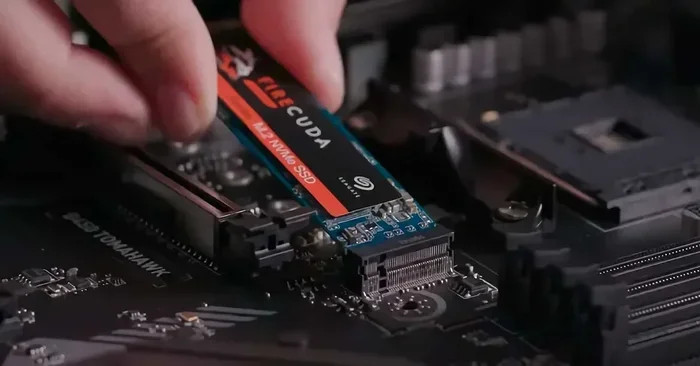
1. Power down and unplug. Safety first.
2. Locate your M.2 slot. It’s usually near the CPU or the top-left of the motherboard. It’s a short, horizontal slot with a tiny screw at the far end.
3. Remove the screw. Keep it safe.
4. Insert the drive at a 30-degree angle. The notch on the drive’connector must align with the key in the slot (usually an M key for NVMe). Gently but firmly push it down until it’s flat.
5. Secure it with the screw. Don’t overtighten; finger-tight plus a quarter turn with a screwdriver is plenty.
6. Reassemble and power on. That’s it! No cables, no fuss.
Initial Setup and Formatting
When you first boot, your system might not show the new drive. You need to initialize and format it.
- In Windows: Press Win+X and select “Disk Management.” You’ll see a new disk labeled “Not Initialized.” Right-click it, choose “Initialize Disk” (use GPT partition style for modern systems), then right-click the unallocated space and create a “New Simple Volume.” Follow the wizard, assign a drive letter, and format using NTFS (for Windows) or exFAT (for cross-platform).
- For a boot drive: If this is your new primary OS drive, you’ll need to clone your old drive or perform a fresh Windows install from a USB installer and select the new NVMe drive as the destination during setup.
Firmware Updates and Drive Health
Manufacturers occasionally release firmware updates that fix bugs, improve stability, and sometimes boost performance. Use the manufacturer’s own software (Samsung Magician, WD Dashboard, Crucial Storage Executive) to check for and install these updates easily. These tools also let you monitor your drive’s health (SMART data), temperature, and remaining lifespan (TBW – Total Bytes Written). Check it every few months.
Optimizing Windows for NVMe
Modern Windows (10 & 11) is already optimized for NVMe drives. There’s no need for old tricks like disabling SuperFetch or defragmenting (NVMe doesn’t need it and it adds wear). Ensure “TRIM” is enabled (it is by default). The biggest optimization is simply: don’t fill your drive past 80-90% capacity. SSDs need free space for wear leveling and performance. Keep at least 15-20% free for best results.
Debunking Myths: What NVMe Isn’t
With all the hype, misinformation spreads. Let’s clear the air.
Myth 1: “NVMe is Always 10x Faster Than SATA.”
The marketing specs (5,000 MB/s vs. 550 MB/s) make it look like a 10x leap. In real-world, everyday tasks like booting Windows or launching applications, the difference is often 10-30%. The massive sequential speed gains are primarily for large, sustained file transfers. For random 4K speeds (which matter most for OS feel), the jump from SATA to NVMe is bigger, but not 10x. It’s a significant, noticeable improvement, but not a magical 10x for everything.
Myth 2: “You Need PCIe 4.0/5.0 for Gaming.”
As of today, the vast majority of games do not benefit measurably from PCIe 4.0 over a fast PCIe 3.0 drive. Load time differences are often within the margin of error or a single second. The exception is games explicitly designed for DirectStorage, which are still few. A good PCIe 3.0 drive will provide an excellent gaming experience for years. Save the money and put it towards a better GPU.
Myth 3: “NVMe Drives Have Terrible Longevity.”
This is a holdover from early SSD fears. Modern NAND flash (TLC, QLC) is incredibly durable. The typical 1TB consumer NVMe drive is rated for 600 TBW (Terabytes Written). That means you’d have to write 600,000 GB of data before the warranty expires. The average user will write maybe 20-40 GB per day. That drive would last 40-80 years, far outlasting its 5-year warranty. The controller and firmware are also more robust than ever. Don’t worry about wear from normal use.
Myth 4: “M.2 Means PCIe/NVMe.”
This is the most dangerous and costly myth. An M.2 B+M keyed slot (most common) often supports both SATA and PCIe NVMe drives. If you accidentally buy a SATA M.2 drive for a slot that only does PCIe (or vice versa), it won’t work. Always verify your motherboard’s M.2 slot specifications and the SSD’s interface (it will say “PCIe NVMe” or “SATA”).
The Future: PCIe 5.0, DirectStorage, and Beyond
The technology isn’t standing still. PCIe 5.0 is here, offering a theoretical 16,000 MB/s, but its adoption is slow due to cost, heat, and a lack of real-world software that needs that bandwidth yet. The bigger, more impactful future is Microsoft’s DirectStorage.
DirectStorage is a new API that allows game developers to bypass the CPU and use the GPU’s massive parallel processing power to decompress game assets directly from the NVMe SSD. This does two revolutionary things: it virtually eliminates loading screens by streaming assets seamlessly, and it allows for vastly higher-quality textures and more detailed worlds because the storage I/O bottleneck is removed. Games built for DirectStorage will require a fast NVMe SSD (PCIe 4.0 recommended) to function as intended. While it’s only in its infancy (with Forspoken being the flagship example), this is the direction all future AAA games are headed. Investing in a good NVMe SSD today is an investment in the gaming experiences of tomorrow.
Conclusion: Your Next Smart Upgrade
The SSD NVMe M.2 PCIe is not some vague, future-tech concept. It’s a mature, affordable, and widely available technology that delivers a tangible, everyday performance boost. Whether you’re building a new PC, upgrading an old laptop, or building a content creation workstation, the path forward is clear. Start by opening your case or checking your motherboard manual. Find that M.2 slot. See if it says PCIe. Then, choose a reliable 1TB PCIe 4.0 drive from a brand you trust—or a cost-effective PCIe 3.0 drive if that’s what your system supports. Install it in 30 seconds, format it, and move your operating system or your most-used games onto it.
The confusion around NVMe, M.2, and PCIe stems from them being different layers of the same cake. The form factor (M.2) is the shape. The interface (PCIe) is the highway. The protocol (NVMe) is the traffic system. And the SSD is the cargo being moved at lightning speed. By understanding these layers, you cut through the marketing and buy exactly what you need. You stop worrying about specs and start enjoying the result: a computer that feels instant, responsive, and ready for the next generation of software and games. The upgrade is simpler than you think, and the payoff is immediate. Go do it.
Frequently Asked Questions
Can I use an NVMe M.2 SSD in an older desktop or laptop that only has a 2.5-inch SATA bay?
Not directly. The M.2 form factor requires a specific M.2 slot on the motherboard. However, you can purchase an M.2 to SATA adapter (a small circuit board) that plugs into a standard SATA data and power cable, but this will only work if the M.2 SSD you buy is a SATA-based M.2 drive, not an NVMe PCIe drive. Most adapters are for SATA M.2 drives only.
Do I need to buy a heatsink for my NVMe SSD?
Check if your motherboard’s M.2 slot already has a metal heatsink plate installed. Many modern boards include this. If it doesn’t, a high-performance PCIe 4.0 or 5.0 drive will benefit from an aftermarket heatsink, especially in a case with poor airflow. For a good PCIe 3.0 drive in a well-ventilated case, a heatsink is usually not necessary.
Will my NVMe SSD work as a boot drive for Windows?
Absolutely. In fact, it’s one of the best uses for it. During the Windows installation process from a USB drive, you simply select the NVMe SSD as the destination drive. Ensure your BIOS/UEFI is set to boot in UEFI mode (not Legacy/CSM) and that the drive is initialized as a GPT disk, which is standard for modern Windows installs.
Is there a big speed difference between PCIe 3.0 and 4.0 for gaming?
For the vast majority of current games, the difference in actual loading times is minimal, often 1-3 seconds at most. The primary benefit of PCIe 4.0 for gamers is future-proofing for games that will utilize Microsoft’s DirectStorage API, which requires fast NVMe storage. If you have a compatible motherboard, the small price premium for a good PCIe 4.0 drive is worth it for that future headroom.
Can I install an NVMe SSD in a laptop? What about the length?
Yes, many modern laptops have M.2 slots. The key is the physical length (e.g., 2242, 2260, 2280). The 2280 (80mm) is the most common. You must check your laptop’s service manual or teardown online to see what length and interface (SATA or PCIe NVMe) it supports before purchasing a drive.
My NVMe SSD is showing lower speeds than advertised. Why?
This is almost always due to thermal throttling. The drive gets hot during sustained transfers and slows down to protect itself. Ensure your motherboard’s M.2 heatsink is installed (or add one), and that your case has good airflow over the drive’s location. Also, ensure the drive is plugged into the correct M.2 slot (some primary slots are x4, secondary slots may be x2, halving speed). Finally, benchmark software must be using large enough file sizes to hit maximum speeds.




5 Comments