What Is a Games Root Folder

A games root folder is the main directory where all your game files live on your laptop. It acts as the central hub for every game you install, storing everything from executable files to save data. Understanding where this folder is and how to manage it can save you storage space, improve gaming performance, and make troubleshooting much easier. Whether you play on Steam, Epic Games, or standalone titles, knowing your games root folder location is essential for any laptop gamer.
When you install a game on your laptop, all those files need to go somewhere. That “somewhere” is the games root folder. It is the main directory that holds every file, setting, and piece of data your game needs to run. Think of it like a filing cabinet for your entire game library. If you have ever wondered where your games actually live on your hard drive, this is the answer.
Understanding the games root folder matters more than most people realize. It affects how much storage you have left, how fast your games load, and even how you troubleshoot problems when something goes wrong. Whether you are a casual player or a dedicated gamer, knowing how to find and manage this folder gives you more control over your laptop setup. Let us break it all down in simple terms.
Key Takeaways
- The games root folder is the main directory where all installed game files are stored on your laptop.
- Finding your games root folder is simple once you know where to look, whether on Steam, Epic Games, or a manual setup.
- Organizing your game files properly can free up valuable storage space and improve laptop performance.
- Moving your games root folder to a larger drive can solve low-storage issues on smaller laptops.
- Regular maintenance of your game library keeps your system running smoothly and reduces clutter.
- Understanding folder structure helps you troubleshoot game errors and manage save files with ease.
📑 Table of Contents
What Exactly Is A Games Root Folder?
A games root folder is the top-level directory where a game stores all its files. When you download and install a game, it creates this folder and fills it with everything needed to play. That includes the game executable, textures, audio files, configuration settings, and save data. Without this folder, the game simply would not work.
On most laptops, the default location for game files is the C: drive, usually inside a folder called “Program Files” or “Steam.” However, you can choose a different location during installation. The games root folder structure can look different depending on the platform you use. Steam, Epic Games Store, and GOG each have their own way of organizing files.
Why Does The Root Folder Matter?
The root folder is important because it is the foundation of your entire game installation. If the folder gets corrupted, moved incorrectly, or filled up, your game may not launch. Keeping your games root folder clean and well-organized helps prevent errors and keeps everything running smoothly. It also makes it easier to back up your saves or transfer games to a new laptop.
Another reason the root folder matters is storage management. Modern games can take up 50, 100, or even 200 gigabytes each. When your root folder fills up, your laptop slows down. Knowing where this folder is lets you make smart decisions about where to install new games. You might even want to move your games root folder to a larger external drive or a secondary SSD.
Where Is The Games Root Folder Located?
The location of your games root folder depends on the platform and your laptop setup. Most platforms use a default path, but you can always change it. Let us look at the most common locations.
For Steam users, the default games root folder is usually on the C: drive under a path like “C:\Program Files (x86)\Steam\steamapps\common.” Each game gets its own subfolder inside the “common” directory. Epic Games Store users will typically find their games in “C:\Program Files\Epic Games,” with each title in its own folder.
If you installed a game manually, the folder location depends entirely on where you chose to save it during setup. Some people prefer to keep games on a separate drive to save space on their main laptop storage. You can check any game’s location by right-clicking it in your library, selecting Properties, and looking at the installation directory.
How To Find Your Games Root Folder On Different Platforms
Finding your games root folder is straightforward once you know the steps. On Steam, open the app, right-click the game in your library, select Manage, and then click Browse Local Files. This takes you straight to the game’s root folder. On Epic Games, open the launcher, click the three dots next to the game, choose Manage, and then click the folder icon.
For standalone games or those from other platforms, you can search your C: drive for the game’s name. Look for a folder with the game title that contains an executable file ending in .exe. That folder is your games root folder. If you are unsure, check the game’s properties or the shortcut you use to launch it. The target path will show you exactly where the files are stored.
How To Organize Your Games Root Folder
A messy games root folder can slow down your laptop and make it hard to find what you need. Organization is key, especially if you have a large game library. Start by reviewing what you have installed and removing games you no longer play. This frees up significant storage space on your laptop.
You can also create a simple folder structure outside the root folder to keep track of saves, mods, and screenshots. Many gamers create a “Games” folder on their desktop or a secondary drive and store backups there. This way, if something goes wrong with your main installation, you have a safety net. Keeping your games root folder tidy makes it easier to manage disk space and find files quickly.
Tips For Keeping Your Game Files Neat
Here are some simple tips to keep your games root folder organized. First, uninstall games you have not played in over six months. Second, move your save files to a cloud storage service or an external drive. Third, create a dedicated folder for mods and custom content so they do not get mixed up with core game files. Fourth, use disk cleanup tools regularly to remove temporary files left behind by game installs.
Another great habit is to label your folders clearly. Use names like “Active Games,” “Completed Games,” and “Mods” to keep everything sorted. This small step saves a lot of time when you want to reinstall a game or transfer files. A clean games root folder also helps your laptop run faster because the system does not have to sort through unnecessary clutter.
Can You Move Your Games Root Folder?
Yes, you absolutely can move your games root folder to a different drive or partition. This is especially useful if your laptop has a small SSD and you need more space. Moving your game library to a larger hard drive or external SSD can free up room for other files and improve overall system speed.
Steam makes this process easy. Go to Steam Settings, click Storage, and you can change the installation folder for each game. Epic Games Store also lets you move installed games to a new location through the Library settings. Just make sure the new drive is fast enough to handle modern game file sizes. A slow external drive can hurt load times and gaming performance.
Things To Watch Out For When Moving Folders
Before moving your games root folder, make sure the new location has enough free space. Check the size of each game and add them up to be sure. Also, avoid moving files while a game is running or updating. This can cause corruption and data loss. Always close all games and launchers before making changes to your folder structure.
If you are using a laptop with both an SSD and an HDD, consider keeping your most-played games on the SSD for faster load times. Move less-used games to the HDD to save space on the faster drive. This balance gives you the best of both worlds. Just remember that your games root folder needs to stay accessible and properly linked for everything to work correctly.
Common Mistakes People Make With Their Games Root Folder
One of the biggest mistakes is ignoring the games root folder until something goes wrong. By then, you might have lost save data or dealt with a corrupted installation. Another common error is installing games on a nearly full drive. When your storage gets too low, games can crash, lag, or fail to install altogether.
Some people accidentally delete files from their root folder thinking they are unnecessary. This can break the game entirely. Always be careful when cleaning out folders and only remove files you are sure about. If you are not sure whether a file is safe to delete, it is better to leave it alone. A little caution goes a long way in protecting your game library.
How To Avoid These Mistakes
The best way to avoid problems is to stay proactive. Regularly check your games root folder for unnecessary files and outdated installations. Use built-in tools like Steam’s disk space manager or Windows Storage Sense to keep track of what is taking up space. Back up your save files frequently, either to the cloud or an external drive. These simple habits prevent most common issues.
Also, be mindful of where you install new games. Always check the default games root folder path before clicking install. If your laptop storage is running low, choose a different drive or move older games first. Staying organized from the start saves you a lot of headaches down the road. Your laptop will thank you with smoother performance and fewer errors.
How Games Root Folders Affect Laptop Performance
Your games root folder has a direct impact on how well your laptop runs games. When the folder is spread across a slow drive, load times increase and frame rates can drop. On the other hand, keeping your games on a fast SSD means quicker launches, smoother gameplay, and less frustration. The type of storage you use matters a lot.
Storage speed is not the only factor. A cluttered root folder can also slow down your system. When your laptop has to search through thousands of scattered files just to open a game, it uses more processing power. This can cause stuttering, long loading screens, and even crashes. Keeping your games root folder clean and on the right drive makes a real difference in day-to-day performance.
RAM also plays a role here. If your laptop does not have enough memory, games may struggle to load files from the root folder quickly. For smooth gaming, make sure your laptop has enough RAM to handle the titles you play. You can learn more about what counts as good RAM for gaming and whether your current setup is enough.
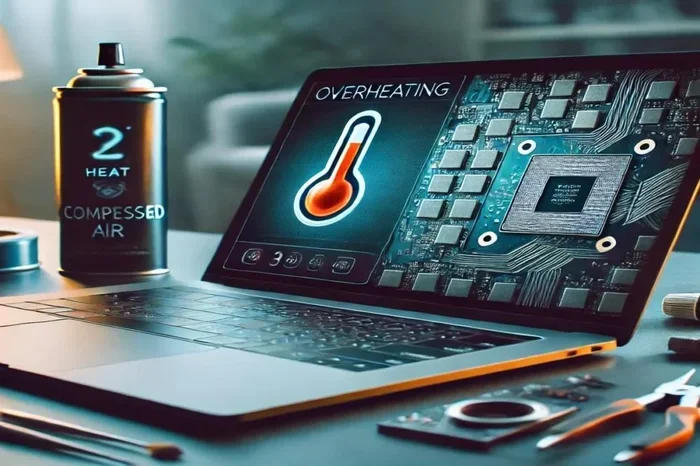
Temperature is another factor to consider. Heavy gaming can push your GPU to high temperatures, especially if your laptop cooling is not great. Keeping your games root folder on an SSD reduces the workload on your system, which can help keep temperatures lower. For more on managing heat, check out this guide on what a good GPU temperature looks like during gaming sessions.
Final Thoughts
Your games root folder is more than just a place where game files sit on your laptop. It is the backbone of your entire gaming experience. From installation and performance to troubleshooting and storage management, understanding this folder gives you more control over how you play. A well-organized root folder means faster load times, fewer errors, and a cleaner laptop overall.
Take a few minutes today to find your games root folder, check its contents, and organize what you can. Delete old games you no longer play, back up your saves, and make sure your storage is not running too full. These small steps add up to a big improvement in how your laptop handles gaming. Once you get into the habit of managing your root folder, you will wonder how you ever lived without it.
Remember, every great gaming setup starts with good organization. Your games root folder is the foundation, and taking care of it pays off every time you launch a game. Keep it clean, keep it organized, and your laptop will reward you with a smoother, faster gaming experience.
Frequently Asked Questions
What is a games root folder on a laptop?
A games root folder is the main directory where all files for an installed game are stored on your laptop. It contains the game executable, textures, audio, settings, and save data. Every game you install creates its own root folder within the larger library directory.
Where can I find my games root folder?
You can find your games root folder by opening your game platform, right-clicking the game, and selecting Manage or Browse Local Files. On Steam, the default path is usually in the Steam installation directory. On Epic Games, it is typically in the Program Files folder.
Can I move my games root folder to a different drive?
Yes, you can move your games root folder to a different drive through your game platform settings. Steam and Epic Games Store both offer built-in options to change the installation location. Just make sure the new drive has enough space and is fast enough for smooth performance.
Why is my games root folder taking up so much space?
Modern games have large file sizes, often ranging from 50 to 200 gigabytes each. Your games root folder stores all the game assets, updates, and mods, which adds up quickly. Regularly reviewing and uninstalling unused games helps manage storage.
How do I clean up my games root folder?
To clean up your games root folder, uninstall games you no longer play, delete temporary files, and remove outdated mods or downloads. You can also use Windows Disk Cleanup or your platform’s built-in storage management tools to free up space.
Does the games root folder affect gaming performance?
Yes, your games root folder can affect performance. Games installed on a slow drive may have longer load times and lower frame rates. Keeping your root folder on a fast SSD and maintaining a clean folder structure helps your laptop run games more smoothly.