What Is a Sticky Key on a Keyboard
A sticky key is a keyboard feature that locks modifier keys like Shift, Ctrl, or Alt so you can press them one at a time instead of holding them together. It is an accessibility tool built into Windows and other operating systems to help users who struggle with key combinations. While sticky keys can be helpful, they sometimes activate by accident and cause frustration. This guide explains what sticky keys are, how they work, and how to turn them on or off easily.
Have you ever pressed a key on your laptop keyboard and noticed that it just keeps repeating? Or maybe you pressed Shift and it stayed locked? That is what people call a sticky key. But here is the thing — sticky keys can mean two very different things. Sometimes it is a helpful accessibility tool. Other times, it is a frustrating problem you did not ask for. Either way, understanding what is going on with your keyboard keys can save you a lot of confusion and time.
In this guide, we will break down everything you need to know about sticky keys on a keyboard. We will cover what they are, why they exist, how to turn them on or off, and what to do when they cause problems. Whether you use a desktop setup or a laptop, this article has you covered. Let us get started.
Key Takeaways
- Sticky keys let you press modifier keys one at a time instead of holding them down with other keys simultaneously.
- They are an accessibility feature designed to help users with physical limitations or mobility challenges.
- Sticky keys can activate accidentally through keyboard shortcuts or system settings on Windows and Mac.
- You can turn sticky keys on or off easily through settings, keyboard shortcuts, or the control panel.
- Filter keys are different from sticky keys and serve a separate purpose for keyboard input.
- Regular keyboard maintenance can help prevent sticky key behavior caused by physical dirt or debris.
📑 Table of Contents
What Is a Sticky Key on a Keyboard?
A sticky key is a feature that changes how modifier keys work on your keyboard. Modifier keys include Shift, Ctrl, Alt, and the Windows key on most systems. Normally, you need to hold these keys down while pressing another key to use a keyboard shortcut. For example, you hold Ctrl and press C to copy text. That requires two hands working together at the same time.
With sticky keys turned on, you can press Ctrl, release it, then press C. The system still registers the shortcut as if you held both keys at once. This might sound like a small change, but it makes a big difference for people who have trouble pressing multiple keys simultaneously.
How Sticky Keys Work in Practice
Let us say you want to use the Ctrl+Alt+Delete shortcut on your laptop keyboard. Without sticky keys, you hold all three keys down at the same time. With sticky keys enabled, you can do this:
- Press Ctrl and release it. The system sees it as “locked” or “sticky.”
- Press Alt and release it. Now both Ctrl and Alt are active.
- Press Delete. The full shortcut registers correctly.
That is all there is to it. The modifier keys stay active until you press another key, or until you turn the feature off. It is a simple but powerful tool for keyboard troubleshooting and accessibility.
Sticky keys are built into most modern operating systems, including Windows, macOS, and some Linux distributions. They are part of a broader group of accessibility features that make computers easier to use for everyone. If you are curious about other laptop input devices, you might find our article on what the mouse on a laptop is called helpful too.
Why Do Sticky Keys Exist?
The main reason sticky keys exist is to help people who have difficulty pressing two or more keys at the same time. This includes individuals with physical disabilities, hand injuries, or age-related mobility challenges. It is all about making technology more inclusive and usable.
But sticky keys are not just for accessibility. Some people prefer them because they find it easier to press keys one at a time rather than holding down multiple keys. Gamers, for instance, sometimes use sticky keys to manage complex key combinations more comfortably. And if you have ever tried to hold Shift, Ctrl, and another key all at once, you know it can be tricky.
The Role of Sticky Keys in Accessibility
Accessibility features like sticky keys are a big part of modern computing. They ensure that people of all abilities can use a computer without frustration. When you turn on sticky keys, your laptop or desktop becomes more adaptable to your needs. This is especially important in workplace settings where compliance with accessibility standards matters.
Many public computers, schools, and offices keep accessibility features enabled by default. This way, anyone who needs them can use them right away without having to search through settings. It is a small change that makes a huge impact on user experience.
How to Turn On Sticky Keys
Turning on sticky keys is straightforward, but the steps vary depending on your operating system. Here is how to do it on the most common platforms.
On Windows 10 and Windows 11
Windows makes it very easy to enable sticky keys. Follow these steps:
- Open the Settings app by pressing Windows key + I.
- Go to Ease of Access (or Accessibility in newer versions).
- Click on Keyboard in the left sidebar.
- Find the toggle for Sticky Keys and switch it on.
- You can also check the box that lets you turn sticky keys on with a keyboard shortcut.
Once enabled, you will hear a sound each time you press a modifier key. This audio feedback helps you know that sticky keys are active. If you want to adjust how sticky keys behave, click on the “Sticky Keys” options to customize settings like ignoring repeated keystrokes or locking modifier keys only when all are pressed together.
On macOS
Apple also includes sticky keys in its accessibility suite. Here is how to find them:
- Open System Preferences (or System Settings on newer Macs).
- Go to Accessibility.
- Select Keyboard from the left menu.
- Click on Sticky Keys and toggle it on.
macOS gives you fine control over sticky keys behavior, including how long you need to press a key before it becomes sticky and whether to show the sticky keys indicator on screen.
Common Problems with Sticky Keys
While sticky keys are designed to help, they can sometimes cause problems. Many users accidentally turn them on and then wonder why their keyboard behaves strangely. This is one of the most common keyboard problems people run into.
Accidental Activation
The most common way sticky keys turn on by accident is through the keyboard shortcut. On Windows, pressing the Shift key five times in a row activates sticky keys. If you are typing quickly or just happen to hit Shift five times, the feature turns on without warning. This can be confusing if you do not know what happened.
Some users also report that their modifier keys seem “stuck” even when sticky keys are turned off. This can happen if the system settings were changed, or if there is a deeper software issue at play. Running through the keyboard settings and resetting them to default often fixes this.
When Sticky Keys Interfere with Typing
Sometimes sticky keys make normal typing harder instead of easier. For example, if you are typing a document and the Shift key stays “locked,” every letter you type will be capitalized. This can be very frustrating if you do not notice that sticky keys are active.
The same issue happens with Ctrl and Alt. If one of these keys is stuck in a sticky state, your keyboard shortcuts might fire unexpectedly. You might accidentally copy, paste, or undo things without meaning to. The good news is that this is easy to fix once you know what to look for.
How to Turn Off Sticky Keys
If sticky keys are causing problems, turning them off is just as easy as turning them on. Here is how to do it on different systems.
On Windows
To disable sticky keys on Windows:
- Open Settings and go to Ease of Access > Keyboard.
- Toggle Sticky Keys off.
- Alternatively, press the Shift key five times to bring up the sticky keys dialog, then click “No” to turn them off.
You can also reset all keyboard settings to default if you have made multiple changes and want a clean slate. This is helpful if you are not sure which setting is causing the issue.
On macOS
To turn off sticky keys on a Mac:
- Open System Preferences > Accessibility > Keyboard.
- Toggle Sticky Keys off.
Some Mac users also deal with a related feature called “Slow Keys,” which is different from sticky keys. Slow Keys ignore brief key presses and only register keys that are held for a certain amount of time. If your keys feel unresponsive, it might be Slow Keys rather than sticky keys causing the issue.
Sticky Keys vs. Other Keyboard Features
Sticky keys are not the only special keyboard feature available. There are a few other accessibility tools that work in similar ways but serve different purposes. Understanding the differences can help you troubleshoot your keyboard more effectively.
Sticky Keys vs. Filter Keys
People often confuse sticky keys with filter keys, but they are quite different. Filter keys ignore short or repeated keystrokes. They are designed for people who accidentally press keys multiple times or who have tremors that cause unintended key presses. Filter keys adjust the keyboard sensitivity so that only deliberate presses register.
Sticky keys, on the other hand, change how modifier keys work. They do not filter out any keystrokes. They simply allow you to press modifier keys one at a time instead of simultaneously.
| Feature | Sticky Keys | Filter Keys |
|---|---|---|
| Primary Purpose | Helps press shortcuts one key at a time | Ignores brief or repeated keystrokes |
| Affects Modifier Keys | Yes | No |
| Accessibility Focus | Mobility and coordination challenges | Tremors and accidental presses |
| Default Shortcut | Press Shift 5 times | Press Shift 8 times |
| System | Windows, macOS, Linux | Windows, macOS |
Sticky Keys vs. Key Repeat Rate
Another feature that people sometimes mix up with sticky keys is the key repeat rate. This controls how fast a key repeats when you hold it down. If your key repeat rate is set too high, a single press might look like the key is “sticking.” Adjusting the repeat rate in your system settings can often solve this problem.
On Windows, you can find this setting in Control Panel > Keyboard. On macOS, it is in System Preferences > Keyboard. If you are dealing with a keyboard that repeats too fast or too slow, this is the first place to check.
For more tips on maintaining your laptop and keeping all its components working well, you might want to check out our guide on how to change RAM on a laptop or learn about whether you can upgrade RAM on a laptop.
Tips for Managing Sticky Keys
Whether you use sticky keys regularly or just want to avoid accidentally turning them on, a few simple tips can make a big difference. Here are some practical suggestions for managing sticky keys on your laptop keyboard or desktop setup.
- Learn the shortcut. Knowing how to turn sticky keys on and off quickly saves you time and frustration. Practice the Shift five-time shortcut so you can handle accidental activation immediately.
- Check your settings regularly. Sometimes a system update or reset can change your keyboard settings without you noticing. Make it a habit to review your accessibility settings every few months.
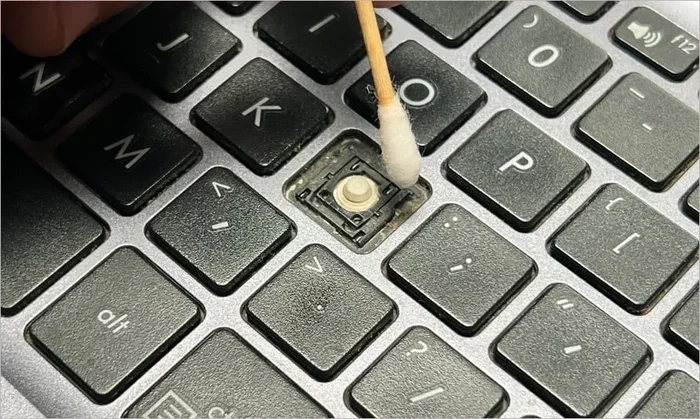
- Keep your keyboard clean. Dust and debris under keys can cause keys to behave strangely, which might feel like sticky key behavior even when the feature is not active. Use compressed air to clean between your keys regularly.
- Use on-screen indicators. Both Windows and macOS show visual cues when sticky keys are active. Keep an eye on the screen for these indicators so you always know what is happening.
- Explore other accessibility options. Sticky keys are just one of many tools available. Take some time to explore the full range of accessibility features on your system. You might discover other tools that improve your computing experience.
When to Seek Professional Help
Most sticky key issues are simple to fix and do not require professional assistance. However, if you have tried all the steps above and your keyboard still behaves strangely, there might be a hardware problem. A damaged key switch, loose connection, or worn-out ribbon cable can all cause symptoms that look like sticky keys but are actually physical issues.
If you are using a laptop and the problem persists, consider taking it to a certified technician. They can open the device and inspect the internal components. For desktop keyboards, try plugging the keyboard into a different USB port or testing it on another computer to rule out software issues.
Also, if you are wondering about other laptop components and how they affect performance, learning about what RAM does for a laptop can give you a broader understanding of your device.
Conclusion
A sticky key on a keyboard is a simple yet powerful accessibility feature that changes how modifier keys work. It allows you to press keys like Ctrl, Shift, and Alt one at a time instead of holding them down with other keys. This feature is incredibly helpful for people with mobility challenges, but it can also accidentally activate and cause confusion for other users.
The good news is that sticky keys are easy to manage. You can turn them on, turn them off, and customize how they work in just a few clicks. Whether you are using Windows, macOS, or Linux, the process is straightforward and user-friendly. Understanding how sticky keys work gives you more control over your keyboard experience and helps you get the most out of your computer.
Remember, sticky keys are just one of many tools designed to make computing more accessible. Take a few minutes to explore your system settings and find the features that work best for you. With the right knowledge, you can keep your keyboard running smoothly and avoid common pitfalls like accidental activation or unexpected key behavior.
Frequently Asked Questions
What causes sticky keys to turn on accidentally?
The most common cause is pressing the Shift key five times in a row on Windows, which is the default shortcut to activate sticky keys. This can happen when you are typing quickly or cleaning your keyboard. Other causes include system updates that reset settings or accidental changes in the accessibility menu.
Are sticky keys the same as a physically stuck key?
No, they are not the same. Sticky keys is a software feature that changes how modifier keys work. A physically stuck key is a hardware problem where a key stays pressed down because of dirt, damage, or wear. You can tell the difference by checking if the issue persists when you use a different keyboard or an external one.
Can sticky keys damage my keyboard?
No, sticky keys cannot damage your keyboard. They are a software-based feature that only changes how your system interprets key presses. However, if your keyboard feels physically sticky or unresponsive, that could be caused by dirt or liquid damage, which is a separate issue.
How do I know if sticky keys are currently active?
On Windows, you will see a sticky keys icon in the system tray near the clock. You will also hear a sound each time you press a modifier key. On macOS, a sticky keys indicator appears on the screen when the feature is enabled. You can also check your accessibility settings to confirm the current status.
Can I customize how sticky keys behave?
Yes, both Windows and macOS offer customization options for sticky keys. You can choose whether to lock modifier keys when pressed twice, ignore repeated keystrokes, or turn off sticky keys with a specific shortcut. These options give you fine control over how the feature works for your needs.
Do sticky keys work on wireless and Bluetooth keyboards?
Yes, sticky keys work with wireless and Bluetooth keyboards just as they do with wired ones. The feature is built into the operating system, so it does not matter how your keyboard connects to your computer. As long as the keyboard is recognized by the system, sticky keys will function normally.