What Is a Dvd Drive
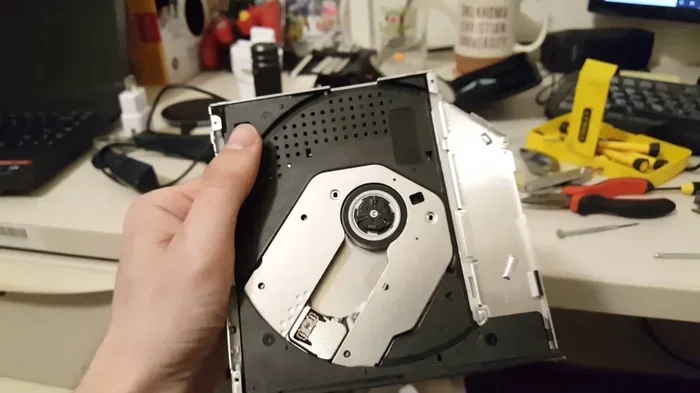
A DVD drive is a computer hardware component that reads and writes data on optical discs like DVDs, CDs, and Blu-ray media. It has been a core part of desktop and laptop systems for decades, enabling media playback, software installation, and data backup. This article explains what a DVD drive is, how it works, the different types available, and whether you still need one in a modern digital world.
A DVD drive is a hardware component that reads and writes data on optical discs. For years, it has been a standard feature in desktop computers and laptops. Whether you need to watch a movie, install a program, or back up important files, a DVD drive makes it all possible. In this guide, we will walk you through everything you need to know about this essential piece of computer hardware.
You may wonder why a DVD drive still matters in a world of cloud storage and fast internet. The truth is, many people still rely on physical discs for movies, games, and software. Plus, having a DVD drive gives you flexibility that digital files alone cannot offer. Let us dive into the details and explore how this optical disc drive works and why it remains useful today.
Key Takeaways
- A DVD drive reads and writes data: It uses a laser lens to access information stored on optical discs like DVDs, CDs, and Blu-ray media.
- There are several types of DVD drives: These include internal drives, external drives, DVD-ROM, DVD-RW, and Blu-ray combo drives.
- DVD drives serve many purposes: From watching movies and installing software to backing up files and creating disc copies.
- Many modern laptops omit DVD drives: Cloud storage and USB drives have reduced the need for optical disc storage in portable devices.
- Compatibility matters: Not all discs work with all drives, so checking disc format support is important before purchasing.
- External DVD drives are a great option: They connect via USB and work with most computers without opening the case.
📑 Table of Contents
What Is a DVD Drive?
A DVD drive, also known as an optical disc drive, is a device that reads and writes data on optical discs. These discs include DVDs, CDs, and in some cases, Blu-ray discs. The drive uses a laser lens to read tiny pits and lands on the surface of a disc. These patterns represent binary data, which your computer can then process and display.
You will find DVD drives in two main forms. The first is an internal DVD drive, which sits inside your computer case. The second is an external DVD drive, which connects through a USB cable. Both types serve the same basic purpose, but they differ in convenience and portability. Your computer also has other important hardware parts, like the RAM on your laptop, that work alongside the drive to deliver a smooth experience.
How Does a DVD Drive Read Data?
Inside every DVD drive, there is a laser lens that spins the disc at high speed. The laser beam bounces off the disc surface and reads the tiny bumps and flat areas. These bumps and flats represent ones and zeros. Your computer translates this binary code into videos, music, documents, or programs.
The process happens incredibly fast. A typical DVD drive can spin a disc at thousands of rotations per minute. This speed allows you to watch a movie or load a program almost instantly. The laser lens is very precise and can detect changes as small as a fraction of a millimeter. Keeping the lens clean ensures your media playback stays smooth and error-free.
What Is the Difference Between a DVD Drive and a CD Drive?
A CD drive reads compact discs, while a DVD drive can read DVDs, CDs, and sometimes Blu-ray discs. DVDs have a much higher storage capacity than CDs. A standard CD holds about 700 megabytes, while a single-layer DVD holds 4.7 gigabytes. A dual-layer DVD can store up to 8.5 gigabytes of disc storage.
Most modern DVD drives are backward compatible. This means they can read CDs as well as DVDs. Some drives can even write data to discs, allowing you to create your own disc burning projects. This versatility makes a DVD drive a valuable tool for many users who need both disc reading and disc writing capabilities.
Types of DVD Drives
Not all DVD drives are the same. Different types serve different needs. Understanding these types will help you choose the right one for your setup. When picking a drive, make sure to check disc compatibility so you do not run into surprises later.
DVD-ROM Drive
A DVD-ROM drive is the most basic type. It can only read discs, not write or rewrite them. This type is common in older desktop computers. You can use a DVD-ROM drive to watch movies or install software from a disc. However, you cannot save new files onto a disc with this drive. It is simple, reliable, and perfect for passive media playback.
DVD-RW Drive
A DVD-RW drive stands for DVD ReWritable. It can read discs and also write new data onto them. You can erase and rewrite data multiple times. This makes a DVD-RW drive ideal for creating backups or sharing files with others. Many users prefer this type for its flexibility. If you frequently create and share disc storage copies, this is the way to go.
Blu-ray Combo Drive
A Blu-ray drive or combo drive can read and write DVDs and CDs, and also read Blu-ray discs. Blu-ray discs offer much higher storage capacity than DVDs. A single Blu-ray disc can hold up to 25 gigabytes on a single layer and 50 gigabytes on a dual layer. This type of optical disc drive is perfect for watching high-definition movies and storing large files.
External DVD Drive
An external DVD drive connects to your computer through a USB port. It does not need to be installed inside your computer case. This makes it a popular choice for laptops that do not have a built-in DVD drive. You can plug it in whenever you need it and unplug it when you are done.
External drives are also great for people who use multiple computers. You can carry the drive from one machine to another. They are lightweight and easy to store. Most external DVD drives are plug-and-play, meaning you do not need to install any extra software. Just connect and go. If you are unsure about compatibility, checking how to verify component compatibility with your laptop follows a similar logic for drives and accessories.
Common Uses for a DVD Drive
A DVD drive serves many practical purposes in everyday computing. Let us explore the most common ways people use this device in their daily lives.
Watching Movies and TV Shows
One of the most popular uses for a DVD drive is watching movies. Many people still own DVD collections of their favorite films. A DVD drive lets you play these discs on your computer or connect your laptop to a TV for a bigger screen experience. The quality of DVD video is still quite good for casual viewing. It is a reliable way to enjoy your favorite films without relying on an internet connection.
Installing Software and Games
Many software programs and video games still come on discs. A DVD drive makes it easy to install these programs without downloading large files. This is especially useful in areas with slow or unreliable internet connections. Simply insert the disc, and your computer will guide you through the installation process. Having a DVD drive saves time and bandwidth when setting up new programs.
Backing Up and Storing Files
Disc storage remains a reliable way to back up important files. You can burn documents, photos, and videos onto a DVD and keep them safe. Unlike cloud storage, physical discs do not depend on an internet connection. They also do not take up space in your hard drive. A DVD drive gives you a simple and affordable backup solution that you can store in a drawer or safe.
Creating Mix CDs and DVDs
Do you want to create a custom music collection or a video montage? A DVD drive with disc burning capabilities lets you do this. You can compile your favorite songs onto a CD or create a DVD slideshow of your family photos. It is a fun and creative way to use your optical disc drive. These personal projects make great gifts and keepsakes.
Do You Still Need a DVD Drive?
This is a common question in today’s digital age. With cloud storage, streaming services, and fast downloads, physical discs seem outdated. However, a DVD drive still offers benefits that digital alternatives cannot match.
Many people prefer having a physical copy of their movies and software. Streaming services require a constant internet connection. A DVD does not. You can watch your favorite film anytime, even without Wi-Fi. This makes a DVD drive valuable for travelers or people in areas with limited internet access. It also means you own your media outright without subscription fees.
For professionals and creatives, disc storage provides a tangible backup option. External hard drives and cloud services can fail. A well-stored DVD can last for decades. This is why many photographers, videographers, and archivists still rely on a DVD drive for long-term data preservation. Physical copies give peace of mind that digital files sometimes cannot.
If you own a modern laptop without a built-in DVD drive, you are not out of luck. An external DVD drive solves this problem easily. You can find affordable options that connect through USB. They work with most Windows, Mac, and Chromebook systems. This gives you the best of both worlds: a slim laptop and full disc reading and disc writing capabilities. Just as adding more RAM can boost your laptop performance, adding an external drive expands your computer’s functionality.
How to Choose the Right DVD Drive
Choosing the right DVD drive depends on your needs and your computer setup. Here are some factors to consider before making a purchase. Taking a moment to compare options saves time and money in the long run.
Internal vs. External
An internal DVD drive is installed inside your desktop computer or laptop. It offers a permanent solution and does not require extra cables. However, not all laptops support internal upgrades. If you have a desktop, an internal drive is often the better choice for a clean setup. It stays hidden inside your case and does not take up desk space.
An external DVD drive is more flexible and portable. You can use it with any computer that has a USB port. It is ideal for laptop users who need disc reading and disc writing on the go. The trade-off is that you need to keep track of the drive and its cable. For many users, the convenience of an external option outweighs this small drawback.
Read-Only vs. Read-Write
Decide whether you need a drive that only reads discs or one that can also write. A read-only drive is sufficient if you only watch movies or install software from discs. A read-write drive gives you the ability to burn discs and create your own backups. For most users, a read-write DVD drive is the better investment. It offers more versatility and future-proofs your setup.
Disc Format Compatibility
Check which disc formats the drive supports before buying. Some drives handle only DVDs and CDs. Others can read and write Blu-ray discs as well. If you work with high-definition video, a Blu-ray drive is a smart choice. For basic needs, a standard DVD-RW drive will do the job perfectly. Always verify the disc format support to avoid frustration.
Speed and Performance
Drive speed is measured in multiples, like 8x, 16x, or 24x. A higher number means faster disc reading and disc writing. For everyday use, a 16x drive is more than enough. If you frequently burn large files, a faster drive will save you time. Keep in mind that the disc quality also affects performance. Using high-quality discs ensures the best results from your DVD drive.
Brand and Reliability
Choose a DVD drive from a reputable brand. Well-known manufacturers offer better build quality and longer lifespan. Reading user reviews can also help you make an informed decision. A reliable drive will serve you well for many years without issues. Investing in quality computer hardware pays off in the long run.
Tips for Caring for Your DVD Drive
Taking care of your DVD drive will extend its life and keep it running smoothly. Simple habits make a big difference over time.
- Clean the laser lens regularly: Dust can build up on the lens and affect performance. Use a lens cleaning disc every few months to keep things running smoothly.
- Handle discs carefully: Avoid touching the shiny surface of a disc. Fingerprints and scratches can cause playback errors and damage your disc storage media.
- Eject discs properly: Always use the software or button to eject a disc. Forcing a disc out can damage both the disc and the drive mechanism.
- Store discs in cases: Keep your discs in their original cases or protective sleeves. This prevents scratches and dust buildup that can ruin your media playback experience.
- Keep your drivers updated: Updated drivers ensure your DVD drive works smoothly with your operating system. Check the manufacturer’s website for the latest updates.
Common Mistakes to Avoid with DVD Drives
Even with the best DVD drive, mistakes can happen. Knowing what to avoid saves you time and money.
- Using scratched or damaged discs: A badly scratched disc can jam your drive or cause the laser lens to wear out faster. Always inspect a disc before inserting it into the drive bay.
- Ignoring disc format compatibility: Not every drive can read every disc type. Putting a Blu-ray disc into a standard DVD-ROM drive will not work. Always check format support first.
- Forgetting to finalize burned discs: If you burn a disc but do not finalize it, other devices may not be able to read it. Always finalize your disc burning projects before sharing them.
- Running the drive while it is very hot: Overheating can damage the internal components. Let your computer cool down if it has been running heavy tasks for a long time.
Conclusion
A DVD drive remains a useful and versatile piece of computer hardware. Whether you watch movies, install software, or back up files, this optical disc drive delivers reliable performance. While many modern laptops have moved away from built-in drives, external options make it easy to add one to any setup.
Understanding the different types of DVD drives and their uses helps you make the right choice. Whether you pick a simple DVD-ROM, a rewritable DVD-RW, or a Blu-ray combo drive, you are investing in a tool that still has real value. Keep your drive clean, use quality discs, and your DVD drive will serve you well for years to come. Do not let this classic piece of computer hardware fade into obsolescence when it still has so much to offer.
Frequently Asked Questions
Can a DVD drive play CDs?
Yes, most DVD drives are backward compatible and can play CDs. This means you can use your DVD drive to listen to music CDs and watch older CD-based content. Just insert the disc and your computer will handle the rest.
What is the difference between a DVD-R and a DVD-RW?
A DVD-R is a write-once disc, meaning you can record data to it only once. A DVD-RW is rewritable, allowing you to erase and rewrite data multiple times. If you need flexibility for repeated use, a DVD-RW disc is the better choice.
How long do DVD discs last?
A well-stored DVD can last between 5 and 30 years depending on the quality of the disc and storage conditions. Keep discs in a cool, dry place away from direct sunlight. Proper care of your disc storage ensures your data remains readable for a long time.
Can I install a DVD drive in a laptop that does not have one?
It depends on your laptop model. Some laptops allow internal upgrades, but most modern slim laptops do not. An external DVD drive is the easiest solution. It connects through USB and works with virtually any laptop or desktop computer.
Is a Blu-ray drive the same as a DVD drive?
A Blu-ray drive can read and often write DVDs and CDs, but it also reads Blu-ray discs. Blu-ray discs hold much more data than standard DVDs. A Blu-ray optical disc drive is a great upgrade if you need high-definition media playback and larger storage capacity.
Do I need special software to burn discs?
Many computers come with built-in burning software like Windows Disc Image Burner or iTunes. You can also download free third-party tools for more advanced features. Your DVD drive will work with these programs for disc burning and disc writing tasks without extra hassle.