What Is an Excel Macro Enabled Workbook
An Excel macro enabled workbook is a special file format that lets you store and run automated tasks inside Excel. It uses the .xlsm extension and relies on VBA (Visual Basic for Applications) code to automate repetitive work. Whether you want to speed up data entry, build custom tools, or simplify complex reports, understanding this file type is essential. This guide covers everything from the basics to creating and securing your own macro enabled workbook safely.
Key Takeaways
- An Excel macro enabled workbook uses the .xlsm extension and stores VBA code that automates tasks.
- Macros save significant time by replacing manual, repetitive actions with one-click automation.
- The .xlsm format differs from .xlsx because it supports embedded macro code.
- Macro security settings matter — always enable macros from trusted sources only.
- You do not need to be a coder to create simple macros using the built-in macro recorder.
- Macro enabled workbooks are widely used in business for reports, templates, and data processing.
📑 Table of Contents
What Is an Excel Macro Enabled Workbook?
An Excel macro enabled workbook is a special type of Excel file that can store and run macros. Macros are small programs written in VBA (Visual Basic for Applications) that automate tasks inside Excel. Think of a macro as a recording of your actions. Once recorded, you can replay those actions with a single click.
The file extension for this type of workbook is .xlsm. This is different from the standard .xlsx format, which cannot store macro code. If you try to save a file with macros using the .xlsx format, Excel will either strip out the macros or warn you. That is why the .xlsm extension exists — it tells Excel that this file contains active code.
If you are new to Excel and want to understand the basics first, you can check our guide on is Excel easy to learn before diving into macros.
Macro enabled workbooks are incredibly useful. They let you automate Excel tasks like formatting cells, generating reports, importing data, and running calculations. Businesses use them every day to save time and reduce errors. A single macro can replace hours of manual work.
How Macros Work Inside Excel
Macros are built using VBA (Visual Basic for Applications). VBA is a programming language that Microsoft built directly into Excel. You do not need to install anything extra. The tools are already inside your Excel application.
The Macro Recorder
Excel includes a built-in tool called the macro recorder. This tool watches what you do and writes VBA code behind the scenes. For example, if you format a table with specific colors and borders, the recorder captures every step. Then you can replay those exact steps anytime you want.
Here is how simple it works:
- Open Excel and go to the View tab.
- Click Macros and then select Record Macro.
- Perform the actions you want to automate.
- Click Stop Recording when finished.
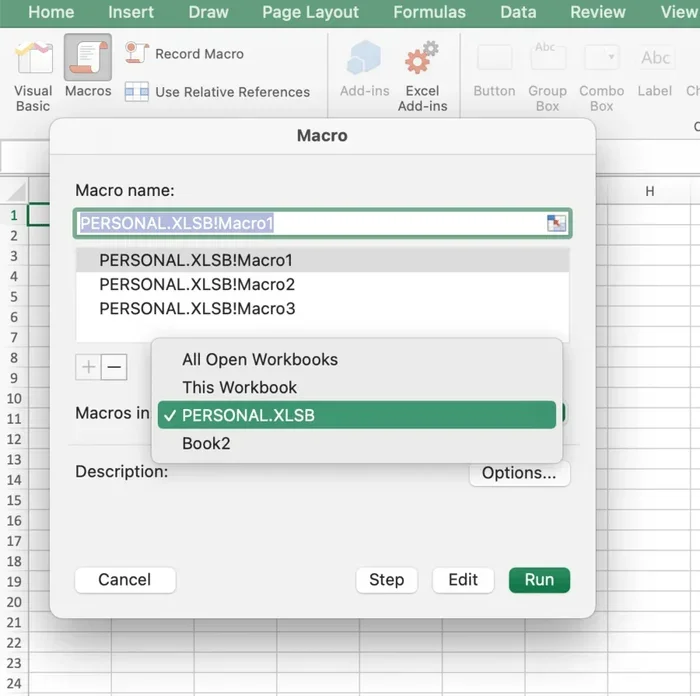
- Run the macro anytime from the Macros menu.
Writing VBA Code Directly
For more advanced users, you can write VBA code directly in the Excel VBA editor. Press Alt + F11 to open it. The editor looks like a small code window where you can type or paste instructions. This gives you full control over what your macro does.
You do not need to be a professional programmer to use VBA. Many macros are simple. They just automate a few repetitive steps. Over time, you can build more complex workflows as you grow more comfortable with the code.
Running a Macro
Once a macro is saved inside your macro enabled workbook, you can run it in several ways:
- Use the Macros button on the View tab.
- Assign a keyboard shortcut like Ctrl+Shift+M.
- Add a button to the Quick Access Toolbar.
- Link the macro to a shape or image on your sheet.
Each method makes it easy to trigger your automation without navigating through menus. This is one of the biggest reasons Excel automation is so popular in offices worldwide.
The .xlsm vs .xlsx File Difference
Understanding the difference between .xlsm and .xlsx is important. These two formats look similar, but they serve very different purposes.
| Feature | .xlsm (Macro Enabled) | .xlsx (Standard) |
|---|---|---|
| Stores Macros | Yes | No |
| File Extension | .xlsm | .xlsx |
| VBA Code Support | Full support | Not supported |
| File Size | Slightly larger | Smaller |
| Compatibility | Excel 2007 and later | Excel 2007 and later |
| Security Risk | Higher (can contain code) | Lower (no code) |
If you save a file with macros as .xlsx, Excel will remove the macro code. This is a common mistake that frustrates many users. Always choose .xlsm when your workbook contains macros.
There is also a related format called .xlam, which is used for Excel add-ins. Add-ins are special macro enabled files that extend Excel’s functionality. But for most users, .xlsm is the format you will use most often.
How to Create a Macro Enabled Workbook
Creating a macro enabled workbook is straightforward. Follow these steps to get started:
- Open Excel and create a new blank workbook.
- Go to the View tab and click Macros, then Record Macro.
- Give your macro a name. Use something descriptive like FormatReport or AutoCleanData.
- Choose where to store the macro. For a single workbook, select This Workbook.
- Perform the actions you want to automate.
- Click Stop Recording when done.
- Save the file as .xlsm by selecting File > Save As and choosing the format.
That is it. Your workbook is now a macro enabled workbook. Every time you open it, your macros will be ready to run.
If you want to learn Excel basics before creating macros, our article on whether Excel is easy to learn can help you build a strong foundation.
Saving Tips
When you save a macro enabled workbook, pay attention to the file type dropdown. Excel offers many options. Always pick Excel Macro-Enabled Workbook (*.xlsm). If you accidentally pick the wrong option, your macros will be lost.
Also, keep a backup copy of your .xlsm file without macros sometimes. This way, if something goes wrong, you have a safe version to fall back on.
Macro Security Settings You Should Know
Because macros can contain code, they can also pose a security risk. Malicious macros can spread viruses or damage files. This is why Excel has built-in macro security settings that control how macros run.
Trusted Locations
Excel lets you designate certain folders as trusted locations. Files saved in these folders can run macros without warnings. This is a safe way to manage your macro enabled workbooks. Simply go to File > Options > Trust Center > Trust Center Settings > Trusted Locations and add your folder.
Digital Signatures
Advanced users can add a digital signature to their macros. A digital signature proves that the macro comes from a trusted source. When you open a signed workbook, Excel shows you who created it. This adds a layer of trust and safety.
Enabling Macros Safely
When you open a macro enabled workbook, Excel usually displays a security warning at the top of the window. It will ask whether you want to enable macros. Only click enable if you trust the source of the file. If you are unsure, contact the sender first.
Never enable macros from emails or downloads from unknown websites. This is one of the most common ways malware spreads through Excel. Always practice safe macro habits.
Quick Tips for Macro Security
- Only enable macros from trusted senders.
- Use trusted locations for your own macro files.
- Scan downloaded files with antivirus software before opening.
- Keep your Excel updated to patch known security vulnerabilities.
- Disable macros by default and only enable them when needed.
Common Uses for Macro Enabled Workbooks
Macro enabled workbooks are used in many real-world situations. Here are some of the most common ways people use them:
Automating Repetitive Reports
Many businesses generate the same reports every week or month. A macro enabled workbook can format data, create charts, and export files automatically. What used to take an hour can now happen in seconds.
Data Cleaning and Preparation
Raw data from databases or web exports often needs cleaning. Macros can remove duplicates, fix formatting, and standardize text. This makes data preparation much faster and more consistent.
Creating Custom Templates
You can build a macro-enabled template that includes pre-set formatting, formulas, and automation. Share this template with your team so everyone follows the same process. This reduces errors and saves training time.
Building Interactive Dashboards
Macros can make your Excel dashboards interactive. Users can click buttons to filter data, refresh connections, or switch between views. This turns a static spreadsheet into a powerful analytics tool.
Simplifying Complex Calculations
Some workbooks require complex calculations that involve multiple steps. A macro can run all those calculations in the correct order with one command. This is especially helpful for financial models and engineering spreadsheets.
If you are interested in learning more about Excel and how to get the most out of your spreadsheets, visit our guide on is Excel easy to learn for helpful beginner tips.
Key Takeaways
- An Excel macro enabled workbook is a file that stores and runs automated tasks using VBA code.
- The .xlsm extension is what distinguishes it from standard .xlsx files.
- Macros automate repetitive tasks, saving you hours of manual work.
- The macro recorder makes it easy to create macros without writing code.
- Macro security settings protect you from harmful code — always enable macros only from trusted sources.
- Common uses include reports, data cleaning, templates, dashboards, and complex calculations.
- Always save macro workbooks as .xlsm to preserve your automation code.
Conclusion
An Excel macro enabled workbook is one of the most powerful tools you can use in Excel. It transforms a regular spreadsheet into an automated workspace that handles repetitive tasks for you. Whether you are a beginner or an advanced user, learning to create and use macros will save you time and reduce errors.
The .xlsm file format is the key to unlocking this power. It stores your VBA code safely and lets you run automation every time you open the file. Just remember to practice good macro security habits and always enable macros only from trusted sources.
Start small. Record a simple macro today and see how it changes your workflow. Once you experience the speed and convenience of Excel automation, you will wonder how you ever worked without it. The skills you build with macro enabled workbooks will serve you well in any role that involves spreadsheets and data.
Frequently Asked Questions
What is the difference between a macro enabled workbook and a regular Excel file?
A regular Excel file uses the .xlsx format and cannot store macros. A macro enabled workbook uses the .xlsm format and can store VBA code that automates tasks. The .xlsm file is essentially the same as .xlsx but with the added ability to run macros.
Do I need to know how to code to use a macro enabled workbook?
No, you do not need coding experience to start. Excel includes a built-in macro recorder that captures your actions and turns them into VBA code automatically. You can create useful macros just by performing tasks and letting the recorder do the work for you.
Are macro enabled workbooks safe to open?
Macro enabled workbooks are safe when they come from trusted sources. Excel displays a security warning whenever you open a file with macros. Only enable macros if you trust the sender. Avoid opening macro files from unknown emails or unverified websites to stay protected.
Can I convert an .xlsx file to .xlsm?
Yes, you can. Simply open the .xlsx file, add your macros, and save it using the .xlsm format. Go to File > Save As and select Excel Macro-Enabled Workbook (*.xlsm) from the file type dropdown. Just make sure your macros are working before you save.
What happens if I save a macro enabled workbook as .xlsx?
If you save a macro enabled workbook as .xlsx, Excel will remove all the macro code from the file. Your macros will be permanently lost. Always double-check the file format before saving to avoid losing your automation work.
Can I share a macro enabled workbook with others?
Yes, you can share .xlsm files just like any other Excel file. However, the person receiving the file must have macro security settings configured to allow macros to run. They may need to click the Enable Content button when they open the file for the first time.