What Is an Lpt1 Printer Port
An Lpt1 printer port is a legacy parallel port on laptops and desktops used to connect printers and other devices. It was the standard way to print documents before USB took over. Understanding the Lpt1 port helps with troubleshooting older hardware and setting up vintage printers.
If you have an older laptop or a vintage printer sitting in a drawer, you might have come across the term Lpt1 printer port. It sounds like something from the 1990s, and in many ways, it is. But the Lpt1 port still plays a role in certain setups, especially for people who work with legacy hardware or older equipment.
In this guide, we will walk you through everything you need to know about the Lpt1 printer port. We will cover what it is, how it works, how to set it up, and what to do when things go wrong. Whether you are a tech enthusiast or someone just trying to get an old printer working again, this article has you covered.
The Lpt1 printer port is a type of parallel port found on computers. It was designed primarily for connecting printers, which is why it carries the name. The term LPT stands for Line Printer Terminal, and the number 1 simply means it is the first parallel port on the system. Most computers had one or two of these ports built into the motherboard.
Before USB became widespread, the Lpt1 port was the default way to connect a printer to a computer. You would plug a parallel cable from the printer into the Lpt1 port on the back of your machine. It was fast for its time and worked reliably for everyday printing tasks. Even though newer connection types have replaced it, the Lpt1 port remains an important piece of computing history.
## How Does the Lpt1 Printer Port Work?
The Lpt1 printer port uses a parallel communication method. This means it sends multiple bits of data at the same time through separate wires. In contrast, serial ports send data one bit at a time. The parallel approach allowed for faster data transfer, which was perfect for printing large documents or graphics.
### The Parallel Port Connector
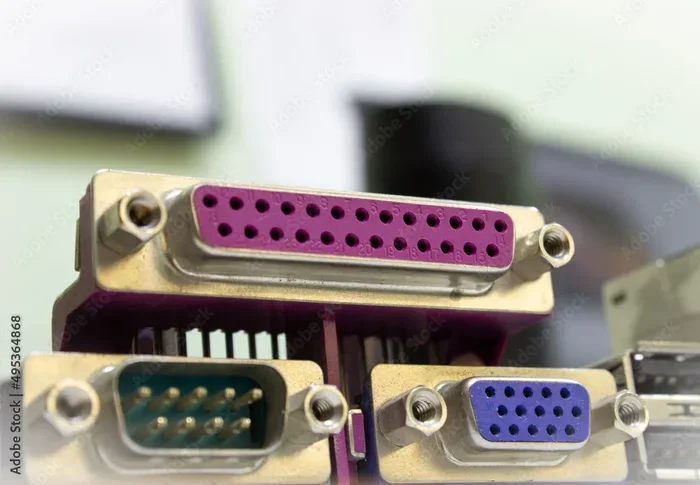
The standard Lpt1 port uses a 25-pin DB-25 connector. This is a large, rectangular-shaped port that is easy to spot on the back of a computer. The cable that connects to it has matching pins on each end, making it a secure and stable connection.
Here is what makes the parallel port work:
- Data Lines: Eight data lines carry the actual print data simultaneously.
- Control Lines: These manage the communication between the computer and the printer.
- Status Lines: These send information back to the computer about the printer’s state.
- Ground Lines: These provide a reference signal for the other lines.
The Lpt1 port typically operates at a speed of about 1 to 2 megabytes per second. That might sound slow compared to modern USB 3.0 speeds, but it was more than enough for text documents and basic graphics in its prime.
## Common Uses for the Lpt1 Printer Port
Even though the Lpt1 port is considered legacy technology, it still has practical uses today. Let us look at some of the most common scenarios where you might encounter or need an Lpt1 port.
### Connecting Older Printers
The most obvious use is connecting older printers that do not have USB or wireless capabilities. Many inkjet and laser printers from the 1990s and early 2000s only had a parallel port. If you have one of these printers, an Lpt1 port is your best bet for getting it to work.
### Industrial and Commercial Equipment
Industrial machines, point-of-sale systems, and cash registers often use parallel ports. These devices were built to last and many are still in operation today. The Lpt1 port provides a simple and reliable way to connect these machines to a computer for data transfer or configuration.
### Embedded Systems and Development
Some hobbyists and engineers use the Lpt1 port for embedded systems projects. The parallel port can be programmed to control external hardware, making it a useful tool for DIY electronics and prototyping.
### Network Printing in Small Offices
In small offices or home labs, an old printer connected through an Lpt1 port can still serve a purpose. As long as the printer is functional, it can handle basic print jobs without the need for a network connection.
## How to Set Up and Configure an Lpt1 Printer Port
Setting up an Lpt1 printer port on a modern laptop or desktop is usually straightforward. Most operating systems recognize the port automatically, but sometimes you need to configure it manually.
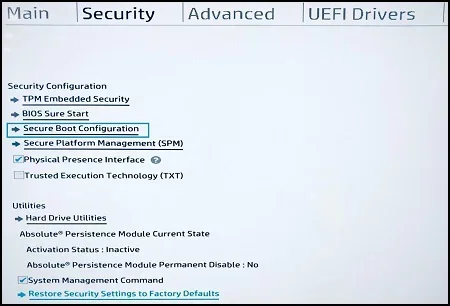
### Step 1: Check Your BIOS Settings
First, restart your computer and enter the BIOS setup. Look for a section related to integrated peripherals or onboard devices. Find the setting for the parallel port and make sure it is enabled. The Lpt1 port should be set to “Standard” or “ECP” mode for best compatibility.
### Step 2: Install the Printer Driver
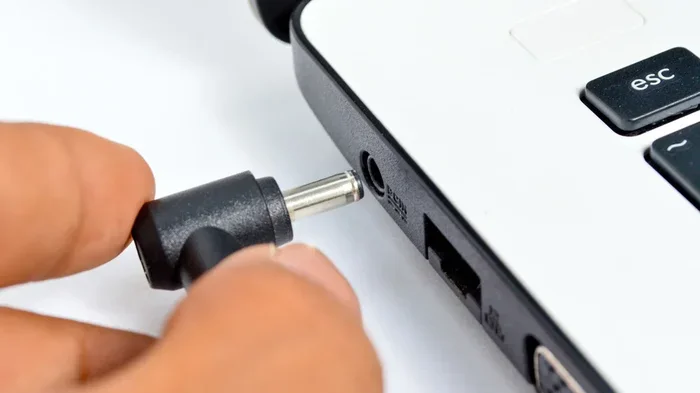
Once the port is enabled, connect your printer using a parallel cable. Then, go to your operating system’s device manager or printer settings. If the driver is not installed automatically, you may need to download it from the printer manufacturer’s website.
Quick Tip: If your laptop does not have a built-in Lpt1 port, you can use a USB-to-parallel adapter. These adapters are affordable and work well with most printers.
### Step 3: Configure the Port in Windows
In Windows, go to the Control Panel and open the Devices and Printers section. Click on “Add a printer” and select the local printer option. Choose the Lpt1 port from the list of available ports. Windows will then install the appropriate driver and your printer should be ready to use.
### Troubleshooting Setup Issues
If the Lpt1 port does not show up in your device manager, try these steps:
- Check that the port is enabled in BIOS.
- Make sure the parallel cable is securely connected.
- Update your motherboard drivers.
- Try a different cable if the current one appears damaged.
## Troubleshooting Lpt1 Printer Port Issues
Like any hardware port, the Lpt1 printer port can run into problems. Here are the most common issues and how to fix them.
### Printer Not Detected
If your computer does not recognize the printer, the first thing to check is the cable connection. A loose or damaged parallel cable is the most common cause. Try unplugging and replugging the cable on both ends. If that does not work, test with a different cable.
### Print Jobs Stuck in Queue
Sometimes print jobs get stuck and the printer stops responding. To fix this, open the print queue and clear all pending jobs. Then restart the print spooler service in Windows. This usually resolves the issue and allows new print jobs to go through.
### Driver Conflicts
Driver conflicts can cause the Lpt1 port to malfunction. If you recently updated your operating system or installed new software, the printer driver might have been affected. Try uninstalling the printer driver and reinstalling it from scratch.
### Port Disabled in Device Manager
If the Lpt1 port shows up as disabled in Device Manager, right-click on it and select “Enable device.” If that option is grayed out, you may need to go into BIOS and re-enable the port there.
### Interference and Cable Length
Parallel cables are sensitive to interference. Keep your cable length under 10 feet for best results. Longer cables can cause signal degradation, leading to print errors or failed connections.
Pro Tip: If you are using a USB-to-parallel adapter, make sure to use one that supports bidirectional communication. This ensures the printer can send status information back to the computer properly.
## Lpt1 Port vs Modern USB Ports
The Lpt1 printer port and modern USB ports serve the same basic purpose: connecting peripherals to your computer. But they are quite different in how they work and what they offer.
### Speed Comparison
The Lpt1 port transfers data at about 1 to 2 megabytes per second. A USB 2.0 port can handle up to 60 megabytes per second, and USB 3.0 goes even faster at 625 megabytes per second. The speed difference is massive, which is one of the main reasons USB replaced the parallel port.
### Connection Type
The Lpt1 port uses a parallel connection with 25 pins, while USB uses a serial connection with fewer pins. USB cables are also smaller and more versatile. You can connect keyboards, mice, external drives, and printers through a single USB port.
### Compatibility
The Lpt1 port is limited to printers and a few other parallel devices. USB supports virtually every type of peripheral. This versatility made USB the standard for computer connectivity.
### Reliability
Paradoxically, the Lpt1 port can be more reliable for certain tasks. Because it uses a dedicated connection, there is less chance of driver conflicts compared to USB devices that share a common controller. For simple printing jobs on older hardware, the Lpt1 port can be very dependable.
### Cost and Availability
Most modern laptops do not come with an Lpt1 port anymore. You will need to purchase a separate adapter or use an older desktop computer. USB ports are built into virtually every device today, making them far more convenient.
| Feature | Lpt1 Printer Port | USB Port |
|—|—|—|
| Speed | 1-2 MB/s | Up to 625 MB/s (USB 3.0) |
| Connector Type | 25-pin DB-25 | Various (Type-A, Type-C, etc.) |
| Primary Use | Printers | Universal |
| Cable Length | Up to 10 feet | Up to 16 feet (USB 2.0) |
| Bidirectional | Yes (with ECP mode) | Yes |
| Modern Availability | Rare | Universal |
## Why the Lpt1 Port Still Matters
You might wonder why anyone would care about the Lpt1 printer port in an age of wireless printing and USB-C. The answer is simple: legacy hardware matters. Many businesses and individuals still rely on older printers that only have a parallel port. Replacing these devices can be expensive and unnecessary if the printer still works well.
The Lpt1 port also serves as a learning tool. Understanding how legacy ports work gives you a deeper appreciation for how computer technology has evolved. It also helps you troubleshoot older systems, which is a valuable skill for IT professionals and hobbyists alike.
If you are working with vintage computers or running a small business that uses older equipment, knowing how the Lpt1 port functions can save you time and money. Even if you are just curious about computer history, the Lpt1 printer port is an interesting piece of technology worth understanding.
## Final Thoughts
The Lpt1 printer port may be an older technology, but it still has a place in the world of computing. Whether you are connecting an old printer, working with industrial equipment, or exploring the history of computer hardware, the Lpt1 port is a useful thing to know about.
Setting up and troubleshooting an Lpt1 port is not as complicated as it might seem. With the right cable, driver, and a bit of patience, you can get an older printer working again in no time. And if your laptop does not have a built-in Lpt1 port, a USB-to-parallel adapter can bridge the gap.
Remember that technology evolves, but not everything becomes obsolete overnight. The Lpt1 port is a great example of a legacy technology that still serves a purpose today. Keep this guide handy for whenever you need to work with a parallel printer connection.
Now that you know what an Lpt1 printer port is and how it works, you are well-equipped to handle any situation involving this classic computer port. Whether you are a student, a professional, or a hobbyist, understanding the Lpt1 port adds to your technical knowledge and practical skills.
Key Takeaways
- Lpt1 Port Basics: The Lpt1 port is a parallel communication port, typically labeled LPT1, used primarily for connecting printers to computers.
- Legacy Technology: It was the go-to printer connection method before USB ports became standard on most laptops.
- Still Relevant: Many older printers and industrial devices still rely on the Lpt1 port for connectivity.
- Setup Is Simple: Configuring an Lpt1 port in Windows is straightforward through Device Manager and BIOS settings.
- Common Issues: Driver conflicts and cable problems are the most frequent reasons an Lpt1 port stops working.
- Modern Alternatives: USB and network printing have largely replaced the Lpt1 port, but it remains useful for specific use cases.
Frequently Asked Questions
What does Lpt1 stand for?
Lpt1 stands for Line Printer Terminal 1. It refers to the first parallel port on a computer, which was traditionally used to connect printers. The number increases if your system has more than one parallel port.
Can I use an Lpt1 port on a modern laptop?
Most modern laptops do not have a built-in Lpt1 port. However, you can use a USB-to-parallel adapter to connect a printer that requires a parallel port. These adapters are widely available and affordable.
Is the Lpt1 port the same as a USB port?
No, they are different. The Lpt1 port is a parallel port that sends multiple bits of data at once, while a USB port is a serial port that sends data one bit at a time. USB is much faster and supports many types of devices.
What cable do I need for an Lpt1 printer port?
You need a standard parallel printer cable with a DB-25 connector on one end and a 36-pin Centronics connector on the other end. Make sure the cable is in good condition for the best results.
Why is my Lpt1 printer port not working?
The most common reasons are a loose cable, disabled port in BIOS, outdated or missing drivers, or a damaged port. Check each of these areas to troubleshoot the problem step by step.
Can I connect any printer to an Lpt1 port?
Only printers that have a parallel port or come with a parallel cable can connect directly to an Lpt1 port. For printers with only USB or wireless connections, you will need an adapter or a different connection method.