What Is an Os in Computers
An OS, or operating system, is the most important software on any computer. It manages your hardware, runs your apps, and lets you interact with your machine. Without an OS, a computer is just a box of parts that cannot do anything useful.
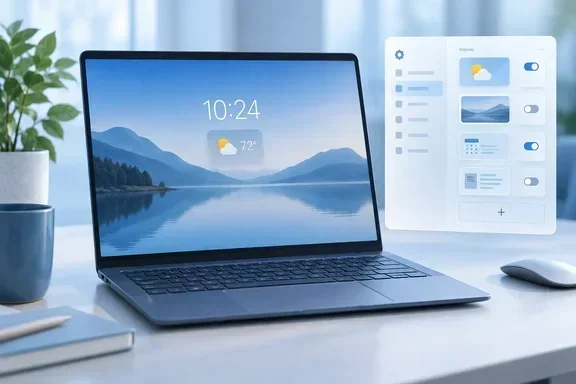
Have you ever wondered what makes your laptop actually work? When you press the power button, something magical happens. The screen lights up. The desktop appears. You can open a browser, play a game, or type a document. But what makes all of that possible? The answer is simple. It is the operating system. Also known as the OS, this software is the most important program on any computer. It runs silently in the background and handles everything you see and do.
If you have ever asked yourself, what is an OS in computers, you are in the right place. This guide breaks it all down in plain language. We will cover what an operating system does, the different types available, and how to pick the right one for your laptop. Whether you are a student, a gamer, or just someone who wants to understand their machine better, this article has you covered.
Think of your computer like a car. The engine, wheels, and steering wheel are the hardware. But without a driver, the car just sits there. The operating system is the driver. It takes your clicks, taps, and keystrokes and turns them into actions. It tells the hardware what to do and when to do it. In short, the OS is the bridge between you and your machine.
Key Takeaways
- An OS is the brain of your computer: It controls every task, from opening apps to managing files and memory.
- There are several types of operating systems: Windows, macOS, and Linux are the most popular for laptops and desktops.
- Your OS handles both hardware and software: It acts as a bridge between your physical parts and the programs you use.
- Choosing the right OS matters for performance: Your needs, budget, and usage style should guide your choice.
- Regular updates keep your OS secure and fast: Updates patch bugs, fix security flaws, and add new features.
- RAM and OS work together closely: Your What Is The Ram In A Laptop and your operating system depend on each other for smooth performance.
📑 Table of Contents
What Does an OS Actually Do?
The operating system does a lot of heavy lifting. Most people never think about it, but it works hard every second you use your computer. Here are the main jobs it handles.
Managing Your Hardware
Your laptop has a processor, memory, storage drive, and many other parts. The OS talks to each of these components. It makes sure they work together without conflicts. When you plug in a USB drive, the OS recognizes it. When you turn up the volume, the OS sends the right signal to your speakers. All of this happens in milliseconds.
Running Your Software
Every app you open runs on top of the operating system. Your web browser, your games, your word processor, and even the settings app all depend on the OS. It gives each program the resources it needs. It also makes sure one app does not crash the whole system. This is called multitasking, and it is one of the most important OS functions.
Handling Memory and Storage
Your OS keeps track of where data is stored. It manages your RAM, which is short-term memory. It also manages your hard drive or SSD, which holds your files long-term. When you have many apps open at once, the OS decides which ones get more memory. This is why having enough RAM matters so much for performance.
Providing a User Interface
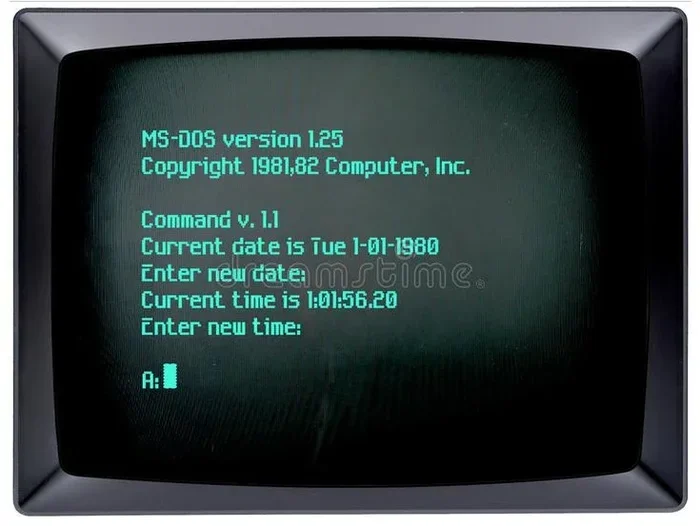
Most operating systems give you a visual way to interact with your computer. This is called the user interface, or UI. It includes your desktop, taskbar, start menu, and icons. Some OS options use a graphical interface with windows and menus. Others use a command-line interface where you type commands. Most people prefer the graphical style because it is easier to use.
Types of Operating Systems
Not all operating systems are the same. Different ones are built for different needs and devices. Here are the main types you will encounter.
Windows
Microsoft Windows is the most popular operating system for personal computers. It runs on millions of laptops and desktops around the world. Windows is known for its friendly interface and broad software support. Most people who buy a new laptop get Windows already installed. The latest version, Windows 11, offers a fresh look and improved performance.
macOS
macOS is Apple’s operating system. It runs exclusively on Mac computers. macOS is praised for its smooth design and tight integration with other Apple devices. If you own an iPhone or iPad, macOS can sync seamlessly with those devices. It is a popular choice for creative professionals like designers and video editors.
Linux
Linux is an open-source operating system. This means anyone can view and change its source code. Linux comes in many versions called distributions, or distros. Popular ones include Ubuntu, Fedora, and Linux Mint. It is free to use and highly customizable. Many developers and tech enthusiasts prefer Linux for its flexibility and security.
ChromeOS
ChromeOS is Google’s lightweight operating system. It is designed mainly for web-based tasks. Chromebooks run on ChromeOS and are popular in schools and budget-friendly setups. The OS relies heavily on cloud storage and web apps. It boots up fast and is very simple to use.
Mobile Operating Systems
While this article focuses on computers, it is worth mentioning mobile OS options too. Android and iOS power most smartphones and tablets. They share some similarities with desktop operating systems but are optimized for touch screens and mobile use.
How an OS Works Behind the Scenes
Understanding how an operating system works inside can help you appreciate what it does every day. The OS uses several core components to keep everything running.
The Kernel
The kernel is the heart of the operating system. It is the core program that controls everything. The kernel manages memory, processes, and device drivers. It sits between your hardware and your apps. When you open a program, the kernel gives it the resources it needs. When you save a file, the kernel writes it to your storage drive.
Device Drivers
Device drivers are small programs that help the OS talk to specific hardware. Your printer needs a driver. Your graphics card needs a driver. Even your keyboard and mouse need drivers. The OS uses these drivers to communicate with each part of your computer. Without the right drivers, your hardware simply will not work.
The File System
Every OS uses a file system to organize data on your storage drive. The file system determines how files are named, stored, and retrieved. Windows uses NTFS and FAT32. macOS uses APFS. Linux uses ext4. Each file system has its own strengths and limitations. A good file system keeps your files safe and easy to find.
System Calls and APIs
When a program needs to do something, it uses a system call. A system call is a request sent to the OS. For example, when a game needs to play a sound, it asks the OS through a system call. The OS then handles the actual work. APIs, or Application Programming Interfaces, make this process easier for developers. They provide a set of tools that apps can use to talk to the OS.
Popular Operating Systems for Laptops
Choosing an OS for laptop use depends on your needs and preferences. Here is a closer look at the most popular options.
Windows for Everyday Use
Windows is the go-to choice for most laptop users. It works well for browsing the web, streaming videos, and using Microsoft Office. It supports a huge library of software and games. If you want something that just works out of the box, Windows is a solid pick. Most laptop manufacturers offer Windows machines at a wide range of prices.
macOS for Creative Work
macOS shines when it comes to creative tasks. Its built-in apps like Final Cut Pro and Logic Pro are industry standards. The interface is clean and intuitive. MacBooks are known for their build quality and long battery life. However, macOS only runs on Apple hardware, which can be pricey.
Linux for Tech Enthusiasts
Linux gives you full control over your computer. You can customize every aspect of the system. It is free, which makes it a great option for anyone on a budget. Linux also tends to be very secure and lightweight. It can even breathe new life into older laptops that struggle with heavier operating systems.
ChromeOS for Simple Tasks
ChromeOS is perfect for users who spend most of their time online. It is fast, secure, and simple. Chromebooks are affordable and ideal for students. If your main activities are browsing, emailing, and streaming, ChromeOS will serve you well. However, it is not the best choice for heavy software or gaming.
How to Choose the Right OS for Your Needs
Picking the right operating system does not have to be confusing. Think about what you actually need from your laptop. Here are some factors to consider.
Your Budget
Budget plays a big role in your choice. Windows laptops come in many price ranges. You can find affordable options under $500 or premium machines over $2000. MacBooks tend to cost more upfront but often last a long time. Linux is completely free, which makes it the most budget-friendly option.
Software Compatibility
Think about the software you need. If you rely on Microsoft Office, Windows is the safest bet. If you use Adobe Creative Suite, both Windows and macOS work well. Some apps are only available on one platform. Make sure your preferred software runs on the OS you choose.
Gaming Needs
If you want to play games, Windows is the clear winner. Most games are built for Windows first. macOS and Linux have improved, but they still lag behind in game support. ChromeOS is not really designed for gaming at all.
Security and Privacy
Security matters more than ever. Linux is generally considered the most secure operating system. It has fewer malware threats and is open for anyone to audit. macOS is also quite secure thanks to Apple’s controlled ecosystem. Windows is the most targeted because it has the largest user base. No matter which OS you pick, staying updated is key to staying safe.
Ease of Use
Some operating systems are easier to learn than others. Windows and macOS are both designed with beginners in mind. They use familiar icons, menus, and windows. Linux used to be harder for new users, but modern distros like Ubuntu have made it much simpler. ChromeOS is probably the easiest of all, with a clean and minimal design.
Keeping Your OS Updated and Secure
Once you have chosen your operating system, keeping it up to date is essential. Updates do more than just add new features. They fix bugs and patch security holes that hackers could exploit.
Why Updates Matter
Every operating system has vulnerabilities. Developers find these problems and release fixes through updates. If you skip updates, your computer becomes more exposed to threats. Updates also improve performance and stability. They can make your laptop run faster and smoother over time.
Automatic vs Manual Updates
Most modern OS options update automatically by default. This is the easiest approach. You do not have to think about it. Windows, macOS, and Linux all support automatic updates. If you prefer more control, you can set updates to download manually. Just make sure you do not ignore them for too long.
Free Up Resources for Better Performance
Your OS uses system resources to function. If your laptop feels slow, it might be running low on memory. This is where your RAM comes into play. Having enough RAM helps your operating system run multiple apps without slowdowns. If your current setup feels sluggish, you might want to check your RAM or learn what is good ram for laptop setups that match your needs.
Also, make sure you have enough free storage space. A full hard drive can slow down your OS significantly. Delete files you no longer need and consider using cloud storage for backups.
Common Myths About Operating Systems
There are many myths floating around about operating systems. Let us clear up a few of the most common ones.
Myth 1: Macs do not get viruses. This is simply not true. Macs can and do get malware. They just have fewer threats because of their smaller market share. No operating system is completely immune to attacks.
Myth 2: Linux is only for experts. Modern Linux distributions are very user-friendly. You do not need to know how to code to use Linux. Many distros are designed with everyday users in mind.
Myth 3: More RAM always means a faster OS. RAM helps, but it is not the only factor. Your processor, storage type, and OS version all matter. Adding RAM to an old laptop will not make it run the latest software if other parts are outdated.
Myth 4: You only need an OS on desktop computers. Every computer needs an operating system, including laptops, tablets, and even some smartphones. The OS is what makes the device usable at all.
Final Thoughts
The operating system is the unsung hero of every computer. It works quietly behind the scenes to keep everything running. Without it, your laptop would just be a collection of parts that do nothing. Whether you use Windows, macOS, Linux, or ChromeOS, your OS handles the heavy lifting so you do not have to.
Now that you know what an OS in computers really does, you can make smarter choices about your device. Choose the operating system that fits your lifestyle. Keep it updated. Give it enough memory and storage to breathe. Your laptop will thank you with better performance and fewer headaches.
Take a moment today to check your OS version and see if any updates are available. It is a small step that can make a big difference. A well-maintained operating system keeps your computer fast, safe, and ready for anything you throw at it.
Frequently Asked Questions
What is the main job of an OS?
The main job of an operating system is to manage your computer’s hardware and software. It acts as a middleman between you and the machine. It handles tasks like running apps, managing memory, and providing a user interface so you can interact with your laptop easily.
Can I change the OS on my laptop?
Yes, you can change your operating system in most cases. You can install Windows on a Mac using special tools, or you can install Linux on almost any laptop. However, switching OS options may require backing up your data and reinstalling your programs.
Is Linux really free to use?
Yes, Linux is completely free. You can download most distributions without paying a dime. This makes it one of the most affordable operating system options available. There are also paid support plans if you need professional help.
How often should I update my OS?
You should update your operating system as soon as updates become available. Most systems check for updates automatically. Keeping your OS current helps protect you from security threats and ensures you get the latest features and bug fixes.
Do I need a lot of RAM to run a modern OS?
Most modern operating systems work fine with at least 4GB of RAM. However, 8GB is recommended for smooth multitasking. If you use heavy apps or games, 16GB or more is ideal. Your What Does The Ram Do In A Laptop and your OS work together closely for the best experience.
Which OS is best for beginners?
Windows and macOS are the most beginner-friendly options. Both offer intuitive interfaces and plenty of online support. ChromeOS is also very simple and works well for basic tasks. Linux has become easier too, especially with user-friendly distros like Ubuntu.
=== CONCLUSION ===
Understanding what an OS in computers does is the first step to using your laptop more effectively. Your operating system is the backbone of everything you do. From managing your files to running your favorite apps, it handles it all. Whether you prefer Windows, macOS, Linux, or ChromeOS, each operating system brings its own strengths to the table.
Take the time to learn about your OS. Keep it updated. Make sure your hardware, like your RAM and storage, can keep up with its demands. A well-maintained computer runs faster, safer, and lasts longer. With the knowledge you have gained from this guide, you are now better equipped to make smart decisions about your operating system and your laptop as a whole.