What Is F4 on Keyboard
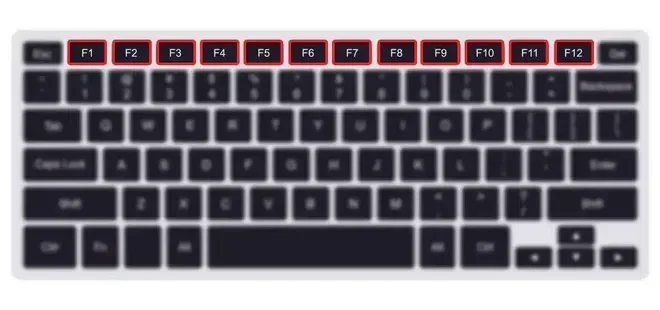
The F4 key on your keyboard is a function key with multiple uses depending on the program and operating system you are using. On Windows, pressing F4 alone opens the address bar in File Explorer, while holding Alt and pressing F4 closes the active window. On Mac laptops, F4 often opens the Dashboard or Mission Control. Understanding what F4 does can save you time and boost your productivity when working on your laptop every day.
Key Takeaways
- F4 opens the address bar in Windows File Explorer and serves as a handy shortcut for quick navigation.
- Alt F4 closes the active window on your laptop, which is one of the most used keyboard shortcuts worldwide.
- On Mac computers, F4 has a different role, often launching Dashboard or Mission Control instead.
- Ctrl F4 closes the current tab within an application, not the entire program window.
- F4 in Microsoft Excel locks cell references, which is essential for building accurate formulas.
- F4 key problems can often be fixed by checking your keyboard settings, updating drivers, or cleaning the key.
📑 Table of Contents
What Does the F4 Key Do on a Keyboard
If you have ever stared at your laptop keyboard and wondered what that little F4 key actually does, you are not alone. The F4 key on keyboard is one of the twelve function keys sitting at the top of your keyboard. These keys, labeled F1 through F12, have been part of computer keyboards for decades. Yet many people barely use them.
The F4 key function changes depending on what device you are using and what program is open. On a Windows laptop, pressing F4 alone does something very different than holding down the Alt key and pressing F4. On a Mac, the F4 key has its own set of duties entirely. Understanding these differences is the first step to becoming more efficient with your daily computer work.
This guide breaks down everything you need to know about the F4 key. We will cover its basic functions, common shortcuts, where to find it on your laptop, and how to fix problems if the key stops working. Whether you are a student, a professional, or just someone who wants to get more out of their device, this laptop keyboard guide has you covered.
Function keys like F4 are part of the standard keyboard key functions that every laptop user should understand. They sit at the top of your keyboard in a dedicated row and are designed to provide quick access to common actions. While they may seem old-fashioned in the age of touchscreens and trackpads, these keys remain incredibly useful for anyone who wants to work faster and smarter.
The Basic Function of F4
On most Windows computers, pressing the F4 key by itself opens the address bar in File Explorer. This is a quick way to type in a new folder path or web address without reaching for your mouse. It is one of those small keyboard shortcuts that saves real time once you get used to it.
The F4 key also works inside many text editors and word processors. In some programs, it repeats your last action. This can be incredibly handy when you are formatting text or applying the same effect over and over again. The exact F4 key meaning depends on the software you are using, which is why it helps to learn the shortcuts for your most-used programs.
Another common use of F4 is in the Windows command line. In Command Prompt and PowerShell, pressing F4 displays the command history for your current session. This lets you quickly recall and reuse commands you typed earlier without scrolling through long lists. It is a neat trick that power users rely on every day.
F4 Key on Windows vs Mac
The F4 key on laptop behaves differently on Windows and Mac computers, and this trips up a lot of users. On Windows, F4 has the address bar function we mentioned above. When combined with the Alt key, it closes the active window. This is one of the most widely used function keys on keyboard shortcuts in the Windows world.
On Mac computers, the F4 key usually opens the Dashboard or Mission Control, depending on your system settings. Apple uses the function keys for media controls like volume and brightness by default, so you may need to hold the Fn key to access the traditional F4 function key operations. This difference in F4 key on Mac versus Windows is important to know if you switch between the two systems.
If you use both Windows and Mac regularly, the difference in F4 key Windows and F4 key Mac behavior can cause confusion. For example, pressing Alt F4 on a Mac does not always close the window the same way it does on Windows. Some Mac applications respond to it, while others ignore it entirely. This is why understanding your specific platform is so important when learning keyboard shortcuts.
| Platform | F4 Alone | Alt F4 | Ctrl F4 |
|---|---|---|---|
| Windows | Opens address bar in File Explorer | Closes active window | Closes current tab |
| Mac | Opens Dashboard or Mission Control | Closes active window | Closes current tab |
As you can see from this comparison, the F4 key serves different purposes across platforms. The Alt F4 combination works the same on both systems, which makes it a universal shortcut worth memorizing. The Ctrl F4 shortcut also works consistently across both platforms for closing tabs within applications.
Common F4 Key Shortcuts You Should Know
Now that you understand the basics, let us look at the most practical F4 key shortcuts you can use every day. These shortcuts work across many programs and can seriously speed up your workflow. Once you start using them, you will wonder how you ever managed without them.
F4 in Microsoft Excel
If you use Excel even a little bit, the F4 key is a game changer. In Excel, pressing F4 cycles through different types of cell references in a formula. For example, if your formula references cell A1, pressing F4 will toggle between A1, $A$1, A$1, and $A1. This is called locking cell references, and it is essential for building spreadsheets that copy formulas correctly.
Without this shortcut, you would have to manually type the dollar signs every time. That might sound minor, but when you are working with hundreds of formulas, it adds up to a lot of saved time. Anyone who works with spreadsheets regularly should make this F4 key Excel shortcut second nature. It is one of the most practical F4 key uses in any professional setting.
Here is a quick example of how this works. Say you type =A1+B1 in cell C1. Press F4 once, and it becomes =$A$1+$B1. Press F4 again, and it becomes =A$1+$B1. Each press cycles through a different reference type. This simple trick can save you hours of manual editing over time.
Alt F4 and Ctrl F4 Explained
The Alt F4 shortcut is probably the most famous use of the F4 key. On both Windows and Mac, pressing Alt and F4 at the same time closes the currently active window. If you have only one window open, Alt F4 will shut down your program entirely.
This shortcut is much faster than clicking the X button in the corner of a window. It is especially useful when you are working with multiple programs and need to close them quickly. If you accidentally press Alt F4 and close something you did not mean to, most programs will ask you to confirm before quitting. This safety net gives you a chance to undo the action.
The Ctrl F4 shortcut works a bit differently. Instead of closing the entire program, it closes only the current tab or document within that program. For example, in a web browser, Ctrl F4 closes the active tab but leaves the browser open. In Microsoft Word, it closes the current document but keeps Word running. This distinction between Alt F4 and Ctrl F4 is important to understand so you do not accidentally close your entire program.
Many people also use Ctrl F4 in applications like PowerPoint, Excel, and web browsers. Once you start using these shortcuts regularly, you will wonder how you ever worked without them. They are part of the essential laptop keyboard keys everyone should know. Practice them for a week, and they will become automatic.
Another useful tip is that you can use Ctrl F4 in nearly any application that uses tabs. This includes web browsers, file explorers, and even some media players. The consistency of this shortcut across different programs makes it one of the most valuable F4 key shortcuts to learn.
Where Is the F4 Key Located on a Laptop
Finding the F4 key is straightforward. Look at the top row of your keyboard, just above the number row. The keys are labeled F1 through F12 from left to right. F4 is the fourth key from the left in that row. It is easy to spot once you know where to look.
On some laptops, especially thinner models like certain Dell or HP machines, the function keys share space with media control keys. You might see icons for volume, brightness, or mute printed on the same keys. In these cases, you need to hold the Fn key on the bottom left of your keyboard while pressing F4 to use the traditional function. Without holding Fn, the key will adjust your volume or screen brightness instead.
This dual-purpose design is common on modern laptop keyboards. It saves space and makes the keyboard more compact. If you find yourself accidentally changing the volume when you meant to press F4, you can usually go into your system settings and swap the behavior. Many laptops let you choose whether the function keys work as media controls by default or require the Fn key to be held down.
The laptop keyboard layout can vary slightly between brands, but the F4 key is almost always in the same position. Whether you have a Dell, HP, Lenovo, Asus, or Apple laptop, F4 will be the fourth key from the left in the top row. The only difference is whether it performs its traditional function right away or requires the Fn modifier.
Troubleshooting F4 Key Issues on Your Laptop
Sometimes the F4 key stops working as expected. This can be frustrating, especially if you rely on keyboard shortcuts for your daily tasks. The good news is that most F4 key problems have simple solutions. You do not need to be a tech expert to fix them.
One common issue is the Fn Lock feature. Many laptops have a function lock that changes how the top row of keys behaves. If your F4 key is only adjusting volume instead of performing its normal function, try pressing the Fn Lock key. This is often the Esc key or a dedicated button with a lock icon on it. Pressing it once should toggle the function keys back to their normal behavior.
Another reason the F4 key might not work is outdated keyboard drivers. Your laptop uses drivers to communicate between the hardware and the operating system. If these drivers are out of date, certain keys may stop responding. You can usually update your drivers through your device manager on Windows or through system preferences on Mac. Keeping your drivers up to date is one of the simplest forms of keyboard troubleshooting you can do.
If the F4 key is physically stuck or unresponsive, the problem might be hardware related. Dust and debris can build up under the keys over time. Try gently cleaning around the key with compressed air. If the key still does not work, you may need to have the keyboard repaired or replaced. This is similar to dealing with other hardware issues like when your mouse is not showing up on your laptop, which sometimes points to a deeper connection or driver problem.
For more general laptop hardware questions, you might want to check what the RAM on your laptop does, as understanding your laptop components helps you troubleshoot better. Also, if you are dealing with keyboard or input issues alongside performance problems, learning what good RAM for your laptop means can help you determine if your system needs an upgrade. Sometimes what seems like a keyboard issue is actually a broader hardware problem.
You can also explore how to know what RAM is compatible with your laptop if you suspect your machine needs a hardware refresh. Keeping your laptop well-maintained ensures that all keys, including F4, continue to work properly for years to come.
F4 Key Functions for Everyday Laptop Tasks
Beyond the shortcuts we have already covered, the F4 key has several other useful functions that can make your daily laptop use smoother. These are the kinds of things you might not discover unless someone points them out. Once you know them, they become part of your daily routine.
In many web browsers, pressing F4 moves the cursor to the address bar. This works in Chrome, Firefox, Edge, and most other popular browsers. It is a quick alternative to clicking on the address bar with your mouse or using Ctrl L. Once the address bar is active, you can type in a new URL or search query right away. This is one of the simplest F4 key shortcuts that anyone can benefit from.
In some text editing programs, F4 repeats the last action you performed. This is especially useful in Microsoft Word. If you just changed the font color of a word, you can select another word and press F4 to apply the same change instantly. This repeat function works for many formatting actions and saves you from going back to the toolbar every time. It is a small shortcut that makes a big difference.
In Windows PowerShell and Command Prompt, F4 has yet another role. It displays the command history for the current session. This can help you quickly recall and reuse commands you typed earlier, which is handy if you work with the command line regularly. For developers and IT professionals, this F4 key function is a time saver they rely on daily.
For anyone who wants to become more productive on their laptop, learning these F4 key uses is a small investment that pays off quickly. The more shortcuts you know, the less you need to reach for your mouse or trackpad. This ties into overall laptop keyboard layout knowledge that makes you more efficient in everything you do.
Understanding your laptop also means knowing its components. Just as the F4 key has specific functions, knowing about your laptop’s RAM helps you understand performance. If you are curious about what makes a laptop run smoothly, exploring your laptop’s hardware and laptop function keys together gives you a well-rounded understanding of your device. The more you learn, the more capable you become.
How to Get the Most Out of Your Function Keys
The F4 key is just one of twelve function keys on your keyboard. Once you start paying attention to what each key does, you will open up a whole new level of efficiency on your laptop. Here are some tips for getting the most out of all your function keys, starting with F4.
First, take a few minutes to learn the shortcuts for your most-used programs. You do not need to memorize every single shortcut. Just pick the ones you use daily, like F4 in Excel or Alt F4 for closing windows. Over time, these will become automatic. Start with two or three shortcuts and build from there.
Second, check your laptop settings. Most laptops let you customize function key behavior. You can choose whether the keys act as traditional function keys or as media controls by default. Finding the right setting for your workflow can prevent a lot of frustration. This is especially helpful if you frequently use the F4 key for its standard function.
Third, keep your keyboard clean. A dirty keyboard can cause keys to stick or behave unpredictably. Regular cleaning with compressed air or a soft brush can prevent many common issues. This is part of basic keyboard troubleshooting that everyone should do. A clean keyboard is a happy keyboard.
Finally, if you are ever unsure what a key does, look it up. Most operating systems have built-in shortcut guides, and a quick search online can reveal dozens of useful shortcuts you never knew existed. The more you explore, the more you will get out of your laptop every single day. Treat your laptop keyboard guide as a living resource you can always return to.
Conclusion
The F4 key on keyboard might seem like a small and overlooked part of your laptop, but it carries a surprising amount of functionality. From opening the address bar in File Explorer to locking cell references in Excel, the F4 key offers shortcuts that can make your work faster and smoother. Understanding what the F4 key does on both Windows and Mac systems gives you an edge in everyday computing.
Remember that Alt F4 closes windows, Ctrl F4 closes tabs, and the F4 key has unique roles in programs like Excel. If you ever run into issues with the key, simple fixes like checking your Fn Lock or updating drivers usually solve the problem. The more you learn about your laptop keyboard keys, the more productive you become.
Take some time today to practice these shortcuts. Try using F4 in your browser, Excel, and word processor. Once these become second nature, you will wonder how you ever worked without them. The F4 key is just one piece of the puzzle, but it is a piece that can genuinely improve your daily workflow on your laptop. Start using it intentionally, and you will feel the difference.
Frequently Asked Questions
What happens when you press F4 on a laptop?
On Windows, pressing F4 alone opens the address bar in File Explorer. When you hold the Alt key and press F4, it closes the active window. The exact result depends on your operating system and what program is currently open. On Mac laptops, F4 typically opens the Dashboard or Mission Control.
Why is the F4 key not working on my laptop?
The most common reason is the Fn Lock feature being activated, which changes how the top row of keys behaves. Other possible causes include outdated keyboard drivers, a physically stuck key, or debris under the key. Try pressing the Fn Lock key, updating your drivers, or cleaning around the key to resolve the issue.
What is the difference between Alt F4 and Ctrl F4?
Alt F4 closes the entire active window or program, while Ctrl F4 closes only the current tab or document within that program. For example, Alt F4 would close your entire web browser, but Ctrl F4 would close just the active tab and leave the browser open.
How do I use F4 in Microsoft Excel?
In Excel, pressing F4 cycles through different cell reference types in a formula. It toggles between relative references like A1 and absolute references like $A$1. This is incredibly useful for locking specific cells when you copy formulas across your spreadsheet.
Does the F4 key work the same on Mac and Windows?
No, the F4 key behaves differently on Mac and Windows. On Windows, F4 opens the address bar in File Explorer, while on Mac it usually opens Dashboard or Mission Control. However, Alt F4 works the same way on both platforms to close the active window.
Can I customize what the F4 key does on my laptop?
Yes, you can customize function key behavior through your laptop settings. Most laptops let you choose whether the function keys work as media controls by default or require the Fn key to be held. You can also remap keys using third-party software for more advanced customization.
=== CONCLUSION ===
The F4 key on keyboard is a versatile and underrated tool that can boost your productivity significantly. From basic navigation to advanced Excel formulas, mastering this key opens up new ways to work faster on your laptop. Start incorporating these shortcuts into your daily routine and enjoy the difference.