What Is Iommu in Bios
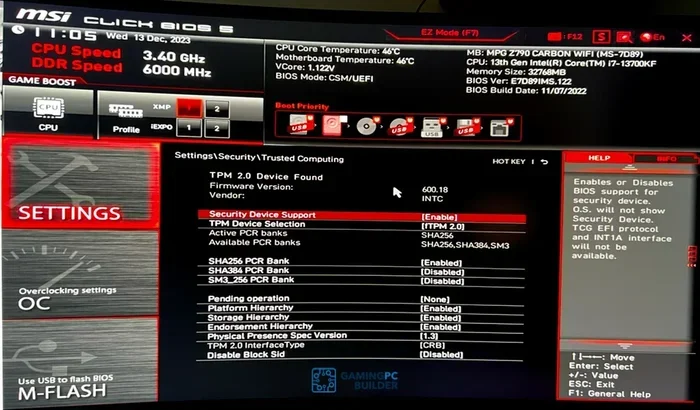
IOMMU stands for Input Output Memory Management Unit, and it is a hardware feature hidden in your laptop BIOS that controls how devices access system memory. It boosts security, enables GPU passthrough, and stops rogue devices from crashing your system. Knowing what IOMMU does can help you troubleshoot issues and get the most out of your laptop.
Your laptop does a lot of behind-the-scenes work every time you turn it on. One of the most important but least talked about parts of that process lives inside your BIOS. It is called IOMMU, and it plays a big role in how your laptop handles hardware devices and memory.
IOMMU stands for Input Output Memory Management Unit. It might sound like a complex term, but the idea behind it is simple. Think of it as a security guard for your laptop memory. It decides which devices get to access what parts of your system memory, and it keeps everything running safely.
In this guide, we will break down exactly what IOMMU does, why it matters, and how you can find and use it in your BIOS. Whether you are a casual user or a power user, understanding this feature can help you get more out of your machine.
Key Takeaways
- IOMMU controls memory access: It acts as a gatekeeper, deciding which hardware devices can reach your laptop memory and how.
- It improves security: IOMMU stops malicious or faulty devices from accessing protected memory areas.
- Essential for virtualization: If you run virtual machines, IOMMU enables GPU passthrough and device isolation.
- You can toggle it in BIOS: Look for AMD-Vi or Intel VT-d settings in your firmware.
- It affects GPU performance: Proper IOMMU setup can help keep your idle gpu temperature stable by managing device memory efficiently.
- Not all laptops support it: Older or budget models may lack IOMMU features in their BIOS.
📑 Table of Contents
What Is IOMMU And Why Does It Matter?
IOMMU is a hardware feature built into modern processors and chipsets. It works at the lowest level of your laptop, right inside the BIOS firmware. Its main job is to manage how input and output devices communicate with your system memory.
Without IOMMU, any device connected to your laptop could technically reach any part of your memory. That sounds convenient, but it is a big security risk. A faulty or malicious device could read sensitive data or crash your entire system. IOMMU puts up a wall and controls exactly what each device can do.
Here are the main reasons IOMMU matters for your laptop:
- Memory protection: It stops devices from accessing memory they should not touch.
- Device isolation: Each device gets its own protected memory space.
- Better performance: It handles memory mapping more efficiently, reducing delays.
- Virtualization support: It allows you to pass through hardware to virtual machines.
- System stability: It prevents rogue devices from causing crashes or freezes.
Most modern laptops use either AMD-Vi (for AMD processors) or Intel VT-d (for Intel processors). These are the two main flavors of IOMMU technology. Your BIOS will show one of these names depending on your CPU.
How IOMMU Works Inside Your Laptop BIOS
When your laptop boots up, the BIOS initializes all the hardware connected to your system. Part of this process involves setting up the IOMMU. It creates a map of all the devices and assigns them memory access permissions. This happens before your operating system even loads.
The Memory Mapping Process
Here is a simple way to understand how IOMMU memory mapping works:
- Your laptop starts and the BIOS takes control.
- The BIOS detects all connected devices like your GPU, Wi-Fi card, and USB controllers.
- IOMMU creates a memory map for each device.
- Each device can only access the memory pages assigned to it.
- If a device tries to go outside its allowed memory space, IOMMU blocks it.
This process happens in milliseconds. You never see it happening, but it is always working in the background. It keeps your laptop safe and stable every single day.
Having enough ram in your system helps IOMMU work better because it handles memory mapping for all connected devices. More memory means more room for the IOMMU to create clean, efficient mappings without conflicts.
AMD-Vi vs Intel VT-d
AMD and Intel each have their own version of IOMMU technology:
- AMD-Vi: Found in AMD processors. Also called AMD IOMMU. It provides the same core functions as Intel VT-d but uses AMD-specific instructions.
- Intel VT-d: Found in Intel processors. It stands for Intel Virtualization Technology for Directed I/O. It does the same job but under Intel branding.
Both technologies serve the same purpose. They manage device-to-memory communication and keep your system secure. The difference is mainly in the processor brand and the BIOS menu name you will see.
Where to Find IOMMU Settings in BIOS
Finding IOMMU settings in your BIOS can be a bit tricky because every laptop manufacturer puts these options in different places. However, most BIOS menus follow a similar pattern.
To access your BIOS, restart your laptop and press the BIOS key during startup. This is usually F2, F12, Del, or Esc depending on your brand. Once inside, look for sections labeled Advanced, Chipset, Northbridge, or CPU Configuration.
Here are common IOMMU setting names you might see:
- AMD-Vi or IOMMU (AMD laptops)
- Intel VT-d or VT-d (Intel laptops)
- DMA Protection (some brands use this name)
- Intel Directed I/O (less common)
- PCIe ACS (related to IOMMU functionality)
The setting is usually a simple toggle switch. You can turn it Enabled or Disabled. In most cases, it should be set to Enabled for the best security and compatibility.
If you own a Ryzen 7 5700G or similar AMD processor, your BIOS will almost certainly have an AMD-Vi option you can enable.
Tips for Navigating BIOS
BIOS menus can feel overwhelming, especially if you have never used them before. Here are a few tips to make it easier:
- Take a photo of your BIOS home screen before making any changes.
- Only change settings you understand. If a setting looks unfamiliar, leave it alone.
- Save your changes before exiting. Most BIOS menus have a Save and Exit option.
- If you get lost, look for a Reset to Default option to start over.
IOMMU and Virtualization: Why It Matters
One of the biggest reasons IOMMU exists is to support virtualization. Virtualization lets you run multiple operating systems on one laptop. It is used by developers, IT professionals, and even regular users who want to test software in different environments.
Without IOMMU, virtualization would be much slower and less secure. IOMMU allows each virtual machine to have direct access to specific hardware devices. This is called device passthrough.
What Is GPU Passthrough?
GPU passthrough is when you give a virtual machine direct access to your laptop graphics card. This is incredibly useful for gaming VMs, machine learning, and 3D rendering work.
IOMMU makes GPU passthrough possible by isolating the GPU’s memory access. It ensures that the GPU can only reach its own memory space and not interfere with the host system or other virtual machines.
Here is how IOMMU supports GPU passthrough:
- It assigns the GPU a dedicated memory range.
- It blocks other devices from accessing GPU memory.
- It translates device addresses so the GPU can communicate correctly.
- It keeps the host system safe from any GPU crashes or errors.
Proper IOMMU setup can also help keep your idle gpu temperature stable because it manages how the GPU accesses system resources, reducing unnecessary memory conflicts that can cause extra GPU activity.
Common IOMMU Issues and How to Fix Them
While IOMMU is a powerful feature, it can sometimes cause problems. Here are the most common issues users face and how to solve them.
IOMMU Not Showing in BIOS
If you cannot find IOMMU settings in your BIOS, there are a few possible reasons:
- Your laptop BIOS might be outdated. Check your manufacturer’s website for updates.
- Your CPU might not support IOMMU. Older or budget processors sometimes lack this feature.
- The setting might be hidden under an advanced or expert mode in BIOS.
- Your laptop manufacturer may have disabled the option entirely.
Try updating your BIOS first. If the option still does not appear, your laptop may not support IOMMU in hardware.
System Instability After Enabling IOMMU
Some users report crashes or freezes after turning on IOMMU. This usually happens because of driver conflicts or incorrect device mappings. Here is what you can do:
- Make sure all your device drivers are up to date.
- Check if your operating system supports IOMMU (most modern OS versions do).
- Try disabling IOMMU temporarily to see if stability improves.
- Reset BIOS to default settings and re-enable IOMMU carefully.
IOMMU Causing Slow Performance
In rare cases, IOMMU can slightly impact performance. This happens because every device memory access goes through the IOMMU translation layer. However, the security and stability benefits almost always outweigh the small performance cost.
If you notice a significant slowdown, check if your laptop has the latest BIOS version. Manufacturers often release updates that improve IOMMU efficiency.
IOMMU Security Benefits You Should Know
Security is one of the biggest reasons IOMMU exists in the first place. Modern laptops connect to many external and internal devices. Each one of those devices has access to your system bus. Without IOMMU, a compromised device could potentially read or write to any part of your memory.
IOMMU prevents this by enforcing strict memory access rules. Even if a device is infected with malware, it cannot reach memory areas outside its assigned space. This is especially important for:
- USB devices: External drives and peripherals can carry threats.
- Network cards: Wi-Fi and Ethernet adapters can be targeted by attackers.
- GPU devices: Graphics cards have direct memory access and can be exploited.
- Thunderbolt devices: These high-speed connections are particularly vulnerable without IOMMU protection.
Think of IOMMU as a bouncer at a club. It checks every device at the door and only lets them into the areas they are allowed to enter. Without that bouncer, anyone could walk into any room in the club. That is what happens on a system without IOMMU enabled.
Quick Tips for Managing IOMMU on Your Laptop
Here are some practical tips to keep in mind when dealing with IOMMU:
- Keep your BIOS updated: Manufacturers often improve IOMMU support in newer BIOS versions.
- Enable IOMMU if you use virtualization: It is essential for running VMs with hardware passthrough.
- Leave it enabled for daily use: The security benefits apply even if you do not use virtual machines.
- Check your laptop manual: Your manufacturer’s documentation may list IOMMU settings and supported features.
- Do not disable IOMMU lightly: Turning it off removes an important layer of hardware security from your system.
Understanding your laptop’s BIOS settings, including IOMMU, gives you more control over your system. It is like learning how the engine in your car works. You do not need to be a mechanic, but knowing the basics helps you drive better and fix problems faster.
IOMMU is one of those features that works silently in the background. You probably never notice it when it is doing its job correctly. But when something goes wrong, or when you need advanced features like GPU passthrough, knowing what IOMMU is and how to manage it makes a huge difference.
Take a few minutes to check your BIOS settings. See if your laptop supports IOMMU, and make sure it is enabled if it does. It is a small step that can make your laptop safer and more capable.
Frequently Asked Questions
What does IOMMU stand for?
IOMMU stands for Input Output Memory Management Unit. It is a hardware feature in your laptop that manages how devices access system memory. It acts as a security gatekeeper between your hardware devices and your laptop memory.
Do I need IOMMU enabled on my laptop?
Yes, you should keep IOMMU enabled in most cases. It provides important security protection and is required for virtualization features like GPU passthrough. Disabling it removes a layer of device memory protection from your system.
Can IOMMU improve my laptop performance?
IOMMU mainly improves security and stability rather than raw speed. However, it can help your GPU and other devices work more efficiently by managing memory access properly. In virtualization setups, it is essential for good performance.
What is the difference between AMD-Vi and Intel VT-d?
AMD-Vi and Intel VT-d are both versions of IOMMU technology. AMD-Vi is used in AMD processors while Intel VT-d is used in Intel processors. They do the same job of managing device memory access but use different processor architectures.
Will enabling IOMMU affect my RAM performance?
Enabling IOMMU may add a tiny overhead to memory access because all device memory requests go through the IOMMU translation layer. However, this overhead is minimal and the security benefits far outweigh any small performance impact.
Can IOMMU help protect against malware?
Yes, IOMMU provides hardware-level protection against certain types of malware. It prevents compromised devices from accessing memory areas they should not reach. This is especially useful for protecting sensitive data from infected USB or peripheral devices.
=== CONCLUSION ===
IOMMU is a powerful but often overlooked feature hidden in your laptop BIOS. It manages how devices access your system memory, keeps your laptop secure, and enables advanced features like virtualization and GPU passthrough. Whether you are a casual user or a power user, understanding what IOMMU does can help you get more out of your machine.
Take a moment to check your BIOS settings today. Look for AMD-Vi or Intel VT-d options and make sure they are enabled. It is a simple step that can improve your laptop security and open up new possibilities for advanced computing tasks. Your laptop works hard for you every day, and IOMMU is one of the features working quietly in the background to keep it safe and running smoothly.