What Is Post Delay Time in Bios
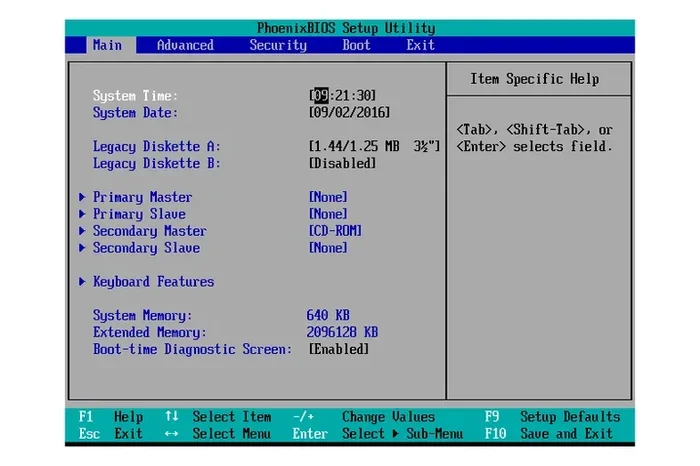
Post delay time in BIOS is a setting that controls how long your laptop waits before starting the boot process after you power it on. This feature lets you pause the startup sequence, giving you time to access BIOS settings or troubleshoot hardware issues. Understanding this setting helps you fine-tune your laptop’s boot speed and resolve startup problems.
When you press the power button on your laptop, a lot happens behind the scenes before Windows or your operating system loads. One small but important part of that process is something called post delay time in BIOS. If you have ever wondered why your laptop pauses for a moment before it starts up, or if you want to speed things up, this setting is worth understanding.
Post delay time is a BIOS feature that controls the gap between when you turn on your laptop and when the system begins checking your hardware. Think of it as a countdown timer built into your motherboard’s firmware. Some people never touch this setting, while others find it incredibly useful for fixing boot problems or making startup faster.
In this guide, we will break down exactly what post delay time does, why it matters, and how you can adjust it on your laptop. Whether you are a beginner or someone who likes to dig into system settings, you will find practical advice here.
Key Takeaways
- Post delay time controls startup pause: It sets a wait period before your laptop begins the boot process after power-on.
- Useful for troubleshooting: A delay gives you time to press a key and enter BIOS when something goes wrong.
- Adjustable in BIOS settings: You can change the delay time through your motherboard or laptop firmware menu.
- Not the same as boot delay: Post delay specifically refers to the time before the POST (Power-On Self-Test) begins.
- Can affect boot speed: Setting a long delay slows down your laptop’s startup time noticeably.
- Related to RAM and SSD detection: BIOS settings like this interact with how your RAM and storage devices are initialized.
📑 Table of Contents
- What Is Post Delay Time in BIOS?
- Why Does Post Delay Time Matter?
- How to Access and Change Post Delay Time in BIOS
- Post Delay Time vs. Boot Delay Time
- Common Problems Related to Post Delay Settings
- Best Practices for Managing Post Delay Time
- How Post Delay Time Relates to Other BIOS Settings
- Conclusion
What Is Post Delay Time in BIOS?
Post delay time is a setting found in your laptop’s BIOS or UEFI firmware. It determines how many seconds the system waits after you press the power button before it begins the Power-On Self-Test, commonly known as POST. POST is the first thing your laptop does when it turns on. It checks your memory, processor, storage drives, and other key components to make sure everything is working.
The delay is measured in seconds. Most laptops default to a short delay, often around one to three seconds. However, you can change this value in the BIOS setup menu. Some systems let you set it to zero seconds for the fastest startup, while others allow longer delays for troubleshooting purposes.
This setting is different from boot delay, which controls how long the system waits before loading the operating system after POST completes. Post delay happens earlier in the startup process, right at the beginning when the motherboard is waking up.
How POST Works
To understand post delay better, it helps to know what happens during POST. When you hit the power button, your motherboard sends a signal to all connected components. It checks the CPU, verifies the RAM is seated properly, scans for storage drives, and tests the graphics card. If everything passes, the laptop moves on to loading the operating system.
If something fails during POST, your laptop will usually display an error message or emit a series of beeps. The post delay time gives you a brief window to see these messages before the system continues booting.
Why Does Post Delay Time Matter?
You might wonder why this small setting even exists. After all, does it really matter if your laptop waits one second or three seconds before starting the hardware check? The answer is yes, it matters more than most people realize.
First, a delay gives you time to enter the BIOS setup. By pressing a specific key like F2, Delete, or Esc during the delay window, you can access the firmware menu. If your post delay is set to zero, you might miss that window and boot straight into your operating system.
Second, the delay helps with hardware troubleshooting. When something goes wrong with your laptop at startup, the extra seconds let you read error messages on the screen. Without a delay, those messages can disappear too quickly to read.
Third, adjusting this setting can improve your daily workflow. If you want a faster startup experience, reducing the post delay to one second or less can shave precious time off your boot process.
When You Need a Longer Delay
There are times when a longer post delay is actually helpful. For example, if you frequently switch between multiple operating systems, a delay gives you time to access the boot menu. Similarly, if you are testing new hardware like an M.2 NVMe SSD, a longer delay ensures the system properly detects the drive before moving forward.
Some users also increase the delay when they are debugging persistent startup issues. The extra time lets them carefully observe what happens on screen before the system proceeds.
How to Access and Change Post Delay Time in BIOS
Changing the post delay time on your laptop is straightforward, though the exact steps vary depending on your motherboard manufacturer. Here is a general guide that works for most systems.
Step-by-Step Guide
- Restart your laptop. Click the Start menu, select Power, and choose Restart.
- Press the BIOS key repeatedly. As soon as the screen lights up, start pressing the designated key. This is usually F2, Delete, F10, or Esc, depending on your laptop brand.
- Navigate to the Boot section. Once inside the BIOS menu, use your arrow keys to find a tab labeled Boot, Advanced, or BIOS Configuration.
- Locate the Post Delay setting. Look for an option named “POST Delay,” “Delay Timer,” or “Power-On Delay.”
- Change the value. Use the plus and minus keys or the arrow keys to adjust the delay time in seconds.
- Save and exit. Press F10 to save your changes and restart the laptop.
Common BIOS Layouts by Brand
Different laptop brands organize their BIOS menus differently. Here are some quick tips:
- Dell laptops: Press F2 during startup. Look under the Boot tab for delay settings.
- HP laptops: Press F10 to enter BIOS. Check the Advanced menu.
- Lenovo laptops: Press F1 or F2. The setting may be under Configuration or Boot.
- ASUS laptops: Press F2 or Del. Look for the Boot section.
If you cannot find the post delay option, it may not be available on your specific model. Some laptops, especially budget models, hide advanced BIOS settings to keep things simple for everyday users.
Post Delay Time vs. Boot Delay Time
These two terms often get confused, but they refer to different parts of the startup process. Understanding the difference can help you troubleshoot your laptop more effectively.
Post delay time is the wait period before the hardware check begins. It happens right after you press the power button and before the motherboard starts testing your components.
Boot delay time is the wait period after POST completes but before the operating system loads. This delay usually relates to the boot order and how long the system waits for a USB drive or network boot to respond.
Both settings work together to control your laptop’s overall startup experience. Adjusting one without considering the other can lead to confusion about why your boot times are changing.
Quick Comparison
- Post Delay: Controls the gap before hardware checks begin.
- Boot Delay: Controls the gap before the operating system loads.
- Both affect startup time: But at different stages of the process.
- Both are adjustable: Through the BIOS or UEFI firmware menu.
Common Problems Related to Post Delay Settings
Sometimes, post delay settings cause unexpected issues. Here are some common problems and how to fix them.
Laptop Boots Too Slowly
If your laptop takes a long time to start, the post delay might be set too high. Reducing the delay to one second or less can significantly speed up your startup time. Just make sure you still have enough time to press the BIOS key if you ever need to access the firmware menu.
BIOS Settings Keep Resetting
Sometimes after you change the post delay time, the setting reverts to its default after a restart. This usually happens when the CMOS battery is dying. The CMOS battery is a small coin-cell battery on your motherboard that keeps BIOS settings saved when the laptop is powered off. Replacing this battery is an inexpensive fix that solves many BIOS-related issues.
System Does Not Detect RAM or SSD
In rare cases, an incorrect post delay setting can cause the system to skip hardware detection. If your RAM or NVMe SSD is not showing up in the BIOS, try increasing the post delay slightly. This gives the system more time to recognize and initialize these components during startup.
Issues with storage detection are also common after BIOS updates. If you recently updated your BIOS and your drive is not being detected, the post delay setting could be part of the problem. Resetting BIOS to default settings often resolves this.
Best Practices for Managing Post Delay Time
To get the most out of your laptop’s BIOS settings, follow these practical tips.
Keep It Short for Daily Use
For everyday use, a post delay of one to two seconds is ideal. It gives you enough time to press the BIOS key if needed, without slowing down your startup experience significantly.
Increase It Temporarily for Troubleshooting
If you are dealing with a startup problem, bump the delay up to five or ten seconds temporarily. This gives you ample time to read error messages and make adjustments in the BIOS menu.
Document Your Settings
It is a good idea to write down your BIOS settings, including the post delay time. If something goes wrong and you need to reset your BIOS, you will have a reference to restore your preferred configuration.
Update Your BIOS Regularly
Keeping your BIOS firmware up to date ensures that all settings, including post delay, work correctly. Manufacturers often release updates that fix bugs and improve hardware compatibility. If you are having trouble with your M.2 NVMe SSD not showing up in BIOS, a BIOS update might resolve the issue.
Check Compatibility with Your Hardware
Not all laptops support every BIOS feature. Before spending time adjusting settings, check your laptop’s user manual or the manufacturer’s website to confirm that post delay is a configurable option on your model.
How Post Delay Time Relates to Other BIOS Settings
Post delay time does not exist in isolation. It interacts with several other BIOS settings that control how your laptop starts up. Understanding these connections can help you get the most out of your system.
For example, the boot order setting determines which drive your laptop tries to load first. If you have a fast NVMe SSD as your primary drive and a slower hard drive as a backup, the boot order matters a lot. Pairing a smart boot order with a short post delay gives you the fastest possible startup.
Similarly, settings related to RAM speed and configuration are managed through the BIOS. The amount of RAM your laptop has and how it is configured can affect how long the POST process takes. More RAM sometimes means a slightly longer POST, which is where adjusting the post delay becomes relevant.
If you are curious about what makes a good laptop setup overall, understanding how RAM and BIOS settings work together is a great starting point. Proper RAM configuration ensures smooth performance, and correct BIOS timing ensures smooth booting.
Expert Insight
Many experienced technicians recommend keeping the post delay at its default setting unless you have a specific reason to change it. The default values are carefully chosen by motherboard manufacturers to balance speed with reliability. Unless you are troubleshooting a specific issue or trying to shave seconds off your boot time, the default is usually the best choice.
Conclusion
Post delay time in BIOS is a small but powerful setting that controls how your laptop behaves in the first moments after you press the power button. Whether you want faster startup times, easier troubleshooting, or better control over your boot process, understanding this setting gives you more confidence in managing your laptop.
Adjusting the post delay is simple, and the benefits can be noticeable, especially if your laptop currently takes too long to start or if you frequently need to access the BIOS menu. Just remember to keep your changes moderate, document your settings, and update your BIOS firmware regularly for the best results.
Take a few minutes today to check your post delay setting. You might be surprised at how much smoother your laptop’s startup experience can become with just a small tweak.
Frequently Asked Questions
What is the default post delay time in most BIOS systems?
Most laptops default to a post delay time of one to three seconds. This short pause gives the system enough time to initialize before starting the hardware check. However, the exact default value varies by manufacturer and motherboard model.
Can I set the post delay time to zero seconds?
Yes, many BIOS systems allow you to set the post delay to zero. This removes the startup pause entirely and can speed up your boot time. Just be aware that you will have less time to press the BIOS key if you need to access the firmware menu.
Why is my laptop stuck on the POST screen?
A long post delay or a stuck POST screen can indicate a hardware issue, such as faulty RAM or a failing storage drive. Try reducing the post delay and check if your RAM is properly seated. If the problem persists, you may need to troubleshoot individual hardware components.
Does changing post delay time affect my operating system?
No, changing the post delay time only affects the pre-boot phase of your laptop’s startup. Once POST completes, the operating system loads normally. Your files, programs, and settings are not affected by this BIOS setting.
How do I know if my BIOS supports post delay adjustments?
Check your BIOS menu for an option labeled “POST Delay,” “Delay Timer,” or “Power-On Delay.” If you cannot find it, your laptop model may not expose this setting. You can also check your laptop’s user manual or the manufacturer’s website for a list of available BIOS features.
Is post delay the same as Secure Boot delay?
No, they are different settings. Post delay controls the wait time before hardware checks begin, while Secure Boot is a security feature that ensures only trusted operating systems can load. Both are found in the BIOS but serve entirely different purposes.