What Is System Load
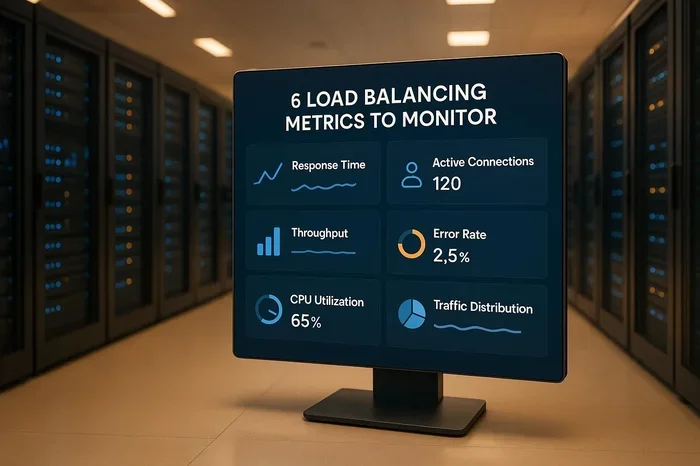
System load measures how much work your laptop’s processor and resources are handling at any given moment. It directly impacts speed, responsiveness, and overall laptop performance. Understanding system load helps you spot bottlenecks, optimize your workflow, and extend your device’s lifespan.
Have you ever noticed your laptop slowing down when you have a dozen browser tabs open? Or maybe your fan kicks into high gear when you’re just typing a document. The reason behind these moments often comes down to one thing: system load. Understanding what system load means and how it affects your daily workflow can change the way you use your laptop forever.
In this guide, we break down everything you need to know about system load in plain, simple language. You will learn what it is, how to measure it, why it matters, and what you can do to keep it under control. Whether you are a student, a remote worker, or a casual user, this article gives you the knowledge to keep your laptop running at its best.
Key Takeaways
- System load defined: It tells you how hard your CPU and resources are working at any moment.
- Monitor easily: Tools like Task Manager and built-in laptop dashboards let you track load in real time.
- High load causes slowdowns: Too many background processes, low RAM, or overheating can spike your system load.
- RAM matters a lot: Having enough RAM on your laptop keeps system load manageable during multitasking.
- Simple fixes work: Closing unused apps, managing startup programs, and keeping your laptop cool all reduce load.
- Long-term health: Consistently monitoring load helps you invest in upgrades that protect your laptop’s lifespan.
📑 Table of Contents
- What Is System Load?
- How System Load Works
- How to Check System Load on Your Laptop
- Common Causes of High System Load
- How to Reduce System Load on Your Laptop
- System Load and Laptop Performance: A Closer Look
- Expert Insights: What Tech Professionals Say About System Load
- Common Mistakes That Increase System Load
- Key Takeaways
- Conclusion
What Is System Load?
System load is a measure of how much work your laptop’s processor is handling at any given time. Think of it like a kitchen during dinner rush. If one chef is cooking, the load is low. But if five orders come in at once, the load goes up. Your laptop’s CPU works the same way. Every app, process, and background task adds to the workload your processor must handle.
System load is not just about the CPU, either. It also involves your memory usage, disk activity, and even your GPU. When people talk about processor load, they usually mean how hard the CPU is working. But a complete picture of system load includes all your laptop’s system resources working together.
The load average is a number you will see in many monitoring tools. It shows the average amount of work your system has been handling over a set period, usually 1, 5, and 15 minutes. A low load average means your laptop has plenty of breathing room. A high load average means your system is struggling to keep up.
Why System Load Matters for Laptops
Laptops are portable machines with limited cooling and power compared to desktop computers. This means they are more sensitive to high system load. When your laptop works too hard for too long, several problems can arise:
- Slow performance: Apps take longer to open and respond.
- Overheating: High load generates more heat, which can trigger thermal throttling.
- Battery drain: A heavily loaded laptop uses power much faster.
- Fan noise: Fans spin up to cool the system, creating distraction.
- Reduced lifespan: Constant high load puts extra stress on components over time.
Monitoring your system load regularly helps you catch problems early. It also gives you the data you need to make smart decisions about upgrades and usage habits.
How System Load Works
To understand system load, it helps to know what happens inside your laptop when you open an app or run a task. Here is a simple breakdown of how your laptop handles work.
The Role of the CPU
Your CPU is the brain of your laptop. When you open a program, the CPU processes the instructions and delivers the results. Each program you run adds a small task to the CPU’s queue. If you run many programs at once, the CPU juggle all of them. This is what we call high CPU usage or high processor load.
A single-core CPU handles tasks one at a time, switching between them very quickly. A multi-core CPU can handle several tasks at once. But even multi-core chips have limits. When you exceed those limits, your system load goes up and performance drops.
Memory and System Load
RAM, or memory, plays a huge role in system load. When your laptop runs out of available RAM, it starts using your hard drive as temporary memory. This process, called swapping, is much slower. It causes lag, stuttering, and high system load.
If you find your laptop slowing down with multiple apps open, your RAM usage might be the culprit. Having enough memory is one of the best ways to keep system load low. For most users, checking what is a good ram size for a laptop can help you determine if an upgrade is needed.
Disk and Background Processes
Your storage drive also contributes to system load. If your disk is constantly reading and writing data, it adds to the overall workload. Background processes are the silent contributors to high load. Apps that run in the background without your knowledge can eat up CPU cycles and memory without you noticing.
Common background processes include automatic updates, cloud syncing services, antivirus scans, and notification systems. Over time, these small tasks add up and increase your system load significantly.
How to Check System Load on Your Laptop
Checking your system load is easier than you might think. Every major operating system comes with built-in tools that show you exactly what is happening under the hood.
Windows Task Manager
On Windows, press Ctrl + Shift + Esc to open Task Manager. Go to the Performance tab to see real-time data on CPU usage, memory, disk, and network activity. The CPU usage graph shows you how much of your processor is being used right now. If it stays near 100 percent for a long time, your system load is too high.
Task Manager also lists all running processes sorted by how much resources they use. This makes it easy to spot which apps or background tasks are causing the most strain on your system.
macOS Activity Monitor
On a Mac, open Activity Monitor from the Utilities folder inside Applications. It works similarly to Task Manager. You can view CPU load, memory pressure, disk activity, and network usage. The Memory Pressure graph is especially useful for spotting RAM usage problems that drive up system load.
Third-Party Monitoring Tools
Beyond built-in tools, several free apps give you deeper insights into system load. Tools like HWMonitor, Open Hardware Monitor, and Core Temp show detailed temperature and load readings. These are especially helpful if you want to track how your laptop performs over time or during heavy tasks like gaming or video editing.
Common Causes of High System Load
High system load does not happen by accident. There are always reasons behind it. Here are the most common causes:
Too Many Open Applications
Running many apps at the same time is the number one cause of high load. Each app uses CPU, memory, and sometimes disk resources. If you have a heavy browser with many tabs, a video editor, and a game all running together, your system load will spike.
Malware and Unwanted Software
Malware runs hidden processes that consume your resources without your knowledge. Even seemingly harmless free software can bundle unwanted programs that run in the background. These hidden processes quietly increase your processor load and slow down your laptop.
Outdated Software and Drivers
Old software and outdated drivers can cause inefficiencies. They may use more resources than necessary or conflict with other processes. Keeping your operating system, apps, and drivers up to date helps your laptop manage system load more efficiently.
Insufficient RAM
If your laptop does not have enough memory for your workload, it constantly swaps data to the disk. This creates a heavy load on both your CPU and your storage drive. Many users search for what is a good ram size for a laptop after experiencing persistent slowdowns from high load.
Overheating and Thermal Throttling
When your laptop gets too hot, it automatically slows down the CPU to protect itself. This is called thermal throttling. Ironically, thermal throttling can cause high system load in some monitoring tools because the CPU works harder to complete tasks at a slower speed. Keeping your laptop cool is essential for maintaining healthy load levels.
How to Reduce System Load on Your Laptop
Reducing system load does not require advanced technical skills. A few simple habits and adjustments can make a big difference in how your laptop performs every day.
Close Unused Applications and Tabs
The simplest way to lower load is to close programs you are not using. Each open browser tab uses memory and CPU resources. If you have 30 tabs open, your laptop is working hard to keep them all active. Try closing tabs you are not actively reading and see how much your system load drops.
Manage Startup Programs
Many apps launch automatically when you start your laptop. These startup programs run in the background even if you are not using them. On Windows, go to Task Manager, click the Startup tab, and disable unnecessary programs. On Mac, go to System Settings and manage Login Items. This alone can significantly reduce your processor load at boot time.
Keep Your Laptop Cool
Good airflow keeps your laptop running efficiently. Use a hard, flat surface instead of a bed or couch. Consider a cooling pad if you work in warm environments. Clean your vents regularly to prevent dust buildup. A cool laptop handles system load much better than an overheating one.
Upgrade Your RAM
If you consistently run into high load, your laptop might need more memory. Upgrading your RAM on your laptop is one of the most effective ways to handle heavier workloads. More RAM means your system can run more apps simultaneously without straining the CPU or disk.
Before buying new RAM, use how to know what RAM is compatible with my laptop as a guide to make sure you get the right type and speed for your machine.
Scan for Malware Regularly
Run a full system scan with a trusted antivirus program at least once a month. Remove any software you no longer need. These steps eliminate hidden processes that silently increase your system load and drain your battery.
Keep Your System Updated
Software updates often include performance improvements and bug fixes. They help your laptop manage system resources more efficiently. Enable automatic updates where possible and check for manual updates regularly.
System Load and Laptop Performance: A Closer Look
Understanding the relationship between system load and performance helps you make smarter choices about how you use your laptop. Here is a closer look at what happens at different load levels.
Low System Load
At low load, your laptop feels fast and responsive. Apps open instantly, videos play smoothly, and multitasking is effortless. Most of your system resources are available for whatever you need. This is the ideal state for everyday use.
Moderate System Load
Moderate load means your laptop is working but not struggling. You might notice slightly longer load times for heavy apps. This is normal during tasks like video calls, light photo editing, or browsing with many tabs open. As long as load stays moderate, performance remains good.
High System Load
High load is when problems start. Apps freeze, videos stutter, and your laptop feels sluggish. Fans spin up and temperatures rise. If your system load stays high for extended periods, it can lead to long-term wear on your components. Learning to manage and reduce load is key to maintaining smooth performance.
Expert Insights: What Tech Professionals Say About System Load
Tech professionals agree that monitoring system load is one of the simplest ways to extend your laptop’s life. Regular monitoring helps you spot trends and catch issues before they become serious problems. Many experts recommend checking your load numbers at least once a week, especially if you use your laptop for demanding tasks.
Another common recommendation from experts is to invest in upgrades rather than replacing your laptop. Adding RAM or switching to an SSD can dramatically reduce system load and improve performance. These upgrades are often more affordable than buying a new machine. For guidance on what makes the best long-term investment, check out what is best investment for lifespan of PC.
Experts also emphasize the importance of thermal management. A well-ventilated laptop handles high workload much more efficiently. Simple habits like using a cooling pad and keeping vents clean go a long way in maintaining healthy system load levels over time.
Common Mistakes That Increase System Load
Many laptop users unknowingly make habits that drive up system load. Here are the mistakes to avoid:
- Leaving apps running in the background: Just because you closed a window does not mean the app stopped running. Always quit apps completely.
- Ignoring startup programs: Too many startup items flood your system with processes from the moment you turn on your laptop.
- Running outdated software: Old versions of apps and operating systems are less efficient and may have known performance issues.
- Overheating your laptop: Using your laptop on soft surfaces blocks vents and traps heat, increasing thermal load.
- Neglecting malware scans: Hidden malware can quietly consume your system resources for weeks without any obvious signs.
Key Takeaways
- System load defined: It measures how hard your CPU and resources are working at any moment.
- Monitor with built-in tools: Task Manager on Windows and Activity Monitor on Mac give you real-time load data.
- High load causes real problems: Slowdowns, overheating, battery drain, and fan noise all result from excessive load.
- RAM is critical: Having enough memory prevents swapping and keeps system load manageable during multitasking.
- Simple fixes make a difference: Closing unused apps, managing startup programs, and keeping your laptop cool all reduce load.
- Upgrades help long-term: More RAM and better cooling solutions allow your laptop to handle heavier workloads without strain.
Conclusion
System load is a fundamental concept that every laptop user should understand. It tells you how hard your machine is working and helps you spot problems before they affect your experience. By monitoring your load, managing your apps, and making smart upgrades, you can keep your laptop fast, cool, and responsive for years to come.
Start by checking your system load today using the tools built into your operating system. Pay attention to which apps use the most resources and close what you do not need. Small changes in how you use your laptop can lead to big improvements in performance and longevity.
Remember, a well-managed laptop is a happy laptop. Take control of your system load and enjoy a smoother, faster computing experience every single day.
Frequently Asked Questions
What does system load mean on a laptop?
System load measures how much work your laptop’s CPU and resources are handling at any given time. It includes CPU usage, memory usage, disk activity, and background processes. A higher load means your laptop is working harder to complete tasks.
How do I check my laptop’s system load?
On Windows, open Task Manager by pressing Ctrl + Shift + Esc and go to the Performance tab. On Mac, open Activity Monitor from the Utilities folder. Both tools show real-time data on CPU load, memory usage, and disk activity.
Is high system load bad for my laptop?
Occasional high load is normal when running demanding tasks. But consistently high load can cause overheating, slow performance, and reduced battery life. Over time, it may also shorten the lifespan of your laptop’s components.
Can adding RAM reduce system load?
Yes. Adding more RAM gives your laptop more memory to handle multiple apps at once. This reduces the need to swap data to your disk, which lowers CPU usage and overall system load. It is one of the most effective upgrades for improving performance.
What is a normal system load for a laptop?
A normal load depends on your laptop’s specs. As a general rule, a load below 50 percent of your CPU capacity is comfortable. Loads above 80 percent for extended periods may indicate you need to close apps or upgrade your hardware.
How can I lower my laptop’s system load?
Close unused apps, manage startup programs, keep your laptop cool, scan for malware, and keep your software updated. If your laptop still struggles, consider upgrading your RAM or storage to handle modern workloads more efficiently.