What Is the Question Mark Key Scan Code
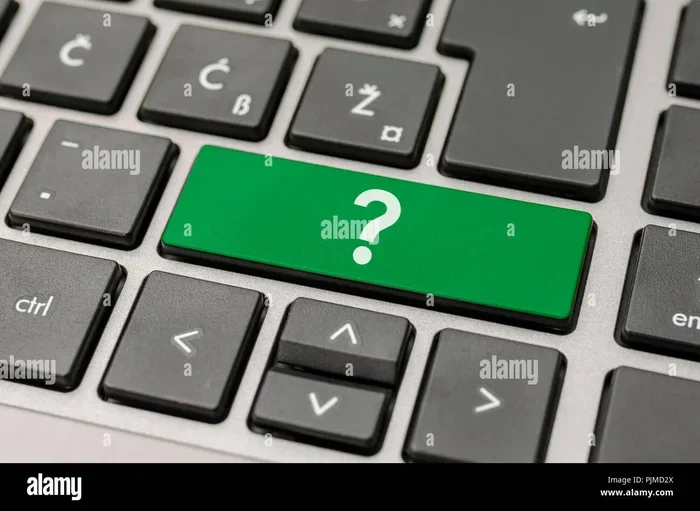
The question mark key scan code is the unique numerical value your keyboard sends to the computer when you press the question mark key. Every key on a laptop keyboard has its own scan code, and the question mark key shares its code with the forward slash on most layouts. Understanding these codes helps with troubleshooting, programming, and custom key mapping.
Have you ever wondered what happens the moment you press the question mark key on your laptop? It is not just a simple symbol that appears on screen. Behind that tiny key sits a whole world of numbers, codes, and protocols that tell your computer exactly what you want. The question mark key scan code is the hidden language your keyboard uses to communicate with your system.
Whether you are a programmer building a custom app, a gamer tweaking your controls, or simply someone curious about how your laptop works, understanding scan codes opens up a new layer of knowledge. In this guide, we will break everything down in plain, simple language. You will learn what scan codes are, what the question mark key code specifically is, and why it matters in everyday computing.
Think of a scan code like a secret number that each key on your keyboard whispers to your computer. When you tap the question mark key, your laptop does not just “know” you want a question mark. It receives a specific numeric signal, and that signal is the scan code. This is true for every single key on your keyboard, from the letter A to the space bar.
Key Takeaways
- The question mark key scan code is typically 0x34 on Windows systems.
- The question mark and forward slash share the same physical key on most US keyboards.
- Scan codes are different from ASCII or virtual key codes but serve a similar purpose.
- Knowing scan codes helps when remapping keys or writing keyboard-interaction software.
- The scan code stays the same regardless of whether you use the shift or unshifted version.
- Laptop keyboards may use slightly different scan codes depending on the manufacturer.
📑 Table of Contents
- What Is a Scan Code?
- The Question Mark Key Scan Code Explained
- Why Does the Question Mark Key Scan Code Matter?
- Question Mark Key Scan Code Across Different Platforms
- How to Find the Scan Code for Any Key
- Common Mistakes When Working with Scan Codes
- The Role of the Question Mark Key in Everyday Use
- Quick Tips for Working with the Question Mark Key Scan Code
- Final Thoughts
What Is a Scan Code?
A scan code is a low-level signal generated by your keyboard hardware. It is the very first piece of information sent to your computer when you press or release a key. Your operating system then translates this raw signal into the character or action you see on screen.
How Scan Codes Work
Here is a simple way to think about it. When you press a key, the keyboard controller inside your laptop sends a scan code through the USB or wireless connection. The operating system reads that code and looks it up in a translation table. That table maps the code to a specific character, like the question mark symbol.
The scan code itself does not carry any meaning about what letter or symbol it represents. It is just a number. The meaning comes from the software layer that interprets it. This is why the same physical key can produce different characters on different keyboard layouts, such as US QWERTY versus UK English.
Scan codes also differ between key press and key release events. When you first press the question mark key, the computer receives a “make” code. When you let go, it receives a “break” code. Both codes are essential for proper input handling.
The Question Mark Key Scan Code Explained
The question mark key scan code is the specific number assigned to the key that produces the question mark symbol. On most standard keyboards, this key shares its physical position with the forward slash key. You access the question mark by holding down the shift key while pressing the slash key.
Common Scan Code Values
On Windows systems using the standard PS/2 or USB keyboard protocol, the question mark key typically has a scan code of 0x34. This is the make code sent when you press the key. The break code, sent when you release it, is usually 0xB4.
Here are a few important things to know about the question mark key scan code:
- The scan code does not change based on shift state. Whether you press the key with or without shift, the base scan code stays the same.
- The shift modifier is handled separately. Your operating system recognizes that shift is held and then maps the scan code to the question mark instead of the forward slash.
- Different protocols may use different values. USB HID codes differ from legacy PS/2 codes, even though they represent the same physical key.
Understanding this distinction is important if you are working on key remapping projects or writing software that reads raw keyboard input. The scan code tells you which physical key was pressed, not which character it produced.
Why Does the Question Mark Key Scan Code Matter?
You might be thinking, “Why do I need to know about scan codes?” The answer is simpler than you might expect. Scan codes matter in several practical situations, from everyday troubleshooting to advanced programming tasks.
Key Remapping and Customization
If you have ever wanted to swap keys on your keyboard or create custom shortcuts, scan codes are where you start. Tools like AutoHotkey, SharpKeys, and various key remapping software all rely on scan codes to identify which key you want to change. If you want to remap the question mark key to do something else, you need to reference its scan code.
For example, you might want the question mark key to act as an escape key for faster gaming. Or you might want it to trigger a macro that types out a common phrase. In both cases, the software needs to know the scan code to identify the correct physical key.
Troubleshooting Keyboard Issues
Sometimes keys stop working correctly, and the question mark key is no exception. If your question mark key is producing the wrong symbol or not responding at all, understanding scan codes can help you diagnose the problem. You can use tools like a key code tester to check whether your laptop is sending the correct scan code when you press the key.
If the scan code is not being sent at all, the issue is likely hardware-related. This could mean a faulty key switch, a loose connection, or a problem with the keyboard controller. If the scan code is sent but the wrong character appears, the issue is likely software-related, such as an incorrect keyboard layout setting.
Programming and Software Development
For developers, scan codes are essential when building applications that respond to keyboard input. Games, text editors, and custom input tools all need to interpret raw key events. Knowing the question mark key scan code helps developers write precise input handling logic.
Many programming frameworks provide scancode constants that developers can reference. Instead of hardcoding numbers like 0x34, they use named constants like KEY_QUESTION_MARK. This makes code more readable and less prone to errors when porting between different platforms.
Question Mark Key Scan Code Across Different Platforms
Scan codes are not universal across all systems. The same physical key can have different scan code values depending on the platform and protocol being used. Here is a quick look at how the question mark key scan code varies.
Windows Scan Codes
On Windows, the PS/2 scan code set is the most commonly referenced. The question mark key uses scan code 0x34 in set 1. Windows also supports USB HID scan codes, which are different numbers but represent the same key. Most modern Windows laptops use USB protocol, so the HID usage ID for the question mark key is typically 0x37.
macOS Scan Codes
Apple uses its own key coding system, which is quite different from the standard PC scan codes. On macOS, the question mark key is identified by a macOS-specific virtual key code rather than a traditional scan code. The character produced is still a question mark, but the underlying identification number is different from what Windows uses.
Linux Scan Codes
Linux systems use the Linux input event framework, which has its own set of key codes. The question mark key maps to a specific key code in the Linux kernel input event codes table. Tools like xev or showkey can help you find the exact code on your Linux machine.
When working across platforms, always check which scan code system your target platform uses. A Windows scan code will not work directly on macOS or Linux without proper translation.
How to Find the Scan Code for Any Key
If you want to look up the scan code for the question mark key or any other key on your laptop, there are several straightforward methods you can try right now.
Method 1: Use an Online Key Code Tester
Several free websites let you press any key and instantly see its scan code. You simply open the site in your browser, press the question mark key, and the tool displays the raw code. This is the fastest and easiest method for most users.
Method 2: Use Built-in Windows Tools
Windows has a built-in tool called the Scan Code Tester that comes with the Windows SDK. You can also use the PowerShell command line to read raw input events. These tools give you direct access to the scan codes your keyboard is sending.
Method 3: Use Third-Party Software
Programs like KeyCodeViewer, SharpKeys, and Keyboard Viewer for macOS make it very easy to see scan codes in real time. These tools often provide a visual keyboard layout where the pressed key lights up, along with its corresponding code.
Whichever method you choose, finding the scan code is a quick process. Once you know the code for the question mark key, you can use it in any project that requires raw keyboard input handling.
Common Mistakes When Working with Scan Codes
Even experienced users sometimes make mistakes when dealing with scan codes. Here are a few pitfalls to avoid.
- Confusing scan codes with ASCII values. Scan codes are hardware-level identifiers. ASCII values are character-level representations. They are completely different systems.
- Assuming scan codes are the same across all keyboards. Different keyboard models and manufacturers may use slightly different scan code sets, especially for laptop keyboards.
- Ignoring the key release code. Many beginners only look at the make code and forget about the break code. Both are needed for complete input handling.
- Using the wrong protocol. Mixing up PS/2 scan codes with USB HID codes will lead to incorrect results in your projects.
By keeping these common mistakes in mind, you can save yourself a lot of frustration when working with keyboard input at a low level.
The Role of the Question Mark Key in Everyday Use
Beyond the technical side, the question mark key plays an important role in daily communication. It is essential for writing questions in any language, formatting code comments, and using keyboard shortcuts in various applications.
On a laptop, the question mark key is often shared with the forward slash key, just like on a desktop keyboard. This shared layout is standard across most US and international keyboard designs. If you ever find yourself unable to type a question mark, checking your keyboard layout settings is a good first step.
For those who frequently type in languages other than English, the position and behavior of the question mark key can vary. Some international layouts place the question mark in a different location or use a different shift combination. Understanding the underlying scan code helps you adapt to these differences more easily.
If you are shopping for a new laptop and want one with a comfortable keyboard layout, it is worth checking out when is the best time to purchase a laptop to make sure you get a model with a keyboard that suits your needs.
Quick Tips for Working with the Question Mark Key Scan Code
- Always test on your specific laptop model. Scan codes can vary slightly between manufacturers.
- Use a key logger temporarily. It helps you see exactly what codes your keyboard is sending in real time.
- Keep a reference table handy. Having a list of common scan codes saves time during development.
- Check your keyboard layout. The wrong layout setting can cause the question mark key to produce unexpected characters.
- Remember that shift modifies the output, not the scan code. The scan code stays the same; the operating system handles the shift logic.
These simple tips can make your work with keyboard scan codes much smoother and more efficient.
Final Thoughts
The question mark key scan code might seem like a small detail, but it is a fundamental piece of how your laptop keyboard communicates with your computer. From basic troubleshooting to advanced software development, understanding this code gives you deeper control over your input devices.
Whether you are debugging a misbehaving key, building a custom application, or just satisfying your curiosity, knowing the scan code behind the question mark key empowers you. It connects you to the hidden layer of technology that makes your laptop keyboard work every single day.
Next time you type a question mark, you will know exactly what is happening behind the scenes. That tiny key is sending a precise numeric signal through your system, and your computer is translating it into the symbol you see on screen. It is a small but fascinating piece of the computing world.
Frequently Asked Questions
What is the scan code for the question mark key on Windows?
The standard scan code for the question mark key on Windows is 0x34 for the key press event. This is the make code sent by the keyboard when you physically press the key down.
Does the question mark key have a different scan code on a laptop versus a desktop keyboard?
The scan code is generally the same for the same key position across different keyboard types. However, some laptop manufacturers may use custom scan code mappings, so slight variations can occur depending on the brand and model.
Why does the question mark key share its physical key with the forward slash?
This is a design choice based on the standard keyboard layout. The question mark is the shifted version of the forward slash, so both characters share the same physical key to save space on the keyboard.
Can I change the scan code for the question mark key?
You cannot change the hardware scan code itself, but you can remap what the key does using software tools. Programs like AutoHotkey or SharpKeys allow you to intercept the scan code and assign a different action or character to it.
Are scan codes the same as virtual key codes?
No, they are different. Scan codes are hardware-level identifiers sent by the keyboard. Virtual key codes are operating system-level identifiers that represent keys in a more abstract way. Both are used in keyboard input handling but serve different purposes.
How can I test the scan code of the question mark key on my laptop right now?
The easiest way is to visit a free online key code tester website. Press the question mark key while the tool is focused, and it will display the raw scan code your laptop is sending. No software installation is required.
=== CONCLUSION ===
The question mark key scan code is a small but essential part of how your laptop keyboard functions. From the moment you press that key to the moment the question mark appears on your screen, a precise numeric code travels through your system. Understanding this process gives you valuable insight into the inner workings of your keyboard and opens up possibilities for customization, troubleshooting, and development.
Keep the tips and information from this guide handy whenever you work with keyboard input. Whether you are a casual user or a power user, knowing your scan codes is a skill that pays off in many situations. Explore more about your laptop hardware to get the most out of your device every day.