What Is Win R
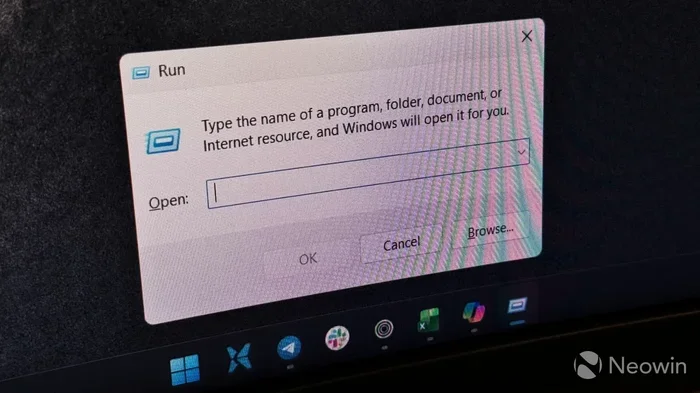
Win R is a keyboard shortcut that opens the Windows Run dialog box instantly. It lets you launch programs, access system tools, and troubleshoot issues on your laptop or desktop. Mastering this simple shortcut can save you time and make you more efficient every day.
If you have been using a Windows laptop for a while, you have probably seen people press two keys at the same time and a small box pop up on screen. That box is the Windows Run dialog, and the shortcut that opens it is called Win R. It is one of the most useful and underrated tools built into every version of Windows.
The Win R shortcut gives you instant access to programs, settings, and system tools without clicking through menus. Whether you are a student, a professional, or just someone who wants to get more done on their laptop, learning how to use Win R can change the way you work. It is fast, simple, and once you start using it, you will wonder how you ever lived without it.
In this guide, we will cover everything you need to know about Win R. We will look at what it does, how to use it, the best commands to memorize, and why it matters for your daily workflow. Let us dive in.
Key Takeaways
- Win R opens the Run dialog: A quick way to access tools and programs without navigating menus.
- It works on all Windows versions: From Windows 7 to Windows 11, the shortcut stays the same.
- You can launch hidden tools: Many system utilities are only accessible through the Run command.
- It boosts productivity: Using keyboard shortcuts like Win R cuts down on mouse-heavy navigation.
- It pairs with other shortcuts: Combining Win R with other keys unlocks even more power.
- It helps with troubleshooting: IT pros use Win R daily to diagnose and fix laptop problems.
📑 Table of Contents
What Is Win R and How Does It Work?
Win R is a keyboard shortcut that opens the Run dialog box in Windows. The “Win” part refers to the Windows key on your keyboard, which usually has the Windows logo on it. The “R” is the letter R. When you press both keys together, a small text box appears. You can type commands into that box and press Enter to execute them.
This shortcut has been part of Windows for many years. It works on Windows 7, Windows 8, Windows 10, and Windows 11. No matter which version you are running, Win R behaves the same way. It is a universal tool across the Windows ecosystem.
The Run dialog box might look simple, but it is incredibly powerful. It acts as a gateway to many features that are buried deep inside the operating system. Instead of hunting through settings or scrolling through menus, you can type a single command and get exactly what you need.
Why Should You Use Win R?
There are several reasons why Win R deserves a spot in your daily routine. First, it saves time. Instead of clicking through multiple folders or menus, you can open almost anything with a few keystrokes. Second, it gives you access to tools that are not easy to find otherwise. Third, it works on every Windows laptop and desktop, making it a reliable skill no matter what device you use.
Many people never discover Win R because it is not prominently advertised. But once you start using it, you will notice how much faster your workflow becomes. It is especially helpful for people who prefer keyboard navigation over using a mouse or trackpad.
How to Open the Win R Dialog
Opening the Run dialog is easy. Just follow these steps:
- Locate the Windows key on your keyboard. It is usually near the bottom left, next to the Alt key.
- Press and hold the Windows key.
- While holding it, press the letter R.
- Release both keys. The Run dialog box will appear on your screen.
That is all it takes. The dialog box will show a small text field where you can type any command. You can also press Ctrl + Esc to open the Start menu and type “run” in the search bar, but the keyboard shortcut is much faster.
If you are using a laptop without a dedicated Windows key, check your keyboard manual. Some laptops use a function key combo to access the Windows key. On certain models, the Windows key might be located near the spacebar or in the bottom row.
Best Win R Commands You Should Know
The real power of Win R comes from the commands you can type into the dialog box. Here are some of the most useful ones that every laptop user should know.
Basic Commands for Everyday Use
- cmd — Opens the Command Prompt. This is a text-based tool for running system commands and scripts.
- notepad — Launches the Notepad text editor instantly.
- calc — Opens the Windows Calculator.
- mspaint — Starts the Paint drawing application.
- explorer — Opens File Explorer to browse your files and folders.
- control — Opens the Control Panel for system settings.
These basic commands are great for quick access to tools you use every day. Instead of searching through your Start menu, you can open them in seconds using Win R.
Advanced Commands for Power Users
Once you get comfortable with the basics, you can explore more advanced commands. These are the ones that IT professionals and power users rely on:
- msconfig — Opens System Configuration. Useful for managing startup programs and troubleshooting boot issues.
- regedit — Opens the Windows Registry Editor. Use this carefully, as it controls deep system settings.
- devmgmt.msc — Opens Device Manager. Great for checking hardware and driver status on your laptop.
- taskmgr — Launches Task Manager. Use it to monitor performance and close unresponsive apps.
- services.msc — Opens the Services console. Lets you manage background services running on your system.
- gpedit.msc — Opens Group Policy Editor. Available on Pro versions of Windows for advanced configuration.
Each of these commands opens a specific tool directly, bypassing the need to navigate through layers of menus. This is why Win R is so valuable for people who work with their laptops daily.
Network and System Commands
Here are a few more commands that are handy for network and system management:
- ncpa.cpl — Opens Network Connections. Useful for managing Wi-Fi and Ethernet settings.
- diskmgmt.msc — Opens Disk Management. Great for managing partitions and drives.
- compmgmt.msc — Opens Computer Management. Combines several system tools in one place.
- eventvwr — Opens Event Viewer. Helpful for diagnosing system errors and warnings.
These commands are especially useful when you are troubleshooting issues on your laptop. For example, if your laptop is running slow, you can use Win R to open Task Manager and check which programs are using the most resources.
Win R and Laptop Productivity
Using Win R regularly can significantly improve your productivity on a laptop. When you are working on the go, every second counts. The fewer clicks you need to perform a task, the more time you save over the course of a day, a week, or a year.
Think about how often you open the same programs or settings on your laptop. If you find yourself opening the same tools repeatedly, Win R can make that process almost instant. You just press two keys, type a command, and hit Enter. It is a small change that adds up to big time savings.
Many laptop users also combine Win R with other shortcuts. For instance, you can use Win R to open the Command Prompt and then run scripts or batch files. This combination is especially useful for people who manage multiple files or need to automate repetitive tasks.
If you are interested in keeping your laptop running smoothly, understanding tools like Win R is a great starting point. It connects you directly to system utilities that help you monitor performance, manage hardware, and optimize settings. You might also want to learn about what is best investment for lifespan of PC to understand how small habits like using shortcuts can extend your device’s life.
Common Uses for Win R in Troubleshooting
Win R is not just for opening programs. It is also a powerful troubleshooting tool. When something goes wrong with your laptop, the Run dialog can help you quickly access the tools you need to diagnose and fix the problem.
Quick Access to System Tools
When your laptop is acting up, you do not want to waste time searching for the right setting. With Win R, you can jump straight to the tool you need. For example:
- Need to check your network connection? Type ncpa.cpl and press Enter.
- Want to see what programs are running in the background? Type taskmgr and press Enter.
- Need to check your disk health? Type diskmgmt.msc and press Enter.
These quick access points can save you a lot of frustration when you are trying to figure out what is wrong with your laptop. Instead of clicking through multiple menus, you get right to the problem.
Using Win R with Antivirus and Security Tools
Many security tools can be launched directly from the Run dialog. For instance, you can type wf.msc to open Windows Firewall settings. This is helpful when you need to quickly check or change your firewall rules. You can also use Win R to open your antivirus software if it has a command-line launch option.
Keeping your laptop secure is important, and Win R makes it easier to access security settings on the fly. If you are also curious about how your laptop’s hardware affects its performance, you can explore topics like what is the best cpu cooler to learn how cooling systems impact your device’s health and speed.
Tips and Tricks for Mastering Win R
Here are some practical tips to help you get the most out of Win R:
- Add commands to your favorites: Once you type a command in the Run dialog, it stays in the history. You can press the up arrow key to cycle through previous commands.
- Use Tab for auto-complete: When typing a file path or program name, press Tab to cycle through suggestions.
- Combine with Ctrl: Pressing Ctrl + Shift + Enter opens some commands with administrator privileges.
- Pin frequently used commands: Create desktop shortcuts for commands you use often, and use Win R to test them quickly.
- Explore new commands: There are hundreds of commands you can type. Experiment with different ones to discover new tools.
The more you use Win R, the more commands you will memorize. Start with the basics and gradually add new ones to your repertoire. Within a few weeks, you will notice how much faster you can navigate your laptop.
It is also worth noting that Win R works hand in hand with other Windows features. For example, you can use it alongside Task Manager (opened via Ctrl + Shift + Esc) to manage running processes. You can also pair it with File Explorer to quickly navigate to specific folders or drive locations.
Customizing Your Win R Experience
Did you know you can customize what appears when you press Win R? While the dialog box itself does not have many customization options, you can create batch files and shortcuts that launch specific commands with a single click. This is a great way to streamline your workflow even further.
For example, you could create a batch file that opens Command Prompt, clears the screen, and runs a specific script — all triggered by a single Win R command. This kind of automation is especially useful for people who work with the same tasks every day.
If you are interested in learning more about how your laptop’s hardware supports these kinds of workflows, you might want to check out what is the ram on a laptop to understand how memory affects your system’s ability to handle multiple tasks efficiently.
Win R vs Other Windows Shortcuts
Win R is just one of many useful Windows shortcuts. Here is how it compares to some other popular ones:
| Shortcut | What It Does | Best For |
|---|---|---|
| Win R | Opens the Run dialog box | Quick access to commands and tools |
| Win E | Opens File Explorer | Browsing files and folders |
| Win S | Opens Search | Finding apps and files |
| Ctrl + Shift + Esc | Opens Task Manager | Managing running processes |
| Win + L | Locks the computer | Quick security when stepping away |
Each shortcut serves a different purpose, but Win R stands out for its versatility. While other shortcuts open one specific tool, Win R can open dozens of different tools depending on what you type. This makes it one of the most flexible shortcuts in Windows.
If you are building a habit of using keyboard shortcuts to improve your laptop workflow, starting with Win R is a smart move. It opens the door to a whole world of quick-access commands that can make your daily tasks faster and more efficient.
Conclusion
Win R is one of the most useful and overlooked features in Windows. It gives you instant access to programs, system tools, and settings with just two keystrokes. Whether you are a casual laptop user or a power user, learning how to use Win R can save you time and boost your productivity.
Start by memorizing a few basic commands like cmd, notepad, and taskmgr. As you get more comfortable, explore the advanced commands that can help you troubleshoot and optimize your system. Before long, you will wonder how you ever managed without it.
The best part about Win R is that it works on virtually every Windows laptop and desktop. It is a skill that stays with you no matter what device you upgrade to. So go ahead, press Win + R, and start exploring. Your laptop will thank you.
Frequently Asked Questions
What does Win R stand for?
Win R stands for the Windows key combined with the letter R. It is a keyboard shortcut that opens the Run dialog box in Windows. The “Win” refers to the Windows key, and the “R” is the specific key you press to activate the shortcut.
Can I use Win R on any Windows laptop?
Yes, Win R works on all versions of Windows, including Windows 7, Windows 8, Windows 10, and Windows 11. It is a universal shortcut that functions the same way across every version of the operating system.
Is Win R safe to use?
Yes, Win R is completely safe. It is a built-in Windows feature that has been part of the operating system for many years. However, you should be careful about typing commands you do not recognize, especially ones that modify system settings or the registry.
What is the difference between Win R and the Start menu search?
Win R opens a text-based dialog where you type specific commands. The Start menu search lets you find and open apps by name. Win R gives you access to hidden system tools and commands that you cannot easily find through the Start menu.
How can I remember all the Win R commands?
Start with the most common commands like cmd, notepad, and calc. Write down the ones you use most often and keep them somewhere visible. Over time, you will naturally memorize the commands you use daily.
Can Win R help improve my laptop’s performance?
Yes, indirectly. Win R gives you quick access to tools like Task Manager, Disk Management, and System Configuration. These tools help you identify performance issues, manage startup programs, and optimize your system for better speed and efficiency.