What Is Windows System32 Ccm
Windows System32 Ccm is a hidden folder tied to Microsoft’s Configuration Manager client. It handles policy updates, software deployment, and system management on Windows devices. Understanding this folder helps you troubleshoot errors and keep your system running smoothly.
Windows System32 is one of the most important folders on any Windows PC. It holds critical system files that keep your computer running. Inside that folder, you may find a subfolder called Ccm. If you have ever opened File Explorer and stumbled upon it, you might have wondered what it does. Is it safe? Is it necessary? Should you delete it?
The short answer is that Windows System32 Ccm is a legitimate component of Microsoft’s Configuration Manager client. It plays a key role in managing updates, policies, and software on Windows devices. In this guide, we will break down everything you need to know about this folder. You will learn what it does, why it exists, and how to handle common issues.
Whether you are a casual user or an IT professional, understanding the System32 Ccm folder can save you time and headaches. Let us dive in.
Key Takeaways
- What CCM Is: The CCM folder in System32 is part of Microsoft Endpoint Configuration Manager and manages client-side device policies.
- Why It Matters: It controls software updates, compliance checks, and IT-managed settings on corporate and personal Windows machines.
- Common Issues: Users often see high CPU usage, disk space warnings, or error messages tied to the CCM folder.
- Safety: The folder is legitimate, but malware can disguise itself as CCM files. Always verify file locations and signatures.
- Management Tips: Regular updates, proper cleanup, and monitoring can prevent most CCM-related problems.
- Enterprise Role: CCM is essential in large organizations for managing thousands of Windows devices from a central point.
- Investment for PC Health: Keeping your system components updated is one of the best investment for the lifespan of your PC.
📑 Table of Contents
What Is Windows System32 Ccm?
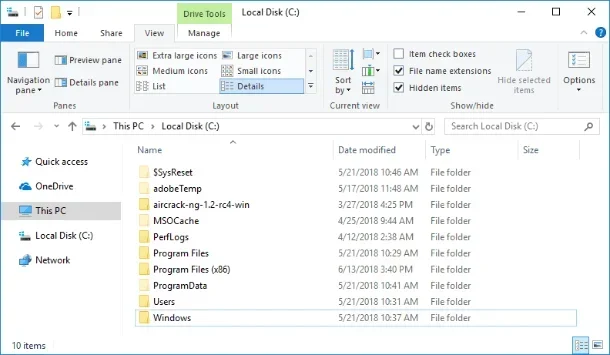
The Ccm folder lives inside the C:\Windows\System32 directory on Windows machines. It stands for Client Configuration Manager. This folder is created when Microsoft Endpoint Configuration Manager (formerly SCCM) installs a client agent on a device.
Think of Configuration Manager as a remote control for IT teams. It lets administrators push software, apply security policies, and monitor compliance across many computers. The CCM folder is the local side of that system. It receives instructions from the server and carries them out on your device.
Not every Windows PC has this folder. It only appears on devices managed by a Configuration Manager server. This is common in corporate environments, schools, and large organizations. If you use a personal laptop at home, you likely will not see it unless you have installed the client manually.
Key Files Inside the CCM Folder
The CCM folder contains several important files and subfolders. Here are the most common ones you will encounter:
- CCMSetup.exe: This is the main installer for the Configuration Manager client. It handles the initial setup and registration of the device with the management server.
- PolicyAgent.exe: This file retrieves and applies group policies from the Configuration Manager server.
- CcmExec.exe: This is the core service that runs the Configuration Manager client. It processes instructions and communicates with the server.
- Logs and Cache: The folder includes log files and a cache directory that stores downloaded content like software packages and updates.
Each of these files has a specific job. Together, they form the backbone of the client-side management system. If any of these files become corrupted, you may notice issues with updates or policy enforcement.
What Does the CCM Folder Do?
The Windows System32 Ccm folder serves several critical functions. Let us look at each one in detail.
Software Deployment
One of the biggest jobs of the CCM folder is handling software deployment. When an IT team wants to push an application to hundreds of computers, they use Configuration Manager. The CCM client on each machine downloads and installs the software silently in the background.
For example, a company might need to install a new security tool across all office computers. Instead of doing it one by one, the IT team pushes the package through the server. The Ccm folder on each PC handles the download and installation process.
Policy Enforcement
The CCM folder also enforces security and compliance policies. These can include password requirements, firewall settings, and software restriction rules. The PolicyAgent.exe file regularly checks in with the server to receive updated policies.
This ensures that every managed device follows the same rules. It is especially important in environments where data security is a top priority.
Windows Update Management
In many enterprise settings, the Configuration Manager client takes over Windows Update responsibilities. Instead of relying on the standard Windows Update service, the CCM client manages update downloads and installations. This gives IT teams more control over when and how updates are deployed.
If you have ever noticed your PC downloading updates at odd hours, there is a good chance the CCM client is behind it.
Hardware and Inventory Reporting
The CCM folder also collects hardware and software inventory data. It sends reports back to the Configuration Manager server about the device’s specs, installed programs, and health status. This helps IT teams track assets and troubleshoot issues remotely.
Common Issues with Windows System32 Ccm
While the CCM folder is essential, it can sometimes cause problems. Here are the most common issues users face.
High CPU or Disk Usage
One of the most frequent complaints is that CcmExec.exe or other CCM processes use a lot of CPU or disk resources. This often happens after a major policy update or software deployment. The client is working hard to download and apply changes in the background.
In most cases, this is temporary. The usage should return to normal once the task completes. If it does not, you may need to restart the Configuration Manager service or clear the client cache.
Disk Space Warnings
The CCM cache folder can grow quite large over time. It stores downloaded software packages, update files, and temporary content. On devices with limited storage, this can quickly eat up disk space.
You can free up space by clearing the CCM cache through the Configuration Manager console or by using the ccmsetup.exe utility. However, be careful not to delete files manually from the System32 folder. Always use the proper tools to manage CCM content.
Error Messages and Failed Policies
Sometimes the CCM client fails to apply policies or download content. You may see error messages in the Event Viewer or in the CCM log files. Common error codes include 0x80004005 and 0x87D00324.
These errors often point to network connectivity issues, server problems, or corrupted client files. Running the Configuration Manager Troubleshooter or reinstalling the client can usually fix the problem.
Malware Disguised as CCM Files
Because the CCM folder is a trusted Windows component, malware authors sometimes disguise malicious files as CCM files. If you find unfamiliar files inside the System32 Ccm folder, scan them with a trusted antivirus tool immediately.
Always verify file locations and digital signatures. Legitimate CCM files should be signed by Microsoft Corporation.
How to Check if the CCM Folder Is Working Properly
Verifying that your CCM client is functioning correctly is straightforward. Here are a few simple steps you can follow.
- Open the Services App: Press Win + R, type
services.msc, and hit Enter. Look for a service called SMS Agent Host or CCMExec. It should be running and set to Automatic. - Check the CCM Cache: Navigate to
C:\Windows\System32\CCM\Cache. The folder should contain subfolders with downloaded content. If it is empty or missing files, the client may need to re-register. - Review the Logs: Open File Explorer and go to
C:\Windows\CCM\Logs. Look for recent log files like ClientIDManagerStartup.log or PolicyAgent.log for any error entries. - Run a Policy Update: Open a Command Prompt as Administrator and type
gpupdate /force. This forces the client to pull the latest policies from the server.
If all these checks pass, your Windows System32 Ccm setup is likely working as intended. If you run into issues, the logs will give you clues about what went wrong.
Should You Delete or Modify the CCM Folder?
The short answer is no. The Ccm folder is a core part of the Configuration Manager client. Deleting or modifying its contents can break device management, stop updates, and cause policy failures.
If you are experiencing problems, do not manually delete files from the folder. Instead, use the proper management tools. You can reinstall the client, clear the cache through the admin console, or contact your IT department for assistance.
One thing to keep in mind is that managing your system files properly is an important part of keeping your PC healthy. Just as you would maintain your RAM or check that your RAM on your laptop is functioning well, the CCM folder deserves the same care and attention.
The Role of CCM in Enterprise Environments
In large organizations, the Windows System32 Ccm folder is indispensable. IT departments rely on it to manage thousands of devices from a central location. Without it, deploying software, applying security patches, and enforcing compliance would be a massive manual effort.
The CCM client also works alongside other Windows management tools. For instance, it integrates with Active Directory, Group Policy, and Microsoft Intune. This creates a comprehensive management ecosystem that keeps enterprise devices secure and up to date.
Even something as simple as fixing mouse speed not changing in Windows 11 can sometimes be managed through Configuration Manager policies in a corporate setting. The reach of the CCM client extends far beyond just software deployment.
Quick Tips for Managing the CCM Folder
- Keep it updated: Always install the latest Configuration Manager client updates to avoid compatibility issues.
- Monitor cache size: Regularly check the CCM cache and clear it when it grows too large.
- Do not manually delete files: Use the proper admin tools to manage CCM content.
- Run regular scans: Use antivirus software to ensure no malware is hiding in the CCM folder.
- Back up logs: Save CCM logs periodically for troubleshooting and audit purposes.
- Check your system specs: Make sure your device has enough good RAM for a laptop or desktop to handle CCM operations smoothly.
Final Thoughts
The Windows System32 Ccm folder is a small but powerful part of the Windows operating system. It handles client-side management tasks that keep devices secure, updated, and compliant with organizational policies. While most home users will never encounter it, anyone working in an IT or enterprise environment should understand its purpose.
If you ever see the CCM folder on your system, now you know it is not a virus or unnecessary clutter. It is a vital tool for device management. Treat it with care, keep it updated, and use the proper tools to troubleshoot any issues that arise.
Taking a proactive approach to system maintenance, from managing the CCM folder to ensuring your RAM for a laptop is optimized, will go a long way in keeping your PC healthy and performing at its best.
Frequently Asked Questions
Is Windows System32 Ccm a virus or malware?
No, the CCM folder is a legitimate Windows component created by Microsoft Endpoint Configuration Manager. However, malware can sometimes disguise itself as a CCM file. Always verify file signatures and scan with antivirus software if you are unsure.
Can I delete the CCM folder from System32?
You should not delete the CCM folder manually. Doing so can break Configuration Manager client functionality, stop software deployments, and cause policy enforcement failures. Use the proper admin tools to manage or remove the client.
Why is CcmExec.exe using so much CPU?
High CPU usage by CcmExec.exe usually happens after a policy update or software deployment. It is typically temporary. If the usage does not return to normal, try restarting the service or clearing the CCM cache.
Do all Windows PCs have the CCM folder?
No, only devices managed by a Microsoft Endpoint Configuration Manager server have the CCM folder. Personal computers not joined to an enterprise network usually do not contain this folder.
How do I clear the CCM cache?
You can clear the CCM cache through the Configuration Manager console by navigating to the client settings and selecting the cache maintenance option. Alternatively, you can use the CCMSetup utility from an elevated command prompt.
What is the difference between SCCM and MECM?
SCCM stands for System Center Configuration Manager. Microsoft rebranded it to Microsoft Endpoint Configuration Manager (MECM) in 2019. The CCM folder and client work the same way under both names.
=== CONCLUSION ===
The Windows System32 Ccm folder is an essential part of device management in Windows environments. It handles software deployment, policy enforcement, update management, and inventory reporting. While most users will never interact with it directly, understanding its role can help you troubleshoot issues and maintain a healthy system.
Keep the folder intact, use proper management tools, and stay vigilant about security. A well-maintained CCM setup ensures your devices stay secure, updated, and compliant. Whether you are managing a single laptop or thousands of machines, the CCM client is a powerful ally in your system management toolkit.