Does a Usb Need Formatting
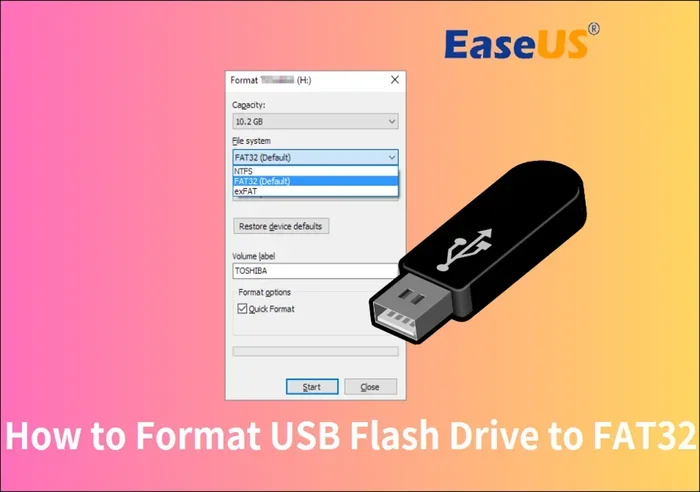
Does a USB need formatting depends on the situation, the device, and the file system you want to use. Formatting prepares your USB drive for data storage by setting up a file system your computer can read. Whether you are using a new flash drive or an old one, understanding USB formatting saves time and prevents data loss.
You plug in a USB drive and nothing happens. Or maybe your computer pops up a message asking if you want to format it before you can access your files. It is a confusing moment, especially if you are not sure what formatting actually does. Many people skip the process entirely and hope for the best. But the truth is, knowing when and how to format your USB storage device matters more than most users realize.
A USB drive may need formatting for several reasons. Perhaps you bought a brand new flash drive straight from the box. Or maybe you are trying to use a drive that worked on a Windows PC but now will not open on your Mac. Sometimes a corrupted file system causes errors that only formatting can fix. Whatever the reason, understanding the basics of formatting a USB drive helps you make smart decisions and avoid losing important data.
Key Takeaways
- Format when needed: New drives may need formatting for compatibility, and corrupted drives often require a reformat to work again.
- Choose the right file system: FAT32, exFAT, and NTFS each have different limits and compatibility levels for different devices.
- Always back up first: Formatting erases all data, so backing up your files before you start is essential.
- Quick format vs full format: A quick format is fast and sufficient for most uses, while a full format checks for bad sectors.
- Cross-platform matters: Use exFAT if you switch between Windows and Mac computers regularly.
- Data recovery is possible: Formatting removes file pointers but not the actual data, so recovery tools can often help.
📑 Table of Contents
What Does It Mean to Format a USB Drive
What Happens During Formatting
When you format a USB drive, you are essentially erasing all the existing data on it and setting up a fresh file system. Think of it like clearing a whiteboard and writing new rules on it. The file system tells your computer how to organize, store, and retrieve files on the drive. Without a proper file system, your computer cannot read or write anything to the USB stick.
During the format process, the drive is checked for bad sectors and errors. A quick format removes the file table but does not scan for damaged areas. A full format checks every sector on the drive, which takes longer but can identify hardware problems. Most users will find that a quick format is all they need for everyday use. However, if you suspect your drive has physical issues, a full format is the safer choice.
When Should You Format a USB Drive
There are several situations where you might need to format your USB drive. Buying a brand new drive is one of the most common reasons. Many USB storage devices come pre-formatted for specific operating systems, and they may not work properly on a different system without reformatting.
You should also consider formatting if you are experiencing errors. If your computer keeps saying the drive is not readable or asks you to format it every time you plug it in, that is a clear sign. Another situation is when you want to switch the drive between different devices, such as a Windows laptop and a Mac desktop. Reformatting ensures compatibility across platforms. If you use an external drive like the M2 NVMe SSD in USB enclosures, you may also need to reformat it depending on what device you are connecting it to.
Which File System Should You Choose
FAT32, exFAT, or NTFS
Choosing the right file system is one of the most important parts of USB formatting. Each file system has its own strengths and limitations. Here is a simple breakdown of the three main options you will encounter.
| File System | Max File Size | Max Drive Size | Best For |
|---|---|---|---|
| FAT32 | 4 GB | 2 TB | Older devices, cameras, game consoles |
| exFAT | 16 EB | 128 PB | Cross-platform use (Windows and Mac) |
| NTFS | 16 TB | 256 TB | Windows-only use, large files |
FAT32 is the oldest and most widely supported format. It works on almost every device, from smart TVs to car stereos. However, it has a strict 4 GB limit on individual files. If you try to transfer a large video file, FAT32 will reject it.
exFAT is the modern middle ground. It removes the 4 GB file size limit and works seamlessly on both Windows and Mac computers. If you use your flash drive to move files between different devices, exFAT is usually the best choice. Many modern USB drives like the Sandisk Extreme Portable 2TB External USB C NVMe SSD come formatted as exFAT for this exact reason.
NTFS is the default file system for Windows. It supports large files and offers advanced features like file permissions and encryption. However, Mac computers can only read NTFS drives, not write to them. If you only use Windows, NTFS is a solid option for your USB drive.
Quick Format vs Full Format
When you go to format your drive, you will usually see two options: quick format and full format. A quick format deletes the file system structure and makes the drive available for new data almost instantly. It does not check for bad sectors or physical damage.
A full format goes much deeper. It scans every sector on the drive for errors and marks any damaged areas so they are not used. This process can take several hours depending on the drive size. For most everyday uses, a quick format is perfectly fine. But if you are dealing with a drive that keeps failing or showing errors, a full format can help identify whether the hardware itself is the problem. If you are using an M 2 NVMe SSD USB adapter for this purpose, make sure the adapter supports the format type you need.
How to Format a USB Drive on Windows and Mac
Format on Windows
Formatting a USB drive on Windows is straightforward. First, plug the drive into your computer and open File Explorer. Right-click on the drive and select Format from the menu. You will see options for the file system, allocation unit size, and volume label. Choose the file system that suits your needs.
Make sure you check the Quick Format box if you want a fast process. Leave it unchecked if you want a full scan of the drive. Click Start and wait for the process to finish. Once done, your drive is ready to use. If you are using an external drive connected through an NVMe SSD to USB Adapter, the process is the same, though these drives usually come pre-formatted for convenience.
Format on Mac
If you are on a Mac, the process is slightly different. Plug in your USB drive and open Disk Utility. You can find this by searching in Spotlight or going to Applications, then Utilities. Select your drive from the sidebar and click Erase at the top of the screen.
Choose your format from the dropdown menu. For cross-platform compatibility, select exFAT. Give your drive a name and click Erase. Mac formatting is just as simple as Windows, and your USB storage device will be ready to go in seconds. If you need to connect this drive to both Windows and Mac machines regularly, exFAT is your best friend. The M 2 NVMe SSD USB connection type works well with both systems when formatted correctly.
Common USB Formatting Mistakes to Avoid
Skipping the Backup Step
The biggest mistake people make is formatting without backing up their data first. Formatting erases everything on the drive. Once you click that confirm button, there is no undo. Always copy your important files to another location before you start the USB formatting process.
Use a cloud service or another USB drive to store your backup. Even a simple drag-and-drop to your desktop takes just a few minutes and can save you from permanent data loss. This one simple habit prevents the most common and painful formatting mistakes.
Choosing the Wrong File System
Another common error is picking the wrong file system for your needs. If you format a drive as NTFS and try to use it on a Mac, you will run into write restrictions. Similarly, using FAT32 for large video files will cause frustration when transfers fail silently. Always think about where and how you will use the drive before you choose a format. Consider the devices you will plug it into and the size of the files you plan to store.
Removing the Drive During Formatting
Never unplug a USB drive while it is being formatted. Interrupting the process can corrupt the file system permanently. Wait until your computer confirms the format is complete before you remove the drive. This is a simple habit that protects your USB stick and your data. A corrupted drive from an interrupted format can lead to data loss that even recovery tools cannot fix.
Can You Recover Data After Formatting
How Data Recovery Works
Many people fear that formatting means their data is gone forever. The good news is that formatting typically only removes the pointers to your files, not the actual data itself. Until new data overwrites those old files, recovery is often possible.
If you accidentally formatted the wrong drive, stop using it immediately. Any new data written to the drive could overwrite your old files. You can use data recovery software to scan the drive and attempt to restore your files. The sooner you act, the better your chances of a full recovery. This is why backing up before any formatting operation is so critical.
Prevention Is Better Than Cure
The best way to avoid data loss from formatting is prevention. Always double-check that you are selecting the correct drive before you start. Keep a habit of regularly backing up important files to a second location. If you use an external drive for work, consider keeping two copies of critical files. A small bit of caution goes a long way in protecting your data transfer needs and keeping your files safe.
Do You Always Need to Format a New USB Drive
Here is a question many users ask. If you buy a brand new USB drive, does it always need formatting? The short answer is no. Most new drives come pre-formatted and ready to use right out of the box. However, there are exceptions. If the pre-installed file system does not match your operating system, you may need to reformat it for the best experience.
For example, a drive formatted for Windows may not work smoothly on a Mac without some tweaking. And if you are using the drive with a smart TV, a car stereo, or a gaming console, formatting it as FAT32 or exFAT ensures the widest compatibility. So while you do not always need to format a new drive, checking the file system first can save you time and frustration later.
Final Thoughts
Understanding does a USB need formatting comes down to knowing your device, your file system needs, and your usage habits. A quick format is usually all it takes to get a USB drive ready for everyday use. Choosing the right file system like exFAT for cross-platform use or NTFS for Windows-only setups ensures smooth data transfer every time.
Always back up your files before formatting. Avoid the common mistakes that lead to data loss. And remember that formatting is a simple but powerful tool that keeps your USB storage devices running at their best. With the right knowledge, you can format any drive confidently and keep your files organized and accessible.
Frequently Asked Questions
Does a brand new USB drive need to be formatted?
Most new USB drives come pre-formatted and ready to use. However, if the drive does not work on your device or you need a different file system, formatting it is a quick and easy fix.
Will formatting a USB drive erase all my files?
Yes, formatting erases all data on the drive. Always back up your important files to another location before you start the format process.
What is the best file system for a USB drive used on both Windows and Mac?
exFAT is the best choice for cross-platform use. It works seamlessly on both Windows and Mac computers and does not have the 4 GB file size limit that FAT32 has.
Can I recover files after formatting a USB drive?
Yes, data recovery is often possible after formatting because formatting only removes file pointers, not the actual data. Stop using the drive immediately and use recovery software for the best chance of success.
What is the difference between quick format and full format?
A quick format deletes the file system structure and makes the drive ready fast. A full format scans every sector for errors and bad areas, which takes longer but can identify hardware problems.
How often should I format my USB drive?
You do not need to format your USB drive regularly. Only format it when you are experiencing errors, switching devices, or setting up a new drive. Frequent formatting is unnecessary and increases the risk of data loss.