Why Cant I Play Netflix Through Hdmi
Struggling with Netflix not playing through HDMI? You are not alone. This guide walks you through the most common reasons your HDMI connection fails and gives you clear, step-by-step fixes. From cable problems to HDCP errors, we cover everything you need to get your screen streaming again.
You sit down after a long day. You open Netflix. You hit play. And then… nothing. Your screen stays black or shows an error. This is one of the most frustrating tech problems you can face. The good news is that it is usually easy to fix.
When Netflix will not play through HDMI, it is almost always caused by a simple issue. It could be a cable problem, a settings mismatch, or a security protocol called HDCP that is blocking the signal. Whatever the cause, we are going to walk you through every possible fix. By the end of this guide, you will know exactly what to do.
This article covers everything from basic cable checks to advanced settings adjustments. We keep it simple and practical. No jargon. No confusing tech talk. Just clear steps that actually work. Let us get your Netflix back on the big screen.
Key Takeaways
- HDCP errors are the most common reason Netflix blocks HDMI output and are easy to fix.
- A faulty or outdated HDMI cable can stop Netflix from playing through your display.
- Resolution and refresh rate mismatches between your devices often cause playback failures.
- Simple troubleshooting steps like unplugging and replugging can resolve most HDMI streaming issues.
- Updating your Netflix app or graphics drivers often solves playback problems quickly.
- Using the wrong HDMI port on your TV or monitor can prevent Netflix from working.
📑 Table of Contents
- Why Can’t I Play Netflix Through HDMI
- Common HDMI Connection Problems
- How to Fix Netflix HDMI Playback Issues
- Advanced Fixes for Stubborn HDMI Problems
- When to Replace Your HDMI Equipment
- Quick Tips to Prevent HDMI Netflix Problems
- Why GPU and CPU Issues Affect HDMI Streaming
- Expert Insight: The HDMI Handshake Explained
- Conclusion
Why Can’t I Play Netflix Through HDMI
The question “why can’t I play Netflix through HDMI” comes up a lot. And the answer is usually simpler than you think. Most of the time, the problem is one of five common causes. Let us look at each one so you can find your fix fast.
HDCP Errors Block Netflix Content
HDCP stands for High-bandwidth Digital Content Protection. It is a security system that movie studios use to stop piracy. When you play Netflix through HDMI, your devices must communicate and confirm they both support HDCP. If something goes wrong in that handshake, Netflix will not play. You will see a black screen or an error message.
This is the number one reason people ask why their Netflix will not play through HDMI. The fix is usually easy. Try unplugging the HDMI cable from both devices. Wait ten seconds. Plug it back in. This resets the HDCP handshake and often solves the problem right away.
Your HDMI Cable Might Be the Problem
A bad HDMI cable can cause all kinds of streaming headaches. If the cable is damaged, old, or too long, it may not carry the Netflix signal properly. You might see a blank screen, flickering, or no sound at all.
Here are signs your HDMI cable is causing the issue:
- The screen goes black when you start Netflix.
- You see sparkles or dots on the display.
- There is no audio even though the video plays.
- The connection works for other apps but not Netflix.
If you notice any of these, try a different HDMI cable. A new cable costs very little and solves the problem more often than you would expect. Make sure to use a high-speed HDMI cable that supports the resolution you need.
Common HDMI Connection Problems
Not all HDMI problems come from cables. Sometimes the issue is in the settings or the ports themselves. Let us go through the most common connection problems you might run into.
Wrong HDMI Port on Your TV or Monitor
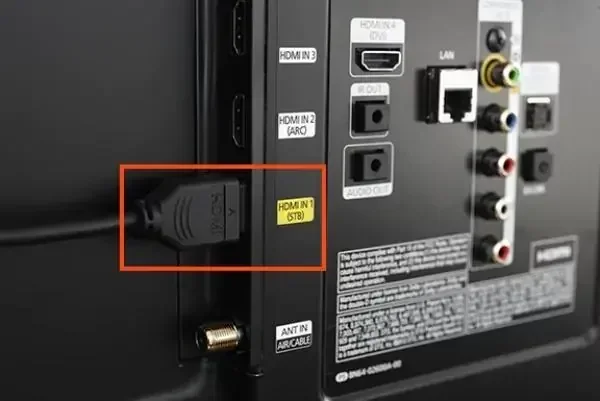
Many TVs and monitors have multiple HDMI ports. Not all of them work the same way. Some ports support certain features while others do not. If you plug your device into the wrong port, Netflix might not play through HDMI at all.
Check your TV manual or look for labels on the back of your screen. Some ports are labeled HDMI 1, HDMI 2, and so on. Try switching to a different port. This simple change often fixes the problem immediately. If you have an HDMI ARC port, that is usually best for audio and video together.
Resolution and Refresh Rate Mismatches
Your laptop or computer sends a signal at a specific resolution and refresh rate. If that signal does not match what your TV or monitor can handle, Netflix will not display correctly. You might get a black screen or a very blurry picture.
For example, if your laptop outputs at 4K but your TV only supports 1080p, you can run into problems. The same goes for refresh rates. A mismatch in refresh rate can cause Netflix to freeze or not play at all.
To fix this, change your display settings. On Windows, go to Settings > Display > Advanced Display. Lower the resolution or refresh rate temporarily. See if Netflix plays. If it does, you know the mismatch was the problem.
How to Fix Netflix HDMI Playback Issues
Now that you know the common causes, let us get into the fixes. These steps work for most situations where Netflix will not play through HDMI.
Step 1: Check Your Cable Connections
Start with the basics. Make sure the HDMI cable is firmly plugged into both your device and your TV or monitor. A loose connection is one of the most common reasons Netflix fails to play. Push the connector in until you feel it click.
Also, inspect the cable ends for dust or damage. Clean them gently with a dry cloth if needed. If you have tried this already, move to the next step.
Step 2: Restart Both Devices
Restarting sounds too simple, but it works. Turn off your laptop, TV, or streaming device. Unplug the HDMI cable from both ends. Wait at least thirty seconds. Then plug everything back in and turn the devices on.
This clears temporary glitches and resets the HDMI handshake. Many people fix their Netflix HDMI problem with just this one step. It is worth trying before anything else.
Step 3: Update Your Netflix App
An outdated Netflix app can cause playback problems. Developers release updates regularly to fix bugs and improve compatibility. If your app is old, it might not work well with HDMI output.
Open your app store or the Netflix website. Check for any available updates. Install them and restart the app. Then try playing Netflix again through HDMI. This fix is especially important if you have not updated in a while.
Advanced Fixes for Stubborn HDMI Problems
If the basic steps did not work, do not worry. There are more advanced solutions you can try. These address deeper issues that are less obvious but still very common.
Adjust Your Graphics Card Settings
Your graphics card controls what gets sent through the HDMI port. Sometimes its settings can block Netflix from playing. This is especially true if you have a dedicated GPU from NVIDIA or AMD.
On Windows, right-click your desktop and open your graphics control panel. Look for display output settings. Make sure the HDMI output is enabled and set to the correct resolution. Sometimes turning off features like GPU scaling helps Netflix play through HDMI again.
If you have noticed that your GPU spikes to 100 percent when trying to stream, that can also interfere with HDMI playback. High GPU usage can cause the HDMI signal to drop or fail. You might want to check why your GPU is running so high and address that first.
Check for HDCP Compatibility Issues
Some older devices do not support the latest HDCP version. When you connect a newer device to an older display, the HDCP handshake can fail. Netflix will then refuse to play because it thinks the connection is not secure.
To check this, look up the HDCP version supported by both your source device and your TV. If one device is much older, you might need an HDCP stripper or adapter. However, be careful with this. Using HDCP strippers can violate terms of service with Netflix. Try updating your devices first before going this route.
Change the Netflix Playback Quality
Sometimes the problem is not the HDMI connection at all. Netflix might be trying to stream at a quality your HDMI setup cannot handle. Lowering the playback quality can fix this.
Open Netflix in your browser. Go to Account > Playback Settings. Try lowering the streaming quality. Save your changes and restart Netflix. See if the video plays through HDMI now. This is a quick fix that many people overlook.
When to Replace Your HDMI Equipment
If you have tried everything and Netflix still will not play through HDMI, it might be time to replace some equipment. Not all HDMI cables and ports are created equal. Over time, they wear out or become outdated.
Here are signs it is time for new equipment:
- Your HDMI cable is visibly frayed or damaged.
- You have tried multiple cables and none work.
- Your TV or monitor is more than five years old.
- Other HDMI devices work fine but Netflix does not.
- You see a persistent HDCP error on every attempt.
Investing in a good quality HDMI cable makes a big difference. Look for cables that are certified for high speed and support the resolution you need. A new cable is a small cost that can save you a lot of frustration.
Also, consider the HDMI version. Older HDMI versions like HDMI 1.4 may not support newer Netflix features or higher resolutions. HDMI 2.0 or 2.1 is better for modern streaming. Check the specifications of your devices to make sure they are compatible.
Quick Tips to Prevent HDMI Netflix Problems
Prevention is always better than fixing. Here are some quick tips to keep your Netflix streaming smooth through HDMI:
- Always use a high-quality, certified HDMI cable.
- Keep your Netflix app and device software up to date.
- Avoid yanking or pulling the HDMI cable roughly.
- Store cables coiled loosely to prevent internal damage.
- Restart your devices once a week to clear temporary glitches.
- Check your display settings if you change your TV or monitor.
- Keep your devices in a cool, well-ventilated area to prevent overheating.
Following these simple habits will save you from the “why can’t I play Netflix through HDMI” frustration more often than not. A little prevention goes a long way.
Why GPU and CPU Issues Affect HDMI Streaming
Your computer’s processor and graphics card play a big role in HDMI streaming. If your GPU or CPU is under heavy load, it can affect the HDMI output. Netflix might stutter, freeze, or not play at all.
For instance, if your GPU keeps spiking to 100 percent, it might not be able to handle the HDMI output alongside other tasks. This can cause Netflix to fail when you try to cast it through HDMI. Similarly, if your CPU is running hot at idle, it can cause system instability that affects your HDMI connection.
Keeping your system clean and well-maintained helps HDMI streaming run smoothly. Close unnecessary apps while streaming. Check that your drivers are up to date. And make sure your computer is not overheating. These small steps make a big difference.
Expert Insight: The HDMI Handshake Explained
The HDMI handshake is the brief moment when two devices connect and agree on how to share the signal. It checks the resolution, the color depth, and the HDCP security. If any part of this process fails, Netflix will not play.
Think of it like a greeting between two people. If one person does not speak the same language, the conversation does not start. The same thing happens with HDMI devices. If they cannot agree on the settings, the connection fails and Netflix stays stuck on a black screen.
Understanding this helps you troubleshoot more effectively. When Netflix will not play through HDMI, the handshake failed somewhere. Your job is to figure out where and fix it. Most of the time, it is as simple as replugging the cable or changing a setting.
If you are using a laptop, make sure the HDMI port is set to output the display signal. Some laptops have function keys that toggle between internal and external displays. Press the right key combination and your HDMI output should activate properly.
Also, keep in mind that browser-based Netflix can behave differently than the app version. If you watch Netflix in a browser like Opera GX, the browser itself might use a lot of CPU resources. This can interfere with HDMI playback. Consider using the Netflix app instead for a smoother experience through HDMI.
Conclusion
Dealing with Netflix not playing through HDMI is annoying but rarely a serious problem. In most cases, a simple fix like replugging the cable, changing a setting, or updating the app solves everything. The key is to work through the possible causes one by one, starting with the simplest ones.
Remember the HDMI handshake, check your cable quality, and make sure your devices are compatible. If you follow the steps in this guide, you will get Netflix playing on your TV or monitor again in no time. Do not let a small HDMI issue ruin your movie night. Try these fixes and get back to streaming.
The next time you ask yourself “why can’t I play Netflix through HDMI,” you will already know what to do. You have the knowledge and the steps to fix it yourself. Happy streaming.
Frequently Asked Questions
Why does Netflix show a black screen when I play it through HDMI?
A black screen usually means the HDMI handshake failed or the HDCP security check did not pass. Try unplugging the HDMI cable from both devices, waiting ten seconds, and plugging it back in. This resets the connection and often fixes the black screen issue right away.
Can a bad HDMI cable stop Netflix from playing?
Yes, a damaged or outdated HDMI cable can prevent Netflix from playing through HDMI. If the cable cannot carry the signal properly, you will see a blank screen or no audio at all. Try a new high-speed HDMI cable to rule out this simple cause.
How do I fix HDCP errors when streaming Netflix through HDMI?
The fastest fix is to disconnect the HDMI cable from both devices and reconnect it after a few seconds. If that does not work, check that both your source device and TV support the same HDCP version. Updating your device software can also resolve HDCP compatibility problems.
Does the HDMI port I use on my TV matter for Netflix?
Yes, it does matter. Some HDMI ports on your TV support specific features while others do not. Try switching to a different HDMI port, especially one labeled ARC or HDMI 2.0. This can often fix Netflix playback issues through HDMI.
Why does Netflix work on my laptop screen but not through HDMI?
This usually happens when the display output settings are not configured correctly. Your laptop might be set to mirror or extend the display in a way that conflicts with HDMI playback. Check your display settings and make sure the HDMI output is active and set to the right resolution.
Do I need a special HDMI cable to stream Netflix in 4K?
Yes, you need a high-speed HDMI cable that supports 4K resolution and HDR. Standard HDMI cables may not handle the bandwidth required for 4K Netflix streaming. Look for cables labeled Premium High Speed or HDMI 2.0 or higher for the best results.